Whether you're creating tutorials, recording gameplay, capturing online meetings, or producing presentations, a reliable Windows 11 screen recorder with audio is essential. Recording both video and sound ensures your audience receives the complete experience. In this guide, we'll explore the best Windows 11 screen recorder with audio and Windows 11 screen recorder with sound options, along with practical steps to help you record high-quality videos effortlessly.
Does Windows 11 Have a Screen Recorder with Audio?
Yes. Windows 11 comes with built-in tools that can record your screen and audio. However, their capabilities vary depending on the tool you use.
1. Xbox Game Bar
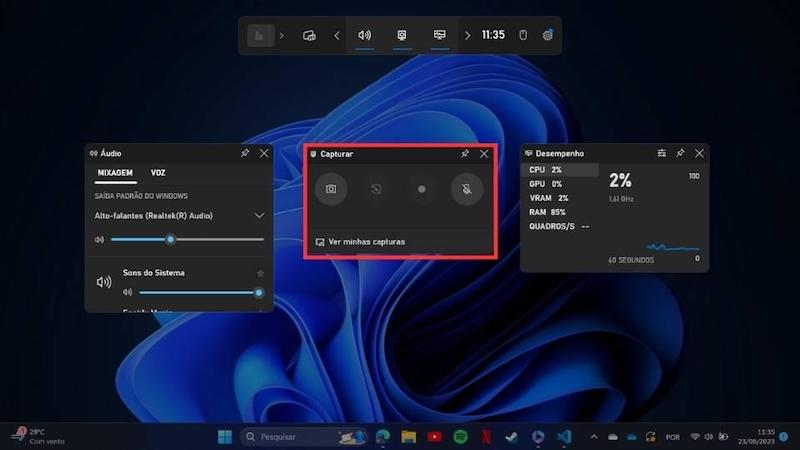
Xbox Game Bar is Microsoft's built-in screen recording tool primarily designed for gamers. It allows users to record applications, gameplay, and audio without installing additional software.
Xbox Game Bar supports:
- Record in-game sound effects, music, and application audio through system audio capture
- Capture microphone input for voice commentary, narration, or team communication
- Use customizable keyboard shortcuts to start, pause, resume, and stop recordings instantly
- Record gameplay footage from supported games without installing additional software
- Monitor and adjust audio input levels directly within the recording interface
- Save recordings automatically for quick access and sharing after gameplay sessions
- Capture high-quality video suitable for tutorials, highlights, and walkthroughs
Advantages
- Free and pre-installed
- Easy to use
- Supports audio recording
Limitations
- Cannot record the desktop or File Explorer
- Limited audio controls
- No built-in video editor
- Basic recording settings
2. The Snipping Tool
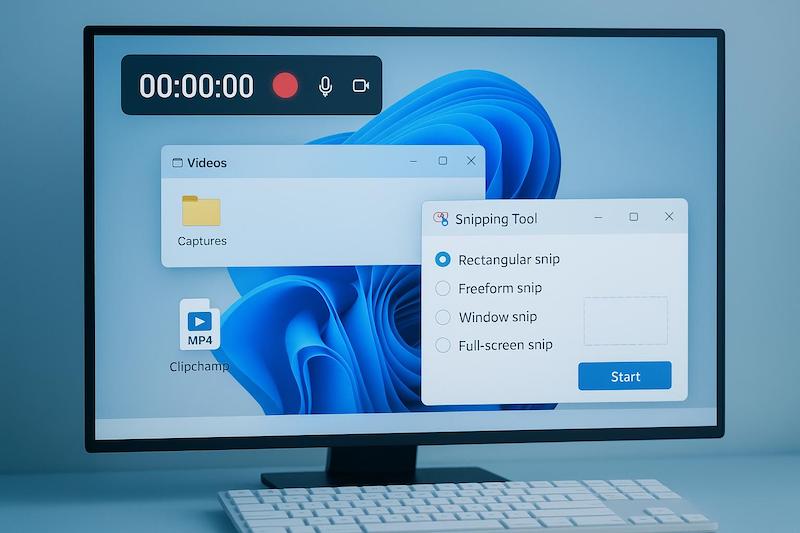
Windows 11's Snipping Tool now includes a built-in screen recording feature that lets users capture selected areas of their screen without installing extra software. It is ideal for quick demonstrations, tutorials, or sharing visual information, offering a simple interface and basic recording capabilities for everyday use.
The latest versions support:
- Screen recording
- Microphone audio recording
- Easy sharing
Pros
- Built into Windows 11
- Simple interface
- No installation required
Cons
- Limited recording customization
- Basic audio controls
- No advanced editing features
While these tools work well for occasional recordings, dedicated screen recording software provides more flexibility and better audio quality.
Why Use a Dedicated Windows 11 Screen Recorder with Sound?
Built-in tools are convenient, but dedicated screen recorders offer significantly more features over built-in tools, making them a better choice for users who need more flexibility and higher-quality recordings. Some of the main reasons include:
- Better audio quality with enhanced system sound and voice recording
- The ability to record system audio and microphone input simultaneously
- Support for higher video quality, including HD, 1080p, and 4K recording
- Webcam recording features for tutorials, presentations, and reaction videos
- Built-in editing tools for trimming, cutting, and improving recordings without extra software
Best Windows 11 Screen Recorder with Audio
Several excellent screen recording solutions are available for Windows 11. Here are some of the best options.
iTop Screen Recorder (Recommended)
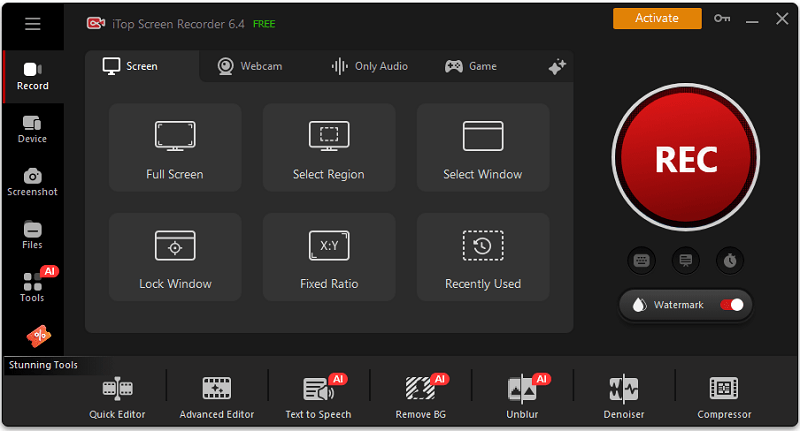
iTop Screen Recorder is a powerful Windows 11 screen recorder with audio that combines ease of use with professional recording features. It allows users to record screen activity, system sound, microphone input, and webcam footage simultaneously. The software is suitable for tutorials, gameplay videos, online meetings, presentations, and content creation.
Key Features:
- Record System Audio and Microphone: Capture internal computer sound and microphone narration simultaneously for tutorials, meetings, and gameplay. For example, screen record Zoom meeting.
- HD, 1080p, and 4K Recording: Record videos in multiple resolutions, including high-definition and ultra-high-definition quality. That makes it also great to screen record Instagram DM.
- AI Noise Reduction: Automatically reduce background noise and improve voice clarity for cleaner audio recordings.
- Webcam Overlay Recording: Add webcam footage over screen recordings to create engaging presentations and tutorials.
- Hardware Acceleration: Use GPU resources to improve recording performance and reduce system load. This is helpful when you screen record TikTok live.
- Built-In Video Editor: Trim, cut, and enhance recordings directly within the software.
- Screenshot and Quick Capture Tools: Take screenshots and instantly capture important screen activities with ease. Whether to screenshot on WhatsApp or other apps, this screen recorder makes it easier than before.
Pros
- Easy to use
- Records system audio and microphone
- Supports HD, 1080p, and 4K recording
- AI noise reduction
- Webcam recording
- Built-in video editor
- Scheduled recording and screenshots
- Hardware acceleration for smoother performance
Cons
- Fewer advanced settings than OBS Studio
- Can use more system resources during high-quality recording
- Basic editing tools
- Some recording and export options are limited in the free version
OBS Studio
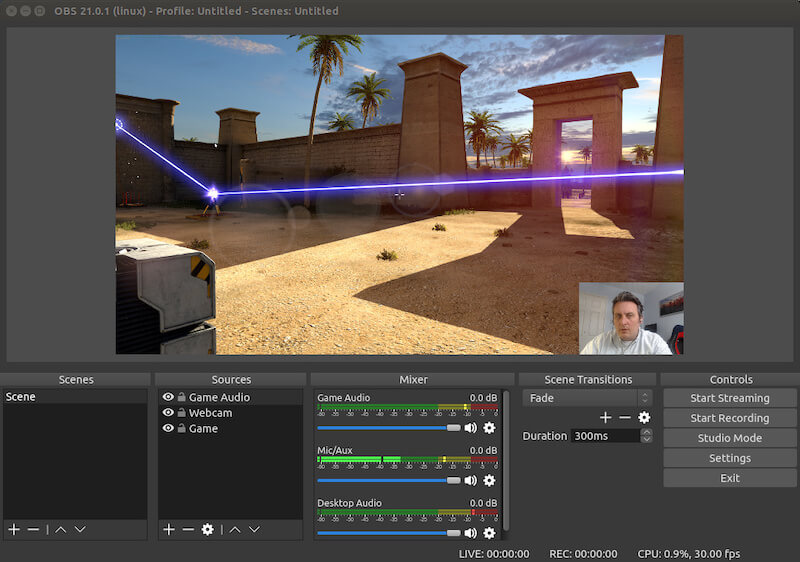
OBS Studio is one of the most popular free screen recording and live streaming tools available today. It offers advanced audio controls that allow users to manage multiple audio sources, adjust volume levels, and apply filters for improved sound quality. The software also supports high-quality video recording, customizable scenes, and extensive streaming features, making it a favorite among content creators and professionals.
Pros
- Completely free
- Powerful audio mixer
- Supports multiple audio tracks
- Excellent streaming capabilities
- Highly customizable
Cons
- Steep learning curve
- Complex setup process
- No built-in editor
ShareX
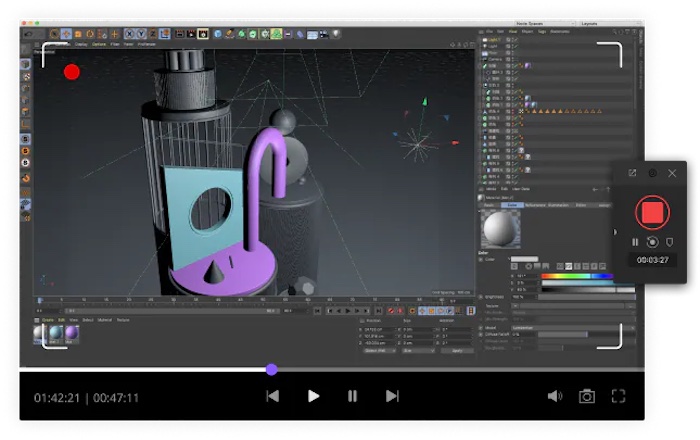
ShareX is a lightweight, open-source laptop screen recorder with audio for Windows 11 that also includes powerful screenshot, file-sharing, and workflow automation features. It offers basic audio recording capabilities, customizable capture options, and support for various export formats. Its flexibility makes it a popular choice for users who want a free, efficient solution for screen recording and content sharing.
Pros
- Free and open source
- Lightweight performance
- Fast screen capture tools
- Automation features
Cons
- Limited audio controls
- Minimal editing options
- Less beginner-friendly
Camtasia
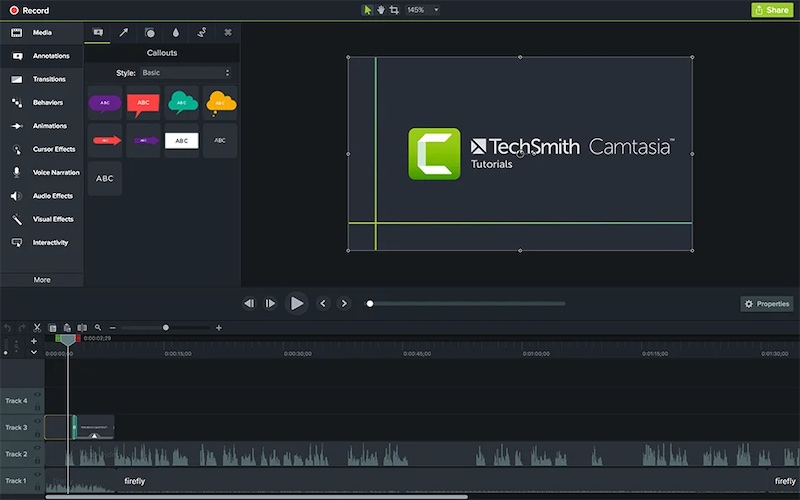
Camtasia is a premium screen recording and video editing software designed for professional users. It excels at creating training videos, educational content, and business presentations. The platform combines powerful recording capabilities with an intuitive editor, allowing users to add annotations, transitions, effects, and interactive elements to produce polished, professional-quality videos.
Pros
- Professional editing tools
- High-quality audio capture
- Easy-to-use timeline editor
- Extensive effects library
Cons
- Expensive subscription
- Higher system requirements
- Overkill for casual users
How to Use a Windows 11 Screen Recorder with Audio
In this section, we’ll focus on using iTop Screen Recorder, a user-friendly Windows 11 screen recorder with audio free that lets you capture your screen, system sound, and microphone simultaneously. Whether to record TV shows or tutorials, iTop Screen Recorder provides an easy and reliable way to create high-quality recordings with synchronized audio.
Step 1. Download and install iTop Screen Recorder on your computer, then launch it.
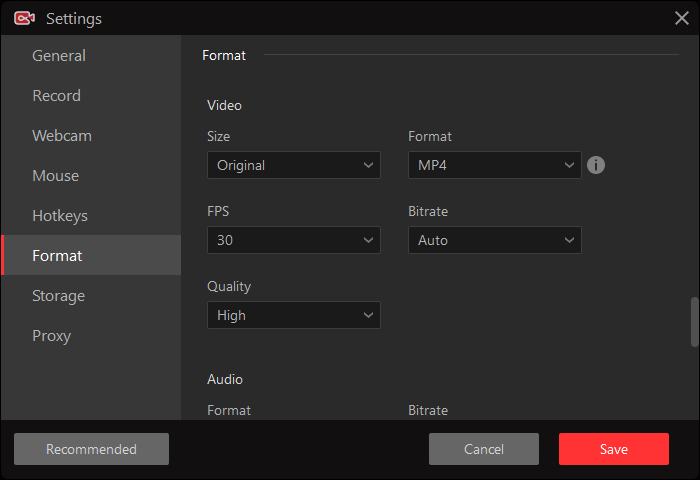
Step 2. Click Settings to configure video quality and format, frame rate, hotkeys, mouse effects, and other preferences.
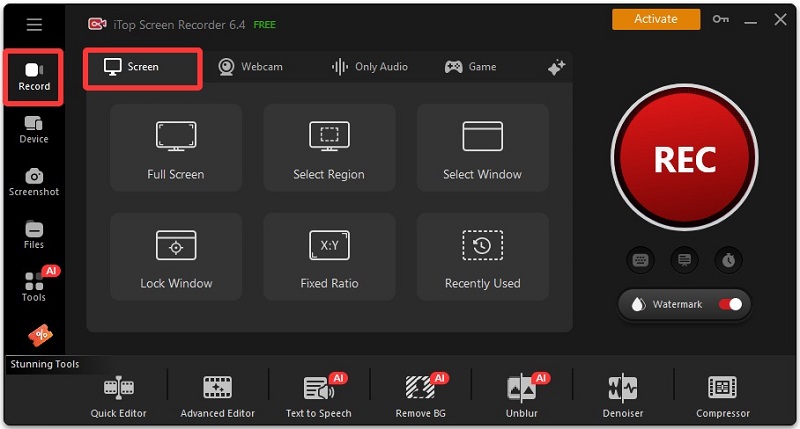
Step 3. Select the recording mode.
- Go to the Record tab and choose Screen.
- Select whether you want to record: full screen, a specific window, or a custom region of the screen.
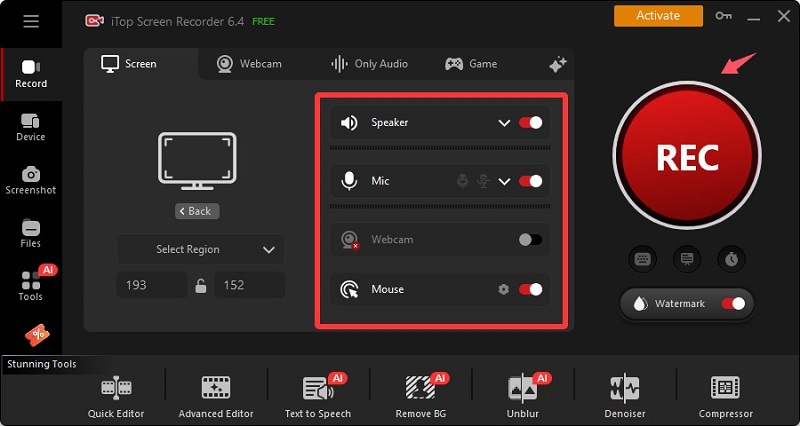
Step 4. Enable audio recording.
- Turn on the Speaker to capture system audio (sounds from your computer).
- Turn on the Microphone if you also want to record your voice.
- You can enable either one or both, depending on your needs.
- Click the red REC button to start recording.
- Click the Done/Stop button on the floating toolbar, or press F9 (Windows 11 screen recorder with audio shortcut key)
Built-in Screen Recorder vs Third-Party Screen Recorder
Now that we've explored the available recording options and their features, it's helpful to compare Windows 11's built-in tools with dedicated third-party screen recorder. Understanding the differences can help you choose the right solution based on your recording needs, desired audio quality, and level of control.
Feature |
Windows Built-in Tools |
Third-Party Recorders |
System Audio Recording |
Limited |
Yes |
Microphone Recording |
Yes |
Yes |
Webcam Recording |
Limited |
Yes |
Video Editing |
No |
Yes |
Advanced Audio Controls |
No |
Yes |
4K Recording |
Limited |
Yes |
Conclusion
A reliable Windows 11 screen recorder with audio is essential for creating tutorials, gameplay videos, online courses, presentations, and meeting recordings. Although Windows 11 includes built-in recording tools, dedicated screen recorders provide better audio quality, advanced controls, webcam support, and editing features.
Among the available solutions, iTop Screen Recorder stands out as an excellent choice for users who want to record screen activity, system sound, microphone audio, and webcam footage with minimal effort. Download iTop Screen Recorder today and start creating professional-quality recordings on Windows 11.