Podcasting has become one of the best ways to share stories, build a brand, and connect with audiences worldwide. If you’re wondering how to record on Podbean, the good news is that the platform makes podcast recording simple for beginners and experienced creators alike.
In this guide, you’ll learn how to record on Podbean using its built-in recorder on desktop and mobile devices. We’ll also show you how to use iTop Screen Recorder to create higher-quality audio and video podcasts with more flexibility and editing features.
Whether you want to launch your first podcast or improve your current workflow, this step-by-step tutorial will help you get started quickly.
What You Need Before Recording a Podcast on Podbean
Before you begin recording, there are a few essentials you should prepare to ensure your podcast sounds professional.
1. Create a Podbean Account
First, sign up for a Podbean account. The platform offers both free and paid plans depending on your storage and hosting needs. Once your account is ready, you can access Podbean’s podcast recording and publishing tools directly from your dashboard.
2. Prepare Your Podcast Equipment
You don’t need a professional studio to create a podcast, but a few tools can significantly improve audio quality:
- USB microphone
- Headphones
- Stable internet connection
- Quiet recording environment
- A decent microphone alone can make your podcast sound much more polished.
3. Decide Between Audio and Video Podcasts
Podbean supports both audio and video podcasts. Audio podcasts are easier to produce, while video podcasts can help you grow faster on platforms like YouTube and Spotify.
If you plan to record interviews, webinars, or webcam content, using dedicated software like iTop Screen Recorder can give you better results.
How to Record on Podbean Using the Built-In Recorder
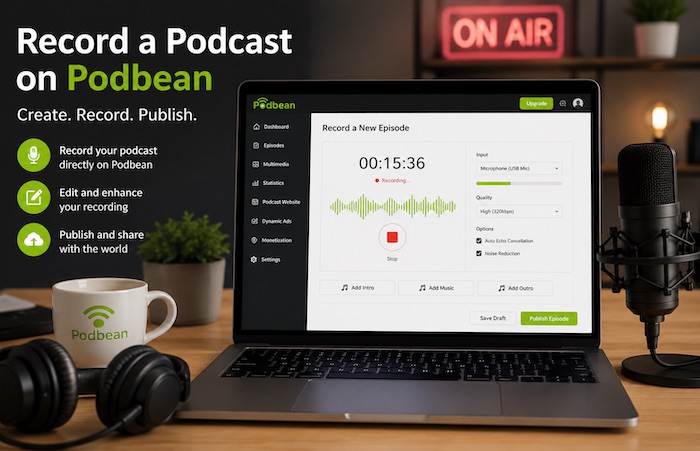
How to record a podcast on Podbean? Podbean includes a built-in podcast recorder that allows you to create episodes directly from your mobile device. If you’re searching for how to record on Podbean on phone or how to record on Podbean on Android, here’s the answer.
Step 1. Install the Podbean app on your iPhone or Android device.
Step 2. Log in to your account using your Podbean credentials.
Step 3. Inside the app, tap “Record” to start creating your podcast episode.
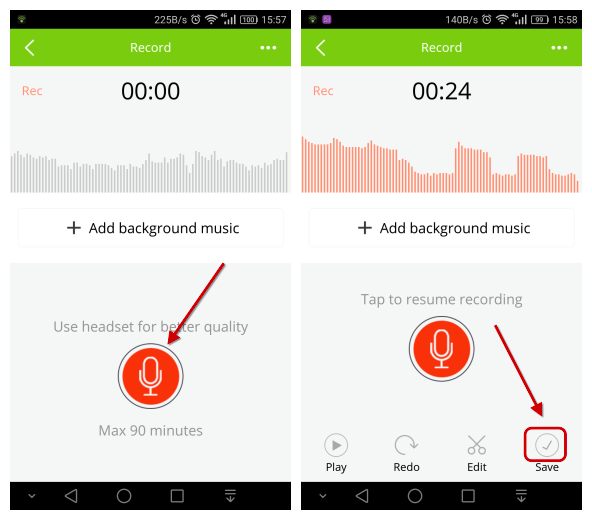
Step 4. Podbean includes basic editing features, such as background music and sound effects.
Step 5. Once finished, save your recording and upload it directly to your podcast channel.
Tips for Better Podcast Recording Quality
No matter which recording method you choose, these tips can improve your podcast dramatically.
- Record in a quiet room and avoid echo-heavy spaces.
- Use headphones to prevent audio feedback and echo during interviews.
- Having a simple outline keeps your episodes focused and engaging.
- Always record a short test clip before starting a full episode.
- Checking audio levels early can save hours of editing later.
Common Problems When Recording on Podbean
Although Podbean makes podcast recording simple, users may still encounter issues such as microphone errors, audio lag, echo, or recording failures. Understanding these common problems and knowing how to fix them can help you avoid interruptions and create smoother, higher-quality podcast recordings.
Below, we’ll cover the most frequent Podbean recording issues and the best solutions to resolve them quickly.
Problem 1: Podbean Recording Recorder Not Working
Fix: Restarting your browser often resolves the problem.
Problem 2. Audio Echo or Lag
Fix: Use headphones during recording and avoid recording through laptop speakers.
Problem 3. Low Microphone Volume
Fix: Increase microphone gain settings or move closer to your microphone.
Best Podbean Alternative to Record a Podcast Free
Although Podbean’s built-in recorder is useful, many podcasters prefer external software for better control, improved audio quality, and advanced recording features. iTop Screen Recorder is an excellent solution for recording podcasts, especially if you create video content or remote interviews.
Here are some major advantages of using iTop Screen Recorder:
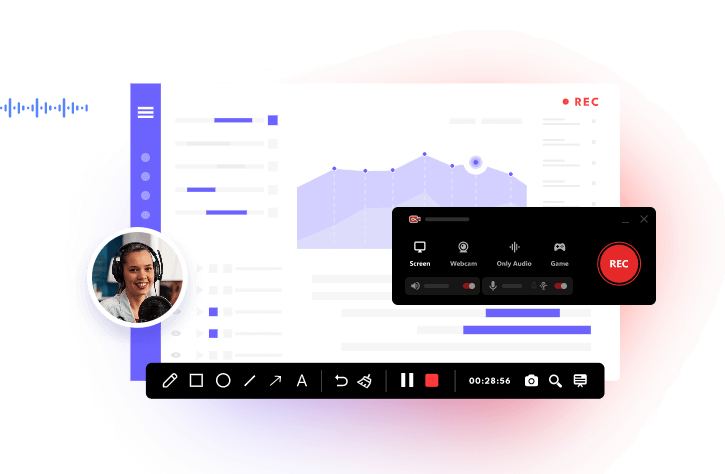
- Record podcasts in HD quality
iTop Screen Recorder allows users to record podcasts in high-definition quality, ensuring clear audio and sharp video output. This is especially useful for creators publishing video podcasts on platforms like YouTube or Spotify. That also makes it great to screen record Instagram DM.
- Capture webcam and microphone simultaneously
The software can record both your webcam feed and microphone audio at the same time. This makes it ideal for face-to-face podcast interviews, reaction podcasts, and personal branding content. Also, you can use it to screen record Zoom meeting.
- Reduce background noise automatically
The screen recorder’s built-in noise reduction features help eliminate keyboard sounds, fan noise, and other distractions. This improves audio clarity and gives podcasts a more professional sound without requiring advanced editing skills.
- Export recordings in MP3 or MP4 formats
After recording, users can save files in popular formats like MP3 for audio podcasts or MP4 for video podcasts. These formats are widely supported by podcast hosting platforms, including Podbean. That is to say, you can also record TikTok live and upload it to any platform.
Steps to Record a Podcast with iTop Screen Recorder
Step 1. Install iTop Screen Recorder on your Windows PC after downloading it from the official source.
Step 2. Launch the program and choose the “Only Audio” mode on the main interface.
Enable “Microphone” to capture your voice, and activate “Speaker” if you also want to record system sounds. You can additionally enable the Voice Changer feature and change your voice.
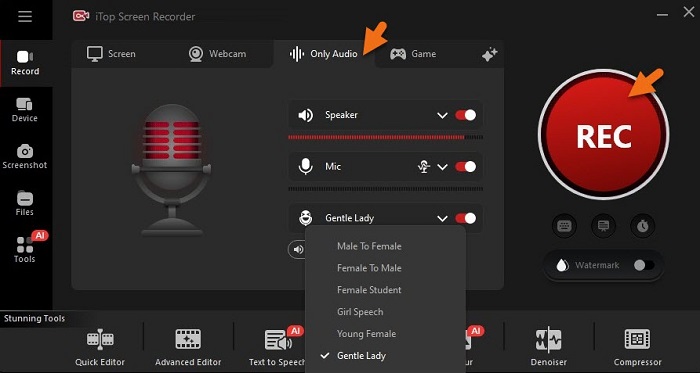
Step 3. To start recording, you can click the red “REC” button or use the F9 key.
Step 4. Save and Export
Once finished, press the red stop button on the floating toolbar. Your recording will be saved automatically under Files > Audio. Once exported, upload the finished recording to Podbean and publish your episode.
FAQs About Podbean Recording
1. Can You Record Directly on Podbean?
Yes. Podbean offers built-in recording tools for desktop and mobile users.
2. Is Podbean Good for Beginners?
Absolutely. Podbean is beginner-friendly and includes podcast hosting, publishing, and recording tools in one platform.
3. Can I Record Video Podcasts on Podbean?
Yes, although advanced video recording features are more limited compared to dedicated recording software.
4. What Is the Best Software for Recording Podcasts?
It depends on your needs. Podbean works well for simple recording, while iTop Screen Recorder offers more advanced recording and editing capabilities.
Final Thoughts
Learning how to record on Podbean is easier than ever thanks to its beginner-friendly recording tools and mobile app support. Whether you’re creating a simple audio podcast or a full video show, Podbean provides an accessible way to publish your content online.
For creators who need more flexibility, webcam recording, screen capture, or enhanced audio quality, iTop Screen Recorder is a powerful alternative that can improve your podcast production workflow significantly. Now, download iTop Screen Recorder to start creating your first episode and sharing your voice with the world.