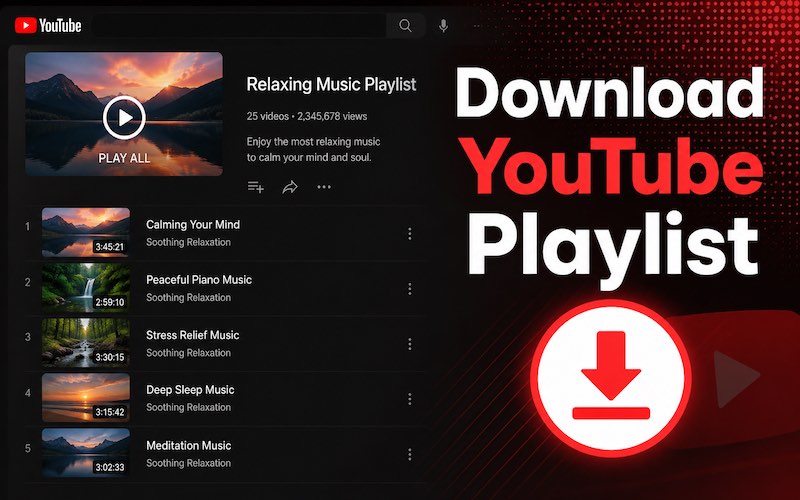
YouTube hosts an incredibly vast collection of playlists, ranging from music videos, podcasts, to educational lessons, tutorials. In addition to enjoying interesting playlists online, most people would like to download YouTube playlist for offline viewing with internet connection or content creation.
Luckily, there are a set of ways (both official and third-party tools) can help you save favorite playlists from YouTube. Now, let’s walk you through how to download playlist from YouTube to MP3/MP4 on computers and mobiles.
Disclaimer: Please DO NOT downloading any copy-protected playlist from YouTube for illegal distraction or re-production. Always follow the law in your region and YouTube’s terms of service to avoid copyright infringement.
Can You Download a YouTube Playlist Officially?
Yes, YouTube offers an official way to download playlists through YouTube Premium. However, there are some restrictions users should know before relying on this method. Note that this feature works on Android, iPhone, and tablets.
- Offline downloads only work inside the YouTube app
- Downloads expire if you do not reconnect to the internet periodically
- Files cannot be transferred as MP4 or MP3
- Requires an active Premium subscription
To get rid of these limitations of YouTube Premium, many users prefer using a reliable third-party tool to download YouTube playlists to MP3 or MP4 for free on computers.
How to Download YouTube Playlist on PC
If you want more control over downloading YouTube playlists, using a PC is often the best option. Compared with mobile devices, computers support more powerful tools that can save entire playlists in higher quality, faster speeds, and multiple formats. In this section, we'll focus on two practical methods: using a free YouTube playlist downloader for direct downloads, and using iTop Screen Recorder to record YouTube playlists when downloading is restricted or unavailable.
Method 1. How to Download YouTube Playlist Free with a Dedicated Downloader
YouTube playlist downloader is specifically designed for downloading playlists, channels, or individual videos in bulk. It often lets you choose video quality, audio format, and download location. Among many options, 4K Video Downloader is one of the most popular options. With it, you can save YouTube videos, playlists, and music whenever and wherever you want.
Here are the steps to use it.
Step 1. Download and install 4K Video Downloader on your computer.
Step 2. Open YouTube in your web browser, navigate to the playlist you wish to download. Copy the URL from the address bar.
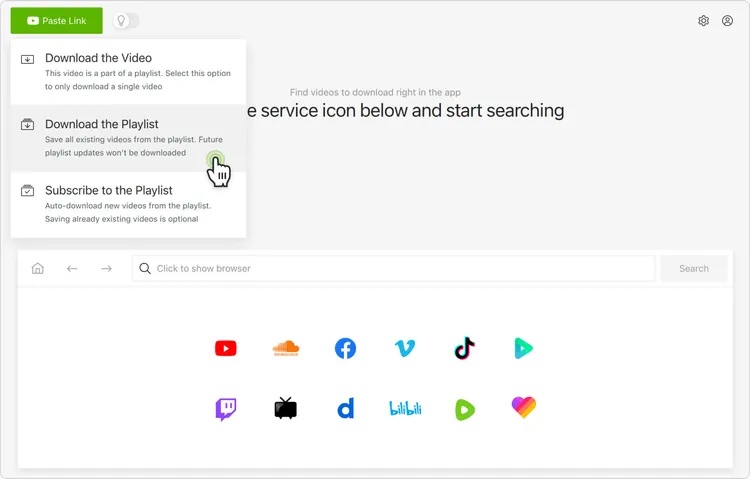
Step 3. Open the 4K Video Downloader and click the Paste Link button in the top-left corner.
Step 4. A dialog box will appear asking if you want to download a single video or the entire playlist. Select Download Playlist.
Step 5. Choose your preferred format (e.g., MP4) and quality (e.g., 1080p, 4K) in the window that appears and click the Download button.
Method 2. How to Record a YouTube Playlist with iTop Screen Recorder
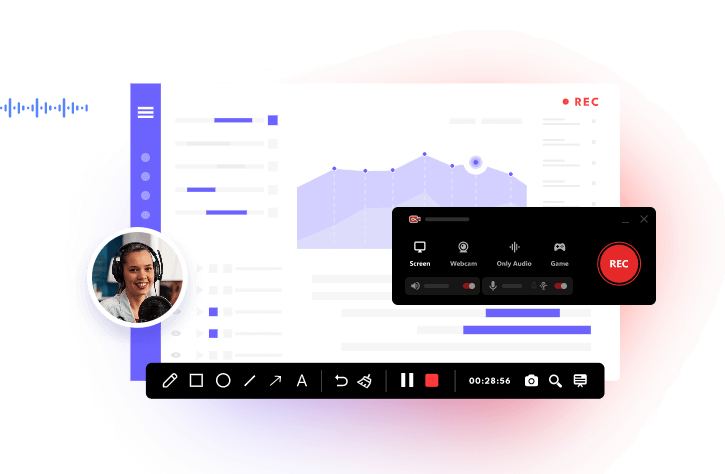
If the YouTube playlist downloader doesn’t work, screen recording is another effective solution. iTop Screen Recorder allows you to record YouTube playlists while capturing both system audio and video smoothly. It boasts creating original-quality results with vivid image and vibrant colors. As a free screen recorder no time limit, it allows you to record whole playlists without distraction. What’s more, it offers the "Only Audio" mode to save YouTube music playlists to MP3 with Hi-fi sounds.
If you encounter "not downloading" issues for the content is protected, the screen recorder can bypass block and rip playlist from YouTube seamlessly.
1. Download and launch iTop Screen Recorder on your computer.
2. Open your YouTube playlist in a browser (Chrome, Edge, etc.).
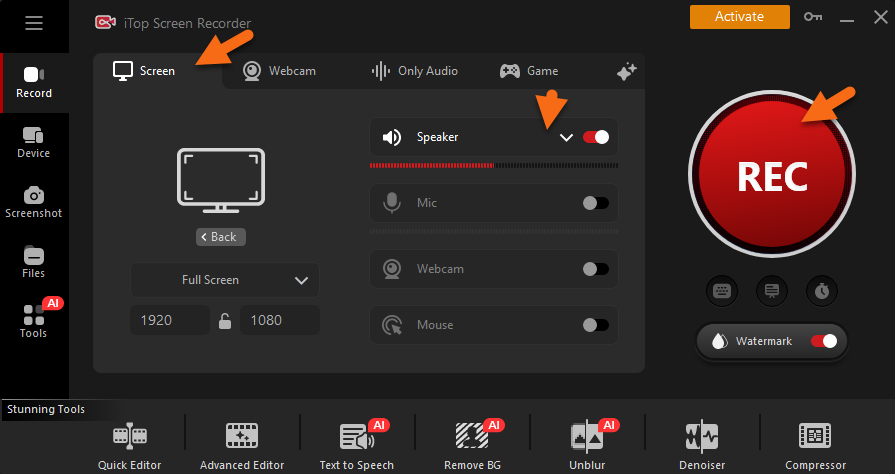
3. Open iTop Screen Recorder. Go to Record > Screen. Select recording area and turn on Speaker to record the YouTube playlist with audio. Click "REC" to start recording.
4. If you want to save YouTube music playlist to MP3, go to Record > Only Audio. Turn on Speaker and click "REC".
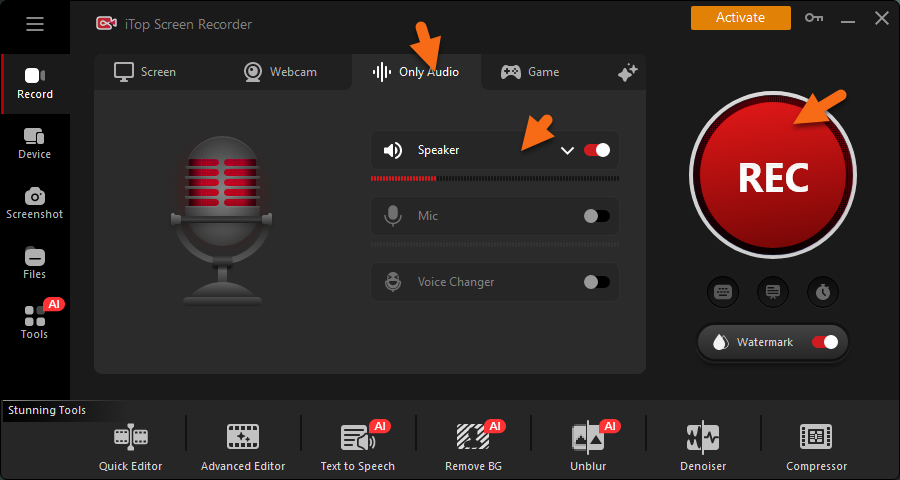
5. Click the "Stop" button on the control bar when you want to stop recording. The resulting file is saved to Files > Video or Audio, where you can get access to the built-in editor to enhance your recordings.
How to Download YouTube Playlist Free with Online Tools
If you don't want to install additional software, online YouTube playlist downloaders can be a quick and convenient alternative. These web-based tools allow you to download YouTube playlists directly from your browser by simply pasting the playlist URL. They are especially useful for casual users who only need occasional downloads on Windows, Mac, Android, or iPhone.
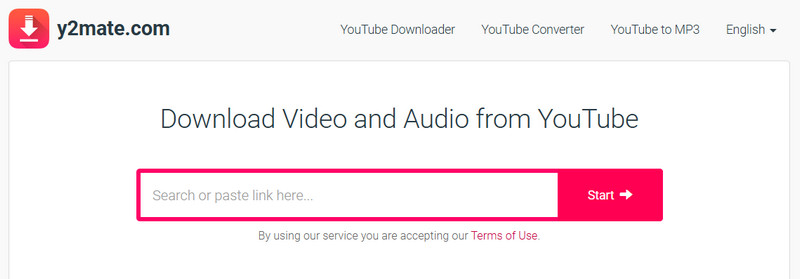
Here are the steps of how to download YouTube playlist via Y2Mate, a popular free online downloader.
Step 1. Copy the YouTube playlist URL and open the online downloader you selected.
Step 2. Paste the playlist link and select the format you want.
Step 3. Click Download to save the playlist to your computer.
In addition to online tools, you can also download YouTube playlist using Chrome extension, which works similarly to online tools. All you need is to search for a reliable extension and add it to your Chrome, then let it help you download YouTube playlist.
How to Download YouTube Playlist on Phones
How to download YouTube music playlist to your phone? If you prefer downloading YouTube playlists directly on your phone, Android offers several convenient options. You can use the official YouTube app with Premium or rely on third-party downloader apps and browser tools for more flexible MP3 and MP4 downloads.
How to Download YouTube Playlist on Android
Compared to desktop methods, Android playlist downloading is portable, simple, and ideal for offline viewing during travel, commuting, or workouts. Here’s how to download a YouTube playlist on Android step by step.
Method 1. Download with YouTube Premium
Step 1. Open the YouTube app on your Android device.
Step 2. Sign in to your YouTube Premium account.
Step 3. Search for the playlist you want to save.
Step 4. Open the playlist page.
Step 5. Tap the Download button below the playlist title.
Step 6. Select your preferred video quality and wait for the playlist to finish downloading.
Step 7. Access downloaded videos from Library > Downloads.
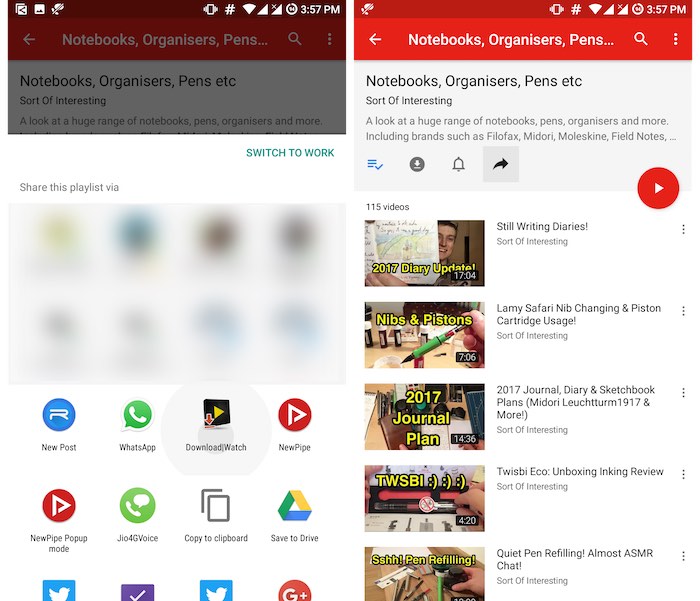
Method 2. Download with a Third-Party Downloader
Step 1. Open YouTube and copy the playlist URL.
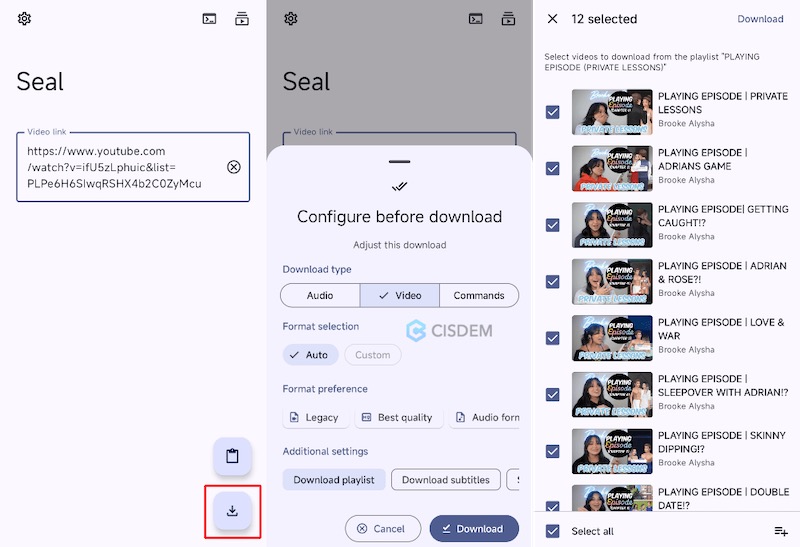
Step 2. Install a trusted playlist downloader app or open an online downloader website. Good options include Seal or Videoder. Let’s take Seal as an example.
Step 3. Download Seal APK from https://github.com/JunkFood02/Seal?tab=readme-ov-file and install it on Android.
Step 4. Launch this app and paste the copied YouTube playlist link into the video link field. Tap the download icon in the bottom right corner.
Step 5. Adjust the settings. Select "Video" as the download type and “Legacy” as the preferred video format. Select "Download playlist" under additional settings.
Step 6. Tap "Download".
How to Download YouTube Playlist on iPhone
If you’re using an iPhone, downloading a YouTube playlist works a bit differently than on Android, but the idea is the same—you’re saving multiple videos at once for offline viewing. The key requirement is that you use the official YouTube app, and in most cases, you’ll need YouTube Premium to download full playlists.
Step 1. Open the YouTube app on iPhone. Make sure you are signed in to your Google account.
Step 2. Go to the playlist you want to download.
Step 3. Tap on the playlist so you can see all the included videos.
Step 4. Look for the Download icon under the playlist title or in the options menu (⋯).
Step 5. Select your preferred resolution (such as 360p, 720p, or higher, depending on availability).
Step 6. The app will start saving all videos in the playlist automatically.
Common Problems When Downloading YouTube Playlists
Even though downloading YouTube playlists is usually straightforward, users can still run into several issues during the process. Problems like missing download buttons, failed downloads, storage limitations, or unsupported videos are quite common—especially when using different devices or third-party tools. Understanding these issues and their fixes in advance can help you troubleshoot quickly and avoid interruptions while saving your favorite playlists for offline viewing.
1. Playlist Not Parsing Correctly
- Refresh the playlist page
- Copy the full playlist URL again
- Update your downloader software
2. Download Speed Is Too Slow
- Use a stable internet connection
- Pause background downloads
- Switch to desktop software
3. Videos Cannot Be Downloaded
- Some videos may be private or restricted
- Age-restricted videos may require a login
4. Audio and Video Out of Sync
- Re-download the file
- Use another format
- Update your media player
5. Downloaded Files Not Playing
- Install updated codecs
- Use VLC Media Player
- Reconvert corrupted files
FAQs of YouTube Playlist Download
Can I download an entire YouTube playlist at once?
Yes, many playlist downloaders support batch downloading for full playlists.
What is the best YouTube playlist downloader?
Desktop software like 4K Video Downloader is often considered one of the best options for speed and stability.
Can I download YouTube playlists as MP3?
Yes, many downloaders allow playlist-to-MP3 conversion.
Is downloading YouTube playlists safe?
It depends on the downloader you use. Trusted software and reputable websites are generally safer.
Is It Legal to Download YouTube Playlists?
Downloading YouTube playlists for personal offline viewing is generally tolerated in some cases, especially through YouTube Premium. However, redistributing copyrighted videos without permission may violate YouTube’s Terms of Service and copyright laws.
Conclusion
How to download YouTube playlist? With YouTube premium, you can download available playlists officially, legally, and safely on mobiles. On the other hand, desktop and online YouTube downloaders help download YouTube playlist free as MP3/MP4 on computer simply and efficiently. But for protected videos, it is highly suggested to record a YouTube playlist seamlessly with iTop Screen Recorder. It ensures high-quality video/audio and enable you to edit the screen recording or better viewing experience and sharing.

Record Live and Streaming Videos in One Click
- Record TV shows, movies, live sports from any site.
- Record videos and live streams without quality loss.
- Record from YouTube, Netflix etc., without black screen.
- Record with mic/webcam to create reaction videos.