People might want to screenshot Pinterest for various reasons, including documenting important instructions, saving funny or memorable messages, providing evidence of issues or interactions, and more. Whatever your purposes, can you take a screenshot on Pinterest? The answer is absolutely YES. Pinterest allows people to screenshot for private inspiration gathering. But does it notify the uploader when you screenshot?

Does Pinterest Screenshot Notification When You Screenshot?
No, Pinterest does not notify users when you screenshot a Pin or their profile. The action is private and happens on your device, so the creator is not alerted. Pinterest's privacy focuses on allowing users to gather inspiration without creating social pressure, meaning you can save images freely. This is similar for some SNS and dating apps, e.g., Grindr will not notify users when you screenshot Grindr. However, the images on Pinterest are often copyrighted, so you’d better not redistribute the images you screenshot without permission. Here are some quick tips for screenshotting Pinterest. Now, let’s see how to screenshot Pinterest.
Quick Tips to Screenshot Pinterest on a Computer or Mobile Phone
If you've ever tried downloading photos from Pinterest, you'll know that not all photos on Pinterest are downloadable. Some are protected by copyright, and the uploader prohibits downloading. That’s why some users want to take a Pinterest screenshot to save the photos.
Additionally, screenshot Pinterest is also the best solution to quickly share information like the creator's name, likes, and other details of a Pin. Whatever you want to do with a Pinterest screenshot, you can use your device’s standard screenshot functions to capture Pinterest images. Here are the steps.
1. On a Windows Computer
Step 1. Press the Windows key + Shift + S button on your keyboard.
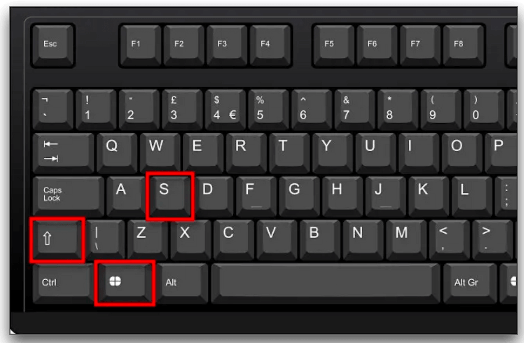
Step 2. Click and drag the cursor to select the area you wish to capture.
Step 3. Open a photo editing software like Photoshop and Paint. Press Ctrl + V to paste the image you screenshot.
2. On a Mac
Step 1. Press Command + Shift + 4 to turn your cursor into a crosshair.
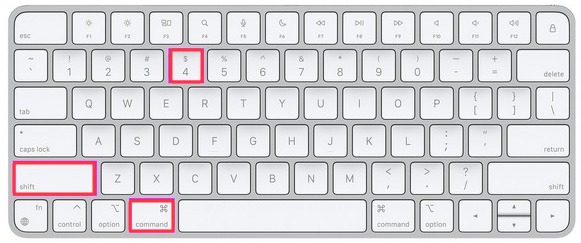
Step 2. Click and drag to select the area on Pinterest you wish to capture.
Step 3. The picture you captured will be stored on your desktop.
3. On an iPhone/iPad
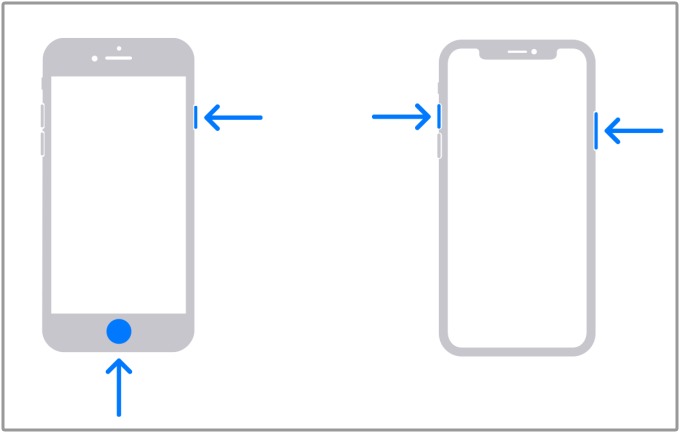
- Screenshot Pinterest iPhone/iPad without a Home button: Press Volume Up and Power keys at the same time.
- Screenshot Pinterest iPhone/iPad with a Home button: Press the Power button and Home button simultaneously.
This also works perfectly when you want to screenshot WhatsApp and other instant messaging apps.
4. On an Android Device
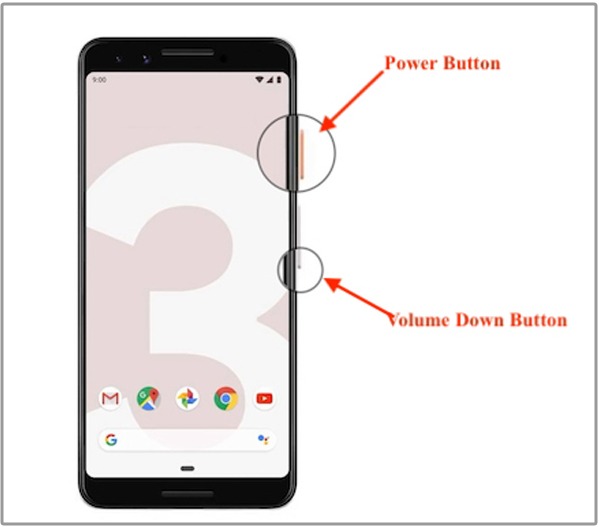
Press the Power + Volume Down keys at the same time. If it doesn’t work, then you can press and hold the Power key for several seconds, then select Screenshot.
As you can see, the standard screenshot functions are basic without some advanced options like diverse format options, advanced editing tools, and a screen recording feature. If you’re looking for a more powerful option, just check the following tip.
Also Read: How to Bypass Instagram Screen Record | 4 Practical Ways >>
Screenshot Pinterest and Saving It to Your Boards Using an Extension
Another simple way to screenshot Pinterest is to use an extension like Pinterest Screenshot Saver++. It is more flexible and offers more features compared with the above-introduced method. With this extension, you can instantly save captured images directly to specific Pinterest boards without leaving the page.
Also, it allows you to capture entire scrolling web pages, not just what’s visible on screen. That makes it ideal for recipes or long articles' screenshots. Moreover, it includes a built-in editor to crop, add text, arrows, or more elements. If this is what you want, check the following steps to screenshot Pinterest using Pinterest Screenshot Saver++.
Step 1. Head to the official site of Pinterest Screenshot Saver++ and click “Get” to add it to your browser. Confirm your option when you’re asked.
Step 2. Then, you’ll see a new icon appear on the address bar.
Step 3. Go to Pinterest and locate the image you wish to capture.
Step 4. Click on the Pinterest Screenshot Saver++ icon and choose the way you wish to screenshot Pinterest. Then, click Screenshot to proceed.
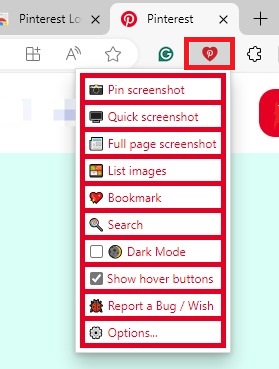
Step 5. Then, you can choose to Pin the screenshot or edit it to make it perfect.

Also Read: How to Record a Zoom Meeting on Windows and Mac >>
Screenshot Pinterest Using iTop Screen Recorder
Though the above-mentioned methods are easy to follow, they focus solely on picture capture and lack advanced options like flexible screenshots (full, area, scrolling), video recording, integrated editing features, and more. If you want a feature-rich tool to grab screenshots, record video, and edit visuals for Pinterest without needing complex steps, then go for this screenshot Pinterest app - iTop Screen Recorder. Here are more reasons why we recommend it for Pinterest screenshots.
Flexible Capture Any Area You Want
- iTop Screen Recorder allows you to take screenshots of the entire Pinterest page, a single Pin, or a custom-selected area, perfect for saving specific ideas.
Instant Annotation to Highlight the Key Points
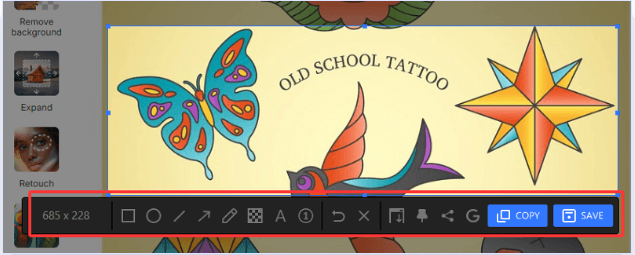
- You can highlight key details, add text, shapes, or arrows directly on your captured Pinterest image before saving or sharing.
Screenshot Whole Webpage as an Image
- It allows you to capture an entire webpage as a single image. This functionality is particularly useful for users who want to save long articles, tutorials, or any lengthy content found on Pinterest without the hassle of multiple screenshots.
Export Screenshots in Different Formats
- Capture clear, crisp images and save them in various formats (like JPG, PNG) for different uses.
Capture More Than Just an Image
- If a Pin is a video or you want to capture a sequence, its screen recorder lets you grab short clips. This feature also lets you screen record protected videos or other shows.
Whether to grab images of recipes, fashion, home decor, or travel ideas, then iTop Screen Recorder can make it simpler than ever. Now, let’s follow these steps to screenshot a Pinterest board.
Step 1. Download the iTop Screen Recorder from its official site and install it on your computer.
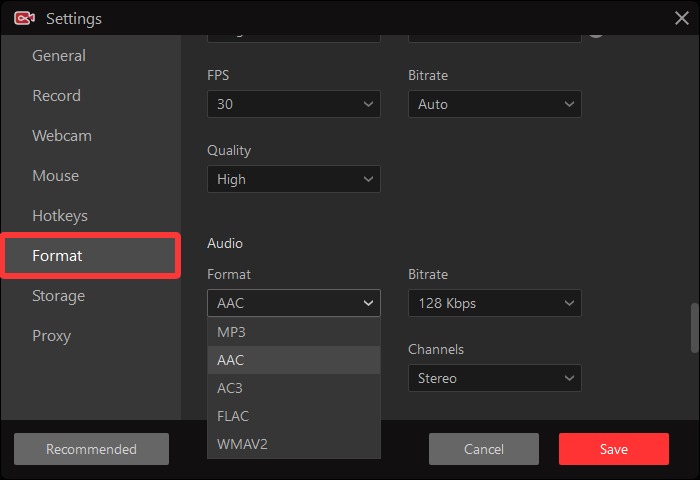
Step 2. Launch iTop Screen Recorder and go to Menu > Settings to personalize the settings to your preference. You can change the languages, image format or quality, storage location, etc. Then, click Save to confirm all the changes.
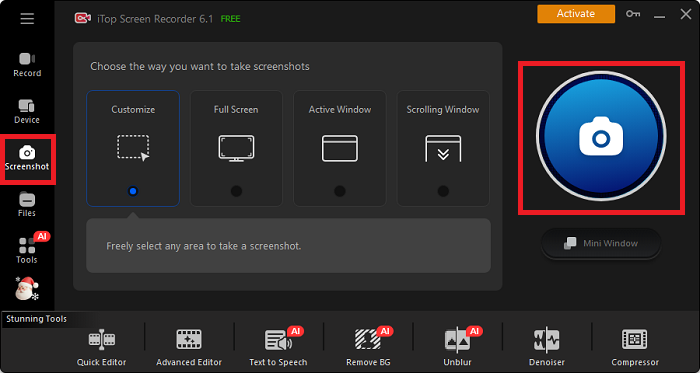
Step 3. Navigate to the left menu bar and click the Screenshot tool, choose the way you want to take a screenshot on Windows. Then, click the camera icon to start capturing your screen.
Step 4. While screenshotting, you can crop and add lines, arrows, text, and other elements to your screenshot.
This is the easy steps to screenshot Pinterest using a proper tool. Just download iTop Screen Recorder now and get everything done in a breeze!
Save Pinterest on Your iPhone or Android
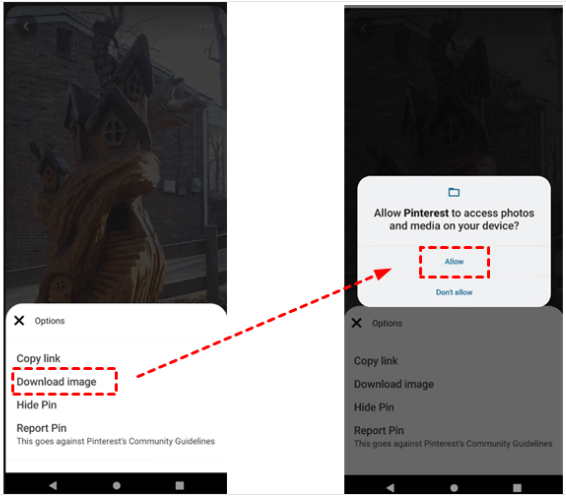
Can you save Pinterest images? On an iPhone or Android device, you can directly download pictures from Pinterest easily and quickly. Here are the steps.
Step 1. Open Pinterest on your iPhone or Android device.
Step 2. Tap the image you wish to save.
Step 3. Tap the three dots in the top-right corner and select “Download image” to save it to your phone’s gallery.
The Bottom Line
Now, you know how to screenshot Pinterest. As you see, it is simple to grab and store visual content. For even more flexibility and additional features, consider downloading iTop Screen Recorder. With its enhanced screenshot capabilities, you can effortlessly capture and annotate your Pinterest finds. Download iTop Screen Recorder, a free screen recorder, and elevate your screenshotting experience!