



Most users can screenshot Telegram chat in regular conversations without any trouble, but things change once you move into secret chats. Telegram locks down screenshots there and even alerts the other person. Because phones follow stricter security rules, many people switch to the desktop version, where system-level access makes capturing screenshots far more dependable.
What Happens If You Screenshot Telegram Private Channel and Chat?
When users try to screenshot Telegram chat inside private channels or sensitive conversations, Telegram often reacts immediately.
- In many cases, the other participant receives a prompt saying a snapshot was taken.
- On some devices, the result is even stranger. The image you capture turns out blank or heavily blurred.
This usually happens because Telegram uses system-level flags to block protected content, and mobile security policies cooperate by obscuring whatever appears on the screen.
These restrictions are exactly why many users look for reliable workarounds and ask how to take screenshot in Telegram private channel. One of the simplest options is using third-party screen recording software on a Windows PC. A type of tool bypasses the limitations and captures both still images and video from protected apps without triggering alerts or wiping the content.
Also read: How to record voice message in Telegram>>
How to Screenshot Telegram Chat? 100% Safe Trick
The most reliable way to avoid alerts or blocked captures is to run Telegram on a PC. Windows or Macos system make most of Telegram censorship invalid. And in such circumstances, you can use powerful screenshot software to capture any Telegram chat window without them knowing.
Tools like iTop Screen Recorder can take clean snapshots without triggering warnings. If you need a safe method for how to take screenshot in Telegram private channel, this approach works consistently. Below is a simple method to screenshot Telegram chat using iTop Screen Recorder’s built-in screenshot tool.
How to screenshot Telegram chat?
Step 1. Install iTop Screen Recorder on your Windows PC and launch it.
Step 2. Open Telegram and navigate to the conversation you want to save.
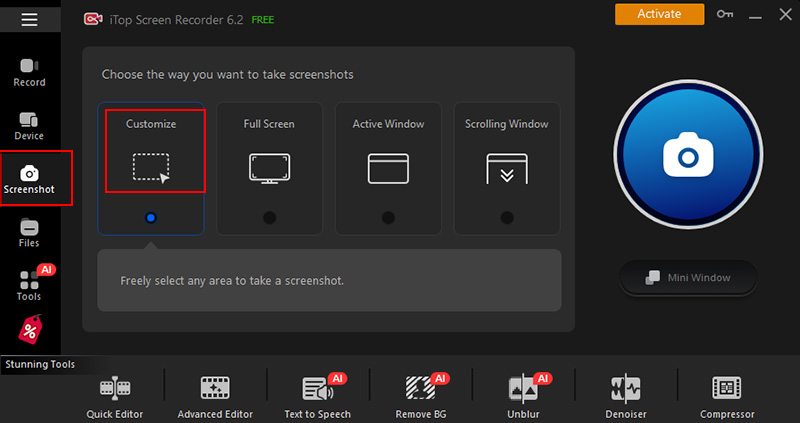
Step 3. In iTop Screen Recorder, click the Screenshot icon located on the left side. Hit the blue screenshot icon.
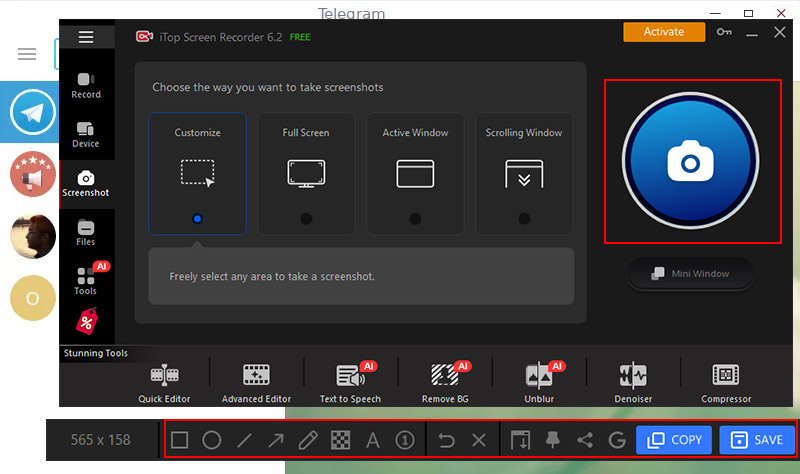
Step 4. Drag to select the exact area of the chat you want to capture. Annotate with the text and drawing tools based on your needs. Copy and save the Telegram screenshot. Can you screenshot Telegram group chat? Yes, this methods also works for Telegram group chat capture on desktop.
Why use iTop Screen Recorder to screenshot Telegram chat?
iTop Screen Recorder isn’t just a screen recorder to screen record Telegram secret chat, it includes a well-designed screenshot tool that captures Telegram flexibly with custom dimensions like full-screen, specific window, scrolling window, etc. High-quality of the Telegram chat screenshots can be preserved for sharing or archiving. The built-in easy editor also enables you to add text, shapes, drawings and other annotations, to highlight important parts, put visual cues quickly.
Also read: How to screen record in restricted app>>
How to Screenshot Telegram Chat on iPhones?
iPhones handle message privacy differently from Telegram’s own rules. In normal chats, you can still capture a screenshot without notification. As long as you’re not in a Secret Chat, the built-in screenshot feature works reliably and won’t blur the image or black out the content. It’s a simple, free workaround that helps you save important moments or conversations without relying on extra apps. In short, this is the easiest way to screenshot Telegram chat on iOS.
If you’re searching for how to screenshot Telegram Story, this method works there as well. Telegram can’t block it or notify the other person as long as you’re outside Secret Chat mode.
How to screenshot Telegram chat on iPhones?
Step 1. Open Telegram and navigate to the conversation you want to save.
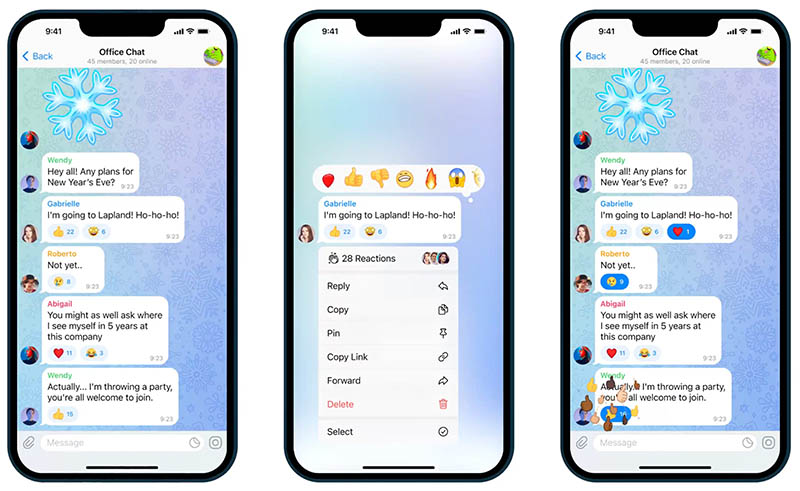
Step 2. Make sure it’s not a Secret Chat. Use the iPhone screenshot shortcut: press the Volume Up + Side Button at the same time. The screenshot appears instantly in your Photos app.
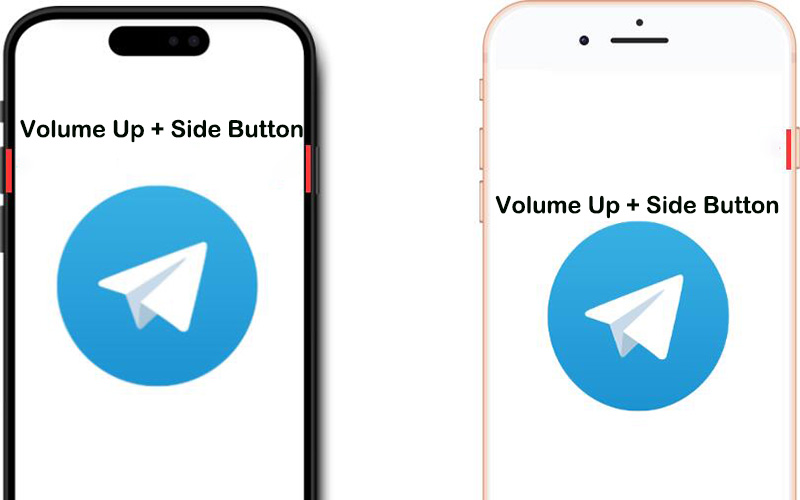
Step 3. Crop the image if you want to hide the timestamp, contact name, or other sensitive details.
How to Screenshot Telegram Chat on Android?
Android’s openness makes screen capture flexible, and with the right Telegram screenshot app you can capture any interface from Telegram without fuss. ScreenMaster is a lightweight and popular choice. It provides an overlay capture button, region selection, and a quick screenshot editor. The interface is quite beginner-friendly with easy feature controls to quick screenshot on Android mobile devices and screen record telegram self destruct video.
Annotation tools are well built into ScreenMaster, such as cropping, rotating, adding effects, text, stickers, etc. Follow the steps below to learn how to take screenshot in Telegram private channel Android with ScreenMaster. Note that if you want to know how to screen record Telegram private channel, you have to switch to other apps.
How to screenshot Telegram chat on Android?
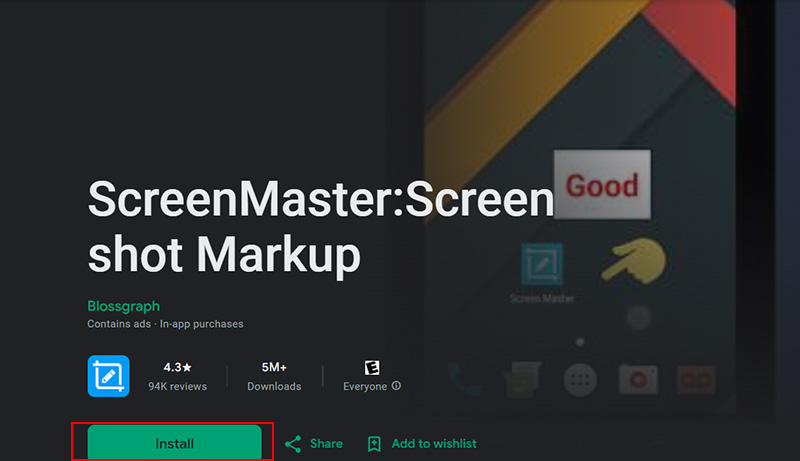
Step 1. Install ScreenMaster from Google Play and open it. Grant the app the required permissions: screen casting/recording and display over other apps.
Step 2. Launch Telegram and go to the chat or private channel you want to save.
Step 3. Tap ScreenMaster’s floating capture button and drag to select the area of the screen you want to keep. The app can snap the whole view or a custom rectangle.
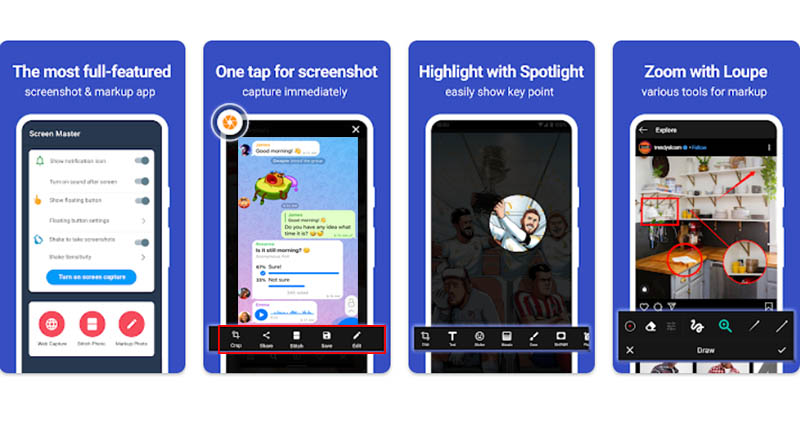
Step 4. Use the built-in editor to rotate, crop, blur sensitive bits, or add effects and frames.
Bonus: How to Screenshot Telegram Private Channel/Chat?
Telegram Stories and private channels can be tricky to save because the app sometimes blocks captures or delivers only a blank frame. A quick note for users searching for how to disable in Telegram private channel: Telegram doesn’t provide a toggle that stops channel owners from limiting screenshots, which is why desktop capture tools remain the most dependable option.
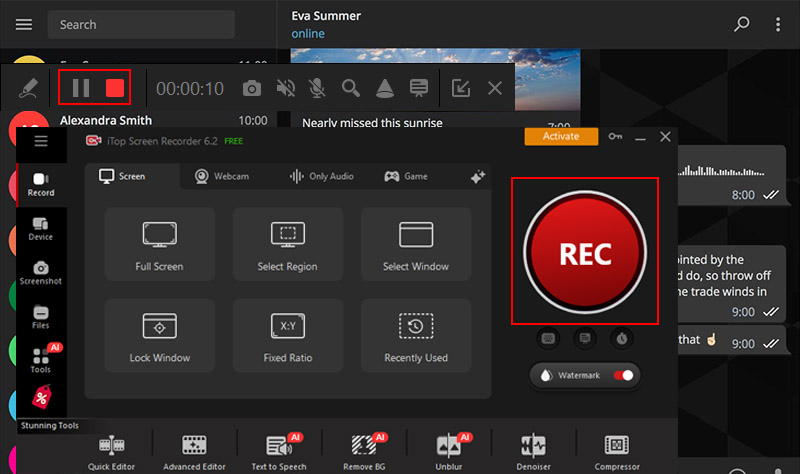
iTop Screen Recorder can capture anything happening on your PC screen, including animations, story slides, and message feeds, without quality loss or black screen. It’s one of the easiest ways to screen record Telegram and works seamlessly even when a normal screenshot Telegram chat attempt won’t go through. Here’s how to record a Telegram Story or a private channel on desktop with the Free Screen Recorder.
Step 1. Free download and install iTop Screen Recorder on your Windows PC and open it.
Step 2. Go to Telegram and open the Story or private channel you want to save.
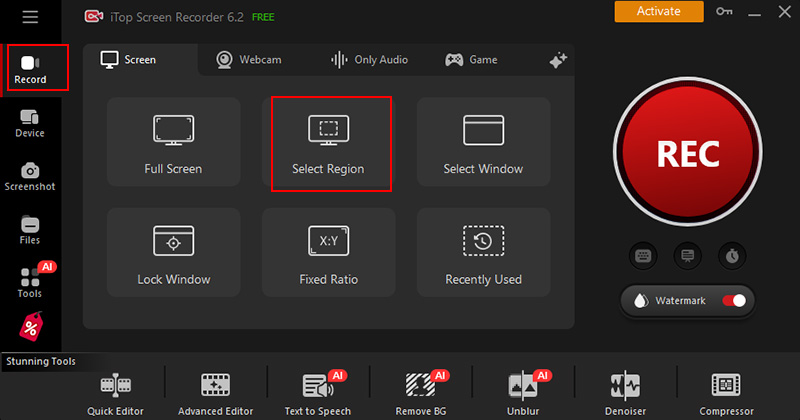
Step 3. In iTop Screen Recorder, choose “Select Region,” drag to frame only the Telegram window, and hit the REC button to start the capture.
Step 4. When the Story or channel finishes playing, stop the recording. You can trim, cut, add effects/text to the clip instantly with the built-in video editor.
Conclusion
Even with Telegram’s privacy limits, capturing chats or stories doesn’t have to be a headache. iTop Screen Recorder gives you a smooth, safe way to screenshot Telegram chat on your desktop without triggering alerts in high quality. Give it a try and keep your important Telegram messages and moments saved with ease.





