Voicemail greetings are the first thing people hear when you can’t pick up a call, and a tailored one can leave a lasting impression, warm for friends, professional for work. Many want to record voicemail greetings that actually feel personal instead of generic. Here, you’ll get clear instructions for iOS, Android, and PC, along with practical tips, quick fixes, and real examples to make your voicemail sound polished and unmistakably yours.
What Is a Voicemail Greeting?
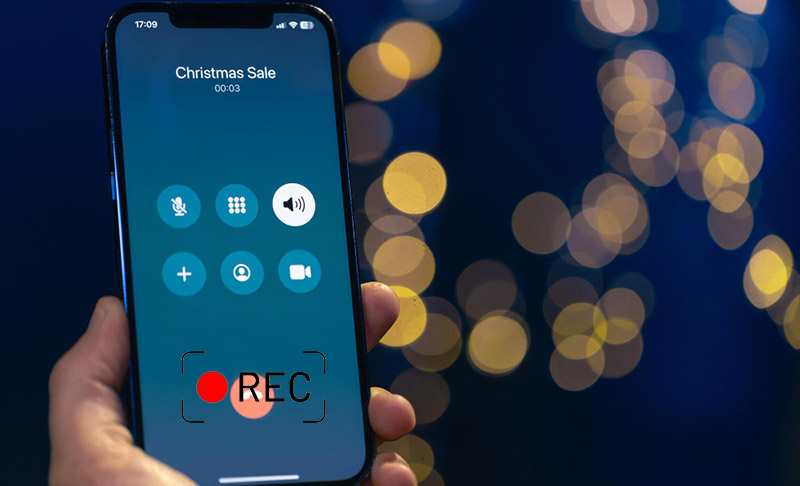
A voicemail greeting is the short audio message callers hear when you can’t answer the phone. It sets the tone for your communication, be it friendly, professional, or casual, and can help callers know what to do next. Learning how to record voicemail greetings helps your message feel personal and clear.
Can You Record Custom Voicemail Greetings for Different Scenarios?
Absolutely. You can record a voicemail greeting polished for a specific situation, such as work calls, personal contacts, or special occasions like the upcoming Christmas. Custom greetings help you sound approachable and organized while giving callers clear instructions. For example, a cheerful holiday greeting adds a personal touch during December, while a professional one maintains credibility for business calls. Taking a few minutes to create scenario-specific messages makes your phone presence feel thoughtful.
Read Also: What about Instagram DM? Can you screen record Instagram DM?
How to Record Voicemail Greetings with the Phone App
If you’ve ever wanted your messages to sound more personal, knowing how to record a voicemail greeting is key. Here’s a straightforward guide for iPhone and Android users so you can record voicemail greetings that fits every scenario.
Record a Custom Voicemail Greeting on iPhone
Use the steps below to make your own custom voicemail greetings on iPhone.
Step 1: Open the Phone app and tap the “Voicemail” tab at the bottom. Set a password for it.
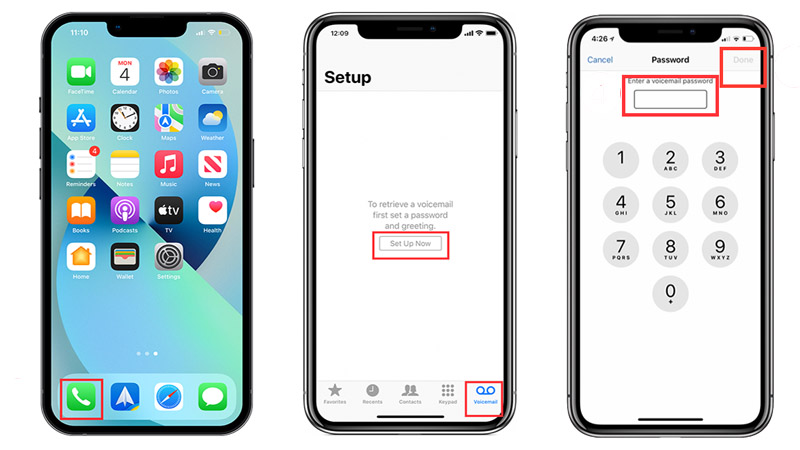
Step 2: Select “Greeting” in the top-left corner, then choose “Custom.”
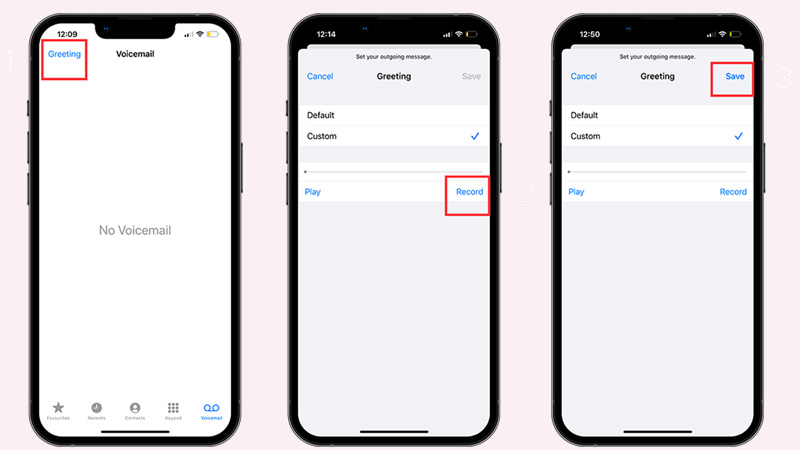 Step 3: Tap “Record” to speak your message, then press “Stop” when finished. Review it and hit “Save” to set it as your active greeting.
Record Voicemail Greetings on Android with Google Voice
With these steps, you can quickly record a voicemail greeting on Android with Google Voice for any occasion.
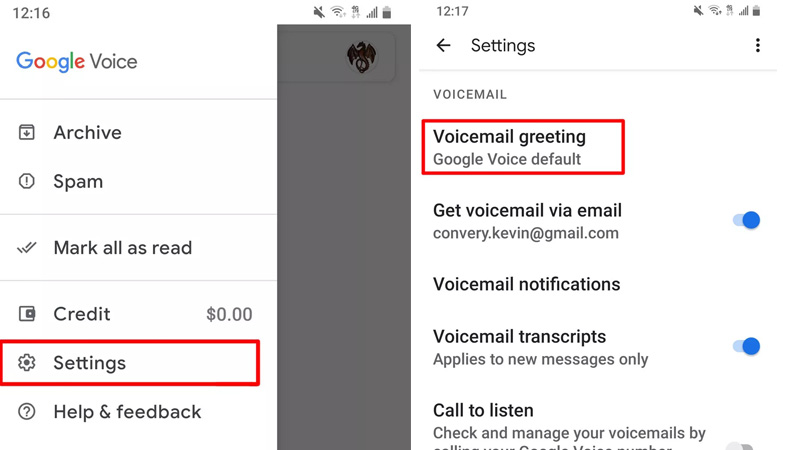
Step 1: Open the Google Voice app and tap the menu icon, then go to “Settings.” Under “Voicemail,” select “Voicemail Greeting,”
 Step 2: Then tap “Record a greeting” and the microphone icon to record voicemail greeting Android.
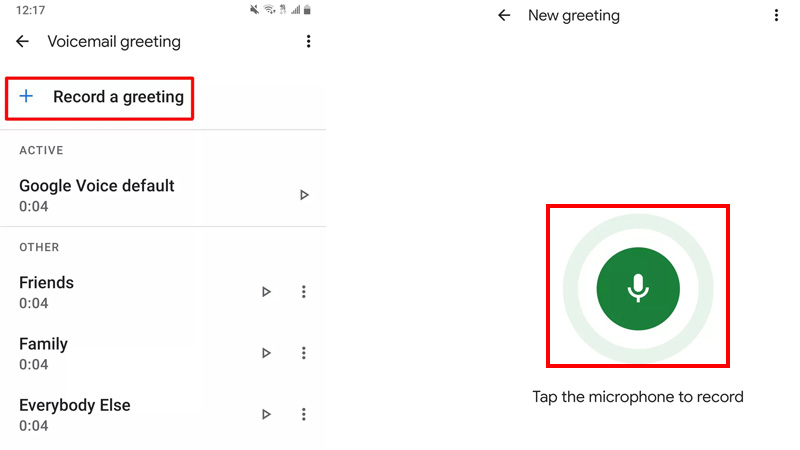
Step 3: Speak your message, then tap “Save.” Your new greeting will now play when someone calls.
Read Also: How to Record a Zoom Meeting on Windows and Mac [2025 Guide] >>
What to Do If You Can’t Record Voicemail Greetings on Phone
Sometimes, even when you know how to record a professional voicemail greeting, technical hiccups can get in the way. If your phone won’t let you save a new message or the recording keeps failing, don’t panic. Most issues are easy to fix with a few steps. Here are the most common solutions to ensure you can record a voicemail greeting successfully.
Fix 1: Set Up Your Voicemail
If your voicemail isn’t fully configured, recordings may not save. Use these steps to set up your voicemail properly.
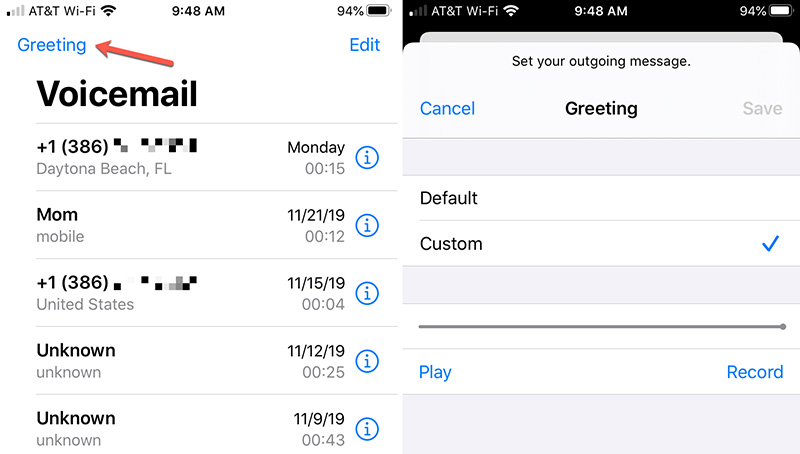
Step 1: Open your Phone app and tap the “Voicemail” tab.
Step 2: Follow the on-screen prompts to set up your mailbox, including creating a PIN if required.
Step 3: Once setup is complete, try to record a voicemail greeting again.
Fix 2: Dial 86 to Record a New Voicemail Greeting
Some carriers allow voicemail management directly through a call. Learn how to
Step 1: Dial *86 from your phone.
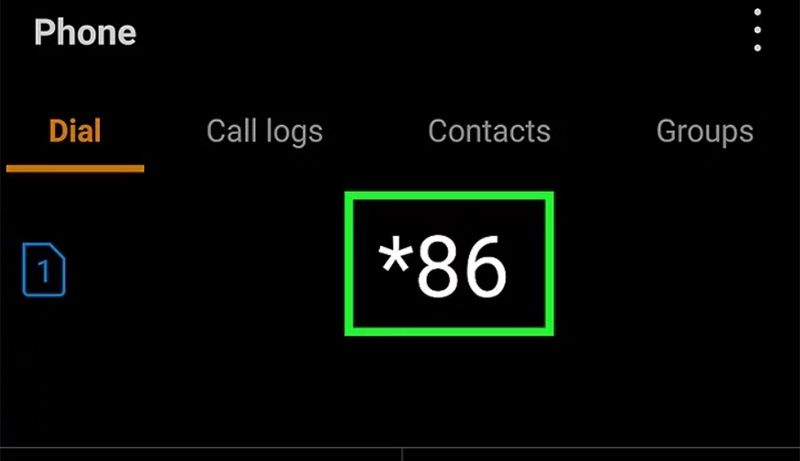
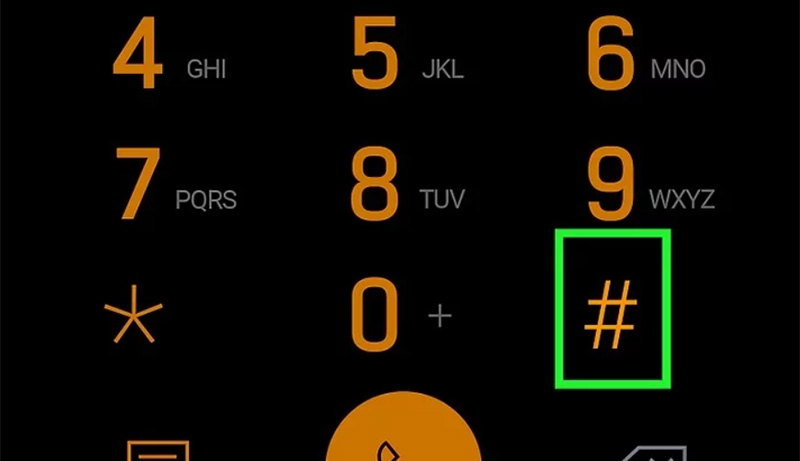
Step 2: Follow the voice prompts to access your greeting options. Enter password and press # or *.
Step 3: Record your new greeting and confirm by saving it. This method often bypasses app-related glitches.
Fix 3: Get Tech Support from Experts
If you’re still stuck, contacting your carrier’s support team can save time. Explain that you want to record a professional voicemail greeting or customize your current message. They can check for network or account issues and even guide you through the recording step by step.
These solutions cover most obstacles when how to record a voicemail greeting isn’t working. With the right setup or support, your voicemail will sound exactly the way you want.
How to Record Voicemail Greetings with HD Audio on PC Free
If you want your voicemail to sound crisp, using your PC can give you more control over the recording quality than a phone alone. With iTop Screen Recorder, you can record a voicemail greeting in HD audio for free, edit it, and add custom effects. The screen recorder is particularly useful if you want to capture voicemail messages with clear sound or create a polished greeting.
Why Choose iTop Screen Recorder?
-
FREE to Record Custom Voicemail Messages
iTop Screen Recorder is completely free to download and use, no subscription, no hidden fees. You can record your new voicemail greeting quickly with only audio or video. -
HD Audio Recording with AI Denoiser
Background noise can ruin clarity. iTop Screen Recorder’s built-in AI denoiser removes unwanted background noise to guarantee high-quality audio recording. -
AI Text to Speech for Voicemail Greetings
You can convert text into natural-sounding speech directly within the tool. This is an easy way to craft a polished voicemail greeting without having to re-record take after take. -
Flexible & High-Quality Screen Recording
The screen recorder for restricted apps lets you select recording areas, including full screen, customized window, system or microphone audio, and capture webcam input if needed. -
Edit & Share Stunning Voicemails Anywhere
After recording, you are free to trim, cut, or add effects, then share your greeting on multiple platforms, or import it back to your phone.
Record Custom Voicemail Greetings on PC Web
Here’s how to record a custom voicemail message directly from your PC web with iTop Screen Recorder.
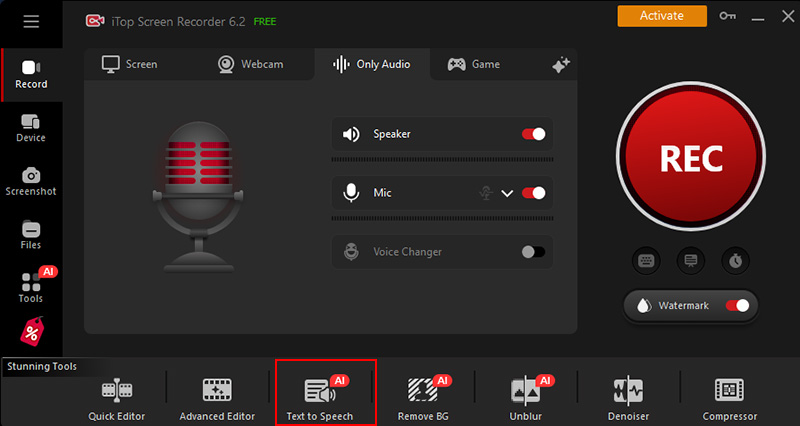
Step 1: Get free iTop Screen Recorder download. Launch iTop Screen Recorder, click “Record” > “Only Audio”.
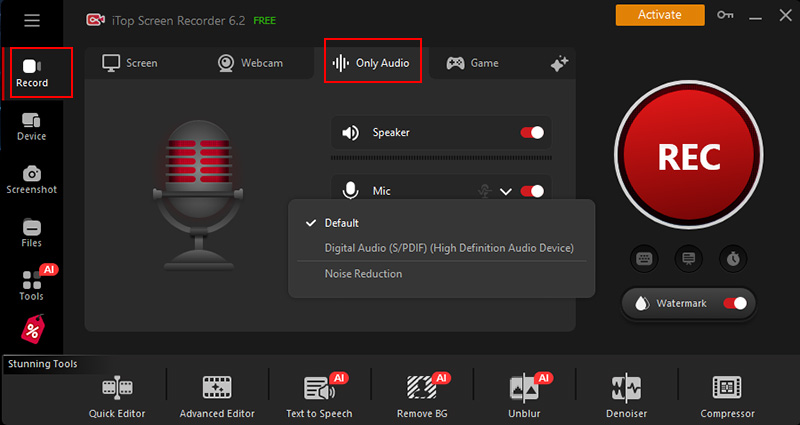
Step 2: Select your microphone input and adjust volume settings.
Step 3: Open the voicemail on web you’d like to record, click the REC button to start recording. Click the stop button when finished.
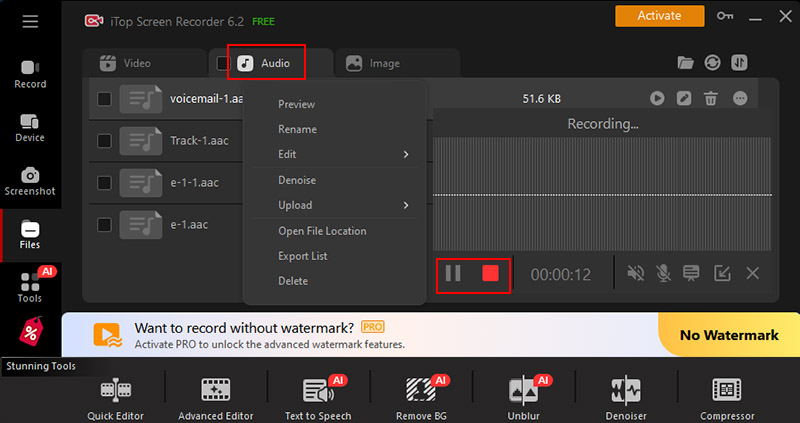
Convert Text to Speech with AI for Voicemail Greetings
This method lets you generate professional-sounding greetings without pre-written text. Get iTop Screen Recorder download and have a try!
Step 1: Click the Text to Speech button at the bottom.
Step 2: Import or type your text, choose a voice and click “Generate Audio”.
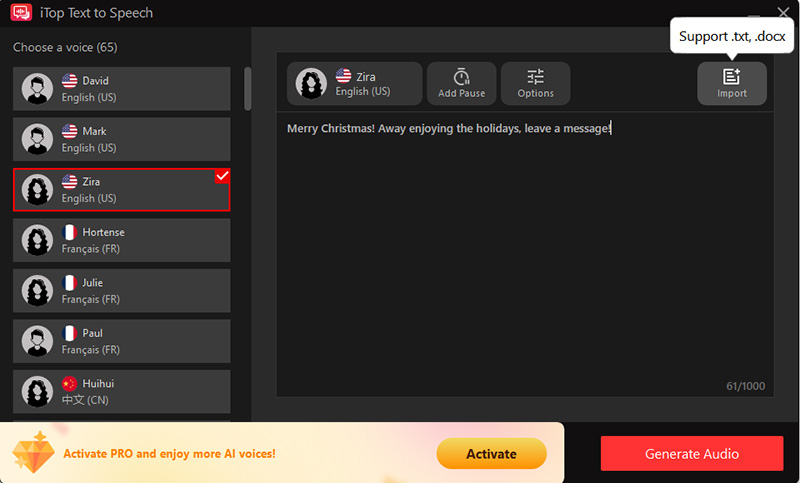
Step 3: Click Save and the voicemail will be saved to Files >Audio.
Record & Save Voicemail Greeting Audios from Your Phone
You can also capture voicemail greetings from your phone using iTop Screen Recorder’s mirroring feature.
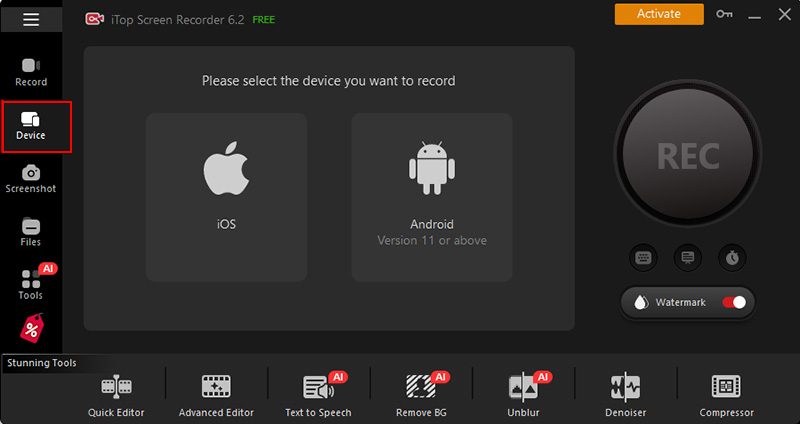
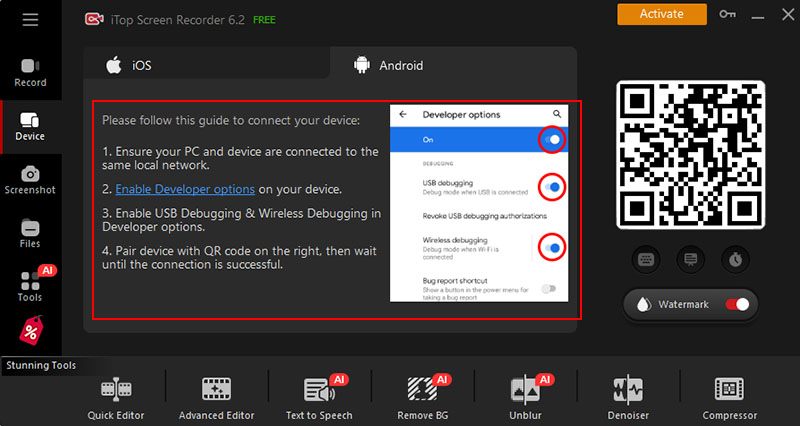
Step 1. Go to Device and select iOS or Android. Follow the on-screen guide to prepare for recording.
Step 2. Select iTop Screen Recorder from the device list and wait for the connection to complete.
Step 3. Open and play the voicemail greeting audio on the phone. Click REC to start recording, and stop it when you're done.
Read More: How to Screen Record Protected Videos Without Black Screen [100% Working] >>
Tips on How to Record a Voicemail Greeting Professionally
If you want your voicemail to leave an approachable impression, a few thoughtful tweaks can make all the difference. Knowing how to record a voicemail greeting professionally ensures callers get the information they need without frustration.
- Keep It Short & Concise. Aim for 20–30 seconds. Long messages can confuse or frustrate callers.
- State Your Name & Company. Clearly introducing yourself helps people know they’ve reached the right contact.
- Mention Your Unavailability. Briefly explain when you’ll be back or available to respond.
- Provide Clear Instructions. Tell callers exactly what to do, leave a message, send an email, or call another line.
- Use a Clear & Smiling Tone. A friendly voice conveys warmth and professionalism.
- Avoid Using Jargon. Keep language simple so anyone can understand your message without confusion.
- Include Alternative Contact Methods. Share an email or secondary phone number if urgent assistance is needed.
- Update Voicemail Greetings Regularly. Seasonal updates, project changes, or upcoming holidays help keep your greeting relevant.
Read Also: How to Record TikTok Live on iOS/Android/Wins/Mac [2025 Updated] >>
Popular Voicemail Greeting Genres & Examples for You
You can record a voicemail greeting that suits your personality, profession, or the occasion. Here are some popular genres with examples:
Professional Business Voicemail Greetings
Example: “Hello, you’ve reached Sarah from BrightWave Solutions. I’m away from my desk but will return your call as soon as possible. Please leave your name, number, and message.”
Short and Simple Voicemail Greetings
Example: “Hi, this is Alex. Leave a message, and I’ll get back to you soon.”
Holiday Voicemail Greetings
Example: “Season’s greetings! Thanks for calling. I’m out of the office enjoying the holidays. I’ll respond after December 27th.”
Funny Voicemail Greetings
Example: “Hey! You’ve reached Jake. I’m either saving the world or napping, leave a message, and I’ll get back to you if the world survives.”
Good Voicemail Greeting Examples for Upcoming Christmas:
“Merry Christmas! Away enjoying the holidays, leave a message!”
“Happy Holidays! Spreading cheer, I’ll call back after the celebrations.”
“Thanks for calling! Busy with gifts and eggnog for Christmas, please leave a message.”

The Bottom Line
Being able to record voicemail greetings adds a personal touch to your calls. On both mobile and PC, clear and customizable messages make staying in touch easier. With iTop Screen Recorder, you can capture HD audio, edit it, and save your greetings hassle-free. Give it a try to create voicemail messages that make a strong, positive first impression.