Assetto Corsa is one of the most realistic racing simulators available today. Whether you're drifting through tight corners, setting record lap times, or competing in online races, recording your gameplay allows you to share exciting moments with others and improve your driving skills.
If you're wondering how to record Assetto Corsa without sacrificing performance, this guide covers everything you need to know. We'll show you the best recording software for Assetto Corasa, optimal settings, and useful tips to capture smooth racing footage.
Why Record Assetto Corsa Gameplay
Recording Assetto Corsa gameplay not only helps preserve memorable moments on the track but also provides valuable footage for content creation, performance analysis, and sharing your racing achievements with others.
- Share Racing Highlights: Save your best races, overtakes, drifts, and fastest laps, then upload them to YouTube, TikTok, Instagram, or racing communities.
- Create Content for YouTube and Social Media: Share Assetto Corsa gameplay videos, tutorials, mod showcases, and racing challenges.
- Analyze Driving Performance: Review recordings to identify braking mistakes, racing line issues, and opportunities to improve lap times.
What You Need Before Recording Assetto Corsa
Before you start capturing races and creating gameplay videos, it's important to make sure your PC, drivers, and screen recording software are properly configured. The right setup will help you achieve smooth recordings with minimal impact on game performance.
1. A Capable Gaming PC
For smooth gameplay recording, your PC should meet the following recommendations:
- CPU: Intel Core i5/i7 or AMD Ryzen 5/7
- GPU: NVIDIA GTX 1660 or better
- RAM: 16GB or higher
- Storage: SSD recommended for faster recording and file saving
2. Updated Graphics Drivers
Outdated graphics drivers can cause recording errors, stuttering, and FPS drops. To ensure optimal performance, keep your GPU drivers updated regularly. Driver Booster makes this process easier by automatically scanning for outdated drivers and installing the latest versions with a single click.
3. Reliable Gameplay Recording Software
Look for recording software that offers:
- High-quality video recording
- Hardware acceleration
- Internal and microphone audio capture
- Webcam overlay support
- Low CPU usage
How to Record Assetto Corsa Gameplay with iTop Screen Recorder
Once your PC is ready and your drivers are up to date, the next step is selecting a recording solution that can capture smooth, high-quality gameplay without causing noticeable performance drops. One beginner-friendly option that balances ease of use with powerful recording features is iTop Screen Recorder.
Why Choose iTop Screen Recorder?
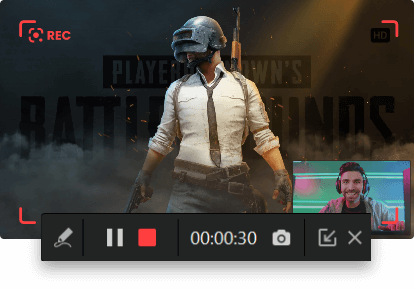
iTop Screen Recorder employs a dedicated Game Mode that delivers no-lag recording experience. It can automatically detect supported games and empowers you to manually add the game you want to record. Hardware Acceleration optimizes the system performance for seamless recording during playing games, no lag and no faps drops.
It helps create high-quality screen recordings with vivid images, vibrant colors and clear details. It also allows you to customize parameters to record Assetto Corsa gameplay up to 4K at 120fps for better viewing experience.
It also offers a set of features for creating game tutorials or walkthroughs. With the support of capturing microphone and webcam, you can record Assetto Coras with yourself narrating the gameplay for better engagement. Annotation tools are helpful for highlighting the important parts or blur sensitive information. The built-in video editor enables you to trim, crop screen recording and add special filters/effects to enhance the content.
iTop Screen Recorder has an Enhanced Mode, making it act as a screen recorder no black screen that bypasses DRM protection to record any content perfectly.
With an intuitive design, beginners can quickly get started with the screen recorder for PC, no skills needed.
Steps to record Assetto Corsa with iTop Screen Recorder
Step 1. Free download and install iTop Screen Recorder on your Windows.
Step 2. Click Record > Game. Click the plus icon and select your game (Assetto Corsa). Don’t forget to enable the Boost feature to optimize system performance while gaming or recording. Then, click REC to start recording.
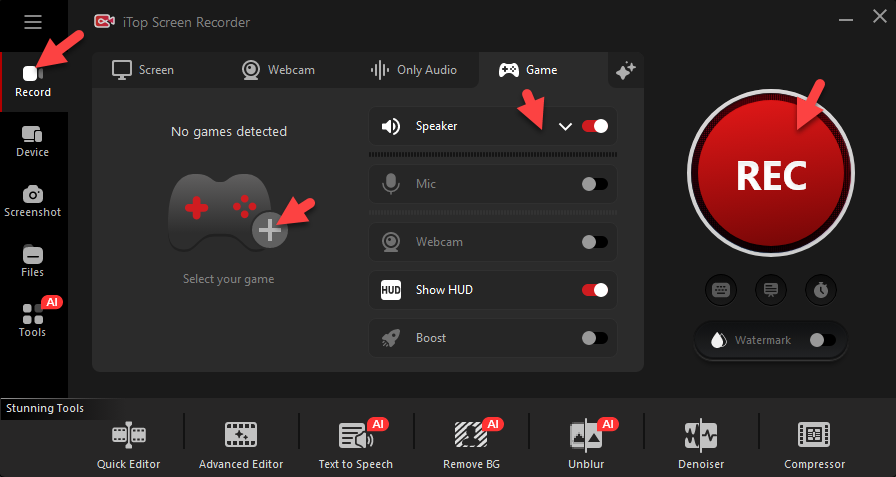
Step 3. Click Stop button on the mini control bar whenever you want to stop recording. The recorded video is saved to Files > Video. From here, you play and edit the video at will.
Tip: For the best balance between video quality, smooth gameplay, and manageable file sizes, use settings that capture clear racing footage without putting excessive strain on your CPU, GPU, or storage. The following configuration works well for most Assetto Corsa players.
- Resolution: 1920×1080 or 2560×1440
- FPS: 60 FPS
- Format: MP4
- Bitrate: 15-25 Mbps
- Audio Format: AAC 320 kbps
How to Record Video in Assetto Corsa Gameplay with OBS Studio
If you prefer a free and highly customizable recording solution, OBS Studio is an excellent choice.
How to record Asseto Corsa gameplay with OBS Studio:
Step 1. Open OBS Studio on your computer.
Step 2. Open Assetto Corsa first, then launch OBS Studio. Running the game before setting up the capture source helps OBS detect the game correctly.
Step 3. In OBS, click the + button under Sources. Select Game Capture > Create New. Click OK to proceed.
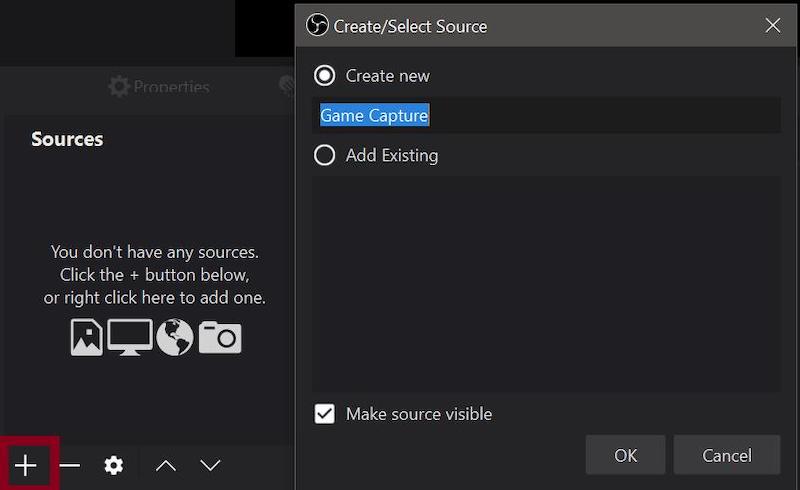
Step 4. Set Mode to Capture a specific window. Choose Assetto Corsa from the window list. Click OK.
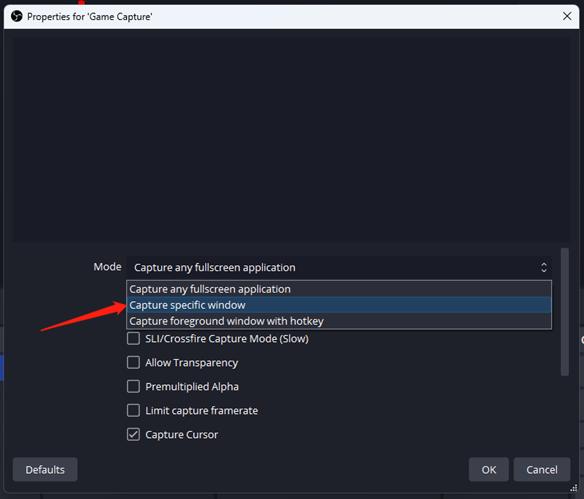
Step 5. Click Start Recording in OBS, switch to Assetto Corsa, and begin your race. When finished, return to OBS and click Stop Recording.
How to Record Assetto Corsa on PC Using Xbox Game Bar
If you prefer not to install additional software, Xbox Game Bar provides a built-in recording solution for Windows 10 and 11. It allows you to capture Assetto Corsa gameplay, record game audio, and save videos instantly using simple keyboard shortcuts, making it a convenient option for casual gameplay recording.
Step 1. Open Windows Settings. Navigate to Gaming > Xbox Game Bar.
Step 2. Start Assetto Corsa and enter the race, practice session, or gameplay you want to record.
Step 3. Press Windows + G on your keyboard to open the Xbox Game Bar overlay.
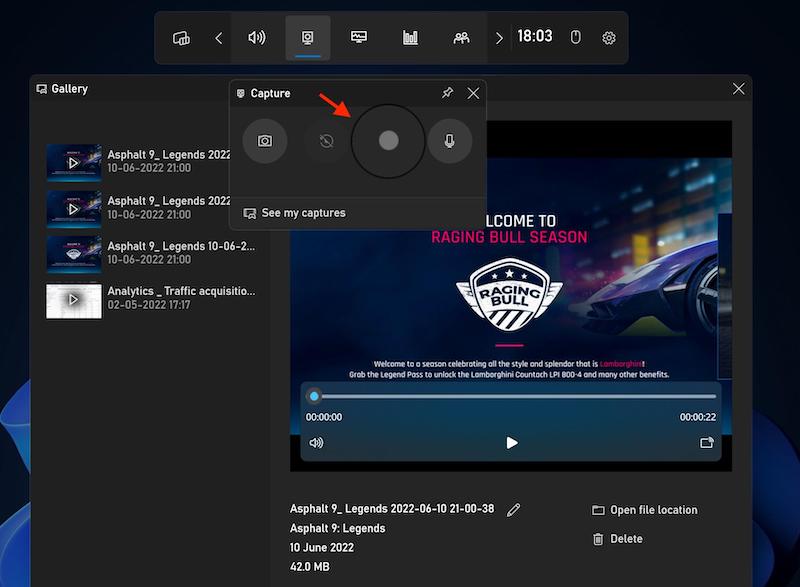
Step 4. Click the Start Recording button or press Windows + Alt + R. A small recording status bar will appear while gameplay is being captured.
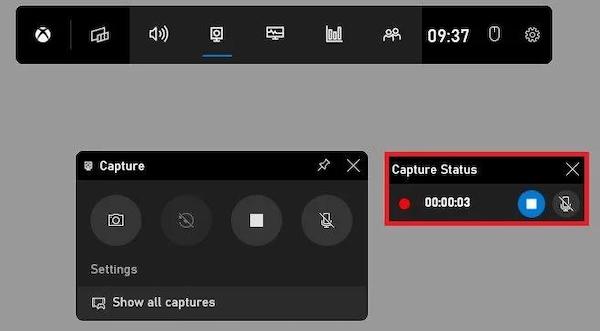
Step 5. When you're finished recording, press Windows + Alt + R again to stop. Your recording will be automatically saved to your Videos > Captures folder.
Tips for Recording Smooth Assetto Corsa Videos
There are a few simple optimizations that can help you capture smoother footage, reduce lag, and maintain stable performance while racing in Assetto Corsa. These practical tips can make a noticeable difference in your recording quality.
- Lower unnecessary background processes
- Use SSD storage for recordings
- Enable hardware acceleration
- Update graphics drivers regularly
- Optimize in-game graphics settings
More Things You Want to Know About Assetto Corsa Recording
Can I Record Assetto Corsa in 4K?
Yes. If your hardware is powerful enough, both iTop Screen Recorder and OBS Studio can record Assetto Corsa in 4K resolution.
What Is the Best Software to Record Assetto Corsa Gameplay?
iTop Screen Recorder is ideal for beginners due to its simple interface and Game Mode. OBS Studio is excellent for advanced users who need more customization.
How Do I Record Assetto Corsa Without FPS Loss?
Use hardware acceleration, store recordings on an SSD, close background programs, and update your graphics drivers regularly.
Conclusion
How to record Assetto Corsa gameplay? It is straightforward when you use the right tools and settings. Whether you choose iTop Screen Recorder, OBS Studio, or Xbox Game Bar, you can create high-quality racing videos for YouTube, Twitch, or personal review.
For users seeking an easy and performance-friendly solution, iTop Screen Recorder offers dedicated Game Mode, hardware acceleration, webcam support, and high-quality recording options. Download iTop Screen Recorder to give it a try.