Text-to-speech (TTS) is assistive technology that converts written digital text into spoken, natural-sounding audio. It is originally designed to aid individuals with visual impairments or reading disabilities to access certain services, but is now also used for creating voiceovers and audiobooks. Whatever the purpose of having a text-to-speech voice generator, this guide will introduce some tools to you. Before that, you can briefly learn about how a text-to-speech generator works and how to select the best one. A clear understanding of these tools can prevent wasted time on wrong choices.
How Text to Speech Technology Works
Text to voice generator converts written text into natural-sounding audio through a two-stage process: text processing and voice synthesis. More specifically, the first stage cleans and normalizes text, converting it into phonemes, and the second stage uses deep learning networks to generate audio. The key aspects of the TTS process include:
- Text Processing
- Phonetic Transcription
- Prosody Modeling
- Voice Synthesis
- Neural TTS
Key Features to Consider in a Text to Speech Generator
The top text-to-speech generator should offer high-fidelity neural voices, extensive multilingual options, robust customization for natural, and appropriate output. Besides that, more features should be taken into consideration while choosing a text to voice generator free.
- High voice quality and naturalness
- Extensive language and accent options
- More customization capabilities
- Integration with other applications
Best Text to Speech Voice Generators
In this section, we’ll introduce some of the best text-to-speech voice generators. All of them are picked by following the criteria introduced above. You can pick the free voice generator text to speech that may work best for you.
iTop Screen Recorder (Top Choice)
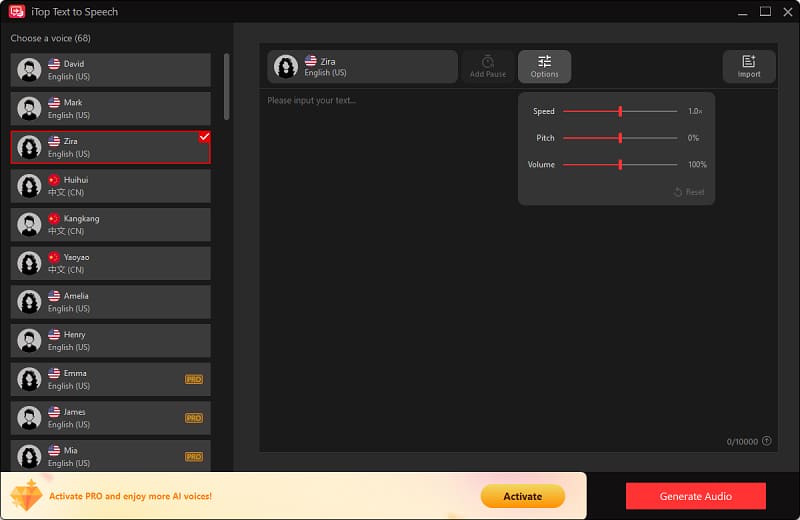
iTop Screen Recorder is an AI-powered text-to-speech generator that enables users to convert any written scripts into natural-sounding voiceovers in multiple languages and accents. What makes it truly leap ahead of the competition is its screen capture tool, which streamlines video production. With both screen recorder and text-to-speech generator integrated into one workboard, it makes screen recording more accessible to users with disabilities, such as those with mobility or speech impairments, by allowing them to create voiceovers using text rather than manual audio recording.
Plus, with its screen-capturing feature, you’re even allowed to screen record protected videos. Here are some advantages and disadvantages of using this software.
Pros:
- Supports over 50 realistic AI voices across multiple languages
- Adjust the speed, pitch, and volume of the generated speech
- Add pauses for better pacing and a “Generate Audio” button for quick previewing
- Import text for audible conversions
- Support inputting up to 10,000 characters for free
Cons:
- Potentially artificial tone
- Limited customization for nuance
- No version for Mac
ElevenLabs (Best for Gaming/Character voices)
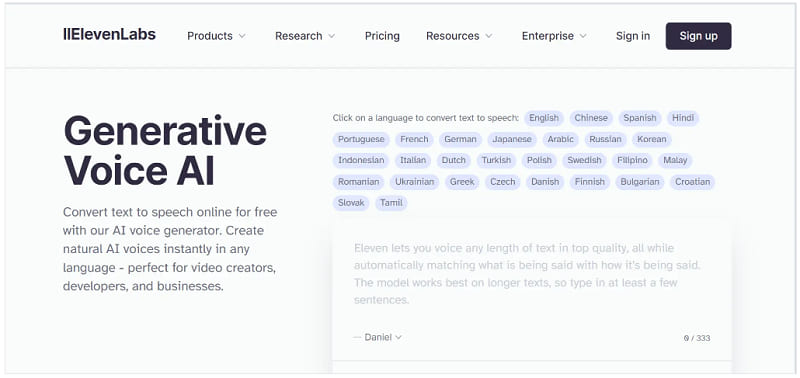
ElevenLabs is another leading free text to speech AI voice generator recognized in 2026 for its highly realistic, emotional text-to-speech (TTS) and voice cloning technology. It is best for creators, businesses, gamers, and many other people who want to produce lifelike voices. With its Voice Cloning & Design feature, you can create digital twins of voices. For anyone looking to quickly localize video, audio, or podcasts into multiple languages, they can achieve this goal by utilizing the AI Dubbing & Translation feature.
Pros:
- Provides 10,000+ highly realistic voices
- Has a user-friendly platform
- Offers high-quality voice cloning
- Supports over 70 languages and various accents
- Includes voice design, dubbing, and strong APIs for developers
Cons:
- Costly for heavy use
- Requires high-quality input
- Requires a stable internet connection for all operations
- The ability to clone voices raises potential issues regarding misuse and impersonation
- The free plan is limited
Speechify (Best for Content Consumption)
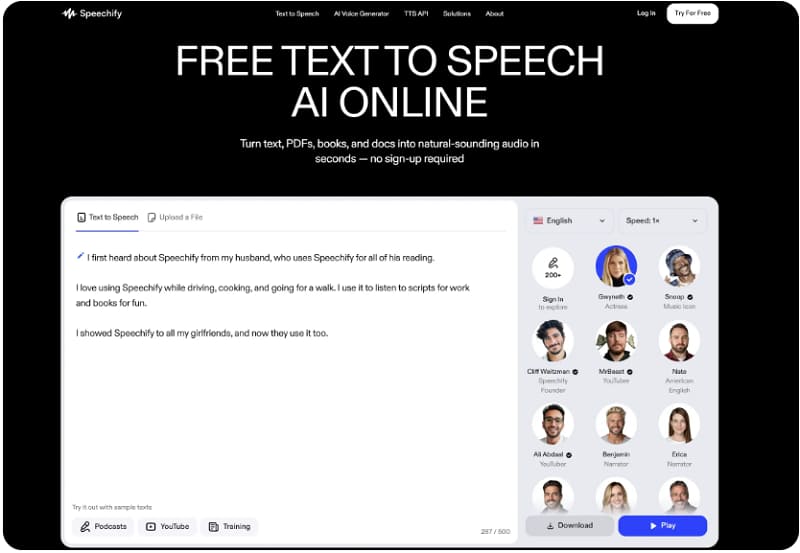
Speechify is also a leading, versatile text-to-speech (TTS) platform that converts written content (documents, PDFs, web pages) into natural-sounding, high-quality audio using 200+ AI voices. It comes with many outstanding features, such as OCR scanning, which allows you to convert physical, printed books or documents into audio. While converting, you can adjust reading speed up to 5X faster than average, along with voice pitch controls. The generated audio can be synced across mobile and desktop and accessed offline.
Pros:
- Offers over 200 natural-sounding AI voices
- Control speech and voice type
- Seamless switching between apps, web extensions, and desktop
- Ideal for people with dyslexia, ADHD, or visual impairments
- Works on images, PDFs, text, and web pages
Cons:
- Free plans have limited voices (10) and no premium features
- Occasionally struggles with unique jargon, fantasy names, or complex technical terms
- Sometimes reads headers, footnotes, or page numbers in an unnatural manner
Murf.ai ( Best for Corporate/E-learning)
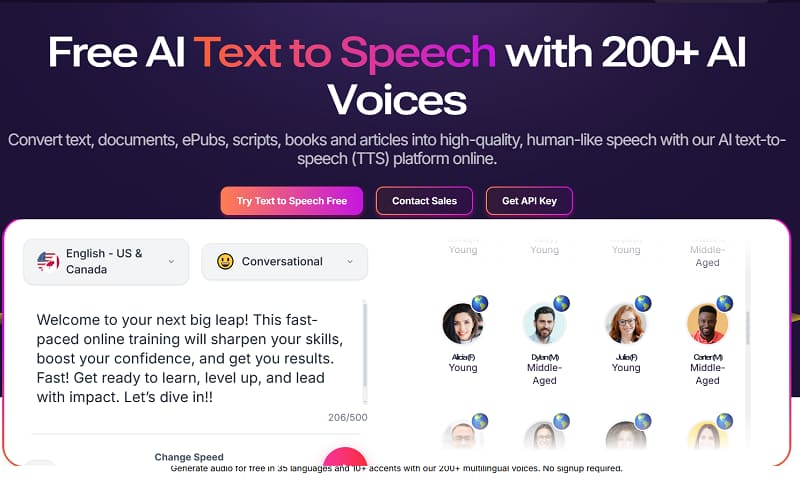
Murf.ai is a premium AI-powered text to speech voice generator featuring over 200 high-quality, natural-sounding voices in 20+ languages. It is designed for creating voiceovers, e-learning content, and presentations without studio equipment. Besides, it also has some key features like granular voice customization (pitch, speed, emphasis), AI voice cloning, and a built-in video/audio editor for easy syncing. Anyway, its cutting-edge AI technology and text-to-speech capabilities make it stand out from its competitors and a must-have tool for people who need high-quality audio content.
Pros:
- Extremely realistic, human-sounding voices
- Easy-to-use editor suitable for beginners
- Deep control over pronunciation and pacing
- Easily pairs with platforms like Canva and PowerPoint
Cons:
- The free plan restricts downloading or exporting
- Higher cost per minute compared to some competitors
- Voice cloning is generally limited to higher-tier or enterprise plans
- Occasional tone limitation
OpenAI TTS (Best for Teams Using OpenAI APIs)
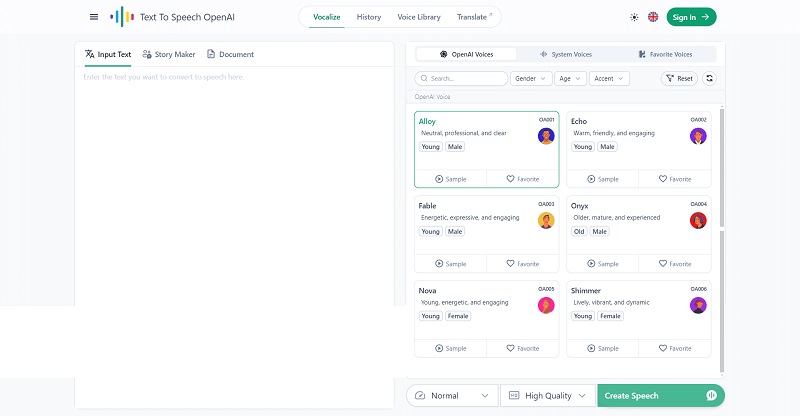
OpenAI text-to-speech is a cutting-edge text to speech voice generator designed for teams or individuals to transform text into lifelike voiceovers. With multiple voice styles and accents supported, it tailors to users’ different needs. It has two main variations: TTS-1 and TTS-1-HD. The former allows you to convert your own text to speech in real-time, and the latter focuses on optimum quality. Other than TTS models, OpenAI also supports various output formats, including MP3, AAC, OGG, and PCM. If you’re looking for a flexible and scalable text-to-speech generator, just go for OpenAI TTS.
Pros:
- Voices are nearly indistinguishable from human speech
- There’s no complicated setup involved
- Often more affordable than competitors
- Simple API structure makes it developer-friendly
Cons:
- Limited customization
- Limited voices for use
- Occasional delays, random failures, or high-latency
- No native voice cloning
- Inconsistent non-English quality
TTSMaker (Best for Beginners)
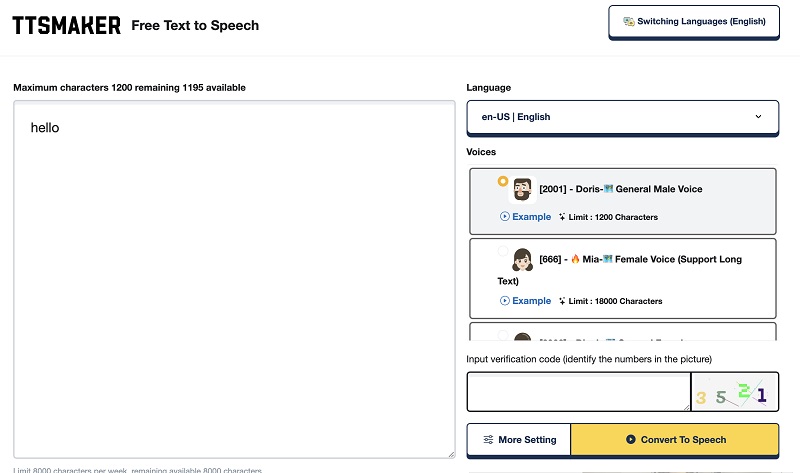
Thanks to the intuitive interface and affordable price, TTSMaker has harvested a huge number of users’ hearts. With a library of AI-generated voices, you can convert your script into a lifelike audio that doesn’t feel robotic. Besides, it enables you to adjust speed, pitch, and volume, giving you full control over your audio. If you have a lot of scripts to convert, TTSMaker’s batch processing feature makes it possible in several steps.
Pros:
- Provides substantial free character limits for users
- Utilizes neural networks for high-quality, lifelike audio
- Supports 50+ languages, including English, German, French, Spanish, and many more.
Cons:
- Free users are restricted by weekly character quotas
- Download links for generated files may only be valid for a short time
- Limited customization on the free tier
How to Convert Text to Speech Using iTop Screen Recorder
Want to see how the above-introduced text-to-speech generator works? Follow these steps to generate a lifelike voice using your script.
Step 1. Download and launch iTop Screen Recorder on your Windows 7, 8, 10, and 11.
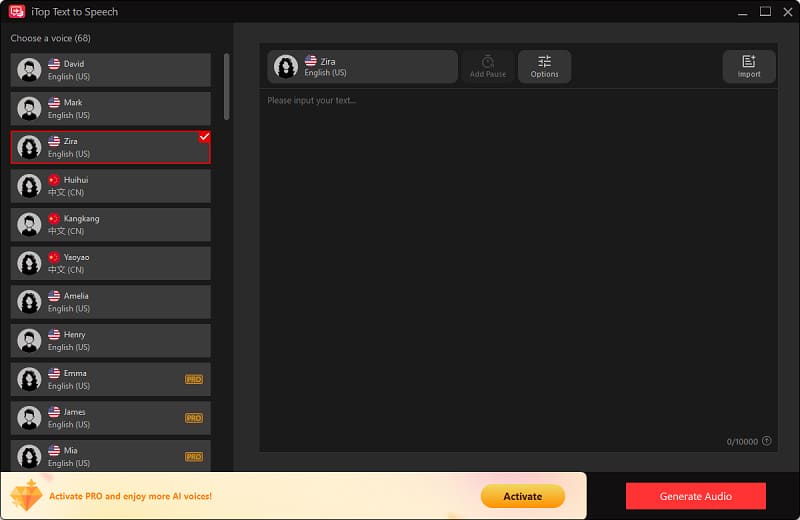
Step 2. Choose the Text to Speech option from the bottom menu.
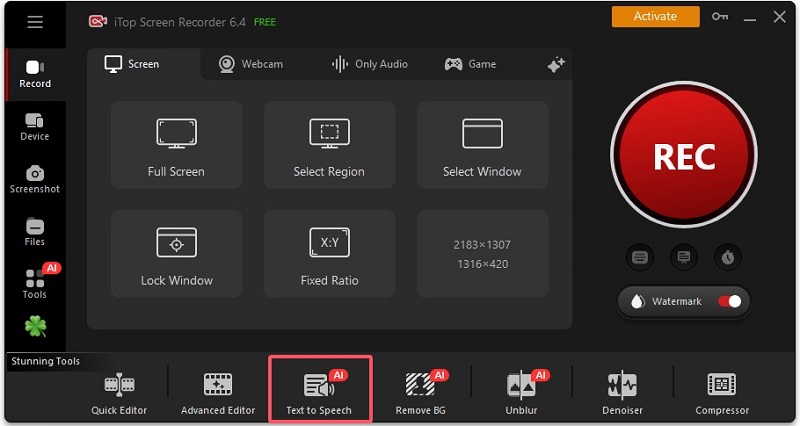
Step 3. Then, you can select your preferred voice from the left panel and then input your text in the right place. Plus, you can add a pause or click “Options” to adjust the speed, pitch, and volume. Once done, click Create Audio to proceed.
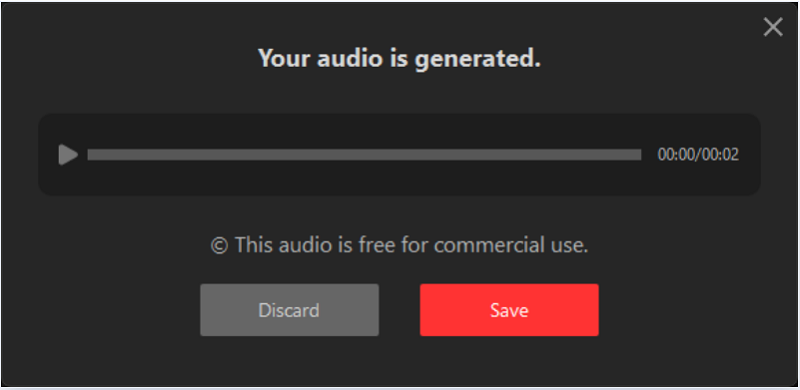
Step 4. Then, a window will pop up to give you two options: Discard or Save your audio. Just click Save to keep your audio in File > Audio.
The Bottom Line
In conclusion, our guide on the six best text-to-speech generators highlights the diverse options available to enhance your audio content creation, whether for personal use, education, or professional needs. Each tool offers unique features to suit different requirements, ensuring that you can find the perfect fit for your projects. To further elevate your experience, we encourage you to download the free screen recorder, iTop Screen Recorder. Don’t miss out—enhance your TTS experience today using any of the text-to-speech voice generator online free!