The first time you build the perfect house in The Sims 4, style a Sim exactly the way you imagined, or witness an unexpected in-game moment, the instinct is often the same: you want to save it. Maybe it’s a beautifully decorated living room, a dramatic proposal, or a glitch that turns into a hilarious memory. Many players reach for the screenshot key, only to realize later that the image didn’t capture the scene the way they hoped.
That’s why so many players end up searching for how to take Sims 4 screenshots that actually look good and preserve those moments properly. This guide shows the simplest ways to take Sims 4 screenshots.

The Basic - How to Take Sims 4 Screenshots using Default Key
Sometimes the easiest solution is already built into the game. If you just want to capture a quick moment while playing, the keyboard shortcut in The Sims 4 is the fastest option. Many players seeking for how to screenshot on Sims 4 discover that the game includes a simple built-in screenshot function that works instantly without opening any extra tools or menus.
This method on how to take pictures in Sims 4 Xbox One is quick and reliable. A single key press is all it takes, which makes it perfect for spontaneous moments such as a funny glitch, a dramatic story scene, or a build you want to remember.
Step 1. Launch The Sims 4 and play normally until you reach the moment you want to capture.
Step 2. Press the C key on your keyboard. The game immediately takes a snapshot of whatever is currently on your screen.

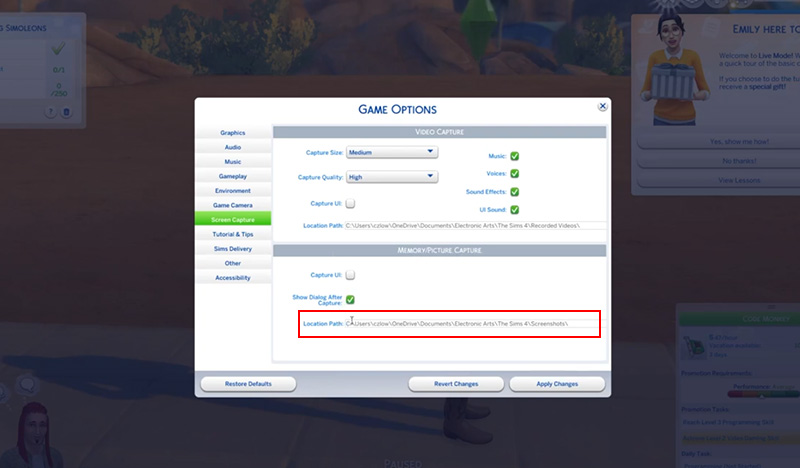
Step 3. Open your Sims 4 screenshots folder later to view the image. By default, the file is saved automatically in the game’s screenshots directory on your computer.
Level Up - Screenshots the Sims 4 Without UI via Game Camera Mode
The Sims 4 also includes a camera mode that offers much more control for taking screenshots. If you're exploring how to take Sims 4 screenshots that look more polished, this feature is worth using. Once enabled, it hides the interface and lets you move the camera around the scene instead of being locked to the standard gameplay view. Use the following steps to learn how to screenshot on Sims 4.
Step 1. Load the lot or household you want to capture. This works best in Live Mode when a Sim is present on the lot.
Step 2. Press Ctrl + Shift + Tab to switch between the Sims 3 Camera and Sims 4 Camera styles. Many screenshots Sims players take are done using the Sims 3 camera because it allows more flexible viewing angles.
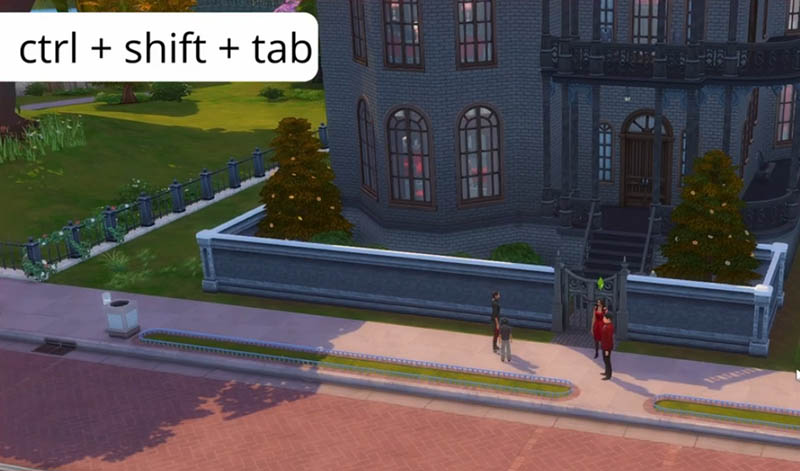
Step 3. Pause the game, then press Tab. The interface disappears, and the camera enters a free-movement view. Click anywhere on the screen and move the mouse to explore different angles before pressing C to capture the image.

Read more: How to Screenshot Grindr Without Permission >>
Advanced - External Tool to Screenshot in Sims 4 in High Quality
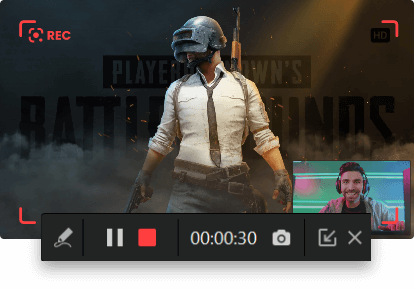
While The Sims 4 offers built-in options for capturing moments, the native tools come with limits. Screenshots often include the UI, plumbobs, or other on-screen elements, and image quality may not reach the level some players want. Many fans searching for how to take Sims 4 screenshots turn to external solutions for cleaner, higher-resolution results. One such option is iTop Screen Recorder, a lightweight tool designed to capture both images and video from your desktop with precise control and HD/4K UHD output.
It allows users to capture screenshots Sims in full-screen or select specific areas of the screen. You can set custom hotkeys for instant capture, choose the format you prefer, and even screen record protected videos. Its intuitive interface ensures both newcomers and experienced players can quickly set up and grab the shots they want.
Here’s how to screenshot in Sims 4 using iTop Screen Recorder.
Step 1. Download, install iTop Screen Recorder, launch the app, and adjust settings according to your Sims 4 screenshot needs.
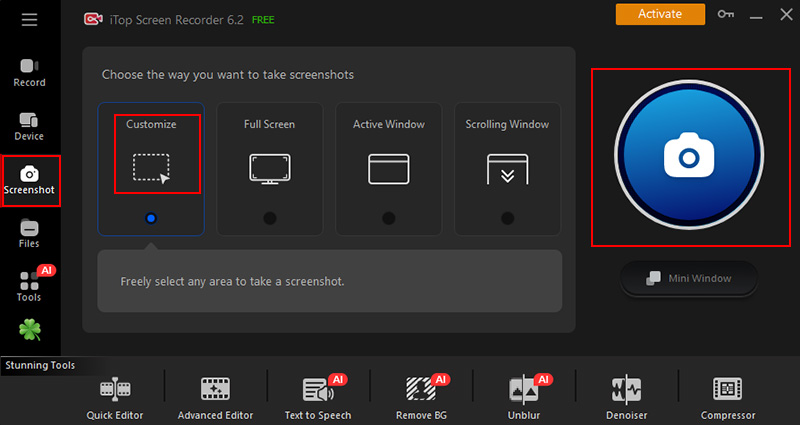
Step 2. Open The Sims 4 and prepare the scene you want to capture. Arrange the Sims exactly how you want before showing how to take pictures in Sims 4 with poses. Click Screenshot, select capture area for Sims 4, then use your chosen hotkey or click the screenshot button to save the image immediately in your preferred folder.
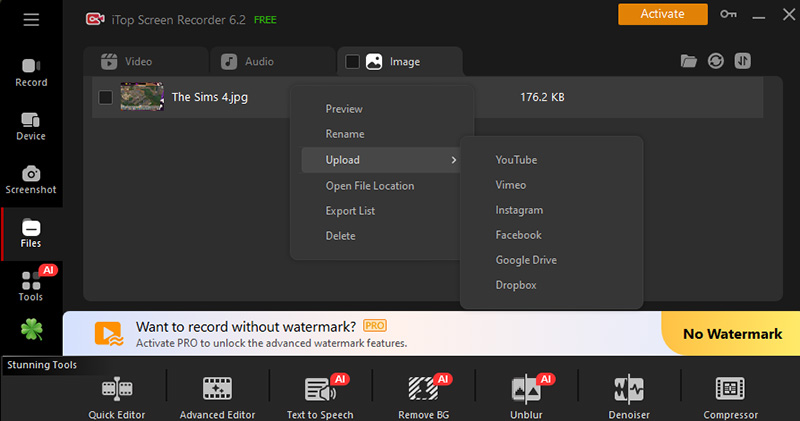
Step 3. Go to Files > Image to locate the Sims 4 screenshot within the tool, right-click the screenshot to preview, rename, upload, etc.
Beyond screenshots, iTop Screen Recorder also functions as a full-featured screen recorder, making it easy to capture video clips of your gameplay.
Why use iTop Screen Recorder to screenshot Sims 4:
- Capture Sims 4 screenshots in HD or 4K quality
iTop Screen Recorder lets you take screenshots in HD or 4K resolution. Every detail of your Sims, builds, and in-game moments is preserved with high quality.
- Custom Sims 4 screenshot hotkeys
You can assign personalized hotkeys for instant capture, so taking screenshots doesn’t interrupt gameplay, and you can snap multiple shots quickly without fumbling through menus.
- Capture full screen or selected area
iTop Screen Recorder allows capturing the entire screen or focusing on a specific region. It’s straightforward to frame rooms, Sims, or objects exactly as you want for polished images.
- Save screenshots in multiple formats
Screenshots can be exported as PNG, JPG, WEBP, BMP, TIF, or other formats, giving flexibility for editing, sharing online, or keeping high-quality archives of your Sims creations.
- One click for quick share
After you screenshot on WhatsApp, Instagram, Sims 4, etc. you can directly share it to YouTube, Instagram, Facebook, Dropbox, with a single click, to show off or store your Sims projects.
Tips to Take Better Sims 4 Screenshots - Lighting and Composition
Capturing a screenshot is only the first step, while making it look appealing requires attention to lighting, composition, and settings. For players looking for how to take Sims 4 screenshots, a few thoughtful adjustments can make a big difference.
1. Gameplay Settings
Open Graphics Options and temporarily increase Edge Smoothing and Sims/Object Quality. Higher settings enhance clarity and detail, so your screenshots look sharp and better.
2. The Golden Hour
Lighting in The Sims 4 changes throughout the day. For soft, flattering shadows, aim to shoot during sunrise or sunset. Alternatively, use the cheat bb.ignoregameplayunlocksentitlement to access debug lights for precise control.
3. Portraits vs. Landscapes
Composition affects the story your screenshot tells. Get close to your Sim for emotional portraits, or pull back to capture entire rooms, buildings, or outdoor spaces for dramatic wide shots.
Read more: How to record meeting Zoom without permission >>
FAQs About Screenshots Sims
What key takes screenshots in Sims 4?
Press C on your keyboard to capture an instant screenshot while playing in Sims 4. This is the default key for quick in-game images.
How do I take screenshots without UI?
Press Tab to hide the interface, including menus, plumbobs, and thought bubbles. Then use the C key to capture a clean Sims 4 screenshot.
Where can I find my Sims 4 screenshots?
By default, screenshots are saved in the Documents > Electronic Arts > The Sims 4 > Screenshots folder on your computer.
Conclusion
Capturing standout moments in The Sims 4 involves more than hitting a key. Adjusting camera angles, hiding the UI, and fine-tuning lighting all help your screenshots look polished. For higher resolution, precise framing, and clean images, iTop Screen Recorder makes taking Sims 4 screenshots intuitive and reliable. Get iTop Screen Recorder download and learn how to take Sims 4 screenshots with ease in the best possible quality.