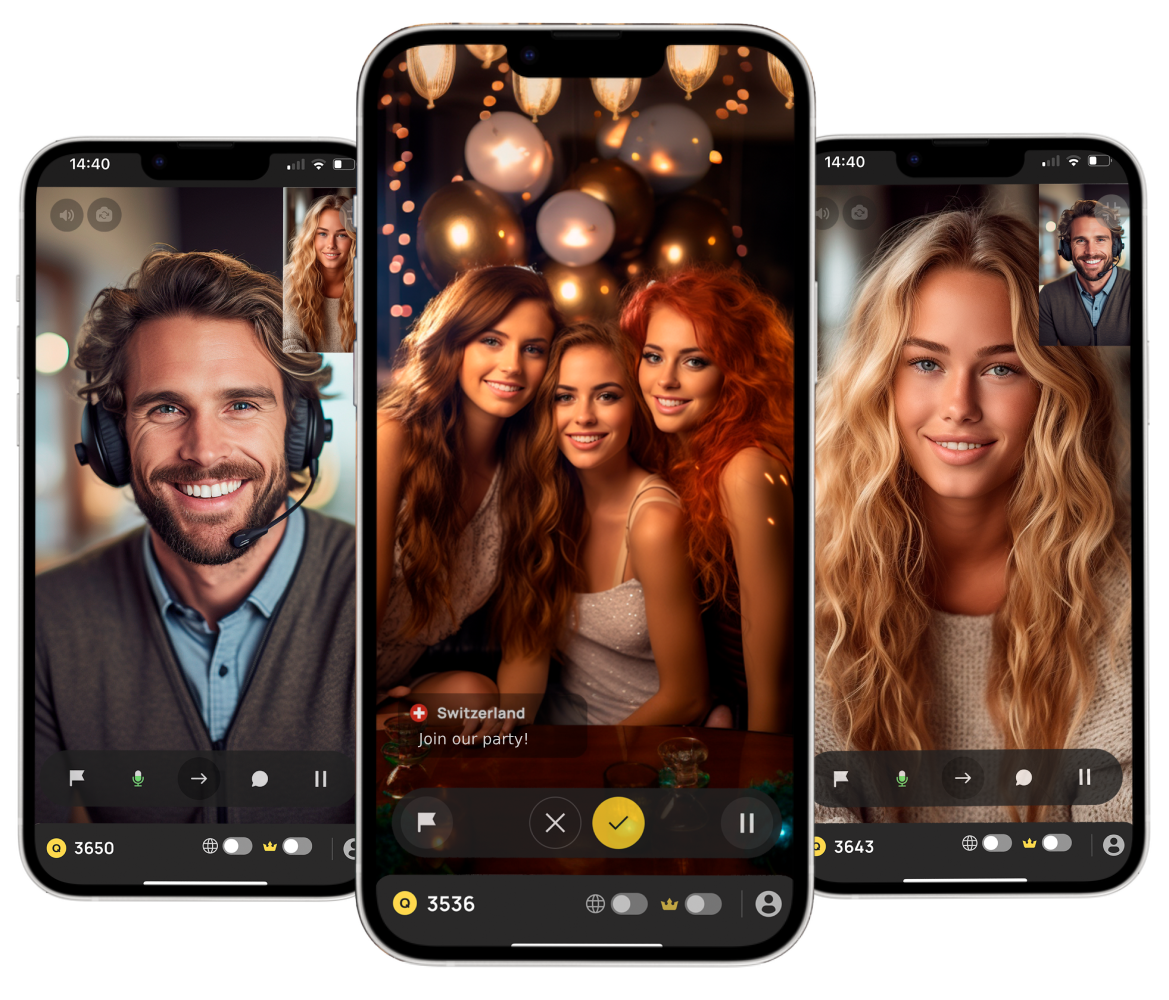
Chatroulette is a popular random video chat service that lets users meet strangers from around the world through both online browsers and mobile apps. Its appeal lies in the thrill of spontaneous connections, engaging conversations, and the chance to explore diverse cultures or interests instantly. Many users enjoy the unpredictability and excitement of meeting new people without prior arrangements.
Chatroulette can be chaotic and sometimes unexpectedly awesome. When a conversation is actually worth keeping, you don't want it lost the second you click "Next". If you're looking for ways to record Chatroulette to review sessions, create content, or keep memories, here’s a straightforward guide covering different devices and safe recording options.
Disclaimers:
- We DO NOT suggest recording Chatroulette chats for any distribution, commercial or illegal use.
- Make sure you've permitted to record private chats from others.
- Chatroulette strictly prohibits inappropriate content (like sexually exploits). Offending accounts will be permanent banned.
Can You Record Chatroulette
Yes, you can. Chatroulette does not technically block screen recording tools, and it openly reminds users that webcam sessions may be captured by others. In other words, the platform acknowledges that recording is possible.
With a reliable screen recorder, you can record Chatroulette conversations and save them locally without much hassle. How to record Chatroulette for personal review or content purposes? The process is straightforward. Below, we’ll walk through the best screen recording options for capturing Chatroulette video chats across different devices and platforms.
How to Record Chatroulette on PC
iTop Screen Recorder offers a practical solution to capture your random video chats on Windows. It’s a free screen recorder for PC that can capture everything happening in your Chatroulette window, including live video, on-screen text, and both system and microphone audio.
With the proper settings enabled, you can record Chatroulette smoothly without quality loss. Follow the below guide on how to record a Chatroulette video with audio on PC via iTop Screen Recorder.
Step 1. Install iTop Screen Recorder from its official site and launch the program.
Step 2. On the main interface, choose Chatroulette recording area. Before recording, turn on the Speaker option to capture Chatroulette with voice and enable the Microphone to include your own commentary.
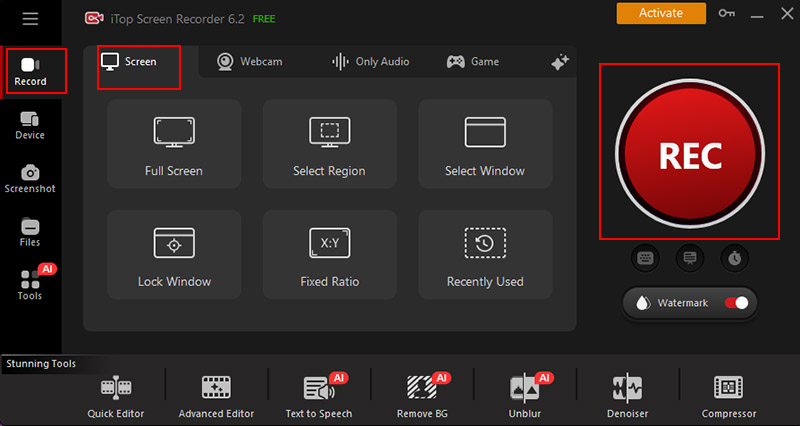
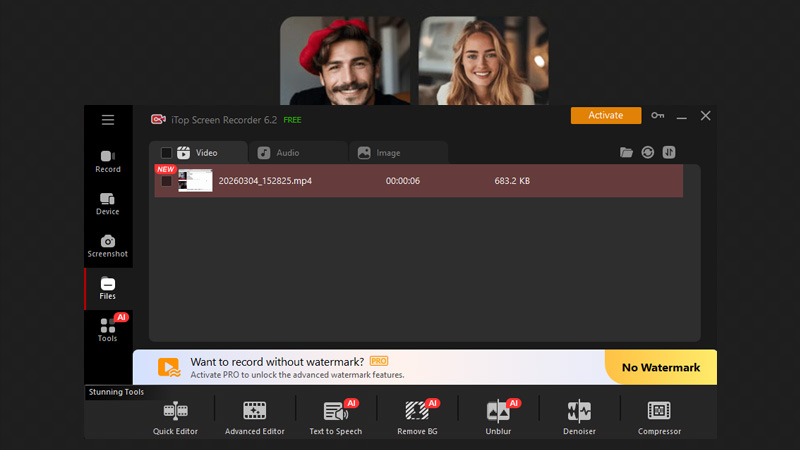
Step 3. Open Chatroulette in your browser and get ready for your session. Once everything looks good, click the red REC button. The recorder will begin capturing instantly after a short countdown. When you'e finished, hit Stop. You can access the Chatroulette recording video via Files > Video.
Why iTop Screen Recorder is the Best Screen Recorder for Chatroulette
-
Record Chatroulette with no quality loss
iTop Screen Recorder captures Chatroulette video in high resolution, up to 4K UHD, without losing quality. The exported file remains sharp, suitable for personal archives or polished online uploads. -
Record Chatroulette with no time limit
There's no forced cutoff in the middle of a conversation. Whether your chat lasts five minutes or an hour, the free screen recorder no time limit can keep uninterrupted Chatroulette recording. -
Record Chatroulette with no lags
iTop Screen Recorder is optimized for stable performance on Windows PCs. It runs quietly in the background, so your Chatroulette live video chat recording remains smooth without lagging. -
Record Chatroulette with no black screen
Unlike some basic capture tools, iTop Screen Recorder handles Chatroulette recording without errors. It avoids the frustrating black screen issue that can occur when screen recording protected videos.
Perfect for: Preserving memorable video chats in high quality, preparing reaction compilations, or a content creator to make pranks for social media sharing.

Record Live and Streaming Videos in One Click
- Record TV shows, movies, live sports from any site.
- Record videos and live streams without quality loss.
- Record from YouTube, Netflix etc., without black screen.
- Record with mic/webcam to create reaction videos.
How to Record on Chatroulette Online
Don't want to install desktop software for Chatroulette recording? iTop Online Screen Recorder provides a browser-based alternative. It runs directly in Chrome, Edge, and other modern browsers, allowing you to capture on-screen Chatroulette activity without downloading a full program. This makes it convenient for quick sessions or temporary use on shared computers, completely free and hassle-free.
The tool works entirely online. Once you grant permission to access your screen and audio, it begins recording instantly. Your files stay private, iTop Online Screen Recorder cannot access your uploads. For anyone exploring how to record on Chatroulette without installing additional apps, this approach keeps the process lightweight and fast.
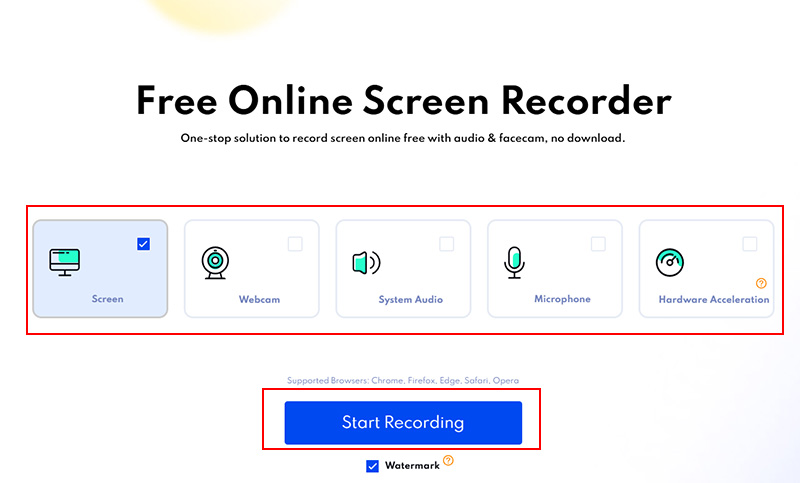
Step 1. Visit the iTop Online Screen Recorder webpage and select the recording settings: Screen, Webcam, System Audio, etc. Click the Start Recording button. Your browser will prompt you to choose what to share, select the Chatroulette tab, or the entire screen.
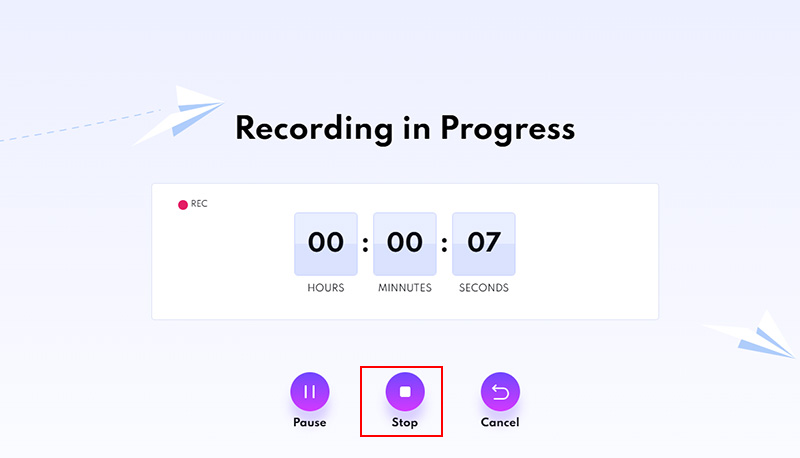
Step 2. Start the session and let the recorder capture your video stream. When you’re done, stop the recording.
Step 3. Select the output resolution, format, and download the Chatroulette recording file directly to your computer.
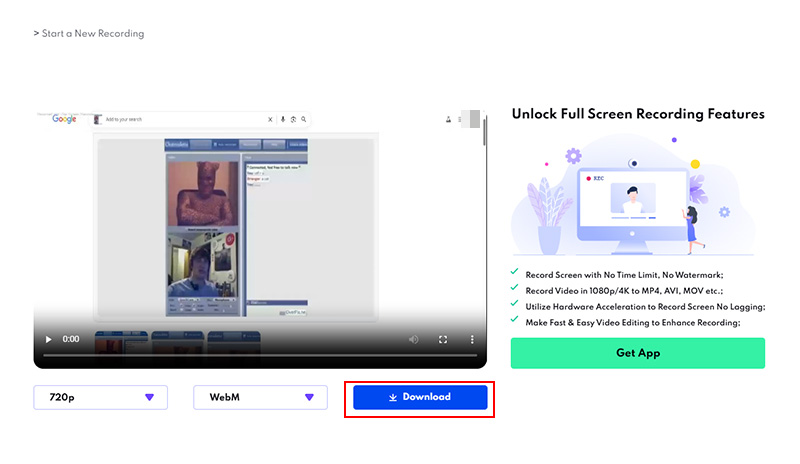
Perfect for: Creating short clips, grabbing snippets, or capturing quick reactions for social media posts without installing software.
How to Record Chatroulette Video on Mac
Mac users who want full control over their Chatroulette recordings can turn to OBS Studio. OBS is a free, open‑source screen recorder available across platforms, including macOS. It’s widely used for streaming and video capture because it allows you to adjust resolution, frame rate, audio sources, and recording formats in detail. If you want more flexibility than a basic screen tool provides, OBS is a better choice. With correct setup, OBS lets you record Chatroulette video in 1080p or higher resolution.
Step 1. Head over to the official OBS website, install the program, and open it once the setup is complete.
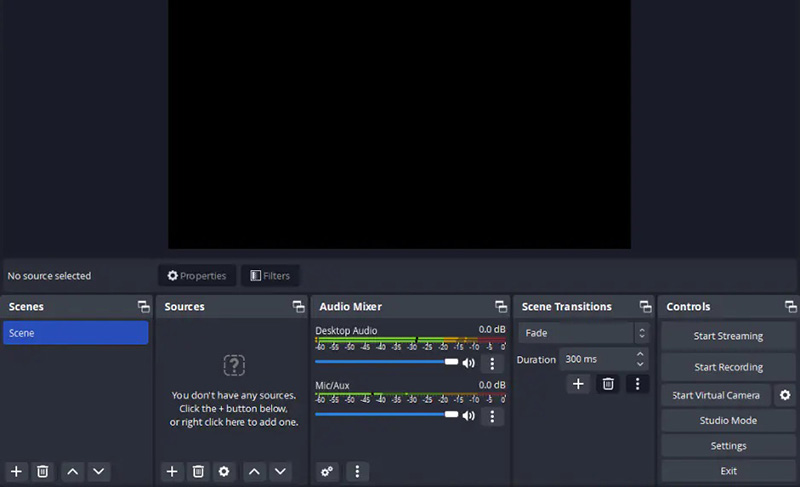
Step 2. In the bottom-left corner, find the Scenes panel and click the + button to add a new scene. Give it a simple name like “Chatroulette Recording” so you can recognize it later. Now move to the Sources panel (next to Scenes) and click + again.
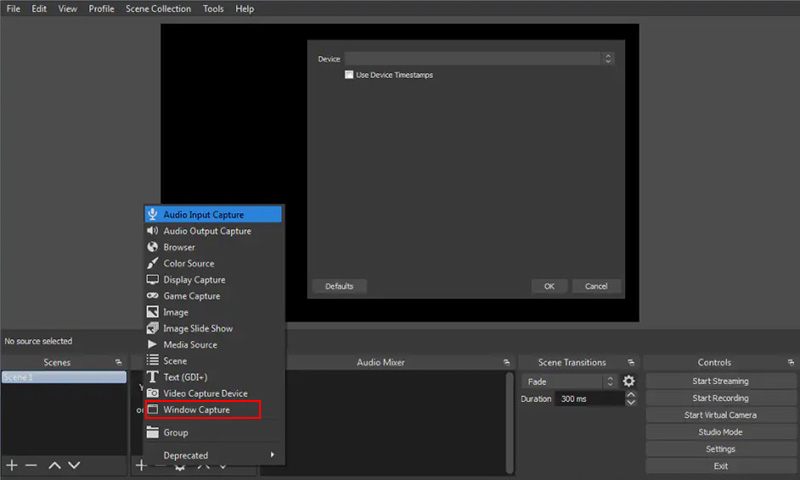
Step 3. Choose Display Capture if you want to record everything on your screen. Choose Window Capture if you only want OBS to record the Chatroulette browser window. After that, click + one more time in Sources and select Audio Input Capture to add your microphone.
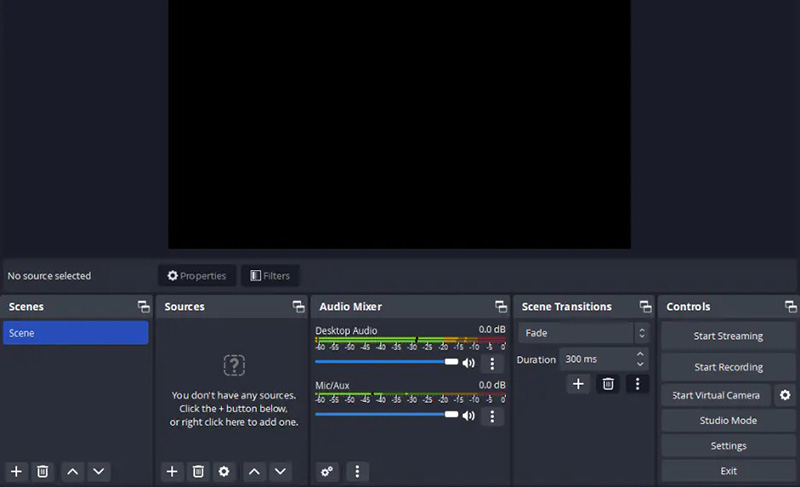
Step 4. Once everything looks good, click Start Recording in the bottom-right corner. You can now begin your Chatroulette session.
Step 5. When you're done, click Stop Recording. OBS will automatically save the video to the folder you selected in the settings.
Perfect for: Achieving flexible, professional-level recording, or capturing long conversations with custom video and audio settings.
How to Record Chatroulette on iPhone and Android
You don't necessarily need third‑party apps to capture mobile video chats. Both iOS and Android devices come with built‑in screen recording features that can save whatever appears on your display, including Chatroulette live sessions. Learn how to record on Chatroulette while using your phone with the following steps, the process only takes a few taps.
For iPhone:
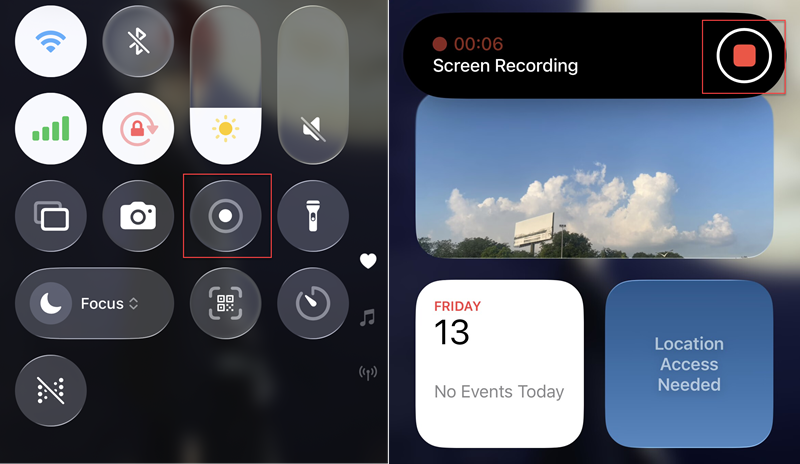
Step 1. Tap Settings > Control Center, tap the + button near Screen Recording.
Step 2. Open Chatroulette in Safari or the mobile app and prepare your session. Swipe down from the top‑right corner of the screen on your iPhone to access Control Center. Press the Record icon.
Step 3. When the chat ends, tap the red status bar at the top and confirm to stop. The Chatroulette video will be saved automatically in the Photos app.
For Android:
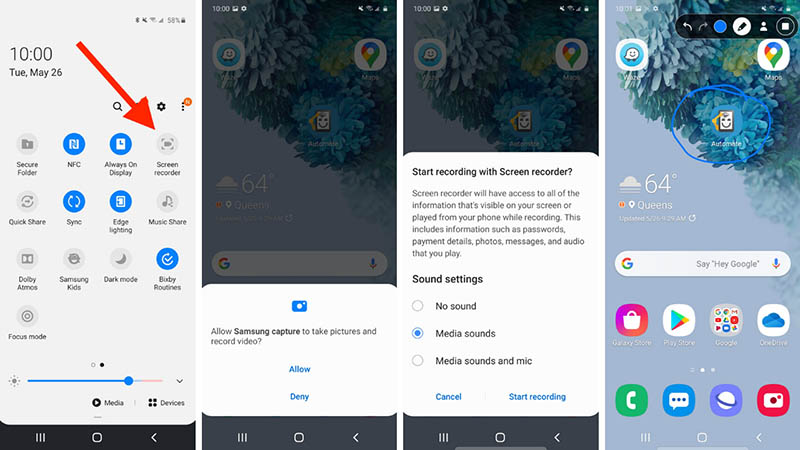
Step 1. Open Chatroulette in your browser or app. Swipe down from the top of the screen to open Quick Settings and tap the Screen record icon.
Step 2. Choose whether to record device audio, microphone input, or both. Once you begin, everything on screen will be captured.
Step 3. Tap Stop when Chatroulette video recording is finished.
Perfect for: Recording Chatroulette videos on the go, saving spontaneous conversations, and capturing funny reactions instantly on mobile.
Conclusion
Recording Chatroulette is straightforward across all devices when you use the right tools. From Mac to mobile devices, each platform offers options to save your Chatroulette video chats safely and clearly. Windows users can turn to iTop Screen Recorder for a smooth way to record Chatroulette video without quality loss or time limit. Grab iTop Screen Recorder and capture Chatroulette sessions without fuss.