Spotify has grown into one of the world’s most widely used music streaming platforms, giving easy access to songs, playlists, podcasts, and personalized listening statistics. Many users screenshot Spotify page to share favorite tracks, recommend playlists, save memorable lyrics, or post Spotify Wrapped results on social media. Screenshots are also useful for keeping a quick record of podcasts, albums, or music discoveries across different devices. This post explains how to screenshot Spotify songs on different devices in a few simple steps.
Disclaimer: Please ensure that any screenshot is taken and shared in compliance with Spotify’s terms of service and applicable privacy considerations.
Does Spotify Notify Screenshots
Spotify does not alert users when someone captures their playlist, profile, album page, or listening activity through a screenshot of a Spotify action. Unlike certain social media platforms that send notifications for screenshots, Spotify currently has no feature that informs another person when their content is saved this way. On mobile devices, the app may recognize the operating system's screenshot activity and display a quick sharing prompt afterward. This pop-up is designed for convenience only and is not connected to any notification sent to other users.
How to Screenshot Spotify on Windows PC
Windows includes built-in screenshot utilities for Spotify screenshots, while third-party tools provide more advanced options such as scrolling screenshots, annotations, and higher image quality for larger Spotify pages.
How to Screenshot Spotify with Snipping Tool
Snipping Tool is a built-in Windows screenshot system and works well for quickly capturing a Spotify window, song information, or profile page in just a few clicks. Below is how to screenshot Spotify on Windows via Snipping.
Step 1. Open Spotify on your PC and navigate to the content you want to save. Then press Windows + Shift + S to launch the screenshot toolbar instantly.
Step 2. Select the capture mode you prefer for Spotify.
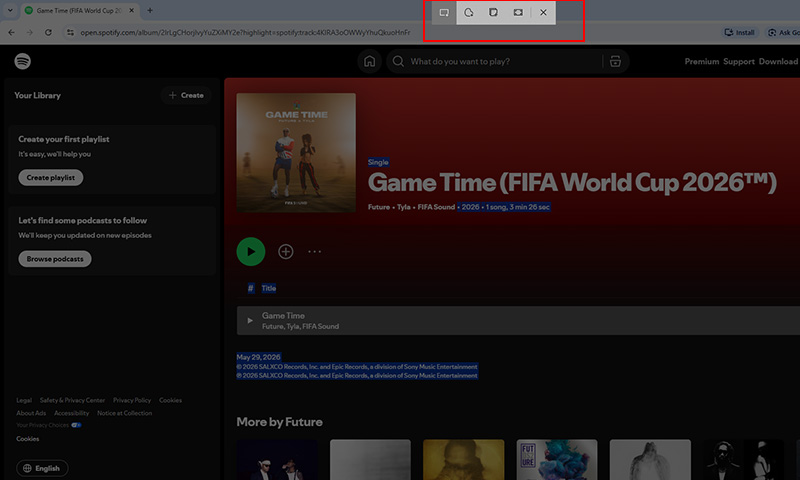
Step 3. Drag your cursor over the Spotify interface or click the Spotify window and the screenshot will be copied automatically.
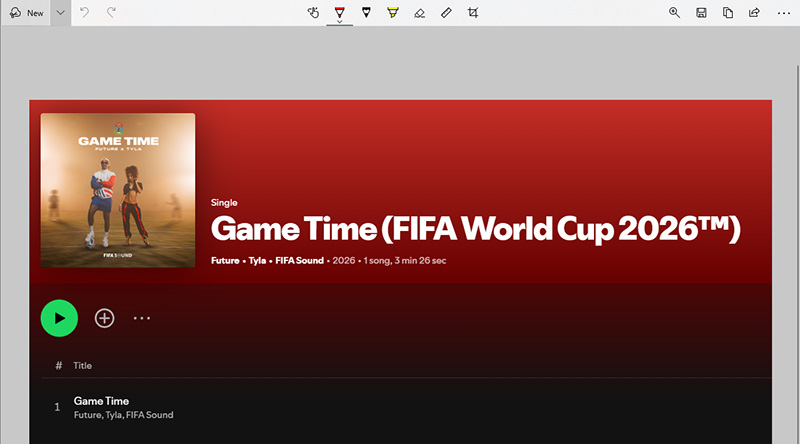
Perfect for: Quick screenshot of Spotify song pages, playlist previews, album covers, and user profiles, as well as basic editing.
How to Screenshot Spotify with iTop Screen Recorder
While built-in Windows tools are convenient for plain Spotify screenshots, third-party applications usually offer more control and additional capture features. iTop Screen Recorder combines screen recording and screenshot tools in a single program. It offers several features to capture Spotify and any content on your screen seamlessly.
▶ Screenshot Spotify Flexibly: iTop Screen Recorder captures the full screen, a selected region, a specific Spotify window, or a scrolling page, depending on the exact Spotify content you want to save.
▶ Screenshot Spotify with Clear Image: The tool preserves the original quality of Spotify playlists, lyrics, and album artwork screenshots after export or editing.
▶ Screenshot Spotify with Annotations: Built-in editing tools make it easy to add arrows, highlights, text, shapes, or blur effects directly onto Spotify screenshots before saving them.
▶ Take a Scrolling Screenshot of Spotify Playlist: Long playlists and podcast libraries can be captured continuously in a single image instead of stitching multiple screenshots together manually. It is also available to save whole webpage as an image.
Here's how to take Spotify screenshots on PC with iTop Screen Recorder.
Step 1. Download and install iTop Screen Recorder on your Windows PC for Spotify capture.
Step 2. Open Spotify and navigate to the page you want to capture. Launch iTop Screen Recorder and select the Screenshot feature from the sidebar.
Step 3. Choose a capture mode such as full screen, custom area, window capture, or scrolling screenshot. Click the screenshot icon to instantly grab a Spotify screenshot. You can use the built-in annotation tools to add text, shapes, etc., and blur sensitive information, before saving or exporting the final Spotify screenshot.
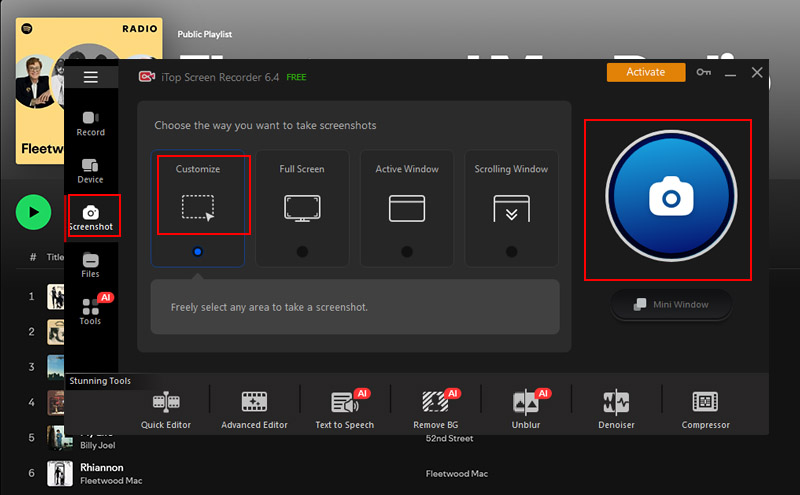
Step 4. The Spotify screenshots are accessible under Files> Image. Right-click the screenshot to upload to YouTube, Instagram, Facebook, etc.
Perfect for: Customizable screenshots of Spotify playlists, podcasts, lyrics, album collections, artist pages, and long scrolling content with editing and high-resolution export support.
How to Screenshot Spotify on Mac
On macOS, it's very simple to capture what you see on Spotify using built-in keyboard shortcuts. There's no need to install extra programs, and everything works instantly while Spotify is running in the background or in full view. A quick screenshot of Spotify action can be done in seconds with the right shortcuts when you want to save a playlist layout, share a track, or keep a visual memory.
Step 1. To capture the entire screen of Spotify, press Command + Shift + 3 to instantly take a full-screen screenshot, including Spotify and any other open windows on Mac.
Step 2. For a specific section of a Spotify song or playlist capture, press Command + Shift + 4. Your cursor will turn into a crosshair, allowing you to drag and select the exact area you want to save, such as album art or part of a playlist.
Step 3. For capturing only the Spotify window, press Command + Shift + 4, then tap the Spacebar. Click on the Spotify window, and macOS will automatically capture it in a clean, focused format without surrounding distractions.
Tip: Press Command + Shift + 5 to open the screenshot toolbar to show more options. From here, you can choose different capture modes, adjust settings, or even record your screen if needed.
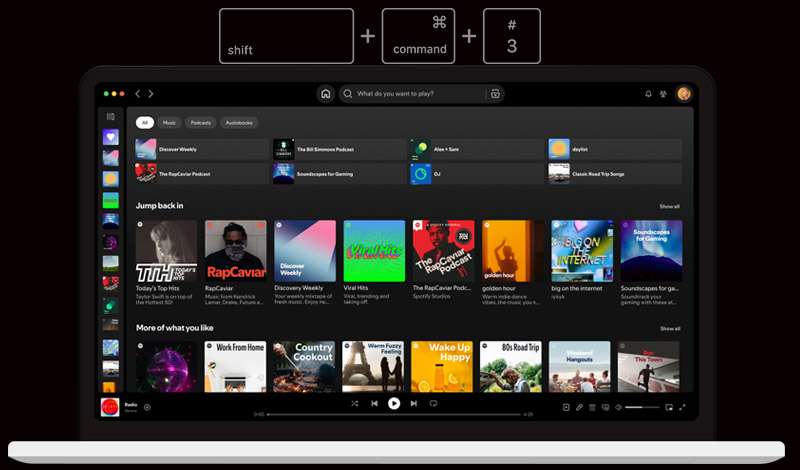
Perfect for: Grabbing music visuals, tracks, or creating a high-quality screenshot of Spotify playlist view on macOS, needless of third-party help.
Also Read: How to Take Screenshot on 60 Keyboard >>
How to Screenshot Spotify on iPhone
On iPhone, capturing what appears on Spotify is simple because iOS already includes a built-in screenshot function that works smoothly across most apps. There is no need to install any extra tools, and the process remains consistent whether you are viewing playlists, album pages, or the now-playing screen. Many users rely on it when they want to save a music moment or share what they are listening to.
This method is ideal for different situations, from saving album artwork to capturing playlist layouts. Some users also use it to take a quick screenshot of Spotify interface for sharing on social media. It is equally helpful when you want to preserve a lyric screen or to screenshot Spotify lyrics moment without interrupting playback.
Step 1. Open Spotify and navigate to the screen you want to capture.
Step 2. On Face ID models, press the Side button + Volume Up at the same time, then release. On older devices with a Home button, press the Home button + Side button together instead.
Step 3. A small preview appears in the corner, where you can edit, crop, or save the Spotify screenshot immediately.
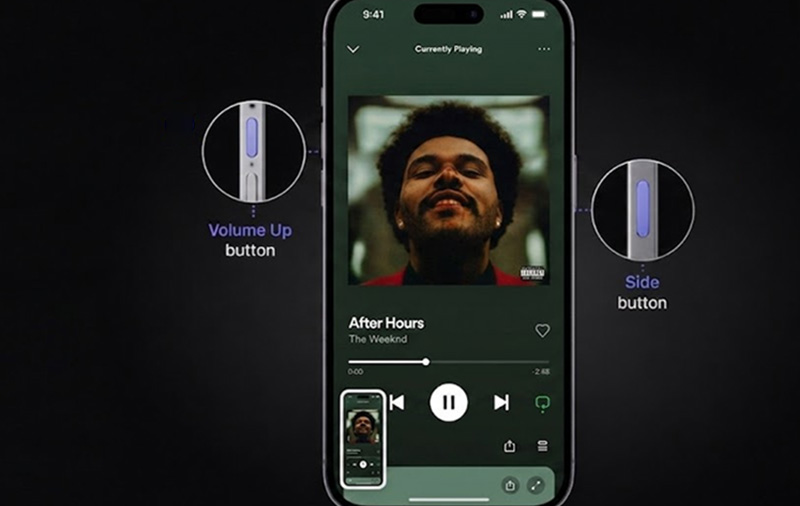
Perfect for: Taking screenshots of Spotify playlists, sharing listening summaries, and capturing content without installing apps.
How to Screenshot Spotify on Android
Android devices also include native screenshot function that makes capturing Spotify content fast and straightforward. It works across playlists, albums, and listening pages. This approach works well for preserving music highlights or personalized summaries like a screenshot Spotify wrapped result, which many users like to share at the end of the year. Use the following steps to screenshot Spotify on Android directly.
Step 1. Open Spotify and display the content you want to save.
Step 2. Press the Power Button + Volume Down at the same time on most Android phones.
Step 3. The screenshot will be saved automatically to your gallery, where you can view, edit, or share it instantly.
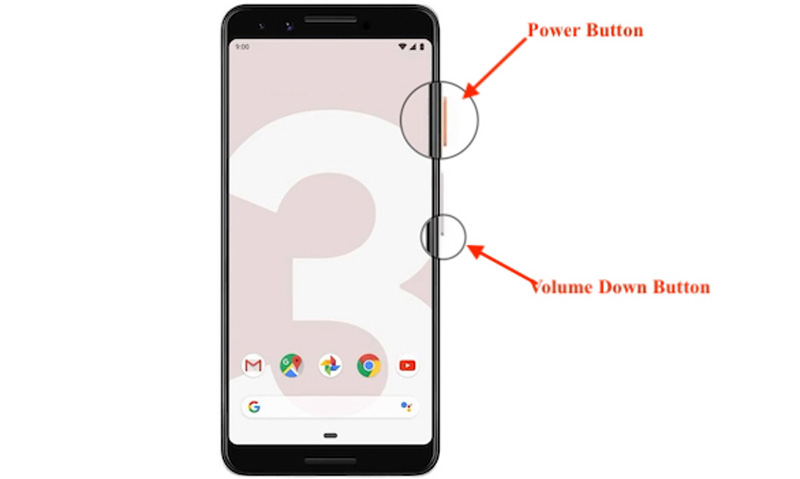
Perfect for: Saving multiple Spotify moments on Android devices on the go without extra apps or setup.
Spotify Screenshot FAQs
How to screenshot Spotify Lyrics?
Play a Spotify track, open the Now Playing screen, then reveal the lyrics section. Use your device's built-in screenshot shortcut. The captured image will include the synced lyrics shown on screen.
What are the best Wrapped cards to screenshot?
The most shared ones are top artists, top songs, the "minutes listened" card, and listening personality summaries, as they visually represent your yearly music taste.
What can I do if the screenshot looks blurry?
Make sure Spotify is displayed in full resolution and avoid zooming in before capturing. Save the Spotify screenshots in PNG format rather than a compressed JPG for better clarity.
How to share a Spotify screenshot?
After capturing Spotify, open the screenshot from your gallery or photos app, then share directly through messaging apps or social media.
Can I screen record Spotify songs?
Yes, you can record Spotify songs in some cases, but the experience isn't always straightforward because of built-in DRM restrictions and system-level protections. What you're able to capture often depends on the device you're using and the type of content you're trying to record.
Conclusion
Most systems already include built-in tools that make the Spotify screenshot process quick and effortless. These native options are usually enough for everyday needs. However, when it comes to capturing an entire playlist in one long image, third-party tools offer a more flexible solution and better control over the result. For Windows users in particular, if you want to screenshot Spotify songs, playlist, lyrics, or even Wrapped highlights, or go a step further and screen record music content, iTop Screen Recorder, the all-in-one screenshot and screen recording software provides a more complete control for Spotify capture and editing.