 Play Games without Regional Limits!

DAZN does not include a built-in feature that lets users save or duplicate live broadcasts directly from the platform. The DAZN Game Pass can help in certain situations because it allows downloads for selected on-demand content, making it easier to watch replays offline later. However, it is not a complete solution. Live programs still cannot be downloaded during the broadcast, which is why many users look for alternative ways to record DAZN content for personal viewing.
Does DAZN Offer Any Default DVR Function?
DAZN does not provide an official DVR or recording tool for live sports streams. Although some replays stay available temporarily inside the app, livestreams cannot be downloaded or permanently stored through DAZN itself. To record streaming audio and save games for personal viewing, many users rely on the built-in recording features already included on mobile devices and computers.
iOS
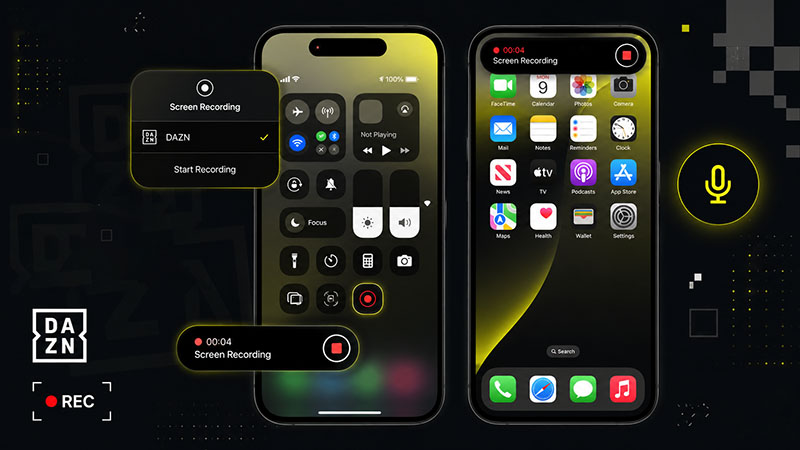
Step 1. Open the DAZN app and play the livestream you want to save.
Step 2. Swipe down from the top-right corner to open the Control Center.
Step 3. Tap the Screen Recording icon and wait for the countdown to finish.
Step 4. Stop the recording when the match ends. The video will appear in the Photos app automatically.
Android
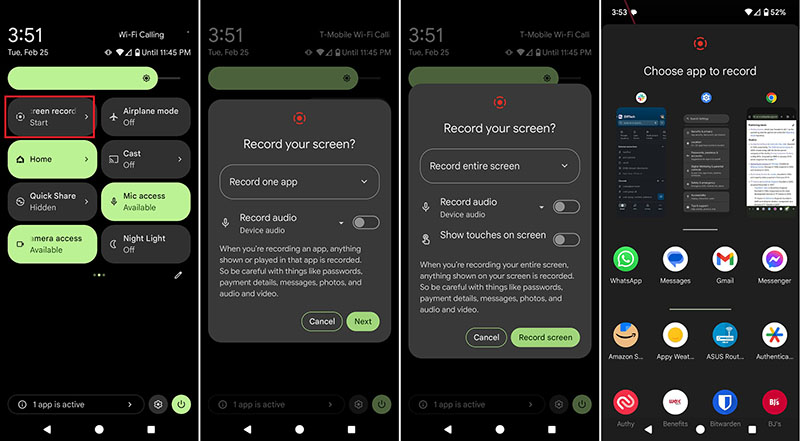
Step 1. Launch DAZN and start the live event.
Step 2. Swipe down from the top of the screen to access Quick Settings.
Step 3. Tap Screen record button and begin recording the stream.
Step 4. End the recording from the notification panel and check the saved video in your Gallery app.
Windows
Step 1. Open the DAZN livestream in your browser.
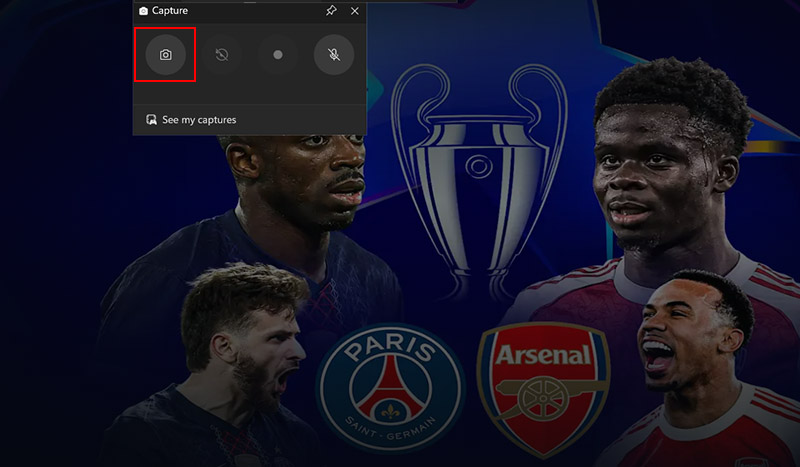
Step 2. Press Windows + G to launch Xbox Game Bar.
Step 3. Click the Capture button and start recording the stream.
Step 4. Stop recording after the event finishes. The file will be stored in the Captures folder.
Mac
Step 1. Play the DAZN livestream in Safari, Chrome, or another browser.
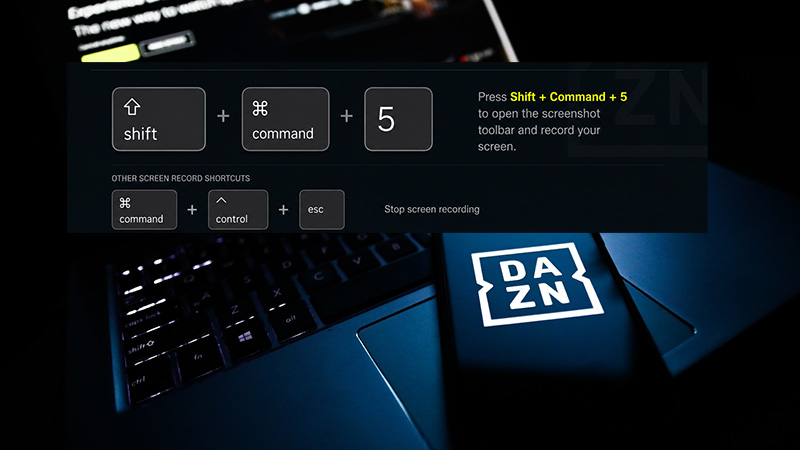
Step 2. Press Command + Shift + 5 to open the macOS recording toolbar.
Step 3. Choose the recording area and click Record.
Step 4. Stop the capture after the stream ends, and the file will save to your desktop by default.
Note: Default screen recording features on your mobile and desktop devices perform badly on resolution. And desktop default recording programs always record with no sound, or face black screen videos due to content-protection policies and Xbox cannot even record full screen videos. You need a reliable third-party screen recorder to help you record DAZN.
How to Record DAZN Livestream for Free? iTop Screen Recorder
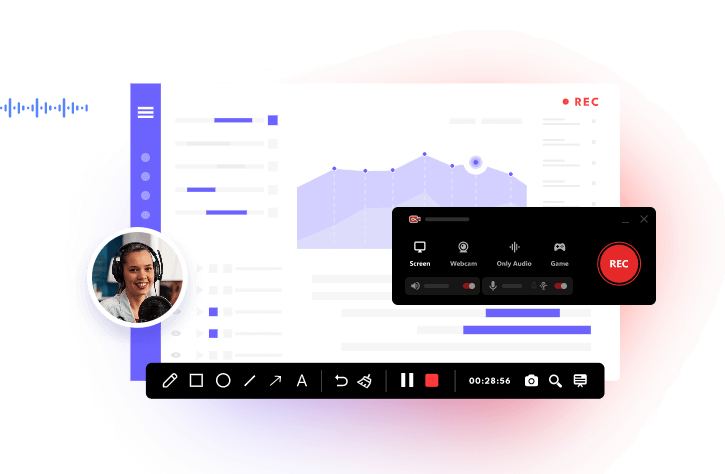
How to screen record DAZN without complicated settings or unstable browser extensions? iTop Screen Recorder is one of the easiest options available for Windows users. The software is designed to capture DAZN live streaming, game pass, on-demand smoothly with sharp image quality and synced audio. It also performs well with protected streaming content to avoid the black-screen issue that often appears when recording sports platforms.
Another advantage is its stable performance during long broadcasts. Whether you want to save an entire boxing event or record DAZN football free for later playback, the recorder keeps frame drops and lag to a minimum. The screen recorder supports high-resolution recording up to 4K, making fast-moving sports footage look clear and fluid instead of blurry or choppy.
Besides desktop streams, the program can also mirror mobile devices onto a PC for larger-screen recording. That flexibility makes it a practical solution for users who regularly record DAZN matches from different devices, record ESPN, and many other sports media streaming services.
Step 1. Download and install iTop Screen Recorder on your Windows PC for DAZN capture, then launch the program after installation finishes.
Step 2. Open DAZN in your browser and start the video you want to save. In iTop Screen Recorder, choose the Screen recording mode and select either full screen or a custom capture area.
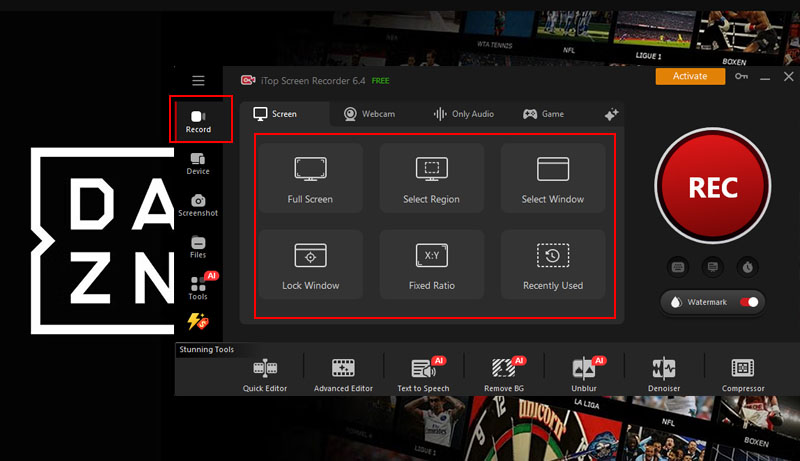
Step 3. Enable system audio so the match commentary and stadium sound are included in the recording. After that, click the REC button to begin capturing the DAZN content.
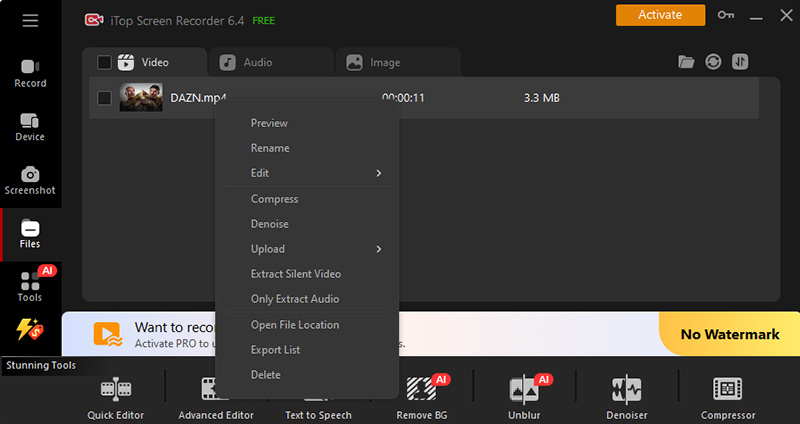
Step 4. Once the game or event is over, click the Stop button. Your recorded DAZN video will then be saved automatically to the local folder for playback or editing later.
Alternatives to Record DAZN Within the App
When you do not want to record DAZN football free with third-party software, the platform itself still offers several built-in features that can help you revisit important moments from a live event. These options are convenient for short-term viewing, although they do not fully replace permanent video recording.

- The replay feature
After selected live feeds end, DAZN often keeps the full match available for on-demand streaming. This allows users to return and watch missed action later without needing to save the broadcast manually. However, replay availability depends on licensing rights and regional restrictions, so not every event stays online permanently.
- The pause and rewind feature
DAZN also includes Pause and Rewind controls during many live broadcasts. This feature is especially useful for viewers who miss a goal, a knockout, or a key play while watching in real time. You can move backward within the active livestream and continue from that point without leaving the stream. Still, rewinded segments are temporary playback buffers rather than downloadable clips, meaning they disappear once the event or session ends.
- The Game Pass feature allows to download resources from DAZN
Certain on-demand programs and highlights can be downloaded for offline viewing through the app. However, live matches themselves usually cannot be saved during the broadcast, and downloaded content expires after a limited viewing period (30 days).
How to Download DAZN with Game Pass Downloads Feature?
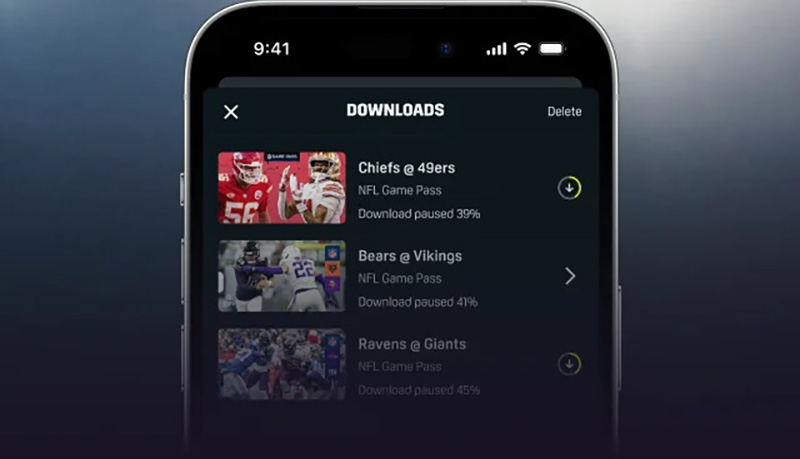
For those who do not want to record DAZN streams manually, the Game Pass download feature gives another way to watch selected content offline. This option is mainly designed for mobile viewing through the DAZN app on iOS and Android devices. It allows subscribers to temporarily save certain on-demand programs, including replays, highlights, and sports shows.
Note that not every on-demand title includes a download option, since availability depends on regional rights and content licensing. In addition, live broadcasts still cannot be downloaded even if you own an active Game Pass subscription. Because of these subscription download limits, some viewers still search for how to record on DAZN, record Sky Sports+, etc. when they want permanent access to sports events.
How to Download DAZN Videos?
Step 1. Install the latest DAZN app on your iPhone, iPad, or Android device and sign in with a Game Pass-supported account.
Step 2. Browse the available sports content and open the replay, highlight, or on-demand program you want to save offline.
Step 3. Tap the three-dot menu or the download icon beside the supported video, then start the download process.
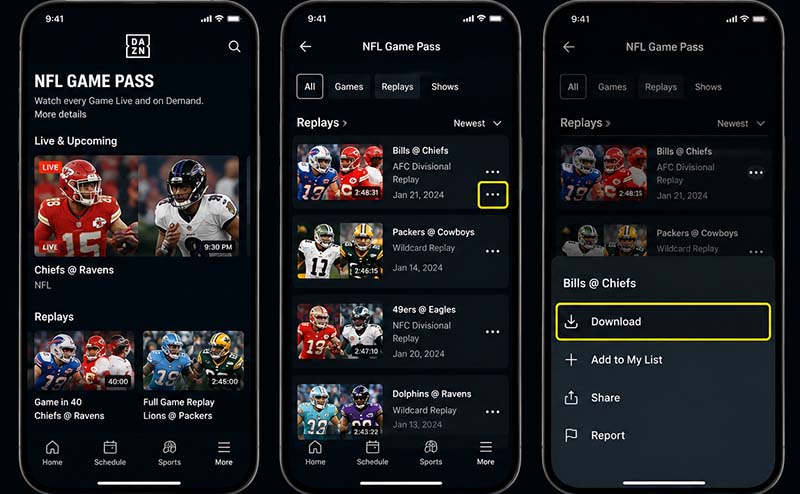
Step 4. After the download finishes, open the Downloads section inside your DAZN profile to watch the saved content without an internet connection.
Limitations
- The download feature is only available for paid subscribers with eligible Game Pass access.
- Downloaded videos stay inside the DAZN app and cannot be exported as MP4 files.
- Some matches, replays, and sports programs do not include download support.
- Live streams cannot be downloaded during active broadcasts.
- If your Game Pass subscription expires, previously downloaded content may no longer be accessible inside the app.
Bonus Tip: Is It Legal to Record DAZN?
Before you record DAZN matches or sports broadcasts from other live streaming platforms, it is important to understand the legal and policy-related risks involved. DAZN owns or licenses most of the content available on its platform, including live games, highlights, interviews, and replays. Because of that, recording copyrighted streams may violate DAZN’s terms of service, depending on how the captured content is used.
In many regions, creating a private recording for personal viewing is treated differently from redistributing the material online. Saving a clip to rewatch a missed moment at home is generally considered far less risky than uploading the footage to public websites, social media pages, or streaming platforms. Users should avoid reposting entire games, monetizing highlights, or sharing subscription-only footage with others without permission.
It is also important to remember that unauthorized commercial use can lead to copyright claims, account penalties, or removal requests from rights holders. This includes selling recorded footage, using sports clips in advertisements, or distributing DAZN live stream free copies through third-party platforms.
To stay on the safer side, recordings should only be kept for personal entertainment and never used for business purposes, resale, or large-scale public sharing.
Recording DAZN copyrighted content may be restricted by its terms of service, as it involves rights-protected live and on-demand sports streams.
Conclusion
DAZN does not currently offer a full recording feature to record DAZN live sports, but there are still several ways to save or revisit important matches. Built-in replay tools can help temporarily, while iTop Screen Recorder provides a more stable solution for high-quality yet smooth DAZN livestream capture. If you want smoother recording, better resolution, and fewer recording restrictions, iTop Screen Recorder is worth trying.

Record Live and Streaming Videos in One Click
- Record TV shows, movies, live sports from any site.
- Record videos and live streams without quality loss.
- Record from YouTube, Netflix etc., without black screen.
- Record with mic/webcam to create reaction videos.





