Have you ever wanted to capture a hilarious Discord meme, a DM before it disappears, or a moment in a voice channel? You are not alone. Today, some users still don’t know how to screenshot on Discord. But worry not, this guide covers every reliable method across Windows, Mac, Android, and iOS. You can find built-in shortcuts and a free professional tool to capture all your Discord content effortlessly. Don’t miss out!
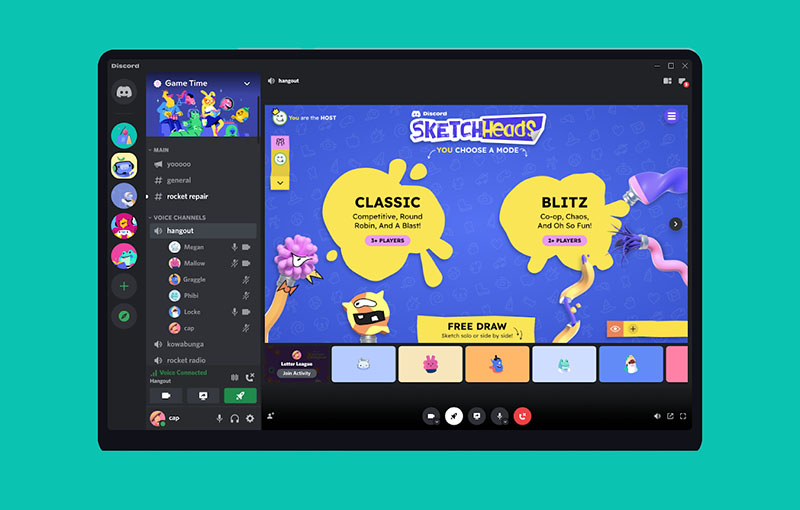
How to Screenshot on Discord Windows 10
For Windows users who want to capture a Discord screenshot, there are generally two methods. You can either use the built-in Windows screenshot feature or opt for a dedicated screen recording tool. Below, we will introduce both methods with clear steps and tips for the best results.
1. Windows Snipping Tool Windows
How to take a screenshot on Discord for free? Just use Windows built-in Snipping Tool. It allows you to capture a selected area, window, or full screen quickly, which is perfect for saving Discord chats or memes without installing any extra software.
How to screenshot on Discord Windows with Snipping Tool
Step 1. Open Discord to the chat, DM, or server you want to capture. Press keyboard shortcuts: Win + Shift + S.
Step 2. Select your snip type: Rectangular, Window, or Full-Screen Snip. Click and drag over to capture a Discord screenshot. Then the screenshot is copied to the clipboard.
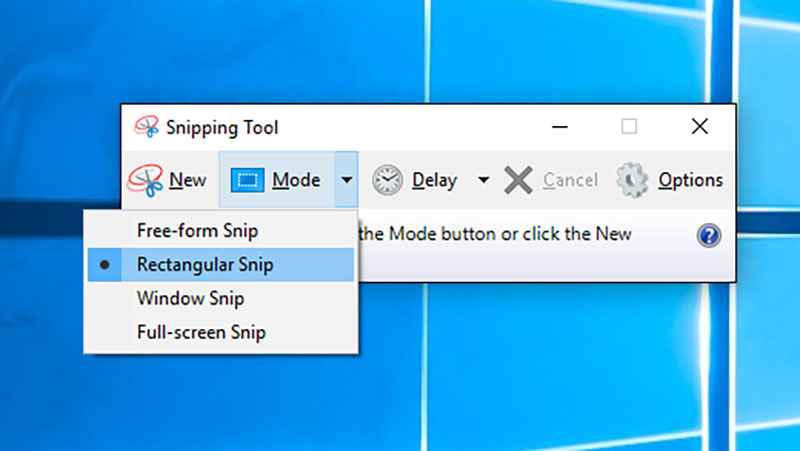
Step 3. Paste (Ctrl + V) into Paint, Discord, or another app to save or share
2. iTop Screen Recorder
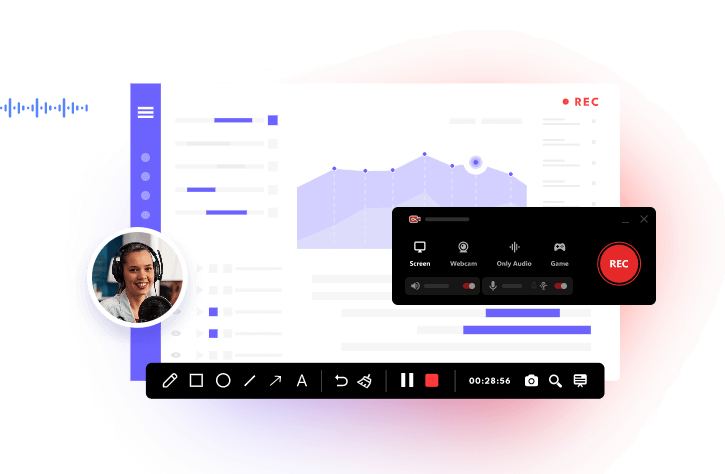
Now you know how to screenshot on Discord natively. While the snipping tool is fast and free, it lacks advanced editing and recording options. But worry not. iTop Screen Recorder comes as a more powerful solution, which can help you capture everything(image/audio/video) on Discord easily.
How to screenshot on Discord Windows with iTop Screen Recorder
Step 1. Download iTop Screen Recorder. Follow the instructions to install it on your Windows PC.
Step 2. Launch the program. Go to Screenshot and choose a capture mode: Customize, Full Screen, Active Window, or Scrolling Window.
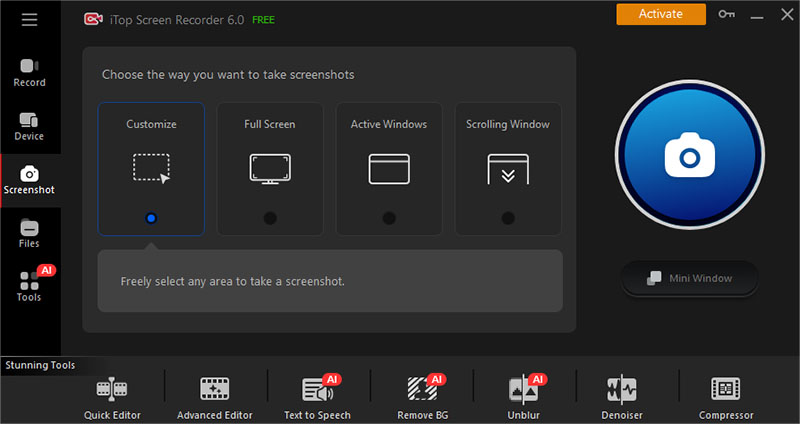
Step 3. Drag the cursor to screenshot Discord chat/channel. Then go to the Files tab to find your screenshot and feel free to edit it with the built-in tools.
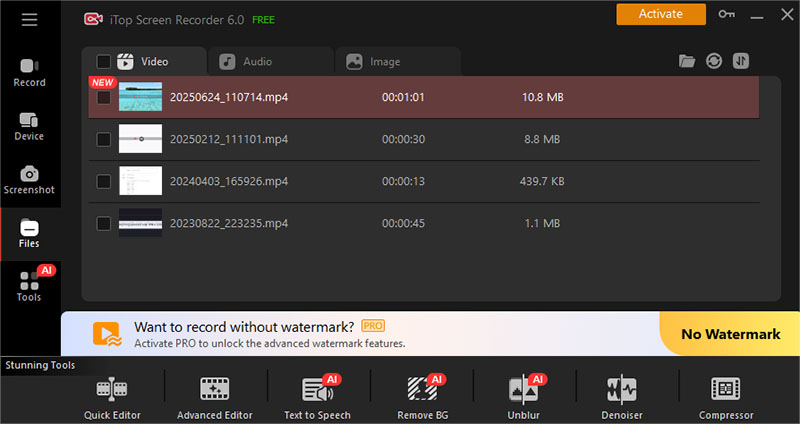
Highlighted features of iTop Screen Recorder
- Record Discord video and audio clips: iTop Screen Recorder is not just about screenshots; it allows you to capture Discord streaming sessions, voice channels, video calls, etc., all in one place! You can record screens with up to 4K/1080p and 120fps with no lag and no fps drop.
- Phone screen mirroring & recording: What sets it apart is its ability to mirror your mobile device to your PC and record Discord app activity directly. This allows you to record/screenshot Discord messages without notification, which is useful if you want to preserve private content discreetly.
- Real-time voice changer for Discord recording: Integrated with a sophisticated AI voice changer, the recorder can change your voice with 10+ filters. You can choose from styles like robot, cartoon, or gender variations to enhance content creation or have fun in gaming sessions!
- Custom & versatile recording options: As an advanced screen recorder, it provides flexible recording modes: Screen, Webcam, Audio Only, and Game. You can select various recording areas, denoise audio recording background, and customize output formats, frame rates, and resolution based on your personal preference.
How to Screenshot Discord on Android and iOS
Now you know how to take a screenshot on Discord on desktop. So what about mobiles? It’s super simple, just use your device’s built-in screen recording features. Let’s see how to screenshot on Discord mobile easily using Android and iOS.
How to Screenshot on Discord Android
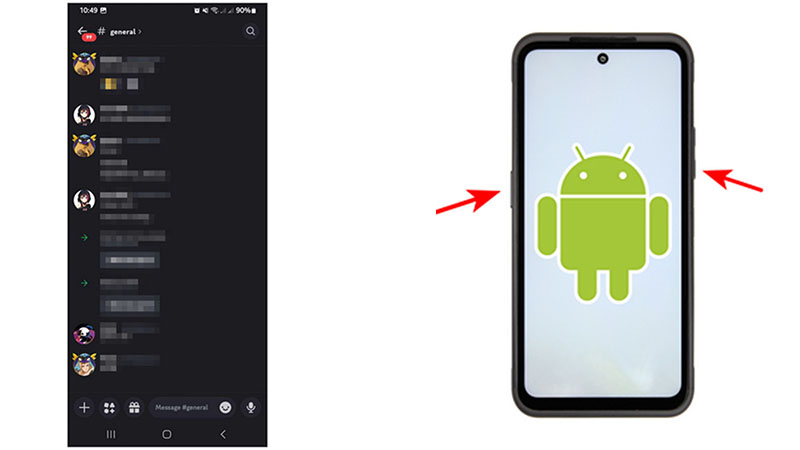
Step 1. Open Discord and navigate to the chat, DM, or screen you want to capture.
Step 2. Press the Power + Volume Down buttons at the same time and hold briefly.
Step 3. The screen flashes, and the screenshot saves to your Gallery.
How to Screenshot on Discord iOS
Step 1. Open Discord and go to the content you want to capture.
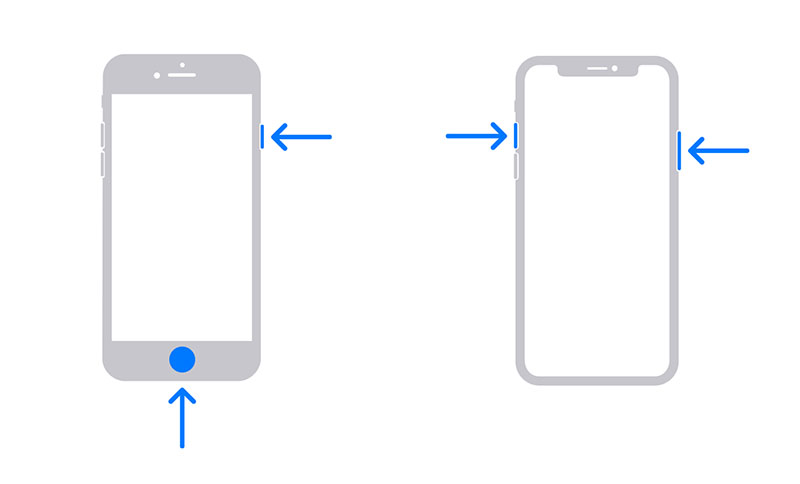
Step 2. Press the Side Button + Volume Up together. On an iPhone with a Home button, press and hold the Sleep/Wake (Power) button, then quickly press the Home button at the same time.
Step 3. The screen flashes, and a thumbnail appears. Tap it to edit, or let it auto-save to images in your Album.
How to Screenshot Discord on macOS
Things are equally easy on macOS. You can make a screenshot easily, just like you always do. Here’s how to screenshot on Discord using its keyboard shortcuts.
Step 1. Open Discord and navigate to the screen you want to capture. Make sure everything you need is visible before taking the screenshot.
Step 2. Use Command + Shift + 5 to open the full screenshot toolbar with screen recording options. You can also press Command + Shift + 4 on your keyboard. Your cursor will instantly turn into a crosshair selection tool.
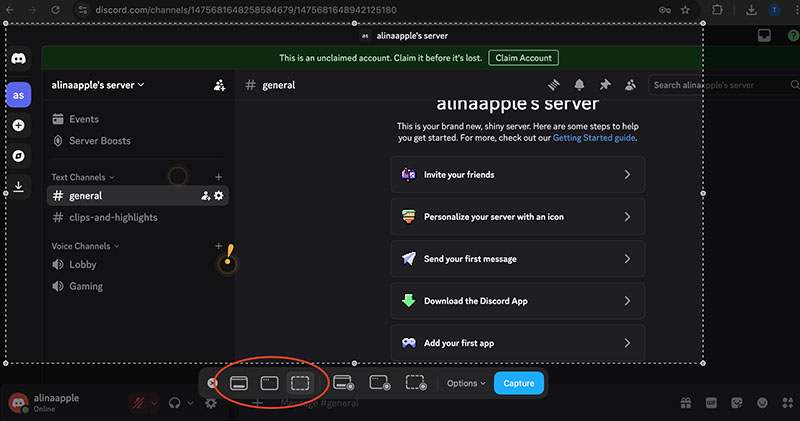
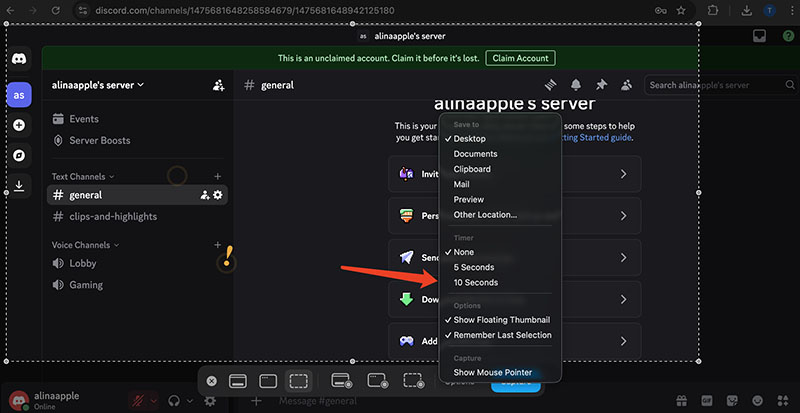
Step 3. Here you can select your capture mode, recording area, and other settings. Drag the cursor to select the Discord area to take a screenshot. The image will automatically save to your desktop.
Also Read: How to Record a Zoom Meeting on Windows and Mac >>
FAQs About How to Screenshot on Discord?
1. Does Discord notify screenshots?
No. As of 2026, Discord does not send notifications when someone takes a screenshot of DMs, servers, group chats, or voice channels. Unlike some social media platforms that trigger alerts, Discord allows users to screenshot conversations freely. You can safely capture Discord messages or shared content without anyone being notified.
2. How to send screenshots on Discord?
For desktop, after capturing your screenshot, simply drag and drop the image file directly into any Discord chat window. You can also use the Plus icon to upload and send the file. For mobile, just send an image file like you always do.
3. Does Discord have a built-in screen capture feature?
Discord does not provide a dedicated screenshot button within the app itself. You will need to rely on your device’s built-in tools or third-party software. However, it has the “Clips” in voice channels, which is designed to capture short moments of gameplay. There’s also a “Go Live” feature for screen sharing.
4. Can I record Discord on OBS?
Yes, OBS Studio allows you to record audio and video on Discord. You can even configure settings for audio and screen capture. However, OBS is well known for its complicated setup and interface, which is not easy for average users. iTop Screen Recorder, on the other hand, comes as a more user-friendly tool for screenshots and recording on Discord.
Also Read: How to Record Discord Calls with OBS >>
The Bottom Line
How to screenshot on Discord? This blog covers a full guide for Windows, macOS, and mobile devices. Now you can quickly and easily capture chats, DMs, servers, or voice channel moments without confusion. If you are looking for more advanced features, high-quality screen recording, audio capture, and voice changing effects, iTop Screen Recorder is a far more versatile solution. You can record Discord video and audio smoothly and export professional-quality files with ease. Download iTop Screen Recorder and capture everything on Discord with ease now!