VRChat doesn’t include any built-in screen recording feature, so users usually rely on external tools to capture gameplay. When users look up how to record videos in VRChat, they are often trying to find the simplest way to save their sessions without losing quality. If you’re on a Quest 2 or Quest 3, the headset already offers basic screen recording options that make it easy to record on the go. However, for the best video quality and resolution, recording on a PC is still the most reliable choice.
What Is VRChat? Any Built-in Recording Feature Available?
VRChat is a social virtual reality platform where users can explore user-created worlds, interact with others in real time, and express themselves through customizable avatars. It has become a creative space for gaming, socializing, and live events, but when it comes to capturing content, its built-in tools are quite limited. Many users searching for how to record clips in VRChat quickly realize that the platform itself doesn’t function like a traditional video recorder.
Although VRChat does offer a camera system, it’s mainly designed for taking snapshots or short visual captures rather than producing full video files. In other words, the VRChat camera feature does not export video chat recordings in MP4 format, which makes it unsuitable for content creators who want to know how to record videos in VRChat camera with ready-to-edit footage.
How to use VRChat’s camera feature?
Step 1. Open the VRChat camera tool from the bottom menu or select Tools > Camera from the radial menu.
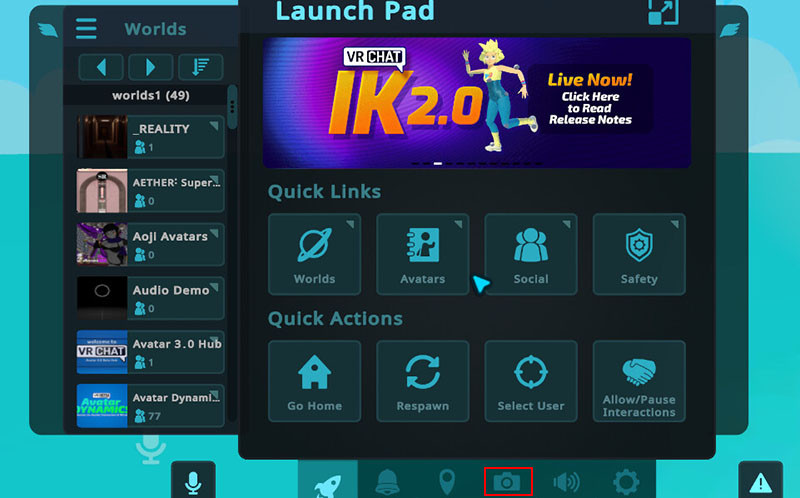
Step 2. Go to camera settings and choose Photo, Stream, or Dolly mode, then adjust perspective options.
Step 3. Use the available camera settings, such as zoom or focus adjustments for better composition.
Step 4. While holding the camera, press the trigger on your controller, or simply click the left mouse button on PC to capture the content and save it locally within the VRChat system.
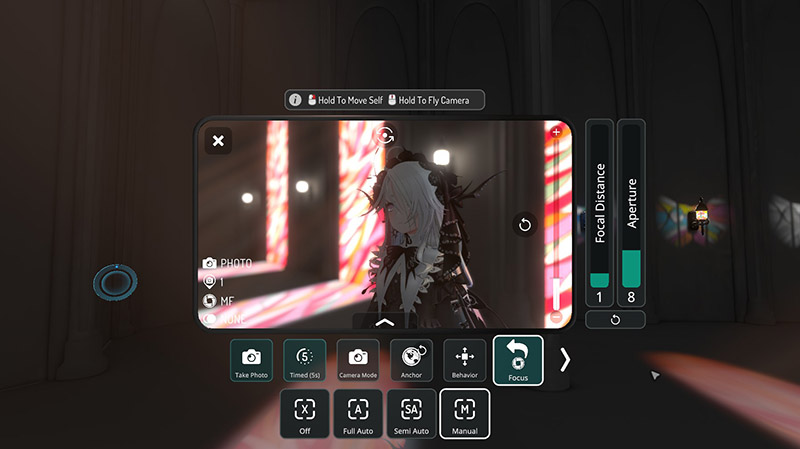
These built-in options are useful for quick snapshots, but they don’t replace proper video recording. The output quality is also limited, especially if you’re aiming for smooth motion or high-resolution content. For those who are searching for how to record videos in VRChat PC, relying on a third-party screen recorders is often the better approach, as it ensures cleaner footage and more control over resolution and frame rate.
How to Record Videos in VRChat PC?
Playing VRChat on a PC usually feels noticeably smoother compared to standalone VR devices, especially when world complexity increases or multiple avatars are present. This stability makes a big difference for anyone trying to capture clean footage while looking for how to record videos in VRChat PC. Still, the platform itself doesn’t offer a complete solution for content creation, which is where a dedicated recorder becomes essential when learning how to record videos in VRChat.
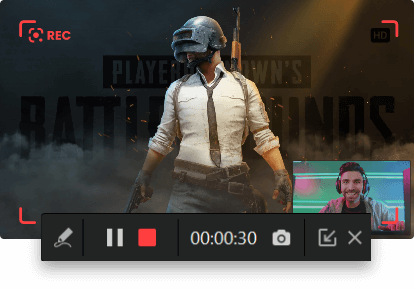
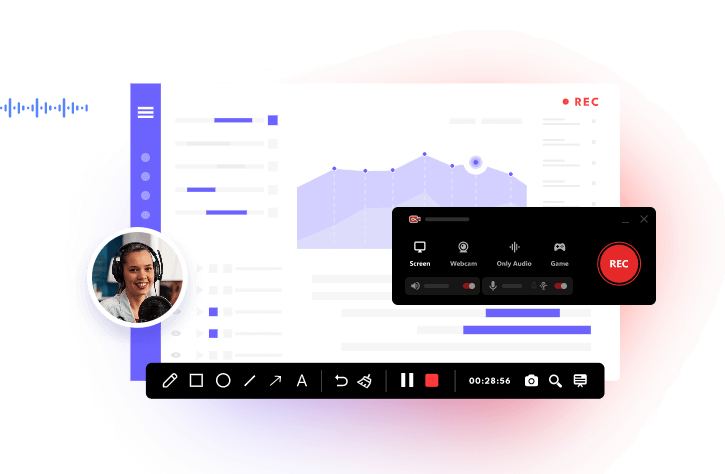
A reliable option is iTop Screen Recorder, a lightweight tool designed for capturing gameplay with flexibility and high output quality. It allows users to record full screen, selected windows, or custom regions, along with system audio and microphone input. Webcam overlay is also supported, which is useful for commentary or reaction-style videos.
With hardware acceleration from NVIDIA, AMD, and Intel, it can record gameplay at up to 4K resolution and 120fps with stable performance. Even during demanding VRChat scenes, it maintains smooth capture without noticeable lag or frame drops, and it also includes quick editing tools and screenshot functions for faster content production.
How to record videos in VRChat PC?
Step 1. Install VRChat from Steam or the Meta Quest PC app, then launch it by clicking “Play” and choosing either SteamVR mode with a connected headset or Desktop (Non-VR) mode.
Step 2. Open iTop Screen Recorder and choose your preferred recording mode (full screen or custom area).
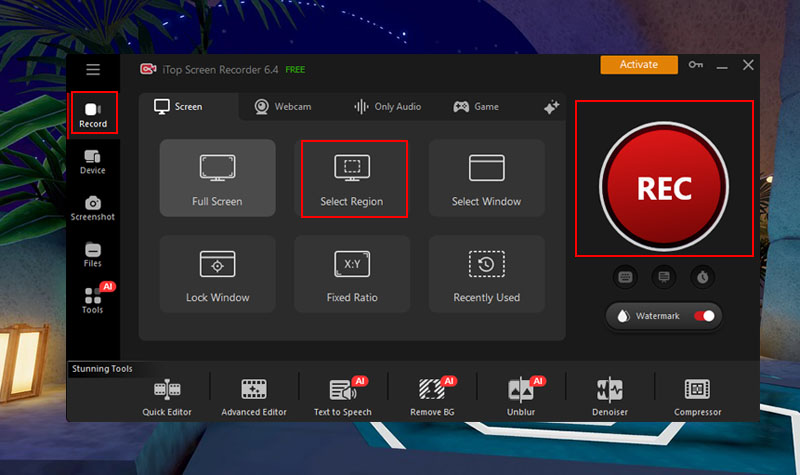
Step 3. Click the REC button to start recording and play VRChat normally, then stop and save the video when finished.
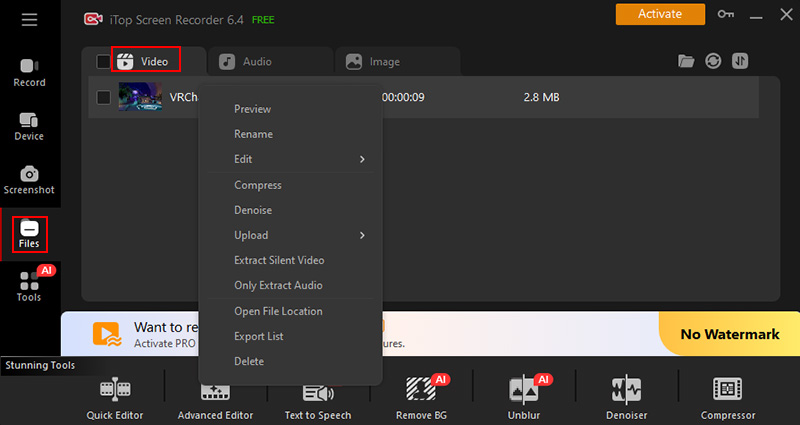
Step 4. Go to Files > Video to locate the VRChat video clips and right-click to edit, compress, or upload instantly.
How to Record Videos in VRChat Quest 3S/2S?
Modern standalone headsets make content capture much more accessible than before, and users often start by figuring out how to record videos in VRChat directly from the device itself. On Meta Quest 3S or Quest 2, there is no need for extra software because the system already includes a built-in recording function that works while you’re inside VRChat.
Video quality (1080p 60fps) from standalone recording is decent for casual sharing, but it does come with limitations. Compression is more noticeable compared to PC capture, and busy scenes can lose some sharpness or detail. Still, with the right settings, it remains a convenient option for quick clips, social sharing, or recording short interactions inside VRChat. If you prioritize portability over cinematic quality, this method works well enough for everyday use.
Follow the steps below to learn how to record videos in VRChat Quest 3S/2S
Step 1. Put on your headset and open VRChat, then load into a world or session.
Step 2. Hold the Meta button on your right controller and press the trigger to instantly start recording.
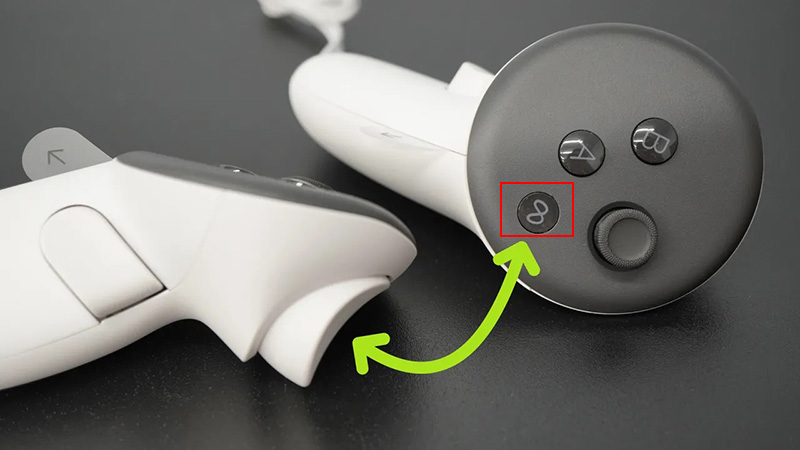
Step 3. Alternatively, open the universal menu, select the camera icon, and choose the record option.
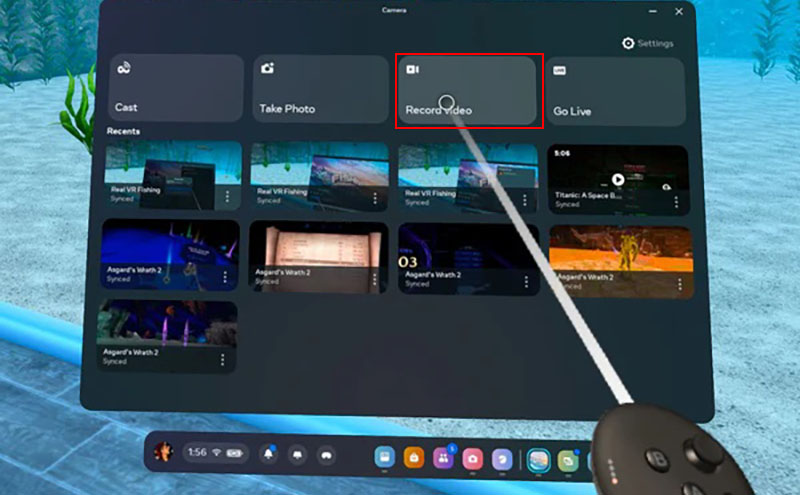
Step 4. Stop recording using the same shortcut, and find the saved video in the Files app.
Bonus Tip: How to Record TikTok Videos on VRChat?
Turning VRChat recordings into TikTok content is less about complicated tools and more about a clean, repeatable workflow. Once you know how to record videos in VRChat, the rest comes down to selecting the right clips and shaping them for a fast-moving, mobile audience. To make your VRChat recorded videos feel more professional, keep these tips in mind.
Focus on short, engaging clips. Capture moments that stand on their own—funny conversations, reactions, or unexpected interactions. TikTok favors quick, punchy content over long recordings.
Edit for a vertical viewing experience. Trim your footage and switch it to a 9:16 format. Make sure your avatar or subject stays centered so the frame looks natural on a phone screen.
Use captions to keep viewers engaged. Adding subtitles helps your content land even when viewers watch without sound. Keep them brief and easy to read.
Keep edits simple but intentional. Small touches like quick cuts or slight zooms can make the clip feel more dynamic without overwhelming the scene.
Pay attention to the audio. If the original sound in VRChat clips isn’t clear, layer in background music or sync your clip with a trending track to make it more appealing.
Once you’re finished with how to record videos in VRChat, this process becomes second nature. Record, refine, and share. Consistent structure is what turns casual gameplay into polished TikTok videos.
Conclusion
Recording VRChat content becomes much easier once you understand how to record videos in VRChat across various devices. Whether you’re using a headset, PC, or Quest 3S/2S, choosing the right method makes a clear difference in quality. For the best results on PC, try this page's recommended Screen Recorder to capture smoother, sharper VRChat gameplay.