TikTok makes sharing easy, but saving a clean copy is a different story. Every downloaded clip comes stamped with that moving watermark, the familiar logo, or the creator’s handle drifting across the frame. It’s hard to ignore, especially if you want footage that looks polished. On top of that, some creators disable downloads altogether, leaving you with no direct way to save what you like.
In such a case, a screen recorder helps. It gives you full control and lets you capture any TikTok video as it plays. If you’ve been searching for how to screen record TikTok without watermark, scroll down to the next section. It breaks down simple, reliable ways to get high-quality TikTok screen recordings on mobile, PC, and Mac without watermark.
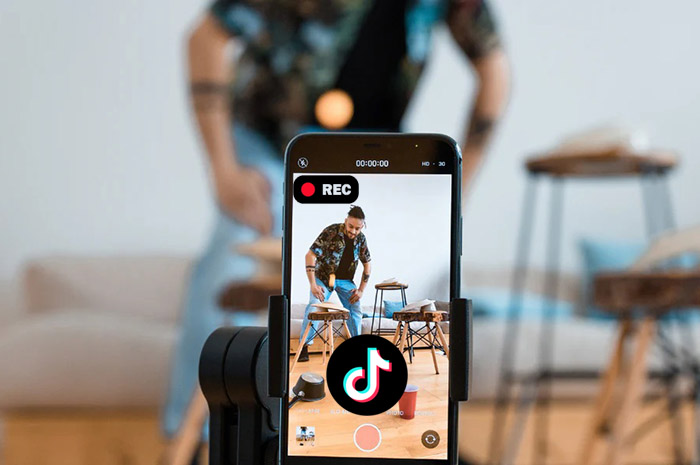
Why Does TikTok Add a Watermark?
Before getting into the guide on how to screen record TikTok without watermark, it’s worth understanding why TikTok includes a watermark at all. It’s not just a visual detail; it serves several purposes behind the scenes.
- Branding and Platform Promotion: The watermark keeps TikTok visible wherever the video goes and helps the platform gain exposure beyond the app itself.
- Credit and Ownership for Creators: By attaching the creator’s username, TikTok ensures viewers can trace the content back to its source.
- Discouraging Content Theft: The moving watermark makes it harder to reuse clips without acknowledgment or context.
Can You Record TikTok Without Watermarks?
Once you know why the watermark exists, the next question is whether you can avoid it altogether. The short answer is yes, you can record TikTok videos without watermarks. However, it doesn’t happen through TikTok’s built-in download option. The native “Save Video” feature always embeds the logo and the creator’s username into the file, with no way to turn it off.
What makes the difference is how you capture the TikTok video. With the right screen recorder without watermark, you can bypass those limitations and keep the footage clean. Learn simple screen recording methods on how to record TikTok without watermark and get TikTok videos that look just like the original.
How to Screen Record TikTok Without Watermarks?
Once you understand the basics, the next step is choosing the right guide on how to record TikTok without watermark on different devices.
How to Record TikTok Without Watermarks on Mobile
Your phone already has the tools built in for TikTok screen recording. The key isn’t the recorder itself; it’s making sure the video plays clean before you hit record. Once that’s set, the rest is straightforward to record TikTok live or other clips. Use the following steps to learn how to screen record TikTok without watermark on iPhone and Android.
On iPhone
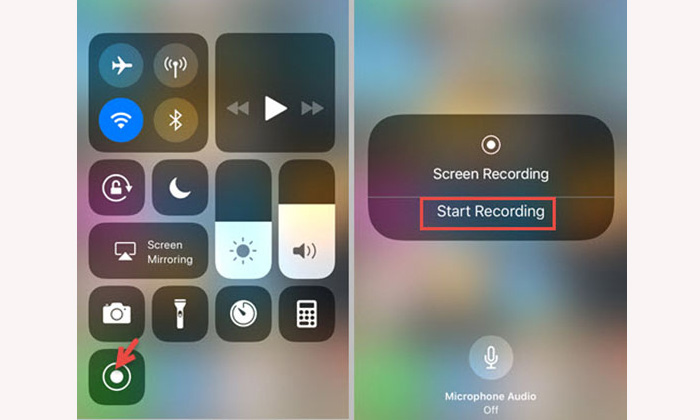
Step 1. Go to Settings > Control Center and add Screen Recording if it’s not already there.
Step 2. Open TikTok and find your video. Tap the preview area to hide all buttons, captions, and icons.
Step 3. Swipe down from the top-right corner to open Control Center, then tap the Record button. Let the video play in full without touching the screen. Tap the red status bar and stop recording.
On Android
Step 1. Open TikTok and find the video you want to capture on Android.
Step 2. Tap the video preview area on the right side of the screen to remove all overlays.
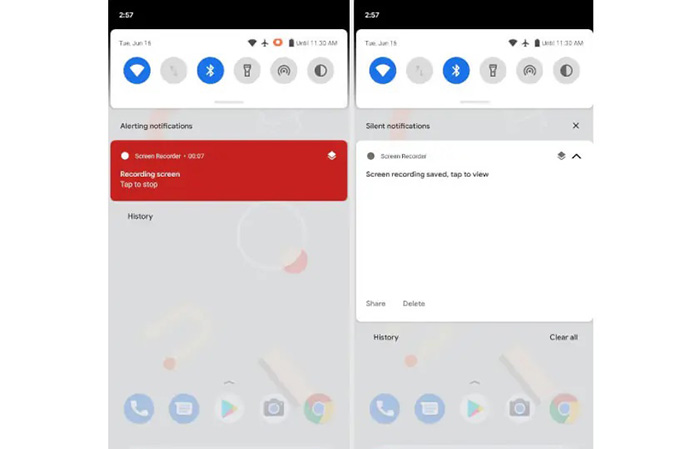
Step 3. Swipe down from the top to open Quick Settings and tap Screen Recorder. Start recording, then play the video from the beginning.
How to Record TikTok Without a Watermark on PC
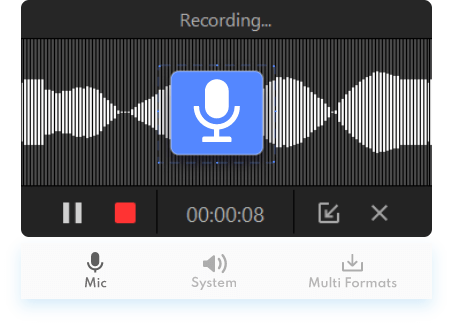
If you’ve tried mobile solutions and want sharper results, recording on a computer is a solid upgrade. There are plenty of tools available, but iTop Screen Recorder remains a better choice for anyone exploring how to screen record TikTok without watermark. It’s free to start, easy to use, and flexible enough for stutter-free, high-quality recording with a customized capture area.
-
Free TikTok screen recorder without watermarks
Unlike many “free” tools that sneak in export limits or branding, this recorder lets you save TikTok videos cleanly without watermarks. You can capture TikTok clips without overlays for personal use or content editing later. -
4K UHD recording at up to 120fps
The screen recorder for PC supports high-resolution capture with smooth frame rates (up to 4K 120fps), so fast-moving TikTok clips don’t look choppy. Even detailed visuals and transitions stay crisp when recorded at higher settings. -
Custom region to capture specific screen areas
You don’t have to record the entire screen. Simply drag to select the exact portion where the TikTok video plays, which can eliminate borders, tabs, or unnecessary elements. -
Low CPU usage for smooth, lag-free recording
The screen recorder for restricted apps runs efficiently in the background, reducing the chance of dropped frames or stuttering. This is especially useful if you’re recording longer TikTok clips or multitasking. -
AI voice changer with multiple preset effects
It also includes built-in voice effects and allows you to modify audio in real time. This works great when you’re adding commentary or creating content with a different tone.
To get started with iTop Screen Recorder is easy. Below is how to screen record TikTok without watermark on PC.
Step 1. Download and install iTop Screen Recorder, then launch the program.
Step 2. Choose a recording mode, either full screen or a custom area, and enable system audio if you want to capture sound.
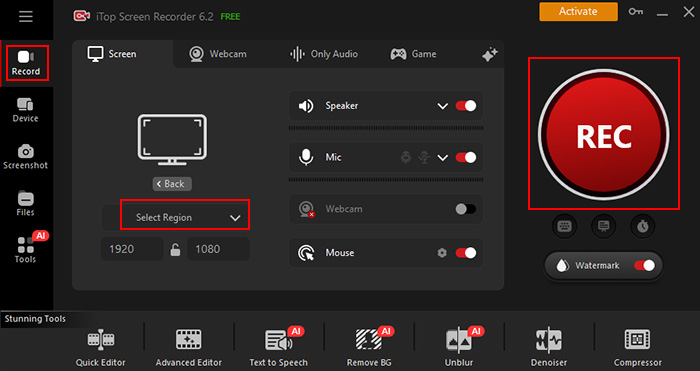
Step 3. Open and select a TikTok video in your browser. Click the REC button and play the video.
Step 4. Stop recording when finished. Your file will be saved locally, ready for playback or editing. For users who want to know how to screenshot TikTok without watermark, iTop Screen Recorder also gets it done easily.
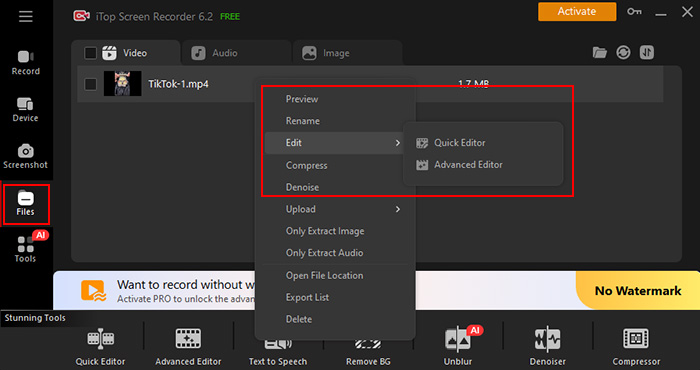
Another bonus: It supports screen mirroring from mobile devices, so you can record TikTok video playback on your phone with better control.
How to Screen Record TikTok Without a Watermark on Mac
Figuring out how to record TikTok video without watermark on macOS? QuickTime Player offers a simple solution and captures exactly what’s on your screen.
Step 1. Open QuickTime Player, click File in the menu bar, and choose New Screen Recording.
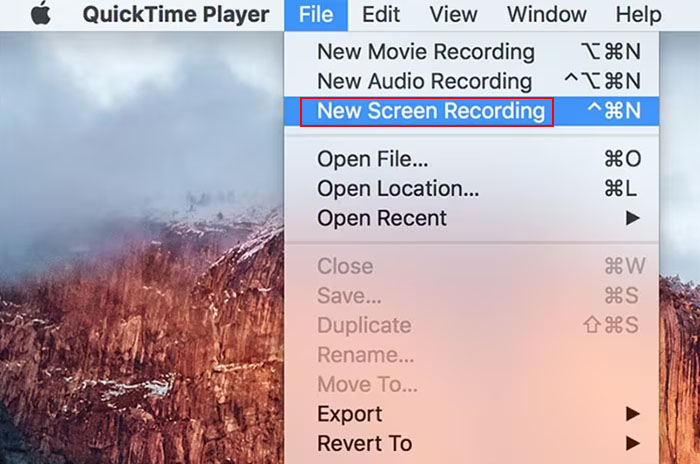
Step 2. Adjust the recording area. Before starting, open TikTok in your browser and make sure only the video is visible on screen.
Step 3. Click the record button, then play the video in full without interacting with the screen.
Step 4. When the clip ends, click the stop icon in the menu bar. Save the file to your preferred location.
Remove Watermark by Editing After Saving
Even when the watermark is baked into the video, simple edits can clean it up. Tools like iTop Screen Recorder include a built-in free video editor no watermarks, so you can remove TikTok watermark high quality without switching between apps. This is especially helpful if you didn’t plan ahead while learning how to screen record TikTok without watermark.
Crop it out:
This method trims the frame so the watermark area on the TikTok video is no longer visible.
Step 1. Open iTop Screen Recorder and access its editing tool via Tools > Quick Editor.
Step 2. Import your recorded TikTok video. Click “Crop” and adjust the frame to exclude the watermark area.
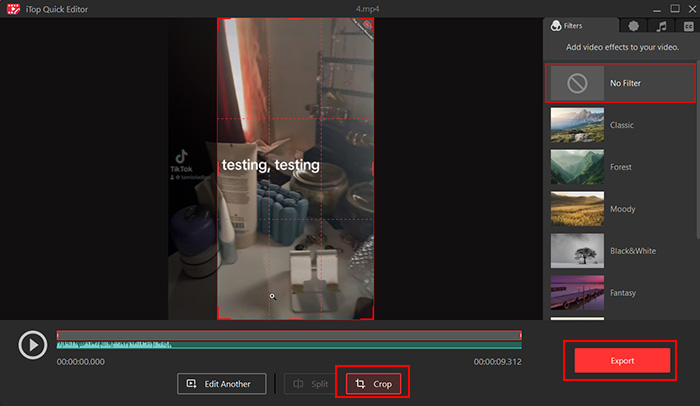
Step 3. Preview the result, then export the video once it looks clean.
Cover it up:
If cropping cuts too much content, you can hide the TikTok video watermark instead.
Step 1. Go to Tools > Advanced Editor. Load your TikTok video into the editor.
Step 2. Add a sticker or text to cover the TikTok video watermark. Position it over the watermark and adjust the size to fit.
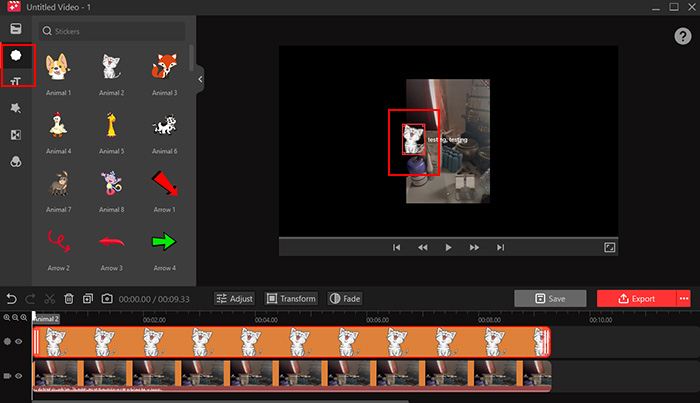
Step 3. Export the edited version when you’re satisfied.
FAQs on How to Record TikTok Video Without Watermark
1. Why is there no sound on my screen recording?
This usually happens when system audio isn’t enabled. Check your recorder settings and allow internal sound capture. On some devices, app permissions or silent mode can also block audio.
2. Is it legal to screen record TikTok videos?
Recording for personal use is generally fine. However, reposting or using someone else’s content commercially without permission may violate copyright or platform guidelines, so it’s best to use recordings responsibly.
3. Can someone tell if I screen record their TikTok?
No, TikTok does not notify creators when you screen record their videos. Unlike some apps, there’s currently no alert system that informs users about this type of activity.
4. How to download TikTok videos without watermarks?
You can use third-party tools like online TikTok video downloaders to download TikTok videos, then crop the watermark out via video editors.
Conclusion
How to screen record TikTok without watermark? It doesn’t require complicated tools, just the right approach. From built-in mobile recorders to desktop solutions and quick edits, each method gives you a way to capture TikTok videos for free. For the most flexible setup, especially on PC, iTop Screen Recorder is worth trying. It combines seamless, high-quality recording with simple editing tools, making it easy to capture, refine, and save TikTok clips without limits.