Many people may wonder what 4K gameplay is and why it is important to record gameplay in 4K. Simply put, 4K refers to a video resolution of 3840 × 2160 pixels, offering four times the detail of Full HD (1080p). This higher resolution delivers sharper images, clearer textures, and more immersive visuals. Gamers choose 4K recording because it captures gameplay with greater clarity and realism, making videos look more professional on platforms like YouTube. Do you want to record 4K gameplay? If you want, this guide will show you how to record 4K gameplay on PC or other devices.
Requirements to Record 4K Gameplay
To achieve smooth and high-quality 4K gameplay recording, you’ll need both capable hardware and optimized software. Here’s a clear breakdown:
Hardware requirements
- GPU (Graphics Card): NVIDIA GeForce RTX 4070 or higher; AMD Radeon RX 7800 XT or higher
- CPU: Intel Core i7-13700K or newer; AMD Ryzen 7 7800X3D
- RAM recommendations: 32GB
- Storage (SSD & HDD): SSD (Primary): Samsung 980 Pro NVMe SSD for OS and active recordings; HDD (Secondary): 2TB+ for archiving footage
Software requirements
- Recording software: choose one from the list below
Choose the Right Settings for 4K Gameplay Recording
Here are some practical, recommended recording settings for 4K gameplay across common scenarios. Only with the right settings can you get a high-quality gameplay recording.
- Resolution and FPS: 3840 × 2160 (true 4K)
- FPS:60
- Bitrate: ~50,000 kbps
- Encoder: GPU (NVENC/AMD)
- Format: MKV (then convert to MP4)
- Audio: 320 kbps
How to Record 4K Gameplay on PC Using a Gameplay Recorder [Recommended]
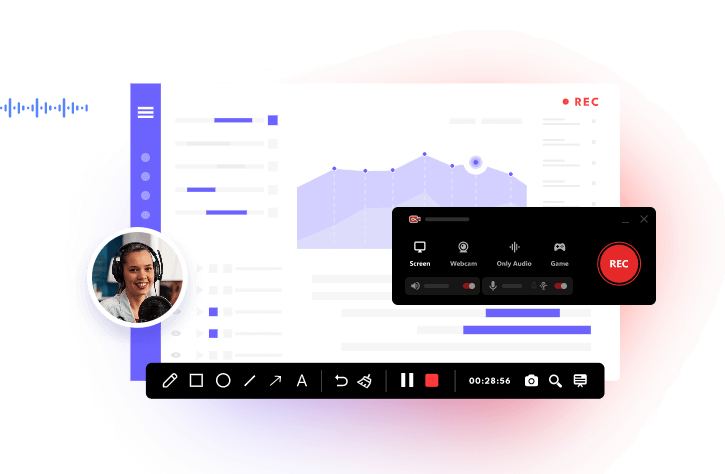
iTop Screen Recorder is one of the most popular options for recording gameplay because it's beginner-friendly yet powerful enough for most gamers, especially those who want an all-in-one recording solution without complexity. Moreover, it includes a dedicated game recording mode and offers many other recording features. Overall, it’s a simple, all-in-one solution for gamers who want high-quality recordings without the complexity of advanced tools like OBS. If you have this tool installed, you’ll embrace these features.
- Smooth, Lag-Free Gameplay Recording
iTop Screen Recorder is designed to record high-FPS gameplay without frame drops and optimized to reduce CPU/GPU strain. This is critical because laggy recording ruins both gameplay and video quality, especially while recording TikTok live or gameplay.
- Supports 4K and High-quality Recording
iTop Screen Recorder supports recording videos up to 4K resolution at a smooth 60 FPS, which makes it attractive for content creators aiming for professional-quality videos. That makes it a great option for capturing live streaming. For example, record beyond live.
- Game Mode for Optimized Recording
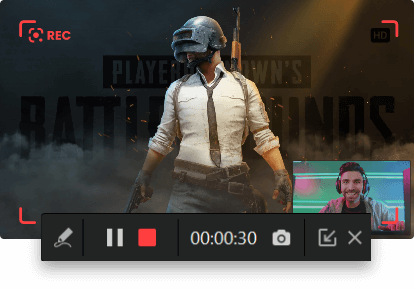
It has a game mode, which focuses on record 4K gameplay no lag, FPS drops, or performance issues. Instead of recording the entire screen like standard modes, it optimizes recording for games to ensure a smoother experience.
- Records Webcam + Audio Simultaneously
It supports simultaneous screen, audio, and webcam recording, which is great for YouTubers and stream-style content creators to record gameplay, facecam, and microphone and system audio. Also, you can use it to screen record Zoom meeting.
- User-friendly Interface and Lightweight
Unlike complex tools like OBS, iTop Screen Recorder is designed to be simple. Its clean interface makes it easy for beginners to navigate. Thus, you can easily screen record Instagram DM or other activities whenever you want.
- No Watermark & No Time Limit
It has no watermark and offers unlimited recording duration. That makes it attractive compared to other free recorders that restrict usage.
Now, you can follow these steps to see how to record 4K gameplay using iTop Screen Recorder.
Step 1. Download and install iTop Screen Recorder on your computer.
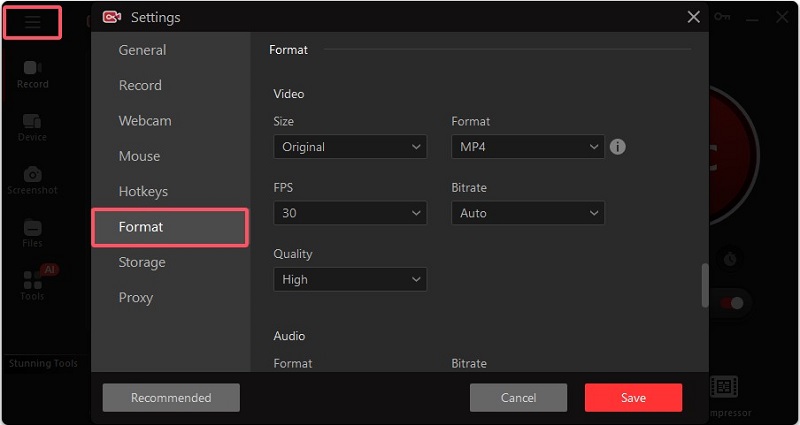
Step 2. Go to “Settings” to configure the video size, quality, format, fps, and bitrate.
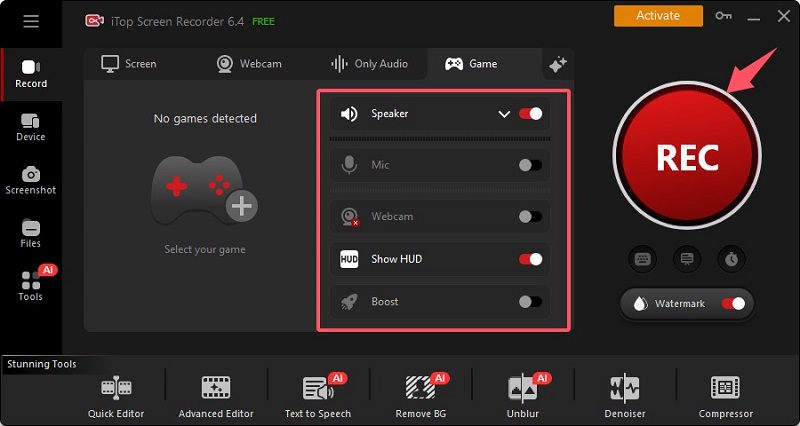
Step 3. Tap “Game” mode to auto-detect your game or add it manually. Enable the speaker, mic, HUD, and webcam, and restore them depending on your needs. Once done, click REC and play the game. iTop Screen Recorder will start recording your game.
Step 4. Tap the “Stop” button > go to “Files” > check the local storage, or do further editing and compressing.
How to Record 4K Gameplay on PC Using OBS
If you want an advanced option for game recording, OBS is a good option. It is lightweight and efficient, allowing you to record 4K content with minimal impact on gameplay performance. With support for hardware encoders like Nvidia NVENC, AMD AMF, and Intel QuickSync, you can render 4K 60fps video without overwhelming the CPU. More importantly, you can have complete control over resolution, bitrate (e.g., 100,000+ kbps for 4K), audio tracks, and container formats. If you want full control over every setting or advanced production setup, then OBS is your best option.
Here’s how to record 4k gameplay on OBS.
Step 1. Open OBS and click the “+” button in the Source dock and choose Game Capture. Set the mode to “Capture specific window” and select your active game, or choose “Capture any fullscreen application.”
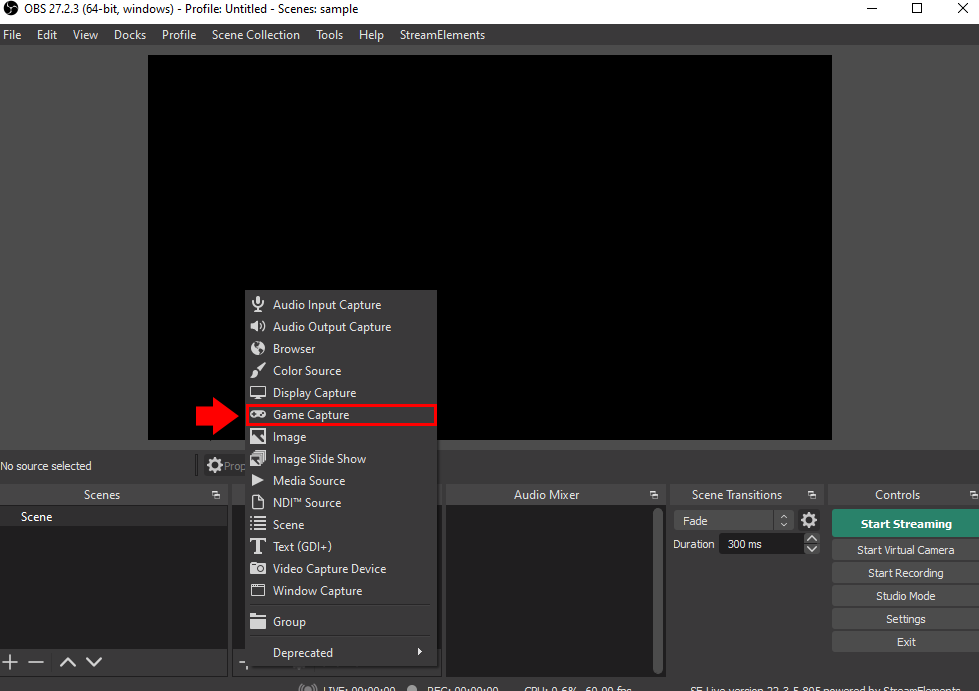
Step 2. If Game Capture fails, use Display Capture to record your entire monitor.
Step 3. In the Audio Mixer, ensure your game sound (Desktop Audio) and microphone are active.
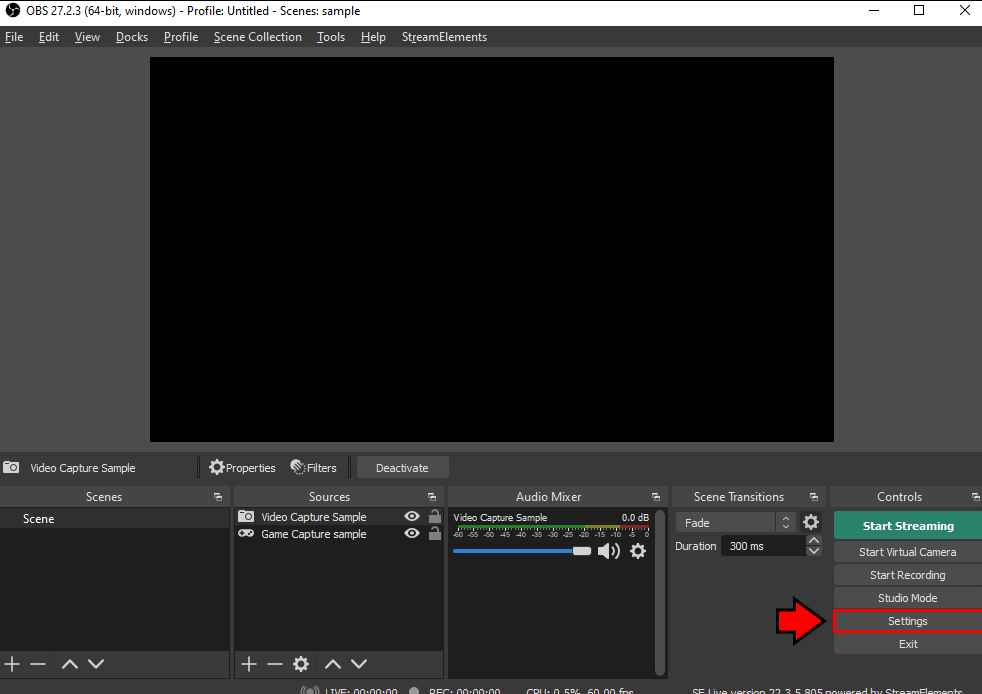
Step 4. Go to Settings > Output > Recording to choose where your recordings are saved and set the format (MP4 or MKV is recommended).
Step 5. Click Start Recording in the bottom right corner.
How to Record 4K Gameplay on Consoles (PS5, Xbox Series X)
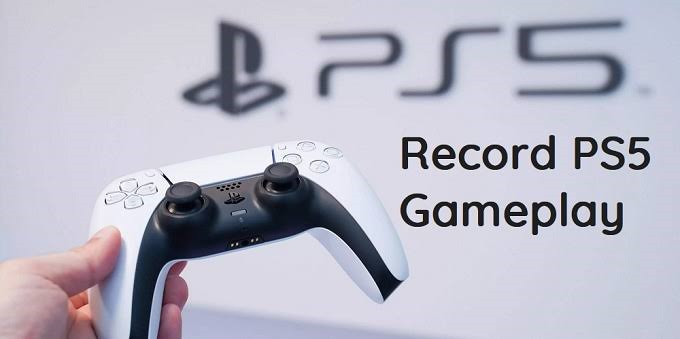
For users who want 4K game recording on consoles like the PlayStation 5 and Xbox Series X, it is also possible as long as your PS5 supports up to 4K recording at 60fps and your Xbox Series X supports 4K recording. But note that the Xbox Series often has a duration limit. For longer recordings, an external capture card is required.
To record 4K gameplay on PS5:
Step 1. Go to Settings > Captures and Broadcasts > Captures > Video Clip Format.
- Change the “Manual Recording Resolution” to 3840X2160.
- Select MP4 for better compatibility with video editing software.
Step 2. Press the Create button (left of the touchpad) and select Start New Recording.
Step 3. Press the Create button again and choose Stop Recording.
To record 4K gameplay on Xbox Series X:
Step 1. Connect an external SSD or USB 3.0+ drive to a computer and format it to NTFS.
Step 2. Plug the drive into the Xbox. Go to Settings > System > Storage devices and ensure the console detects it.
Step 3. Go to Settings > Preferences > Capture & share. Under "Capture location," select your external drive.
Step 4. Under the same menu, set Game clip resolution to 4K HDR.
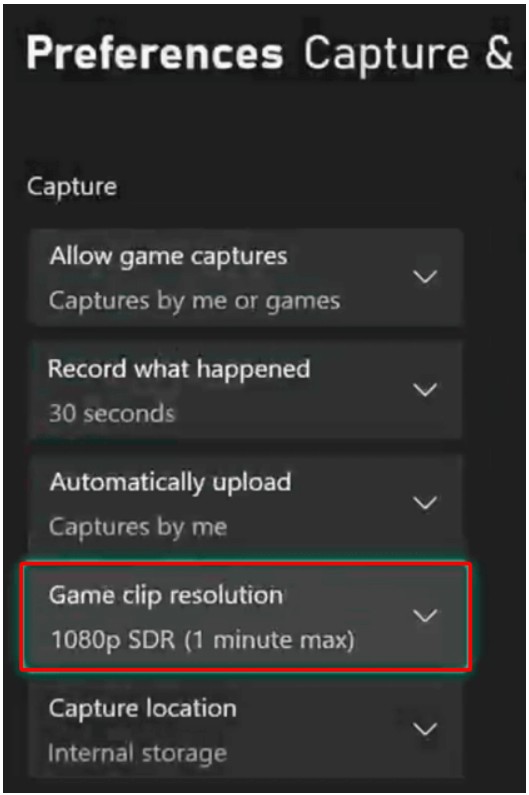
Step 5. While in a game, press the Xbox button > Capture & share > Start recording.
Common Problems and Fixes
Now that you’ve set up everything needed to capture stunning 4K gameplay, it’s worth noting that even a well-prepared system can run into occasional hiccups. From unexpected frame drops and audio sync issues to storage bottlenecks and recording crashes, these challenges are quite common—especially when working with high-resolution footage. The good news is that most of these problems have simple, effective solutions. In the next section, we’ll walk through the most common issues you might encounter when recording 4K gameplay and show you how to fix them quickly so you can keep recording without interruptions.
- Dropped frames / stuttering: check bitrate, write speed, encoder overload.
- Audio desync: ensure correct audio buffer, use hardware timestamps.
- High CPU/GPU usage: lower recording preset, use hardware encoder.
- Black screen or no capture: check HDMI encryption (HDCP), cable, and input selection.
The Bottom Line
It’s easy to record 4K gameplay with the right hardware, optimized settings, and reliable software. In this guide, we’ve walked you through everything—from system requirements and setup to troubleshooting common issues—so you can capture high-quality gameplay without compromising performance. If you’re looking for an easy-to-use yet powerful solution, iTop Screen Recorder is a great choice. With its dedicated game mode, high-resolution recording support, and minimal performance impact, it helps you record stunning 4K gameplay effortlessly. Download iTop Screen Recorder today and start creating professional-quality recordings with ease.