From the first clash of mighty heroes to the final spell cast in an intense raid, Warcraft delivers moments that deserve to be remembered. A Warcraft recorder captures these epic encounters in high quality, allowing players to analyze strategies, share highlights online, or preserve personal achievements.
By recording gameplay smoothly without impacting performance, it turns fleeting battles into lasting memories. Gamers can create tutorials, stream exciting sessions, or archive their victories, and showcase both the intensity and artistry of their Warcraft adventures in a way that extends the experience far beyond the screen.

What is Warcraft Recorder?
A Warcraft recorder is a tool designed specifically for capturing World of Warcraft gameplay with minimal effort. Unlike generic screen recorders such as OBS or ShadowPlay, it can automatically trigger recordings during significant moments, like boss kills, PvP victories, or rare achievements or maintain a rolling buffer of recent gameplay.
This “set-it-and-forget-it” approach ensures no epic battle goes unrecorded while letting players focus entirely on the game. Players seeking precise, hands-off capture will find that a WoW game recorder provides convenience and reliability, making it simple to relive or share the most exciting parts of every session.
How to Capture Exciting Moments in Azeroth with Warcraft Recorder
Recording your best moments in Azeroth shouldn’t put extra stress on your PC. Whether you're running tough Mythic+ dungeons or jumping into intense world PvP, the Warcraft Recorder helps you save key highlights in crisp HD while keeping gameplay smooth and responsive.
Step-by-Step Guide to Record WoW Gameplay with Warcraft Recorder
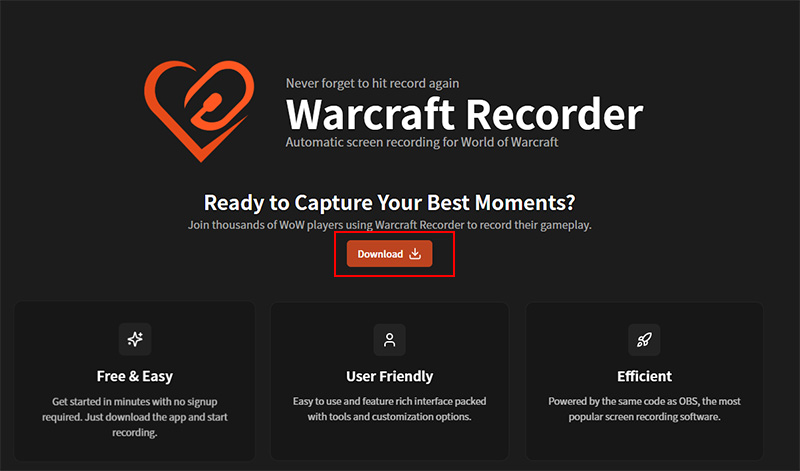
Step 1. Download and install Warcraft Recorder from its official repository.
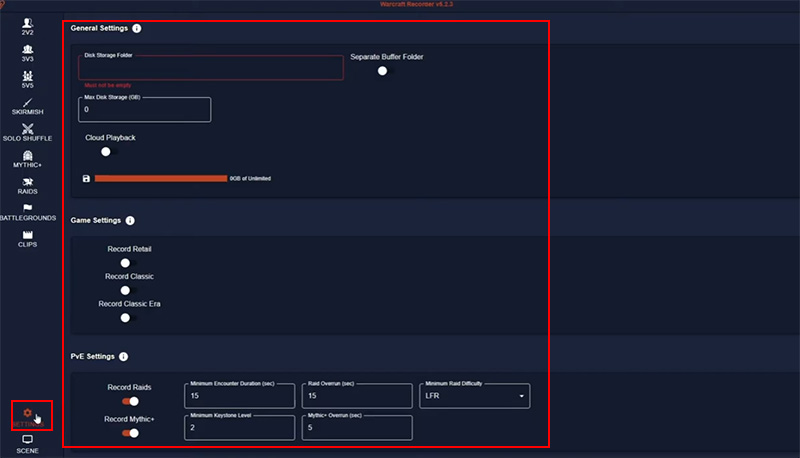
Step 2. Go to the settings menu to define your preferences. Adjust settings under General Settings, Game Settings, and PvE Settings.
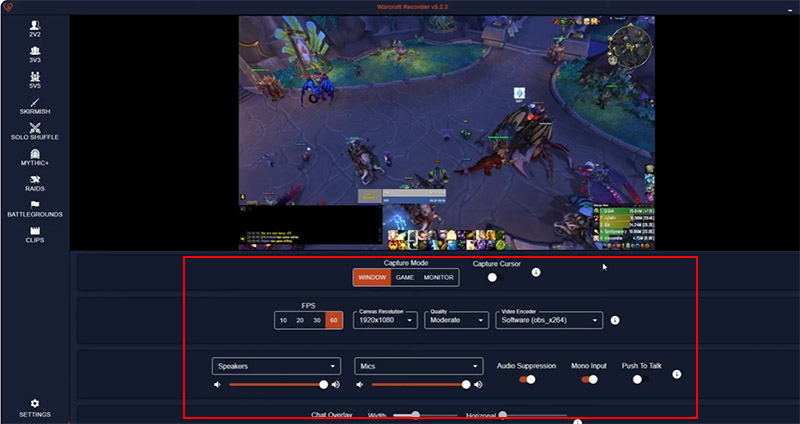
Step 3. Adjust advanced recording settings. It includes key options such as Capture Mode (Window/Game/Monitor), FPS selection, resolution, and hardware video encoding. You can also adjust audio sources like speakers and microphone, along with toggles for audio suppression and push-to-talk.
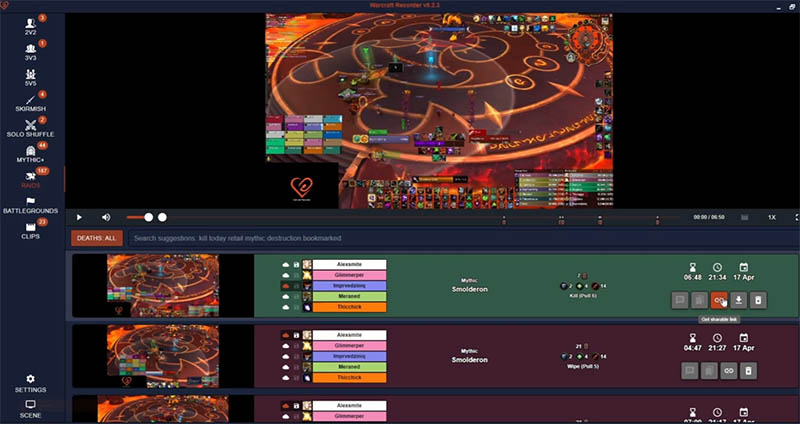
Step 4. You can check that Warcraft Recorder is working by launching World of Warcraft and then clicking the Test icon after finishing the setup. It will run a brief recording test to confirm everything is capturing properly. You can get the share link of the game.
Also Read: Top 5 ways to Screen Record Restricted Apps No Black Screen, Root & Notifications >>
Troubleshooting Common Issues with Warcraft Recorder
Recording in Azeroth with Warcraft Recorder can occasionally encounter issues. Common problems and solutions include:
- Warcraft recorder cannot be closed. Restart the WoW client and run the recorder with administrator privileges to regain control.
- Warcraft recorder black screen during recording. Disable in-game overlays or third-party overlay software, adjust graphics settings or lower resolution if needed.
- Latency or laggy footage. Ensure your PC meets performance requirements, close unnecessary background programs, and allocate sufficient system resources.
- Macro triggers not working. Check that your WoW Macro recorder is properly configured and that in-game macro permissions are enabled.
If these steps don’t fully resolve issues, download iTop Screen Recorder or try the following Warcraft Recorder alternative tools that provide stable, high-quality Warcraft recording.
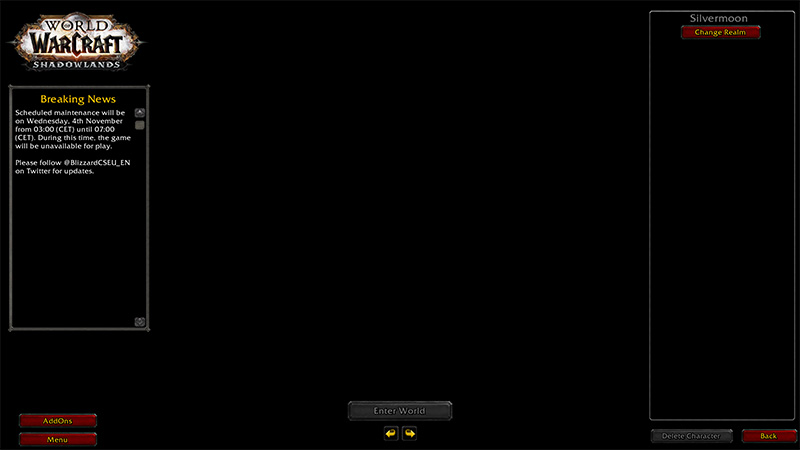
Top WOW Game Recorder Alternatives Compared in 2026
Many players look beyond built-in capture features or advanced Warcraft recorder premium edition. Performance demands, storage efficiency, and ease of use all matter more, especially for players juggling raids, Mythic+ runs, or PvP sessions. That’s where reliable alternatives matter. The tools below cover different needs, from zero-cost recording to professional-grade capture, so you can choose based on hardware, budget, and how much control you want over footage quality and workflow.
Tool 1. iTop Screen Recorder – Free WoW Game Recorder No Latency
iTop Screen Recorder is picked as a flexible option for players who prefer for smooth captures without complicated setup. Its dedicated Game Mode focuses on the Warcraft window, maintaining steady frame rates while capturing crisp footage, no lag spikes, no missed action during raids or cinematic sequences.
iTop Screen Recorder can capture Warcraft in 1080p or 4K at high frame rates, all while keeping CPU load low thanks to hardware acceleration. You can record game sound, microphone commentary, and even your webcam simultaneously, then edit clips quickly with the screen recorder before sharing on YouTube or other platforms.
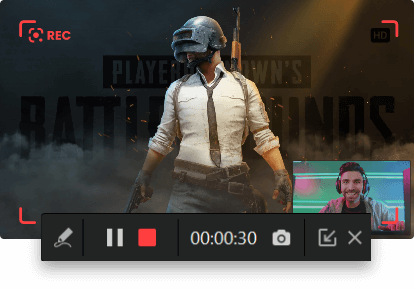
Why choose iTop as the best Warcraft Game Recorder
- Intuitive and easy for any player
The interface of iTop Screen Recorder is straightforward, with clear recording modes and settings. Even first-time users can start capturing gameplay within minutes, without digging through advanced configuration menus.
- Record any screen of Warcraft in HD/4K
The 1080p screen recorder supports full-screen and windowed capture, allowing smooth HD or 4K recording. This flexibility is useful for players switching between addons, overlays, and different resolutions.
- Lag-free Warcraft recording
Hardware acceleration minimizes performance impact during intense combat scenes. Frame drops are rare in iTop Screen Recorder, so it is suitable for dungeon runs or large-scale PvP encounters.
- High-quality output with no watermark
Recorded gameplay footage exports cleanly without watermark. You can even screen record protected videos and record WoW gameplay with iTop Screen Recorder for easy sharing on forums, Discord, or YouTube.
- Built-in game recording editor
Basic and advanced editing features, like trimming, merging, adding text/transitions/effects, etc. are included, for quick highlights rather than full production workflows.
Tip: To capture smooth, lag-free highlights of your Warcraft gameplay, we recommend using Smart Game Booster to get fast and stable connection. It maximizes your gaming experience by closing unnecessary background processes and optimizing network routes for smoother gameplay.
How to record Warcraft with iTop Screen Recorder
Step 1. Download and install iTop Screen Recorder for WoW gameplay on your PC.
Step 2. Launch the Warcraft recorder and switch to Game Mode for dedicated Warcraft capture.
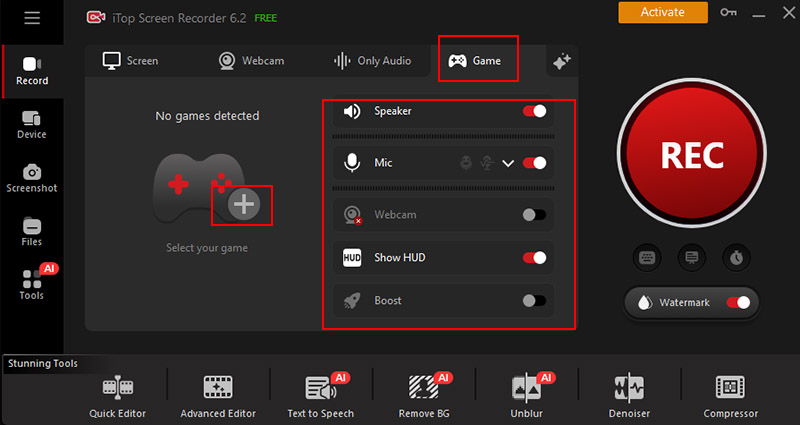
Step 3. Add Warcraft, then turn on system audio, mic, or webcam if you want game sound, commentary, or facecam.
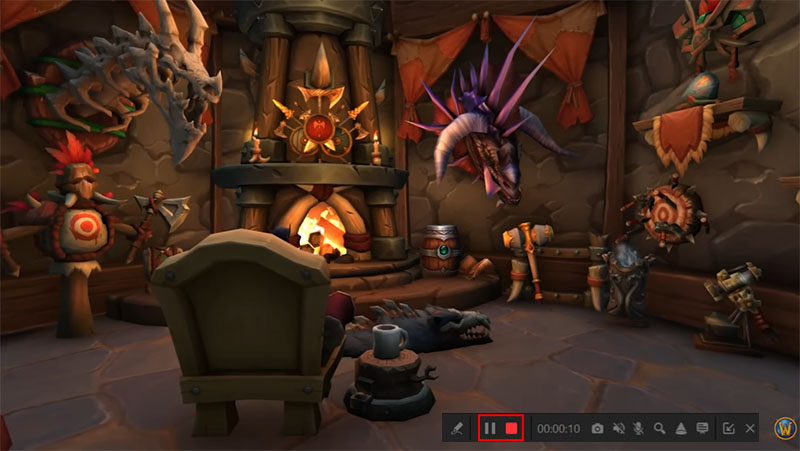
Step 4. Hit the red REC button to start. Use the control bar to pause or stop.
Tool 2. ShadowPlay – High-Performance Recorder for Gamers
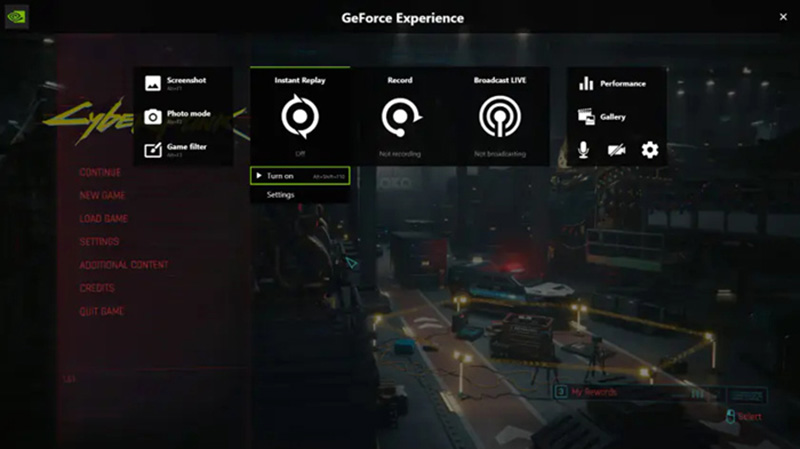
NVIDIA ShadowPlay is built for players who prioritize maximum performance. Using NVENC hardware encoding, the WoW Macro recorder captures gameplay, record Roblox, etc., with minimal CPU usage, preserving frame rates during demanding encounters. The “Instant Replay” feature continuously buffers gameplay, so you can save moments after they happen. This tool is best suited for players with NVIDIA GPUs who want near-lossless capture without manual start-stop recording.
Key features:
- NVENC hardware encoding for low CPU load.
- Instant Replay to save game highlights.
- Offers quick control through simple hotkeys for start, stop, and replay.
Cons:
- Only works on PCs with a compatible NVIDIA graphics card.
- Provides limited customization, especially compared to OBS Studio.
Tool 3. Bandicam – Lightweight Recording with Custom Controls
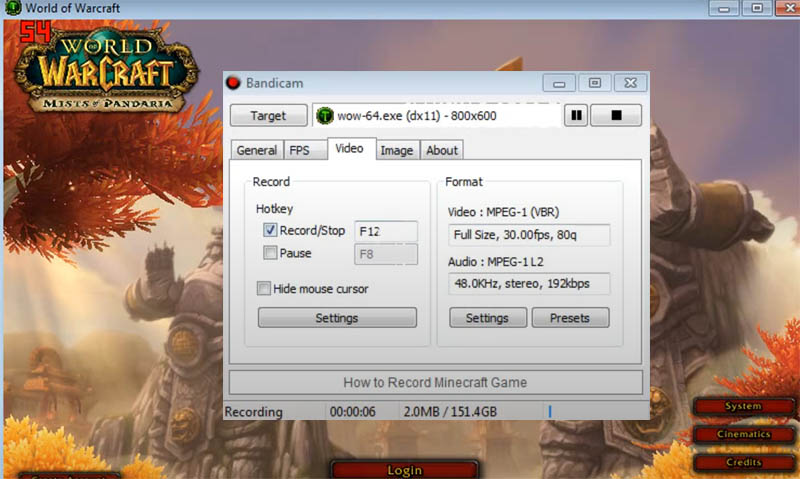
Bandicam is a strong choice for recording Warcraft, especially if you care about fine-tuning quality without hurting performance. It gives you detailed control over bitrate, codecs, and file size, which is useful when you want to capture long raids or PvP matches, record Zoom meeting without permission, or other tutorials. Thanks to hardware acceleration and low CPU usage, it runs smoothly even on mid-range or older PCs. Advanced creators will value the customization.
Key features:
- High-quality recording up to 4K with smooth frame rates.
- Low CPU usage thanks to hardware acceleration support.
- Multiple capture modes, including game, screen, and device recording.
Cons:
- Recording time limit and watermark on free version.
Tool 4. Xbox Game Bar – Built-in Recorder for Easy Capture
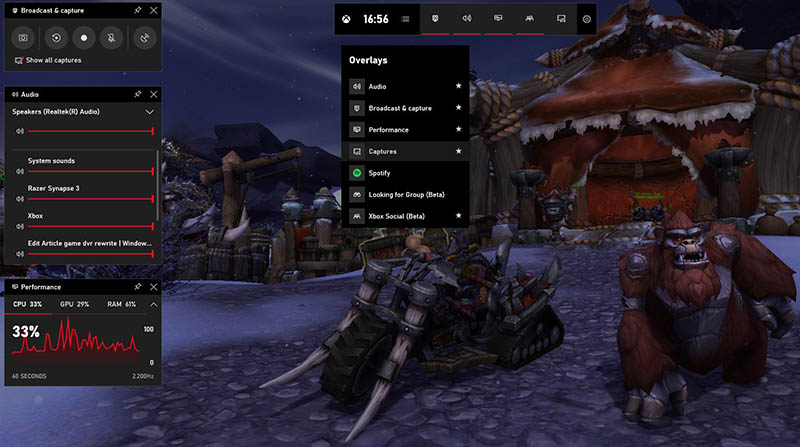
Windows 10 and 11 include Xbox Game Bar as a preloaded feature. It’s the quickest way to start recording Warcraft without any extra downloads for casual players who don’t need detailed control over bitrate, resolution, or advanced editing tools. With system audio and microphone recording, plus handy overlay widgets like FPS counters and performance stats, it provides all the essentials for smooth, hassle-free recording.
Key features:
- Built into Windows, no download needed.
- One-click recording and easy gameplay sharing.
- Record system sound and voice simultaneously.
Cons:
- Few options for resolution, bitrate, or file format.
- Recording can reduce FPS on lower-end systems.
Also Read: How to Screen Record WhatsApp One Time Video/View Once Video >>
A Quick Comparison of Warcraft Recorders
Check the following quick side-by-side Warcraft recorders view and choose the right tool based on learning curve, performance needs, and output quality.
| Tool Name |
Difficulty Level |
Best for |
Key Strength |
Recording Quality |
| Warcraft Recorder |
Medium |
Highlight-based capture |
Automated highlight capture |
High |
| iTop Screen Recorder |
Easy |
Most WoW players |
Log-free, high-quality, simple workflow |
High |
| ShadowPlay |
Low |
NVIDIA GPU users |
Minimal FPS loss, hardware encoding |
High |
| Bandicam |
Medium |
Advanced users |
Custom codecs &bitrate |
High |
| Xbox Game Bar |
Easy |
Casual clips |
Native Windows integration |
Medium |
Conclusion
From capturing clutch raid moments to saving long PvP sessions, recording WoW gameplay comes down to matching the right tool with your playstyle. Some players want automatic highlights, others care more about stability, clarity, and low system load. If you’re looking for a dependable Warcraft recorder that balances quality and performance, free download iTop Screen Recorder and see how effortlessly it fits into your own Azeroth adventures.