TiVo, a digital video recorder, allows TV viewers to record programme for viewing later. It is not only available for traditional DVR and Linux/Android-based TV set-top boxes, but supports DVR-free streaming devices like Apple TV, Amazon Fire TV. It is recognized as one of the best DVRs to record TV shows and live TV. How to record on TiVo? Can you record streaming video on TiVo? All questions can get answered here.

How to Manually Record on TiVo
Traditionally, you can manually set up to record special episodes on TiVo. The process of recording on TiVo box varies from your TiVo models. Now, follow us to get how to record live TV and upcoming shows on TiVo box manually.
How to Set up a Manual Recording on TiVo
Step 1. Navigate to TiVo central or HOME.
Step 2. Depending on your device models, choose the right process to set up a manual recording.
- TiVo BOLT, Roamio, Premiere on HD menu, and TiVo Mini: Head to Search, OnePass & Manage, and set up a Manual Recording.
- TiVo Premiere on SD Menu: Head to Find Shows > Record by Time or Channel for.
- Series 3 & earlier devices: Go to Find Programs > Record by Time or Channel.

How to Record Live TV on TiVo [Real-time Recording]
Step 1. Go to My Shows, Guide or What to Watch to find a show you like and select it. Then press Record & Watch on your TiVo remote.
Step 2. Select Record this episode. Then, your TiVo DVR will start recording the show.
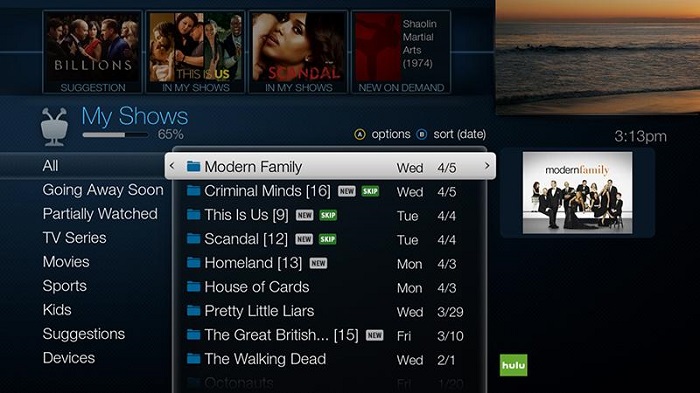
Step 3. Once finished, you can find all recorded shows in your My Shows, which can be accessed by pressing the TiVo button on your remote control twice!
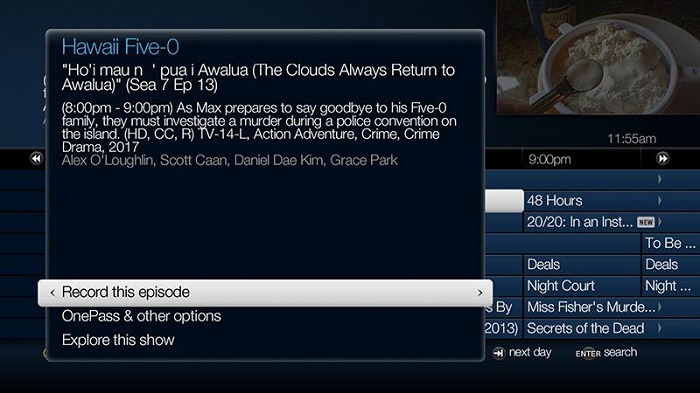
TiVo will automatically record up to 30 minutes of the current channel’s broadcast, even when you didn’t press the RECORD button. So, you will get an additional 30 minutes recording.
How to Record an Upcoming Show on TiVo [Schedule Recording]
Step 1. From the TiVo Central screen, choose Search, OnePass, & Manage > Set Up a Manual Recording.
Step 2. Choose the frequency of the recording you want. You can use the UP/DOWN arrow to select Once or Repeat. Once selected, press RIGHT arrow.
Step 3. Choose the time of recording. If you choose Repeat, the recording will be repeated on a specific day of the week.
Step 4. Then, you can use the combination of the RIGHT arrow and the UP/DOWN arrow to choose a channel and set the specific recording time.
Step 5. Once done, press SELECT. Then, you will see a "best guess“” show title, just select OK.
Step 6. Then, you can go to My Shows to find your recordings.
Also Read: How to Record on SuperBox >>
How to Automatically Record on TiVo
OnePass is the feature designed to gather and organize all your content (every episode of a series) in My Shows folder. It replaces Season Pass recording feature that not only records selected shows automatically, but streams videos from TVs and video-on-demand apps, for example Netflix, Amazon Prime and more, allowing subscribers to watch shows and movies across devices.
Now, let's take a look at how to record on TiVo box through OnePass.
Step 1. Search the show you want to record.
Step 2. Select "Get this show" on the information page.
Step 3. Select "Create a OnePass" > OK.
Step 4. Press the RIGHT arrow to access Options and press SELECT on your remote. Now, customize the settings if needed.
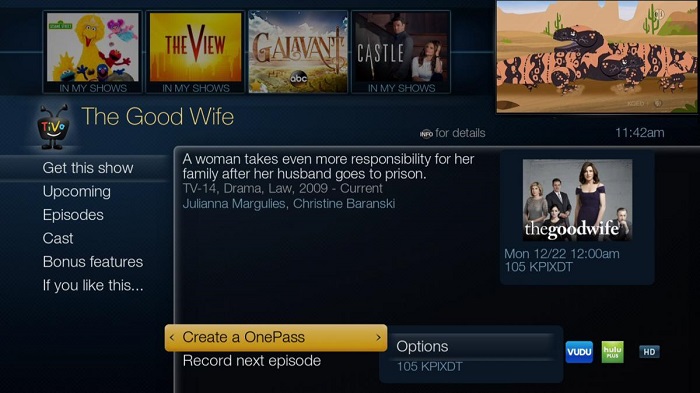
OnePass is compatible with TiVo Premiere Series or later DVRs, including all models of TiVo BOLT & TiVo Roamio, TiVo Mini and TiVo Premiere only when using HD menus. For Series 3 or earlier DVR, the Season Pass feature is also available to use.
How to Record Streaming Videos on TiVo
Although OnePass enables you to stream videos from third-party services on TiVo, it can't record streaming videos on TiVo. If you want to record a favorite show or movie from Netflix, Prime Video and other streaming services, it is highly recommended to use a screen recorder, such as iTop Screen Recorder, to capture any content from video streaming services on PC flawlessly.

Record Live and Streaming Videos in One Click
- Record TV shows, movies, live sports from any site.
- Record videos and live streams without quality loss.
- Record from YouTube, Netflix etc., without black screen.
- Record with mic/webcam to create reaction videos.
iTop Screen Recorder has a set of features to deliver you the best experience to record streaming videos from any site.
- Record streaming videos without quality loss: iTop Screen Recorder is committed to creating high-quality screen recording. On one hand, it keeps original quality to capture online video content, on the other hand, it allows users to adjust parameters, like resolution, frame rate, bit rate, to get the best result.
- Record streaming videos without black screen: iTop Screen Recorder takes advantage of Enhanced Mode to fix black screen issue when screen recording DRM protected videos.
- Record streaming videos without lags: iTop Screen Recorder uses hardware acceleration to make the screen recording process super smooth. Even you are recording a 4K or high frame rate video, there is no lags and no fps drops.
What's more, the screen recorder for PC supports webcam and microphone recording so that you can easily reaction and review video about a movie or show. The inbuilt video editor can also help you enhance the recording for further content creation.
iTop Screen Recorder is easy to use. In few clicks, you can record and save a streaming video to your computer.
Step 1. Download and install iTop Screen Recorder on your Windows 11, 10, 8, and 7.
Step 2. Launch iTop Screen Recorder. Play the video from browser or desktop app. Go to Record > Screen and select recording area. You can record part of screen, full screen or only the browser/app window.
Step 3. Turn on Speaker to record streaming video with audio. If you want to record a reaction video, turn on Webcam and Mic to record video with yourself and your voice simultaneously.
Step 4. Press Ctrl and REC button at the same time to activate Enhanced Mode to record in case black screen happens.
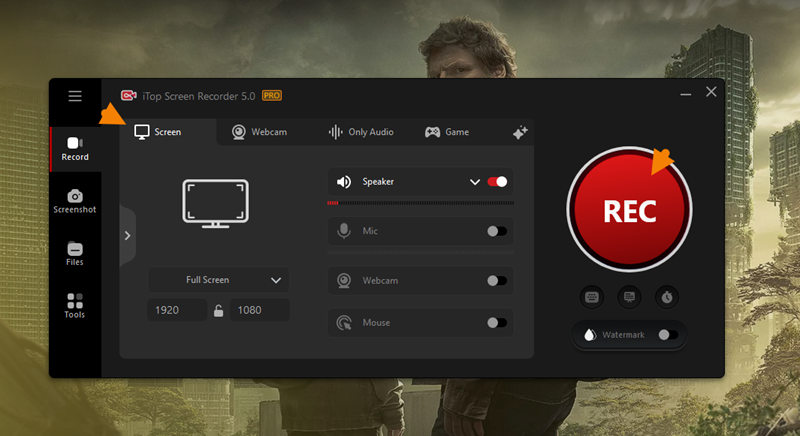
After 3-second countdown, a mini control bar appears. Click Done button on it when the show/movie ends. The recorded video is saved to Files > Video. You can play, manage or edit it at will.
Also Read: How to Record Your Screen on Windows 10 >>
The Bottom Line
TiVo introduces an easy way to record shows and live TV manually and automatically. Here, you can check the step-by-step guide of how to record on TiVo. However, it can’t record streaming videos so that you need a screen recorder to record a video from Netflix and other services. iTop Screen Recorder offers a simple way to record streaming videos on PC while keeping original quality. It also helps you create various videos related to your favorite shows hassle-free. If you need to record something on PC, iTop Screen Recorder can be your best choice.