Taking a screenshot is one of the quickest ways to save important information, capture gameplay moments, or share content with others. However, many users encounter a frustrating problem: the screenshot only shows a black screen instead of the actual content.
This issue commonly occurs when capturing streaming videos, online meetings, games, or browser content. Fortunately, there are several effective solutions that can help you fix the screenshot black screen problem on Windows 10 and Windows 11. In this guide, we'll explain why screenshots turn black and show you how to fix the issue step by step.
Why Is My Screenshot Black?
Why is my screenshot black? Several factors can cause screenshots to appear black, including DRM-protected content, hardware acceleration conflicts, outdated graphics drivers, software limitations, or display rendering issues. Identifying the specific cause is important because each problem requires a different fix, helping you resolve the issue more quickly and effectively. Causes of why are screenshots black:
1. Protected content and DRM restrictions:
- Used by services like Netflix, Disney+, Amazon Prime Video, Hulu, and HBO Max.
- Can block screenshots and result in a black image.
2. Hardware acceleration conflicts:
- Browsers use the GPU to improve performance.
- May interfere with screenshot tools and cause black captures.
- Commonly affects Chrome, Edge, and Firefox.
3. Graphics driver problems:
- Outdated or corrupted drivers can cause rendering issues.
- Symptoms include: black screenshots, blank captures, missing video content, and screen recording problems.
4. Screenshot tool limitations:
- Some tools cannot properly capture hardware-accelerated or protected content.
- Built-in screenshot utilities may struggle with videos, games, or streaming services.
How to Fix Screenshot Black Screen Windows 10 & 11
Whether you’re facing the screenshot Netflix black screen problem or black screens on other platforms, try the following troubleshooting methods one at a time to identify and fix the screenshot black screen issue. Start with the simplest solutions, such as disabling hardware acceleration, then move on to updating graphics drivers, changing graphics settings, or using alternative screenshot tools until the problem is successfully resolved.
Fix 1. Disable Hardware Acceleration
This is one of the most effective fixes because hardware acceleration allows browsers and applications to use your graphics card (GPU) to render content. In some cases, this process prevents screenshot tools from capturing what is displayed on the screen, resulting in a black image. Disabling hardware acceleration forces the application to use the CPU for rendering instead, which often restores normal screenshot functionality and eliminates black screen capture issues.
Google Chrome
Step 1. Open Google Chrome.
Step 2. Click the three-dot menu in the upper-right corner.
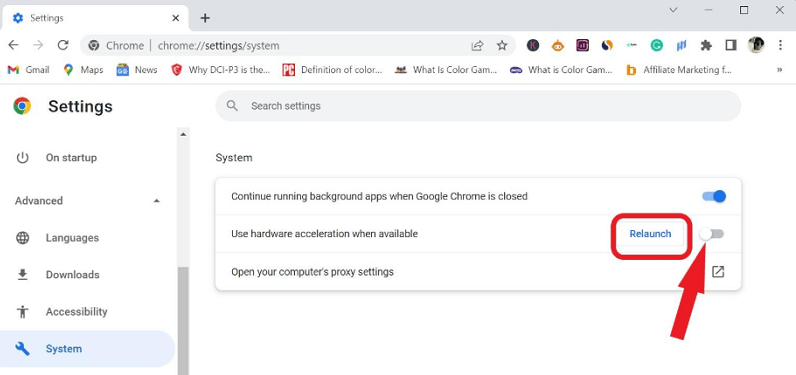
Step 3. In the left sidebar, click System.
Step 4. Turn off Use hardware acceleration.
Also Read: How to Screenshot on Chrome Browser on PC/Mac >>
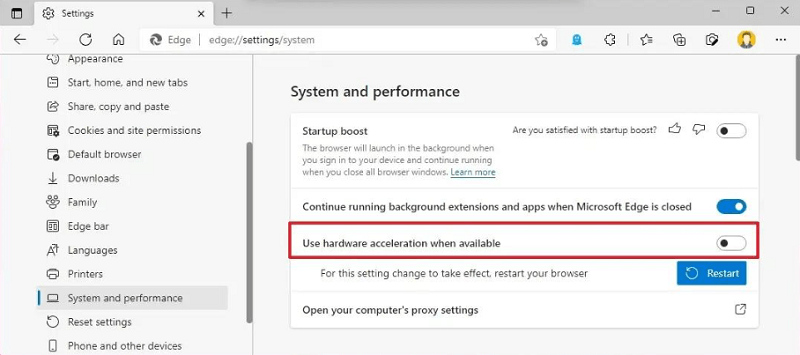
Microsoft Edge
Step 1. Open Microsoft Edge.
Step 2. Click the three-dot menu in the upper-right corner.
Step 3. Select Settings and choose System and performance from the left menu.
Step 4. Turn off Use graphics acceleration when available.
Firefox
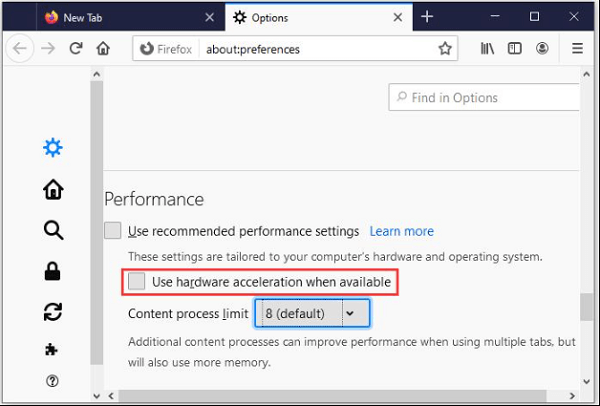
Step 1. Open Firefox.
Step 2. Click the menu button (☰) in the upper-right corner.
Step 3. Select Settings.
Step 4. Scroll down to the Performance section under General.
Step 5. Uncheck Use recommended performance settings.
Step 6. Uncheck Use hardware acceleration when available.
Fix 2. Update Graphics Drivers
Graphics driver issues are another common cause of screenshot black screen errors. When drivers are outdated, corrupted, or incompatible, the graphics card may fail to render on-screen content correctly for screenshot tools. This can result in black, blank, or incomplete captures, especially when recording videos, games, or hardware-accelerated applications.
Step 1. Press Windows + X and select Device Manager.
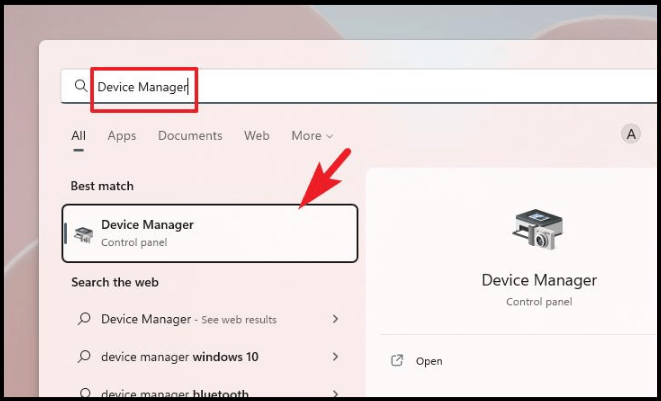
Step 2. Expand Display adapters.
Step 3. Right-click your graphics card and select Update driver.
Step 4. Click Search automatically for drivers.
Step 5. Follow the on-screen instructions.
Step 6. Restart your computer if prompted.
Fix 3. Run the Application as Administrator
Permission issues can occasionally cause screenshot failures because Windows may restrict access to certain applications, protected content, or system resources. If a screenshot tool lacks the necessary permissions, it may be unable to capture the screen correctly, resulting in black, blank, or incomplete screenshots.
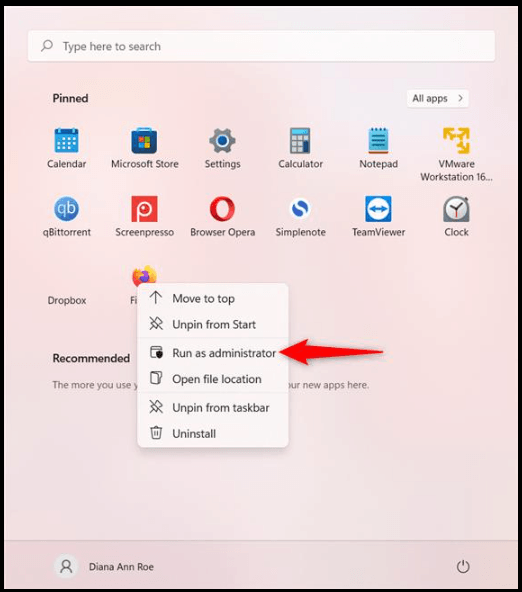
Step 1. Click the Start button.
Step 2. Type the name of the application.
Step 3. Right-click the application in the search results.
Step 4. Select Run as administrator.
Step 5. Click Yes if the UAC prompt appears.
Fix 4. Adjust Graphics Settings
Windows graphics preferences can help fix screenshot capture problems by controlling how applications use your GPU. Incorrect graphics settings may cause rendering conflicts that result in black screenshots. Assigning the affected app to High Performance or the appropriate GPU can improve compatibility and ensure content is captured correctly.
Step 1. Open Settings.
Step 2. Go to System > Display > Graphics.
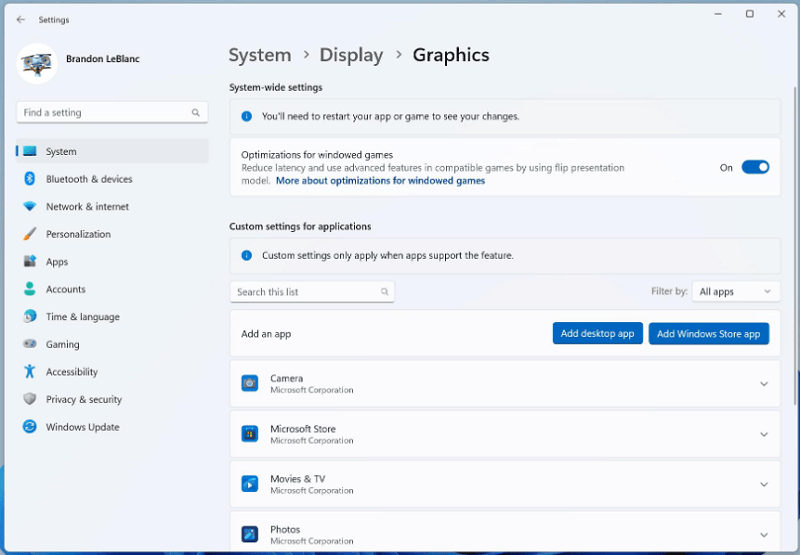
Step 3. Select the target application.
Step 4. Choose High Performance.
Step 5. Save the changes.
If you're still seeing black screenshots after trying the solutions above, the next section covers a more reliable way to capture screenshots without black screens—especially for protected videos, games, or hardware-accelerated apps that standard tools often fail to capture correctly.
Best Solution: Use a Screenshot Tool to Fix a Screenshot Black Screen
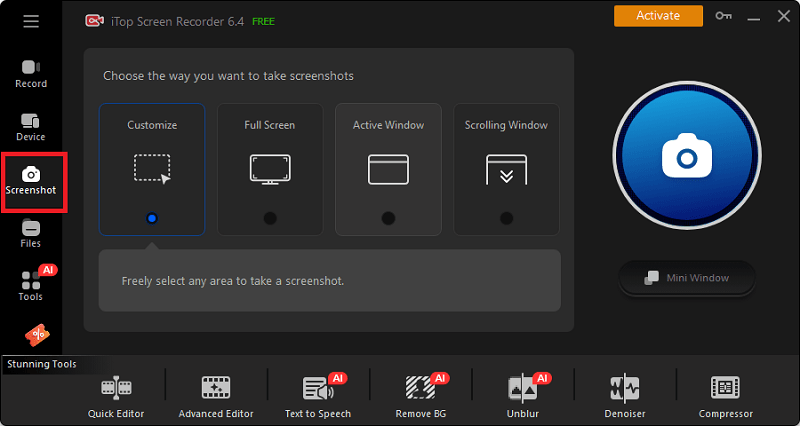
Some screenshot tools are optimized to capture GPU-accelerated content that standard screen capture utilities often struggle to handle. Tools like iTop Screen Recorder offer more advanced capture capabilities than standard screenshot tools, as they can reliably record and capture high-quality images from videos, games, and full-screen apps. It also supports custom-area screenshots, built-in editing, and smoother performance, making it a better choice when basic tools fail or produce black screens. Also, it performs well when screenshot on WhatsApp.
- High-quality screenshot capture with crisp, detailed image output
- Full-screen and custom-area screenshots for flexible capture options
- Built-in screen recording for videos, tutorials, and gameplay
- Screenshot capture during video playback without black screen issues
- Easy-to-use interface designed for beginners and professionals
- Low CPU consumption for smooth performance during use
- Image editing tools for quick annotations and adjustments
Here are the steps to fix screenshot black screen using iTop Screen Recorder:
Step 1. Download and install iTop Screen Recorder on your Windows computer.
Step 2. Locate the Screenshot on the toolbar and select the way you want to take screenshots. Then, click the Camera icon to take a screenshot.
How to Prevent Screenshot Black Screen Issue
To help you avoid this problem in the future, here are some simple and effective ways to prevent screenshot black screen issues, reduce capture errors, and keep your screenshots working properly on Windows.
- Keep Graphics Drivers Updated: Regular driver updates ensure compatibility with modern applications and browsers.
- Update Browsers Regularly: Browser updates often include fixes for hardware acceleration and rendering issues.
- Use Reliable Screenshot Software: Choose tools specifically designed to capture videos, games, and streaming content.
- Avoid Unsupported Streaming Configurations: Certain DRM-protected services intentionally restrict screenshots, making workarounds limited.
Conclusion
Why is screenshot black? How to bypass black screenshot? A screenshot black screen issue can happen because of DRM, hardware acceleration, driver problems, or tool limits. Most users can fix it by turning off hardware acceleration, updating graphics drivers, changing graphics settings, or using a better screenshot tool. For reliable results, keep drivers updated with a Driver updater and use a free screen recorder like iTop Screen Recorder.