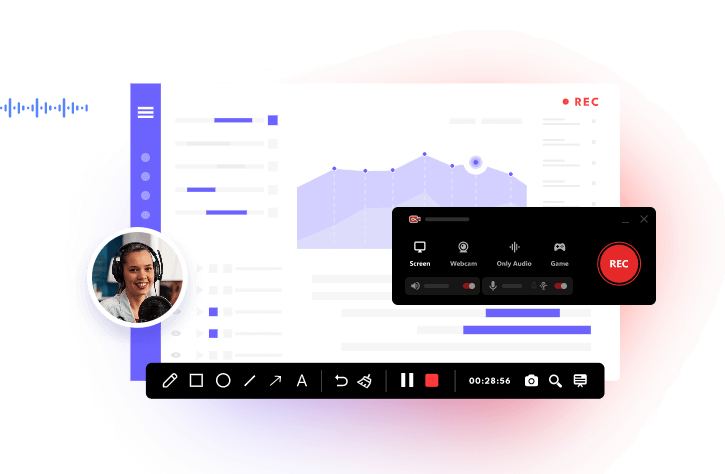
Want to record your computer screen without opening complicated menus? Using a screen record shortcut makes it easy to capture gameplay, online meetings, tutorials, and other activities with just a few keystrokes. Windows 11 and Windows 10 offer built-in recording shortcuts, while third-party tools provide more flexible options. This guide introduces the most useful shortcuts, explains how to use them, and shows how to customize recording hotkeys with iTop Screen Recorder.
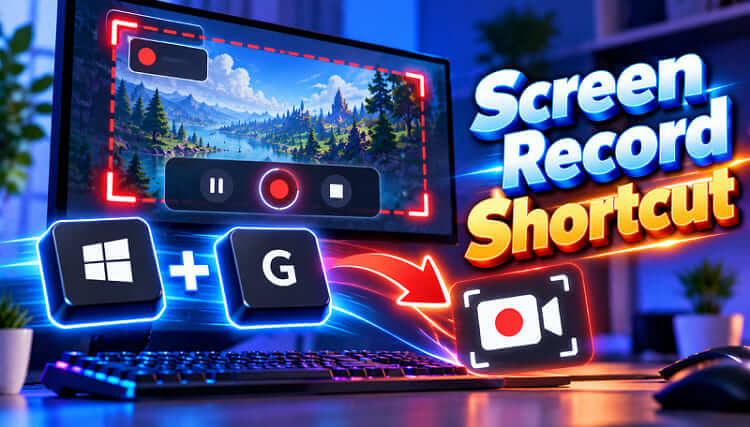
What Is the Screen Record Shortcut on Windows 11/10?
A screen recording shortcut is a keyboard combination that lets you start, stop, or manage screen recordings without manually navigating an application's interface.
Windows provides several built-in shortcuts, depending on your operating system and recording tool.
| Recording Tool | Shortcut | Function |
| Xbox Game Bar | Win + Alt + R | Start/stop recording |
| Win + G | Open Game Bar | |
| Win + Alt + M | Toggle microphone | |
| Snipping Tool (Windows 11) | Win + Shift + R | Open screen recording |
| iTop Screen Recorder | Customizable as you like | Control recording with hotkeys |
Method 1. Use Xbox Game Bar Shortcut on Windows 11/10
Xbox Game Bar provides a convenient Windows screen record shortcut windows users can activate without installing additional software. It is particularly useful for capturing gameplay, software demonstrations, and application activities. However, Xbox Game Bar generally cannot record the Windows desktop or File Explorer, making it less suitable for full-screen tutorials involving multiple applications.
How to record your screen using Xbox Game Bar:
Step 1. Open the game or application you want to record.
Step 2. Press Windows + G to open Xbox Game Bar.
Step 3. Press Windows + Alt + R to start recording.
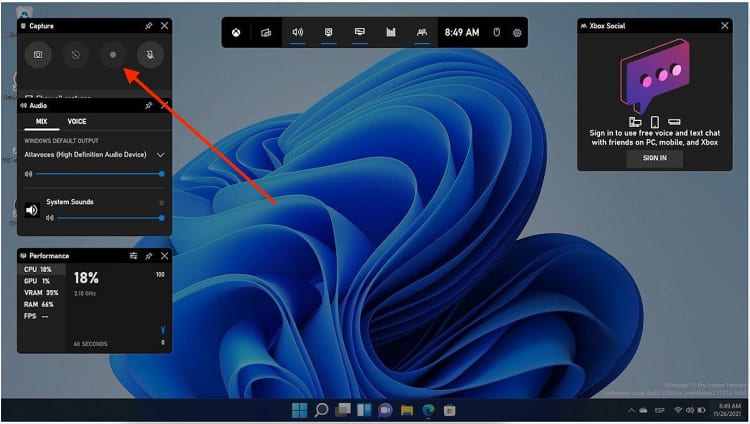
Step 4. Perform the activities you want to capture.
Step 5. Press Windows + Alt + R again to stop recording.
Step 6. Open Videos > Captures to find your saved recording.
The screen record shortcut Windows 10 users can use is also Windows + Alt + R, provided Xbox Game Bar is available and enabled.
Method 2. Record Your Screen with Snipping Tool on Windows 11
For users who want to capture a specific part of their screen, Snipping Tool provides another convenient recording option. The screen record shortcut Windows 11 supports on compatible versions is Windows + Shift + R. Unlike Xbox Game Bar, Snipping Tool allows you to select a recording region, making it useful for creating tutorials and demonstrations.
Check how to use the Snipping Tool recording shortcut.
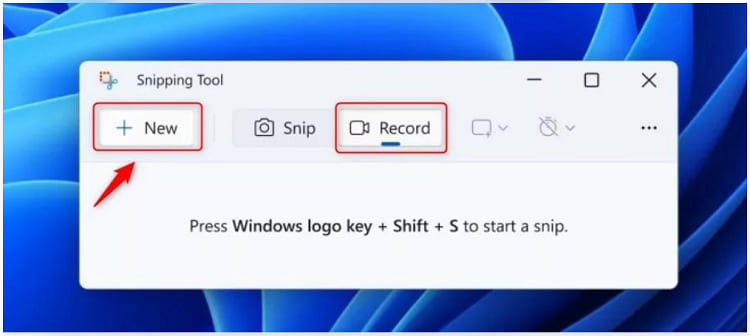
Step 1. Click the Start button, type Snipping Tool in the search bar to open the Snipping Tool.
Step 2. In the Snipping Tool window, click the Record button (video camera icon) at the top. Then click New to start setting up your screen recording.
Step 3. Click and drag your mouse to draw a rectangle around the screen area you want to capture.
Step 4. Turn on the Microphone and System Audio Contrrols if you want to capture sound. Then click Start.
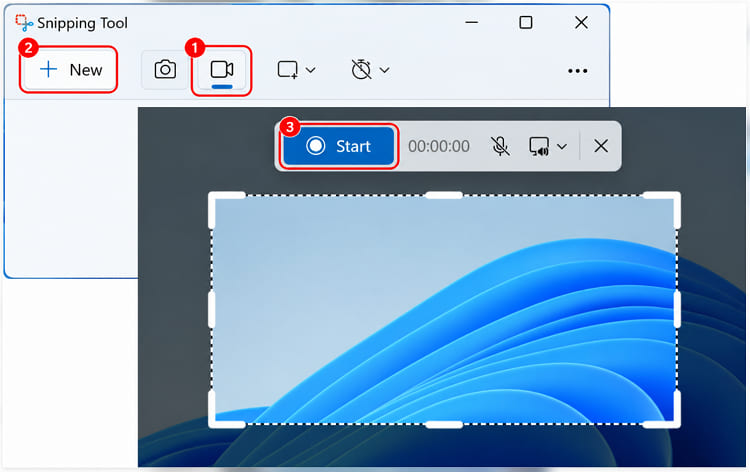
Step 5. Click the Stop button on the recording toolbar if you want to end the recording process.
If the shortcut is unavailable, open Snipping Tool manually and select its recording feature. Older Windows versions may not support this shortcut.
Method 3. Customize Screen Record Shortcuts with iTop Screen Recorder
Although Windows offers convenient recording shortcuts, its built-in tools have limitations when capturing different screen regions, recording audio, or customizing controls. iTop Screen Recorder provides a more flexible solution with customizable hotkeys and multiple recording modes. It is especially useful for users who frequently create tutorials, record meetings, or capture gameplay.
Key Features of iTop Screen Recorder for Screen Recording
- Customizable Recording Hotkeys: Assign your preferred shortcut for screen recording to start, pause, resume, or stop capturing without opening the main interface.
- Flexible Screen Capture: Record the entire desktop, a selected area, or an application window, making it convenient to record Zoom meeting presentations and online discussions with permission.
- Audio Recording Controls: Capture system audio and microphone input for tutorials, online meetings, and narrated videos.
- Gameplay Recording: Capture gaming sessions with dedicated recording modes and convenient keyboard controls.
- Webcam Recording: Include webcam footage in supported recording modes for presentations, lessons, and instructional videos.
- Built-in Video Editing: Trim and edit recordings, including permitted captures when you screen record Instagram DM conversations, while respecting others' privacy.
- Multiple Output Formats: Export recordings in supported video formats for easy sharing and playback. If you're researching how to screen record protected videos, remember that protected and view-once content may block screen capture to safeguard privacy and copyright.
How to Set a Custom Screen Record Shortcut with iTop Screen Recorder
Step 1. Download and install iTop Screen Recorder from its official website.
Step 2. Customize Your Recording Shortcuts
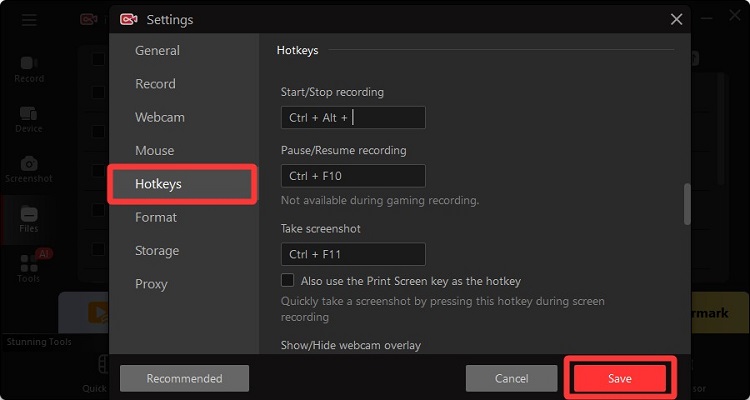
- Click the three-line menu icon in the upper-left corner.
- Click Hotkeys on the left sidebar.
- Click the box under the item you wish to modify and press your preferred key combination. (Note: Choose a combination that doesn't conflict with other Windows or application shortcuts.)
- Click Save to apply your changes.
Step 3. Start Recording Your Screen
- Return to the main interface and select a recording area
- Press your newly assigned shortcut to test it.
- Use the configured stop-recording shortcut to finish.
Choose keyboard combinations that do not conflict with existing Windows shortcuts or other applications. Available hotkey commands may vary by software version.
Also Read: Top 5 ways to Screen Record Restricted Apps >>
How to Fix Screen Record Shortcut Not Working on Windows
Sometimes, a screen record shortcut key may stop responding because of disabled recording features, outdated software, keyboard conflicts, or application restrictions. Before reinstalling your recording software, check whether the shortcut is supported by your Windows version and whether the required recording feature is enabled. The following solutions can help restore normal recording functionality.
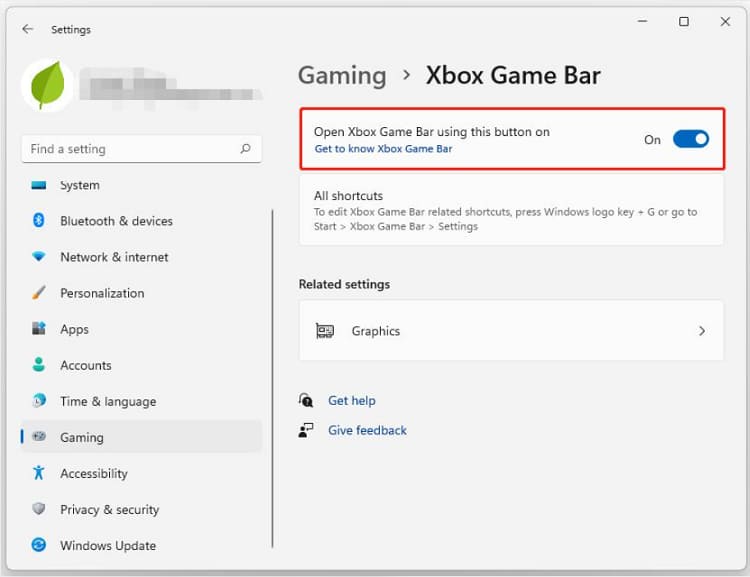
Fix 1. Check Xbox Game Bar Settings
Open Settings > Gaming and check the available Xbox Game Bar settings. Make sure the recording feature is available and configured correctly.
Fix 2. Restart the Recording Application
Close Xbox Game Bar, Snipping Tool, or your third-party screen recorder. Reopen the application and try the shortcut again.
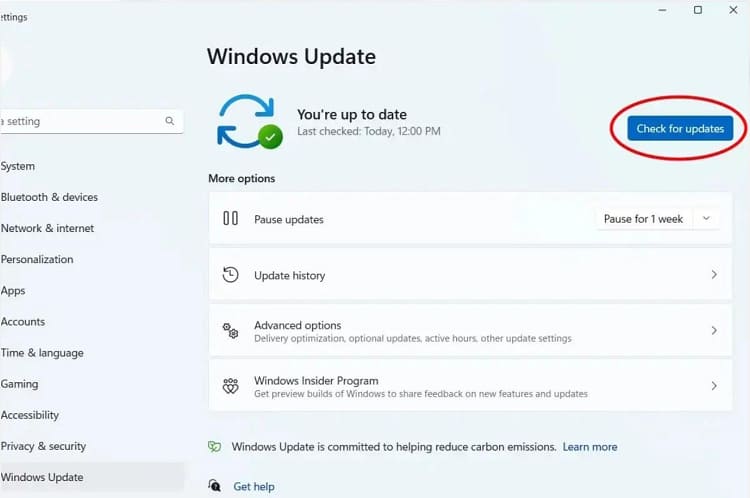
Fix 3. Update Windows
Open Settings > Windows Update, check for available updates, and install relevant fixes.
Fix 4. Check for Keyboard Shortcut Conflicts
Other applications may use the same keyboard combination. Close conflicting programs or change their shortcuts.
Fix 5. Use Custom Recording Hotkeys
If built-in shortcuts remain inconvenient, use iTop Screen Recorder to assign alternative recording hotkeys.
Also Read: How to Record on Firestick Free in Highest Quality
Bonus: What Is the Screen Record Shortcut on Mac?
Mac users can also record their screens using built-in keyboard shortcuts. The standard screen record shortcut Mac supports is Command + Shift + 5, which opens the screenshot and screen recording toolbar. Here are the steps for screen record shortcut Mac.
How to record your screen on Mac:
Step 1. Press Command + Shift + 5.
Step 2. Select Record Entire Screen or Record Selected Portion.
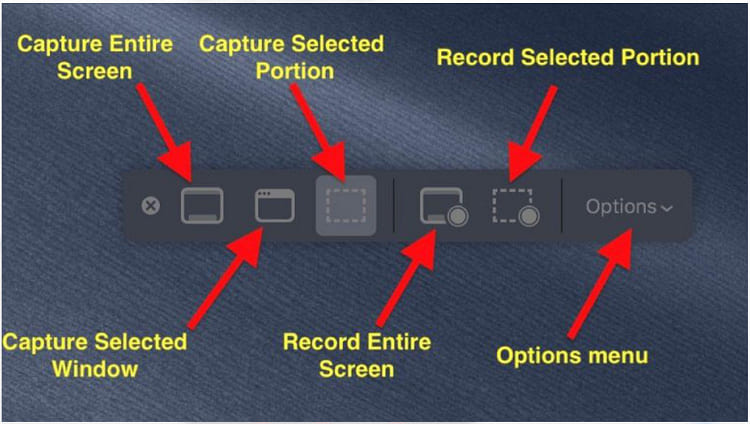
Step 3. Click Options to configure the microphone and save location.
Step 4. Click Record to start recording.
Step 5. Press Command + Control + Esc to stop recording, or click the Stop button in the menu bar.
Mac users can also open a new screen recording in QuickTime Player by pressing Control + Command + N while QuickTime Player is active.
FAQs About Screen Recording Shortcuts
What is the fastest way to screen record on Windows?
Press Windows + Alt + R to start or stop recording a supported application with Xbox Game Bar. For selected-area recording on compatible Windows 11 versions, use Windows + Shift + R.
Can I change the screen recording shortcut on Windows?
Yes. Some Windows recording tools offer shortcut customization, depending on the version. You can also use iTop Screen Recorder to configure your preferred recording hotkeys.
Why does Windows + Alt + R not record my desktop?
Xbox Game Bar is designed primarily for recording supported applications and games. It generally cannot capture the Windows desktop or File Explorer. Consider using a recorder that supports full-desktop capture.
Conclusion
Using keyboard shortcuts is one of the easiest ways to capture your screen without unnecessary steps. Windows 11 and Windows 10 users can rely on Xbox Game Bar, while Windows 11 also offers Snipping Tool recording.
For customizable hotkeys, flexible recording areas, and additional capture features, download iTop Screen Recorder, the powerful Screen Recorder software, as a practical alternative. Choose the screen record shortcut that matches your needs and enjoy a faster recording workflow.