Telegram rolls out a live stream feature letting admins broadcast live videos or audios to unlimited audiences in a channel or group, perfect for company/organization announcements, online education, public events and more.
Individuals can explore interesting Telegram live streams for essential information or just for fun. In addition, the hosts or audiences may record Telegram live stream to watch or review the content later in case missing some details. Well, how to record Telegram live stream? Let's get started.
Can You Record Telegram Live Stream?
The direct answer is YES. You are allowed to screen record the live stream on Telegram. What's more, an official recording option helps record your own live streams without extra software. However, audiences should use a third-party screen recorder to save desired live content.
How to record a Telegram live stream on Telegram within the desktop/web app or mobile? We will walk you through.
How to Record Telegram Live Stream as Host?
Telegram empowers hosts to stream and record a live video or audio at the same time within both desktop and mobile apps straightforwardly. Let’s learn how.
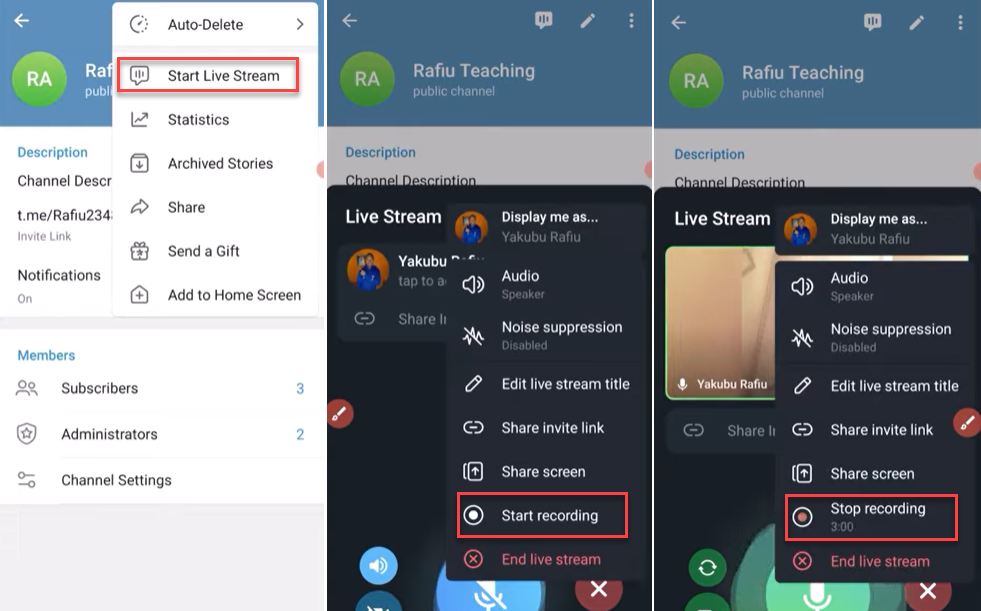
Step 1. Start your live stream on Telegram.
Step 2. Click the "three dots" on the stream screen. Select "Start Recording" from the menu. Determine the format, audio or portrait/landscape video. Name the recording. Now, hit "Start".
Step 3. Hit the "Stop" button to stop recording and the recorded video will appear in “Saved Messages”.
Tips:
- Audiences will be notified when you are recording the live stream on Telegram.
- Switch to third-party software if the recording option doesn’t work or you need to screen record Telegram live stream without them knowing.
How to Record Telegram Live Stream as an Audience?
Although the recording option is inaccessible to audiences, professional screen recording software serves as the best solver that lets everyone record live streams on Telegram with no restriction.
Check how to record Telegram live with the best screen recorders for different devices.
Record Telegram Live Stream on PC
iTop Screen Recorder offers a screen recording mode to capture Telegram live stream and everything appearing on your desktop with no effort. The industry-leading screen recorder can record both visual content and audio tracks, making it an ideal tool to save streaming video content from various services. It has a clean and easy-to-navigate design helping users perform the recording process with ease.
How to record a Telegram live stream using iTop Screen Recorder? Check the brief guide.
Step 1. Free download the screen recorder and follow the instructions to install it on your PC.
Step 2. Open the live stream you want to record.
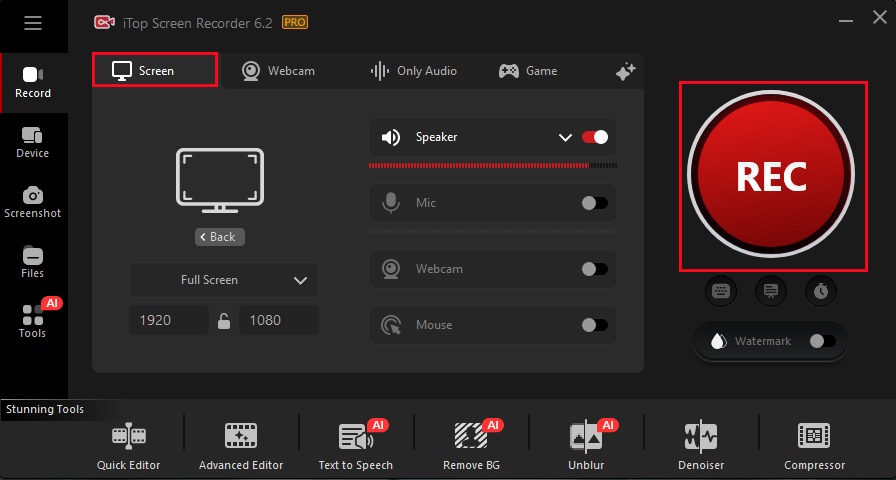
Step 3. Launch iTop Screen Recorder. Go to Record panel and select Screen. Choose the recording area.
Step 4. Turn on Speaker to record with audio.
Step 5. Click REC button to start recording.
Step 6. After the countdown, a mini control bar appears. Click Done button to stop recording. You can find the recording in Files > Video, where you can manage and edit the recorded file.
Why Choose iTop Screen Recorder to Record Telegram Live Stream?
With iTop Screen Recorder, you can experience seamless recording performance on a PC.
- Capture any content on Telegram: More than live stream, you can screen record everything on the platform, from common video calls, public video messages to secret chats, self destruct videos. You can also use "Only Audio" mode to record live podcasts and other audio streams from Telegram with clear sounds.
- Deliver high-quality Telegram live stream recording: iTop Screen Recorder helps record the live streams on Telegram with original quality, keeping crisp images and vibrant colors.
- Record live streams as long as possible: iTop Screen Recorder is a free screen recorder with no time limit. It enables you to capture a live stream more than hours to keep all information.
- Ensure smooth recording progress: The utilization of hardware acceleration drives you to enjoy no-laggy screen recording even though you try to record 4k/120fps videos.
- Enhance screen recording at one stop: The inbuilt video editors give you a chance to record and edit the video with no effort. You can trim, crop, rotate screen recordings and advancedly add transitions, effects, text, sticker etc., for better outputs.
Moreover, iTop Screen Recorder introduces an “Enhanced Mode” to screen record protected videos from any streaming or social media service without black screen. Just press CTRL and click REC button simultaneously to activate the enhanced mode and get a flawless screen recording.

Record Live and Streaming Videos in One Click
- Record TV shows, movies, live sports from any site.
- Record videos and live streams without quality loss.
- Record from YouTube, Netflix etc., without black screen.
- Record with mic/webcam to create reaction videos.
Record a Live Stream on Telegram on Mac
OBS wins big popularity for streaming live to diverse platforms, Telegram included. Recording is the other brilliant highlight of the program and users can capture the video while streaming. As an open-source application available for macOS, OBS is recognized as the most cost-efficient solution to record Telegram live on Mac.
Step 1. Download OBS for macOS from its official site and install it following the instructions.
Step 2. Play the Telegram live stream you try to record.
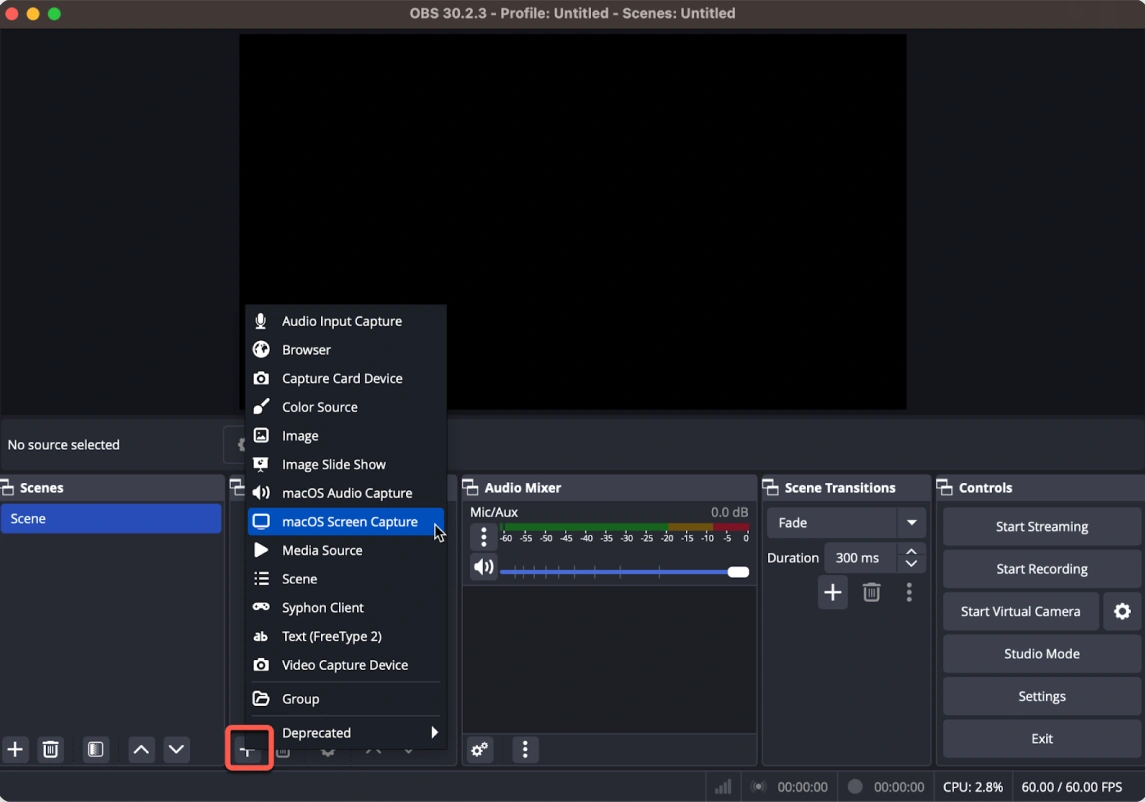
Step 3. Open OBS. Click "+button" In the "Sources" section. Choose "macOS Screen Capture".
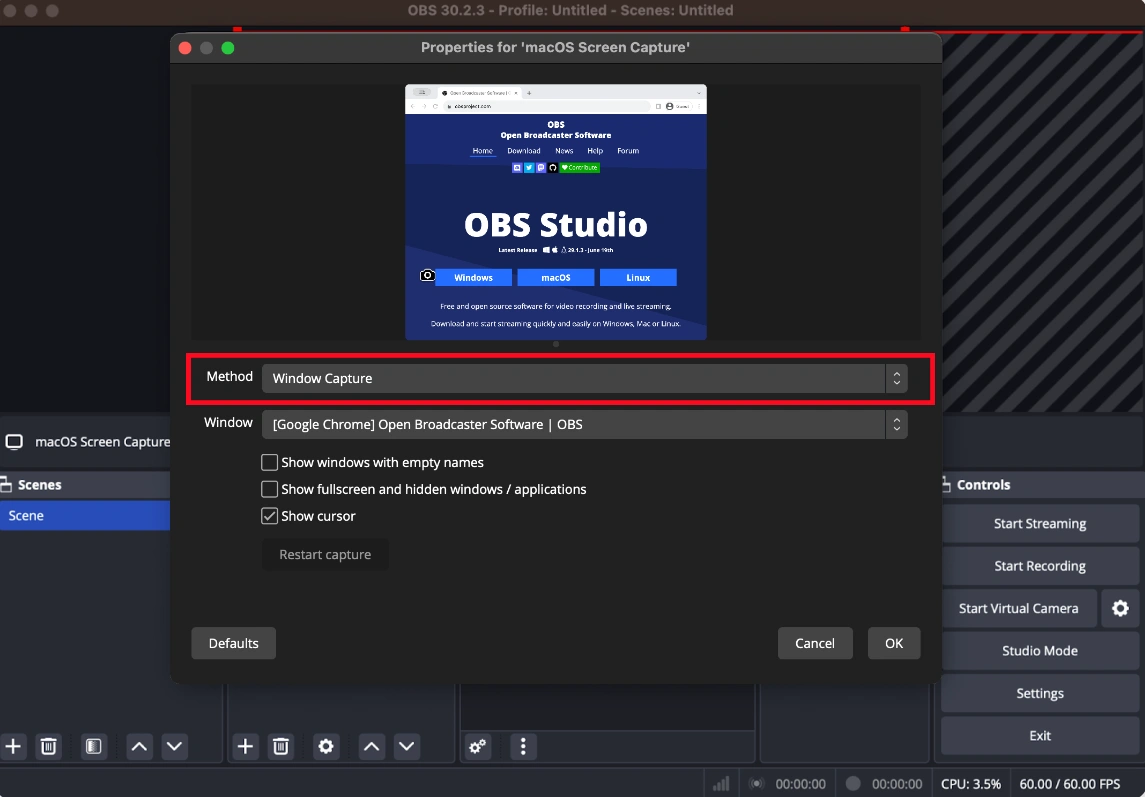
Step 4. In the pop-up window, switch the Method to "Window Capture" or "Application Capture". Select the Telegram window.
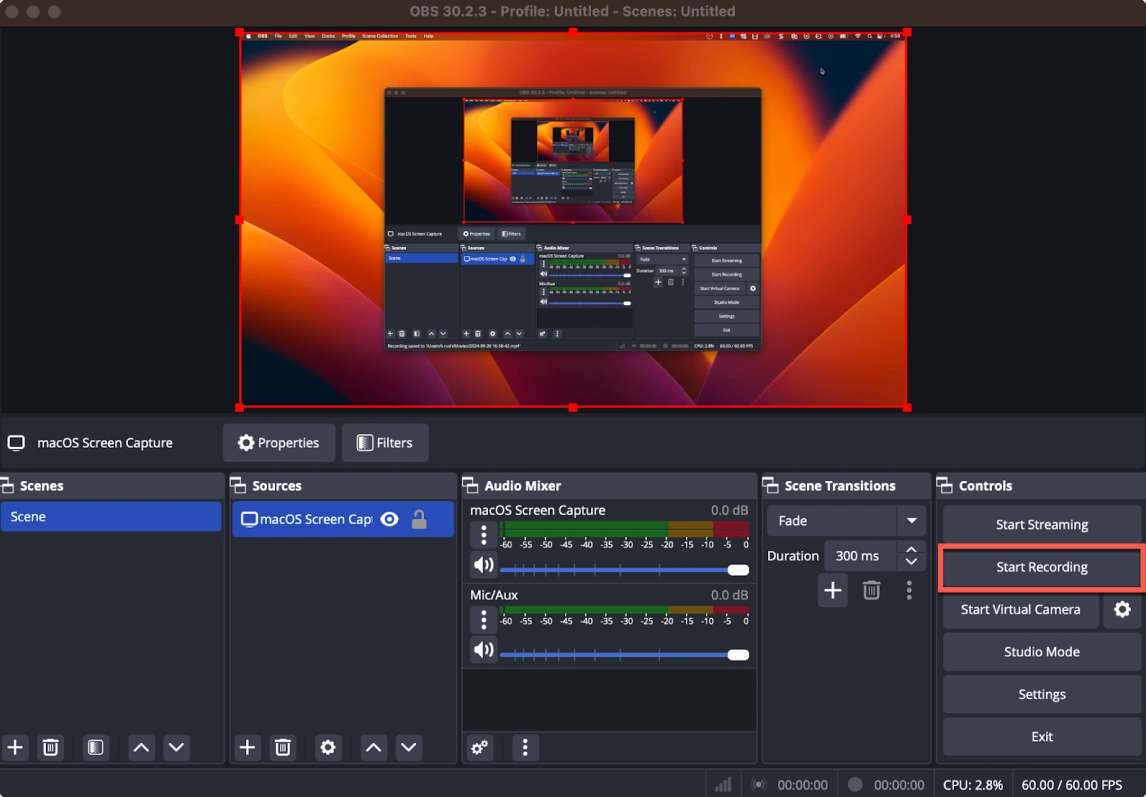
Step 5. Click "Start Recording" to let OBS capture the live stream with audio.
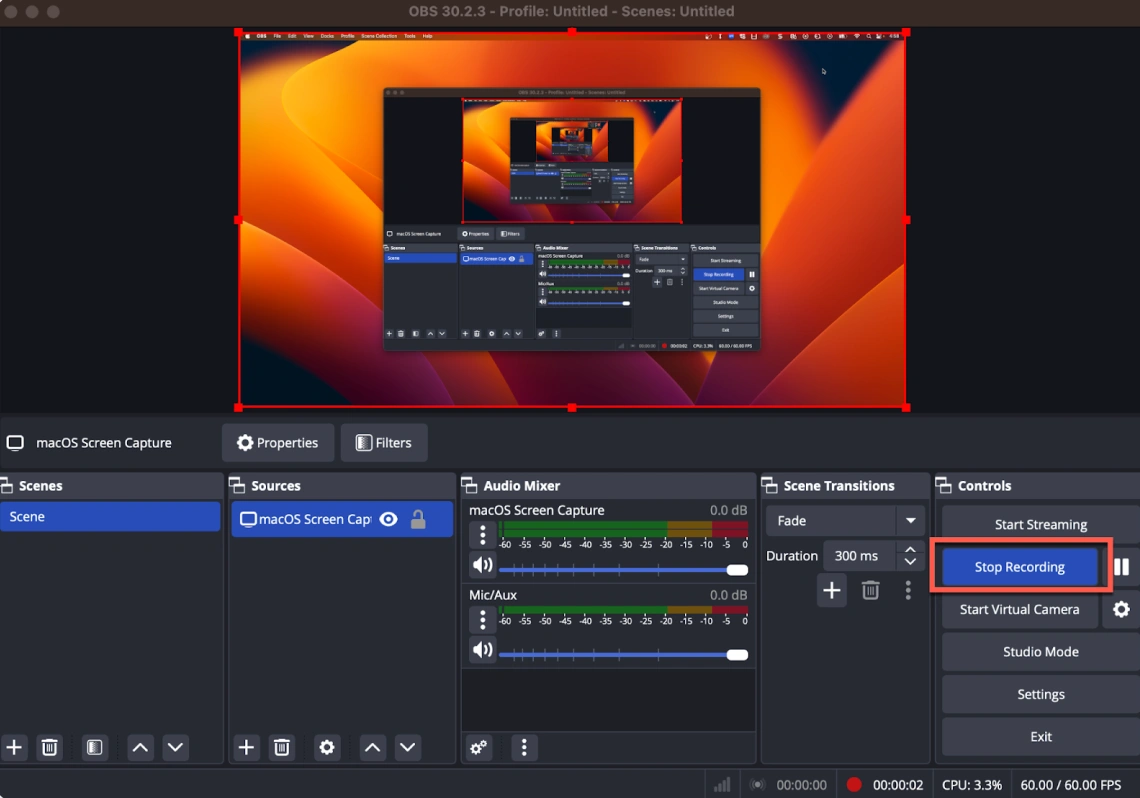
Step 6. Click "Stop Recording" to finish.
Record Telegram Live on iPhone/Android
Both iPhone and Android devices have the native screen recorder letting you record what’s happening on your screen. By a few taps, you can capture a live stream on Telegram without installation.
How to Record a Live Stream on Telegram on iPhone?
Step 1. Sign in your Telegram account and play a live stream.
Step 2. Get access to the Control Centre by swiping from the top of your iPhone screen.
Step 3. Tap on the grey Record button in the Control Center. It will automatically record the screen after the countdown.
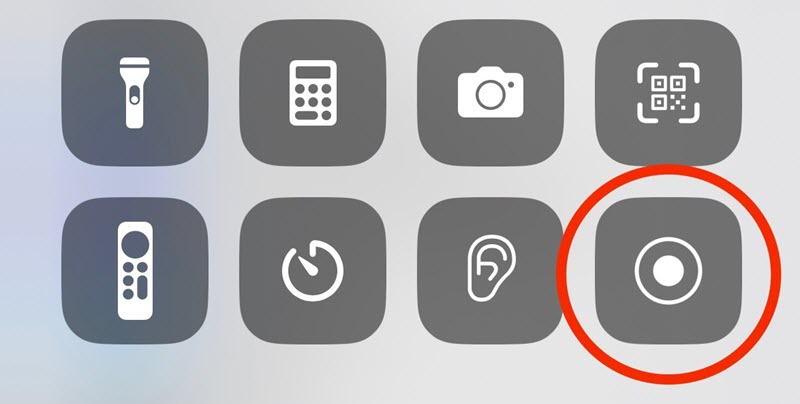
Step 4. A screen recording bar appears on the top of the screen. Tap the Stop button in the bar to stop recording. You can also tap the red Record button in the Control Centre to stop.
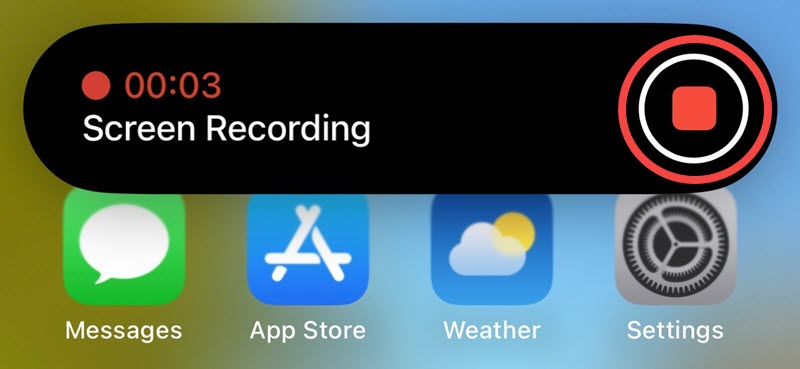
Step 5. Find the screen recording file in Photos App. Edit it if needed.
How to Record a Live Stream on Telegram on Android?
Step 1. Find a live stream in a Telegram channel or group.
Step 2. Swipe from the top of your Android phone screen to open Quick Settings.
Step 3. After you see a Screen Recorder or Screen Record icon, tap on it.
Step 4. Select Media sounds in Sound settings to record Telegram live stream with audio. Next, tap on Start Recording.
Step 4. Tap the Stop button in the notification panel or hit the Screen Record(er) button again in the Quick Settings to stop recording.
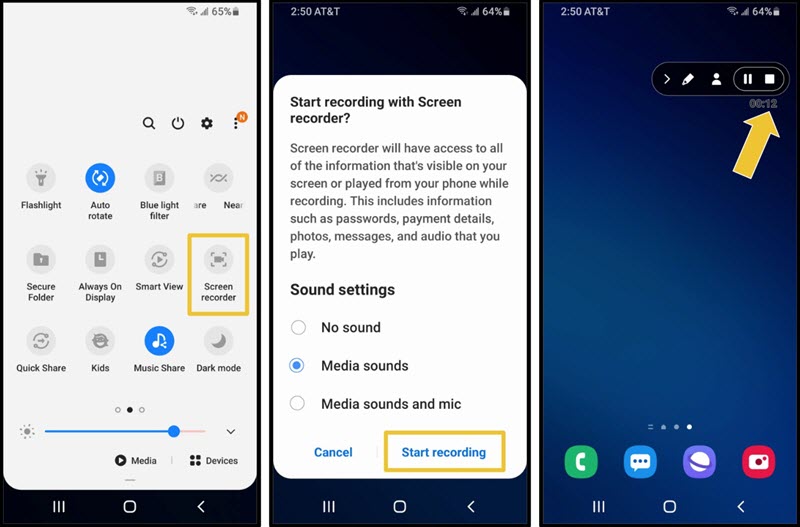
Notice: You can't screen record a live stream in a private channel or group on mobiles. Use the desktop app to record private live streams on PC and Mac.
Conclusion
Telegram's live feature is perfect for communities and helps creators achieve target audiences more conveniently. As a host, the native screen recording feature lets you capture your own live stream effortlessly while audiences should use a third-party program to complete the task. On Windows, iTop Screen Recorder shows an easy and free measure to record Telegram live stream (both video and audio) in high quality. If you are a Mac user, OBS is a good choice while for those who are used to watching live streams on phones, the built-in screen recorder can completely meet your need.