If you have an Epic Games account, you may have noticed that Hogwarts Legacy has been offered for free during special Epic promotions. It’s a surprise that turned many casual clicks into real adventures. With more players jumping in, this is a good moment to show how to record Hogwarts Legacy gameplay clips that capture the story, not just the action.
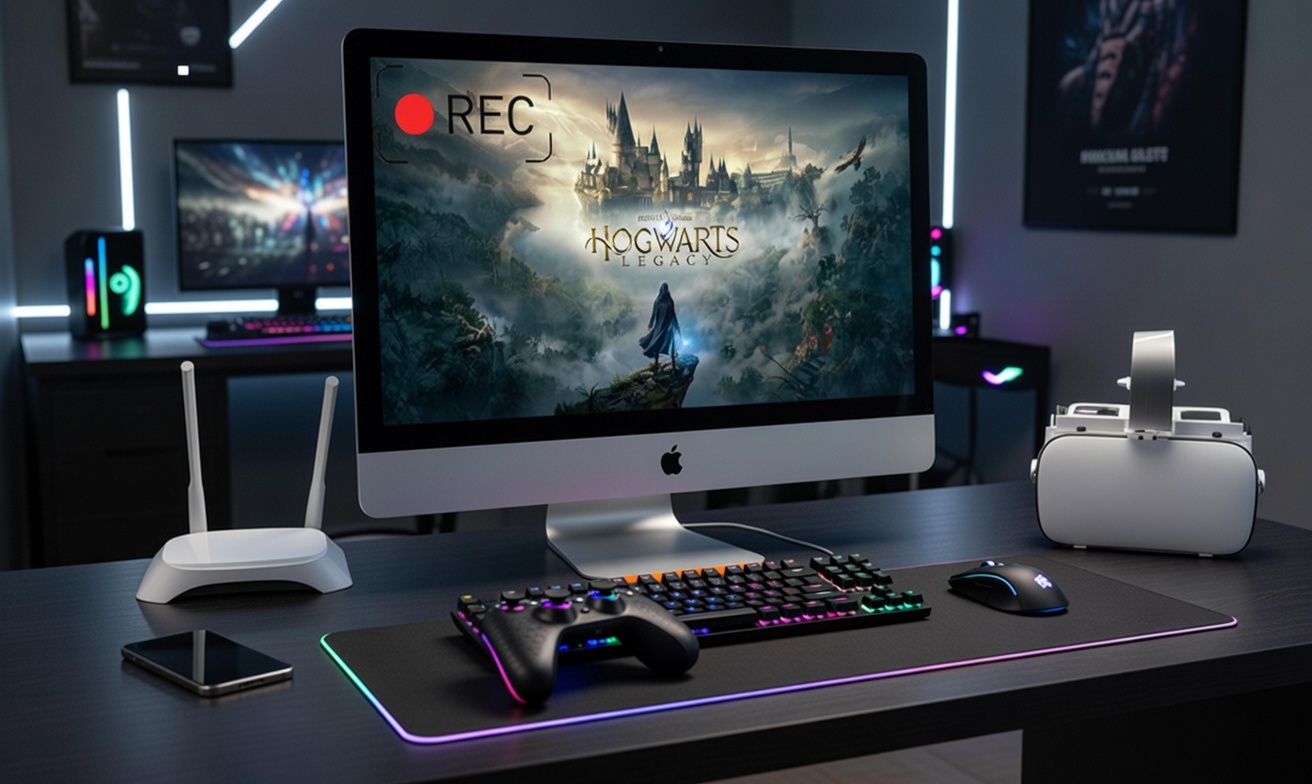
Can You Record Hogwarts Legacy Without Third-Party Tools?
Hogwarts Legacy doesn’t include a native game recorder feature. But it does offer a nice workaround for still moments. Scroll down to learn more about the Phone Mode and what is needed to capture Hogwarts Legacy gameplay.
- Hogwarts Legacy Screenshot Function
The Phone Mode lets you pause the action, freely adjust the camera, depth of field, filters, and hide the UI before taking a screenshot. Use the steps below to screenshot Hogwarts Legacy free epic during an Epic Games promotion.
Step 1. Pause the game during gameplay and open Photo Mode.
Step 2. Adjust the camera, character pose, lighting, etc. until the shot looks right.
Step 3. Hide the interface, then capture using your platform’s screenshot button.
- What Do I Need to Record Hogwarts Legacy Gameplay Clips?
When it comes to video, though, you’ll need system-level tools. Windows, PS5, and even Nintendo Switch all provide built-in ways to capture gameplay clips, making it easy to record Hogwarts Legacy moments without extra software. We’ll walk through those options in the next sections, including how to record gameplay on PC.
How to Record Hogwarts Legacy on Windows?
Smooth performance matters more than flashy tools when you play Hogwarts Legacy on PC. Long story scenes, spell effects, and open-world exploration can easily stutter if a recorder eats CPU or tanks FPS. That’s where iTop Screen Recorder fits naturally. It uses a dedicated Game Mode that locks onto the game window, keeping frame rates stable while capturing clean footage, no random lag spikes, no dropped moments during combat or cutscenes.
What really helps is the balance between quality and performance. iTop Screen Recorder can record Hogwarts Legacy Windows in 1080p or 4K at 200 FPS, while still keeping CPU usage low thanks to hardware acceleration. You can grab game audio, mic commentary, or webcam at the same time, then quickly trim clips before sharing to YouTube or social platforms. Access iTop Screen Recorder free download and follow the tutorial below on how to screen record Hogwarts Legacy with iTop Screen Recorder.
Step 1. Download and install iTop Screen Recorder. It works smoothly on Windows 11, 10, 8, and 7 to record Hogwarts Legacy gameplay.
Step 2. Open iTop Screen Recorder and switch to Game mode to capture Hogwarts Legacy with better performance.
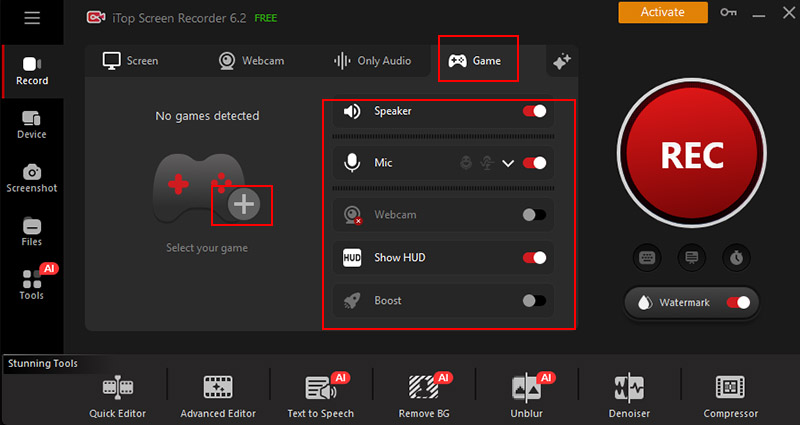
Step 3. Add the game, then enable system sound, microphone, or webcam if you want game audio, commentary, or facecam.
You can also use Full Screen mode to record the entire display. For more control, open Settings to adjust resolution, frame rate, format, bitrate, and video quality before recording.
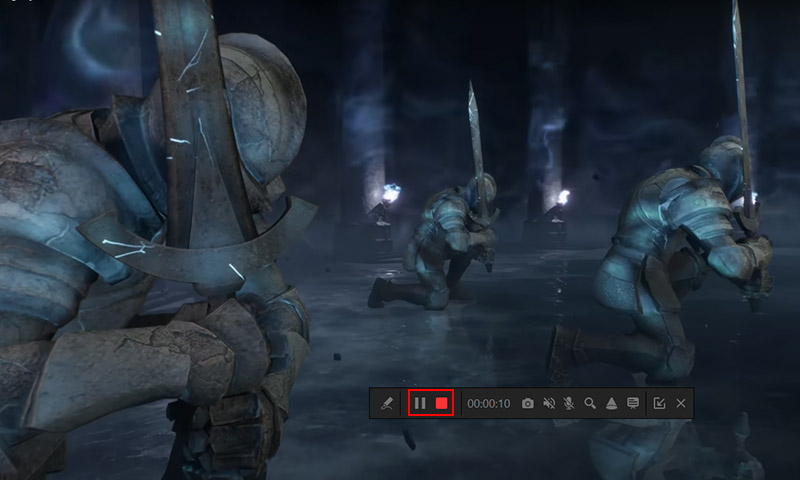
Step 4. Click the red REC button to start. After the countdown, use the control bar to pause or stop whenever you want. Click the stop button to save your Hogwarts Legacy recording.
How to Record Hogwarts Legacy on Nintendo Switch?
Playing Hogwarts Legacy free epic on Nintendo Switch feels a bit different, more intimate, and more portable. That also changes how you capture moments. There’s no advanced video editor here, but the console quietly does its job if you know where to look. The built-in Capture button makes learning how to screen record Hogwarts Legacy Switch effortless. If something unexpected happens, a clutch spell combo or a funny NPC glitch, holding the Capture button instantly saves the last 30 seconds. No menus, no setup, no extra gear. For casual clips and quick memories, it works surprisingly well.
Hogwarts Legacy recordings are capped at 30 seconds. You’ll also need the Switch mobile app to move clips off the console, which adds an extra step. If you want longer gameplay, commentary, or higher video quality, a capture card becomes necessary. That route costs more and takes setup time, but it unlocks full control over resolution, audio sources, and recording length. For portable play, the built-in option is simple and reliable, just not flexible. Below is how to record Switch gameplay without third-party help.
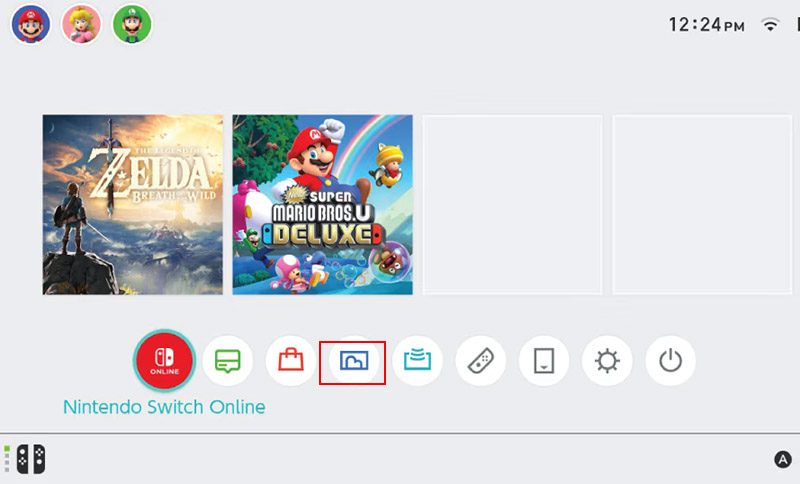
Step 1. Locate the Capture button on the left Joy-Con, just below the D-pad.
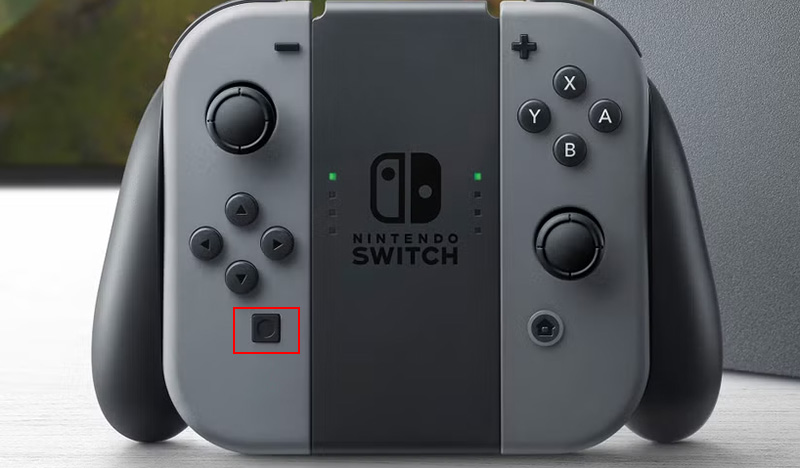
Step 2. While playing Hogwarts Legacy, press and hold the button to record recent gameplay.
Step 3. Open the Album from the Home Menu to view the saved 30-second clip. It records 30 seconds of Hogwarts Legacy gameplay.
How to Record Hogwarts Legacy on PS5?
Experiencing Hogwarts Legacy on PS5 is a unique experience. For anyone who wants to record Hogwarts Legacy moments without juggling extra software, the PS5’s built-in tools are surprisingly handy for capturing PS5 gameplay. With a single button press, you can save recent gameplay or start to record Hogwarts Legacy PS5 manually, even in 4K, without plugging in extra hardware. The built-in editor makes trimming and sharing clips simple, which is ideal for casual highlights.
That convenience does come with trade-offs. Recordings are capped at one hour. Darker scenes can lose detail when video files are heavily compressed. There’s also no webcam support, and longer sessions may slightly affect performance. For sharing moments with friends, the built-in tools are more than enough. For creators aiming at higher quality or longer sessions, dedicated capture hardware offers far more control.
Step 1. Launch Hogwarts Legacy and play normally until you reach a moment you want to capture.
Step 2. Press the Create button on the DualSense controller, located just above the D-Pad.
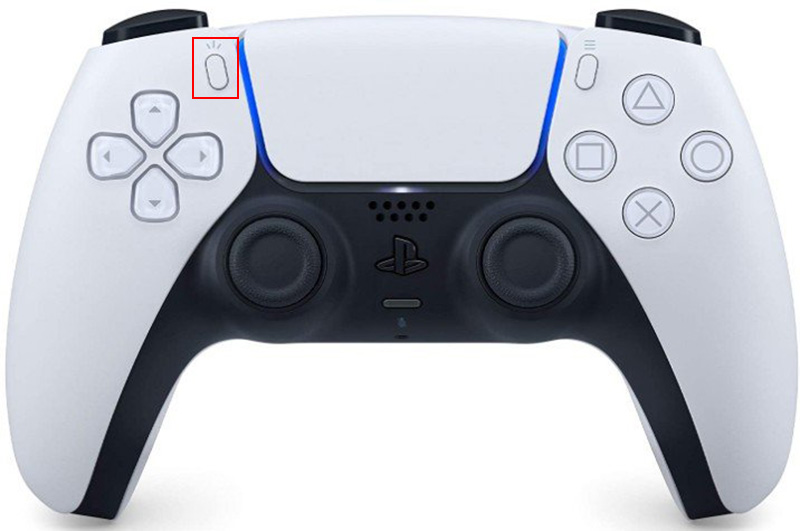
Step 3. Choose Save Recent Gameplay to capture past footage, or Start New Recording to record from that point forward.
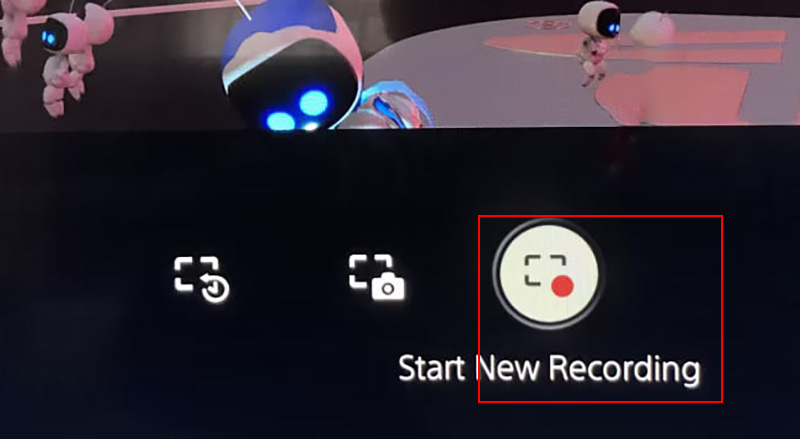
Step 4. Press the Create button again and select Stop Recording, or use the double-press shortcut if enabled.
Hogwarts Legacy Worth Recording Footage Types
Some moments in Hogwarts Legacy are too special to miss, and one that players often focus on is the Speedrun 100 challenge. This full-game Speedrun pushes you to complete the game as fast as possible while still keeping an eye on story beats and hidden secrets.
- What is Hogwarts Legacy Speedrun 100?
Speedrun 100 is a challenge where players aim to finish the game from start to end as quickly as possible while meeting certain objectives. It’s a mix of precision, strategy, and exploration. These runs can be long, often tens of minutes or more.
- How to record Hogwarts Legacy Speedrun 100 in a smooth way?
Recording a Hogwarts Legacy Speedrun 100 requires smooth, lag-free capture. iTop Screen Recorder handles long gameplay at 1080p/4K, records audio and webcam, allows annotations, and uses hardware acceleration to prevent FPS drops, with built-in editing for trimming, merging, and sharing clips easily. Follow to learn how to record game without losing FPS smoothly using iTop Screen Recorder.
Step 1. Launch iTop Screen Recorder before starting your run. Choose “Full Screen” or select the Hogwarts Legacy game window.
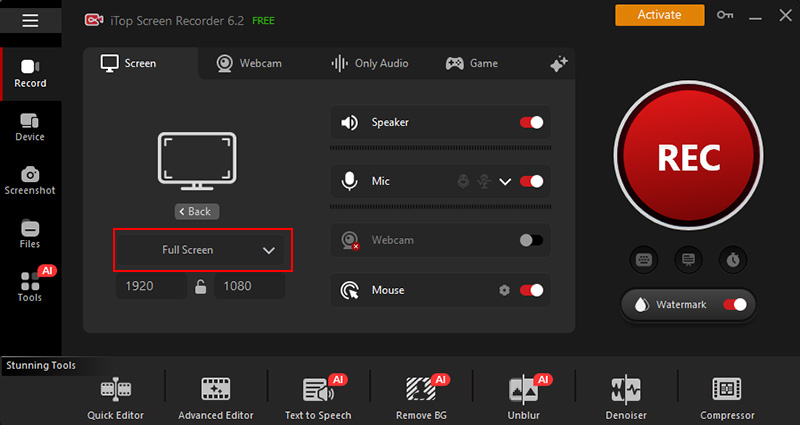
Step 2. Hit the Record button or use the shortcut before beginning the Speedrun. Play normally, the recorder runs quietly in the background.
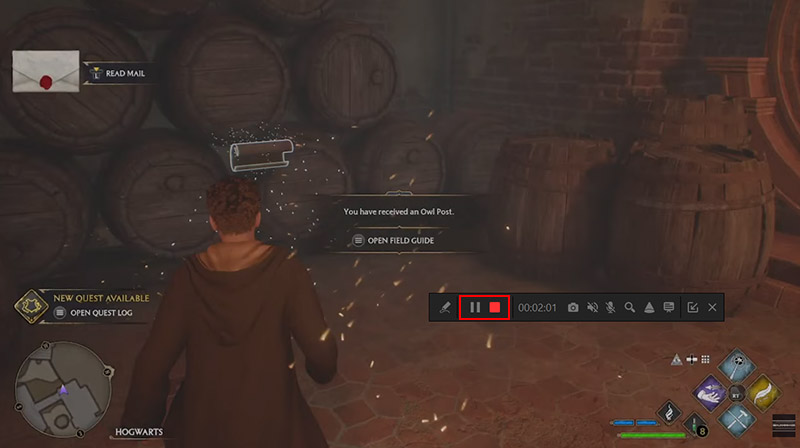
Step 4. When the run ends, click the stop button. The footage is automatically saved, ready for editing or sharing.
Read More: Do you need a capture card to record PC gameplay? >>
Conclusion
Recording moments in Hogwarts Legacy lets you relive the story, from epic duels to scenic explorations, or even a full speedrun 100. For smooth, reliable captures without interrupting gameplay, get iTop Screen Recorder for an effective solution to record Hogwarts Legacy and keep every detail in high quality.