



NBA League Pass is a popular subscription service that offers access to a wide variety of live and on-demand NBA games. It is available on various platforms, including the NBA's website, the NBA app for smartphones, and connected devices like smart TVS and streaming players.
Thanks to its wide applicability, people can catch up on missed games due to national blackouts conveniently. However, for people who wish to record games to watch at a time that suits their schedule, the NBA League Pass subscription is insufficient. So, can you screen record NBA League Pass? Is there any way to record NBA League Pass games? Keep reading this guide to get the answer!
Can You Record Games on NBA League Pass?
The direct answer is NO! NBA League Pass doesn't come with a built-in feature that allows you to record NBA League Pass games for later viewing, unless you use an external screen recorder or a DVR connected to your device to help. There are many screen recorder programs and DVR types available for you to choose from. Whether you’re using a website or an NBA app, or even a TV to watch the games, you can find the right recording method.
Screen Record NBA League Pass on Windows Using iTop Screen Recorder
If you plan to watch the NBA game on a website, then you can record it using this professional screen recorder - iTop Screen Recorder. It enables you to record live sports and streaming videos from any website, like ESPN+, Paramount+, Peacock, and so on, with original quality.
iTop Screen Recorder delivers good user experience and performance. It employs an "Enhanced Mode" to bypass black screen issue when recording protected videos. Thanks to the hardware acceleration and low-CPU usage, you can record sports games, live streams, TV shows/movies and other content in 1080HD or 4K smoothly. In addition to recording PC screen, it also enables you to record a mobile device screen, be it an iPhone or an Android, by mirroring it to your PC for recording. That makes sense to screen record restricted apps seamlessly on your phone.
iTop Screen Recorder ensures a simplified workflow. In a few clicks, you can record a game on NBA League Pass.
Step 1. Download and install iTop Screen Recorder from its official site to your Windows computer.
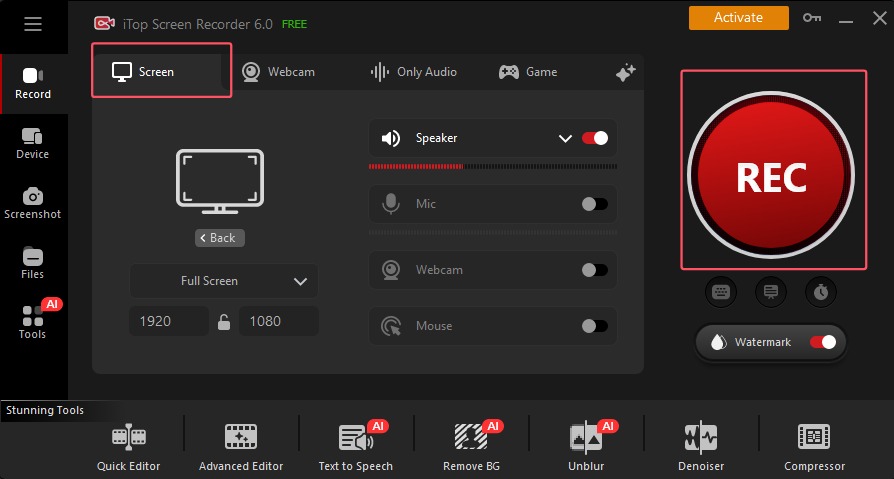
Step 2. Open the NBA games in your web browser and launch iTop Screen Recorder. On its main interface, go to the Record section and select Screen. Then, choose the areas you wish to record. Turn on Speaker to record the game with audio. Once done, click REC to start recording.
Step 3. When the NBA game finishes, click the red square-shaped button on the control panel to stop the recording. Your recordings will be saved to the Files section. You can then preview, rename, edit, or export it in your desired format.
Actually, iTop Screen Recorder can do more than just recording NBA League Pass games. It supports capturing any activity that happens on your screen. You can benefit a lot from this free screen recorder for PC.
- Flexibly record part of the screen, a fixed window, or the entire screen without hassle.
- Record high-quality videos in various resolutions (1080p, 4K) and frame rates (60fps, 120fps) with no shutters.
- Record long live streams, full games and full movies/episodes with no time limit.
- Capture screen and webcam, microphone simultaneously to record a review or reaction video of a NBA game, a TV show, etc., hassle-free.
- Trim or crop the unwanted part on the screen recording. Add text, effects, transitions, or other elements as you wish with the inbuilt video editor.

Record Live and Streaming Videos in One Click
- Record TV shows, movies, live sports from any site.
- Record videos and live streams without quality loss.
- Record from YouTube, Netflix etc., without black screen.
- Record with mic/webcam to create reaction videos.
How to Record NBA League Pass Games on Android/iPhone
If you're using the NBA app to watch the NBA games on your phone and want to record NBA League Pass games, you can directly use the "Download" option or use the built-in screen recording feature to record for later viewing. But one thing to note is that you might encounter problems like a black screen when you record from NBA League Pass with the native screen recorder , resulting from digital rights management protection. Hence, try the "Download" option first to avoid wasting time on a potentially failing method. If both methods fail to record games on NBA League Pass, you can try some third-party screen recorder apps instead.
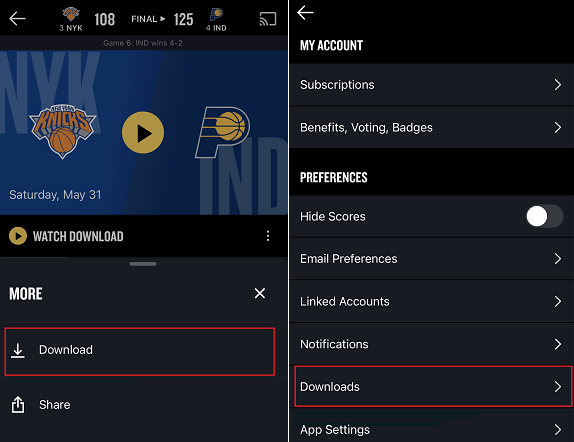
To download games from the NBA app:
Step 1. Open the NBA app on your iPhone or Android.
Step 2. Head to the game you wish to download.
Step 3. Tap the three-dots menu icon on the right of the video player.
Step 4. Select "Download" from the menu and choose your preferred stream.
Step 5. The downloaded files will be saved in your Profile > Preferences > Download.
To record games from NBA app using the device's screen recorder:
For iPhone:
Step 1. open the NBA games you wish to record.
Step 2. Swipe down from the top-right corner to open Control Center. Tap the gray Record button, which is a circle.
Step 3. After a three-second countdown, the screen recording will begin.
Step 4. Tap the red Record button in the status bar at the top of your screen to stop recording.
Step 5. Your recordings will be automatically saved to your Photos app on your iPhone.
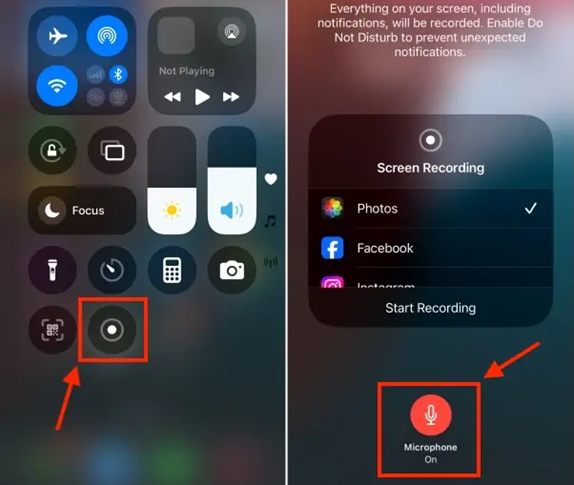
Note: If the Screen Recording button is not in Control Center, you can go to Settings > Control Center > More Controls, tap the green "+" icon next to Screen Recording.
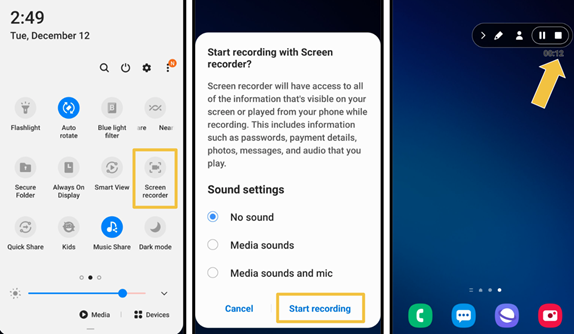
For Android:
Step 1. Open the NBA app and play the games you wish to record.
Step 2. Swipe down from the notification twice to bring up the Quick Settings. Select the Screen Record icon and tap Start Recording to start recording your screen.
Step 3. Tap the Stop button to stop the recording.
How to Record NBA League Pass Games on a TV Using a DVR
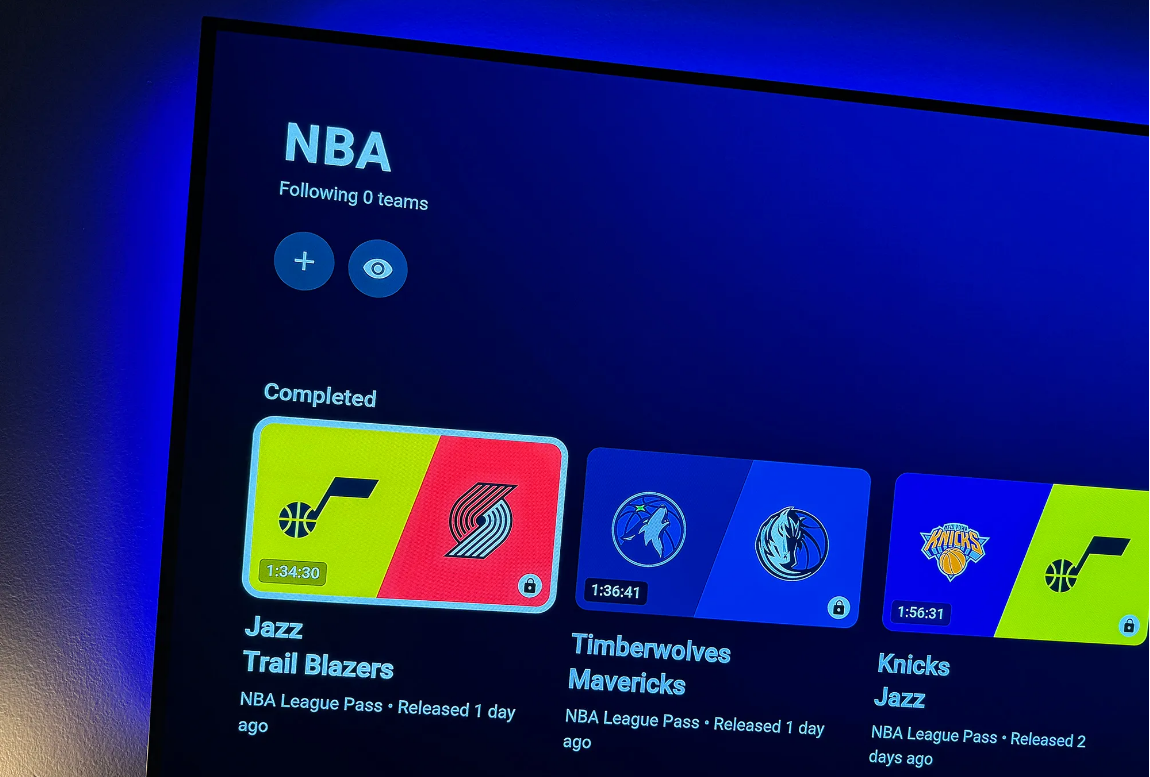
The most straightforward way for people who are using a TV to watch the NBA games to capture an NBA game is to use a DVR. But before that, note that the NBA has blackout restrictions on local or international games, which might stop you from screen recording. Moreover, some DVR services might have limitations on how long you can save a game. Therefore, it is advisable to review the provider's terms and conditions to determine if any restrictions apply. Once you're ready, follow these steps to choose a DVR and start recording NBA League Pass.
Step 1. Sign up for a live TV streaming service that offers NBA League Pass, such as YouTube TV or Sling TV.
Step 2. Follow the service's instructions to link your NBA account to your YouTube TV or Sling TV subscription.
Step 3. Find the NBA game you want to record within the streaming service's app on your TV. You should be able to select the game and set it to record from the Home or Live tab, often 15 minutes before it starts.
The Bottom Line
How to screen record NBA League Pass? A reliable screen recorder is the answer. iTop Screen Recorder shows off the ability to screen record any streaming content offered by NBA League Pass enabling you to save favorite games without missing the highlight. Also, you can directly download games from the mobile app with convenience, or use a DVR to record NBA League Pass games on a TV.
Record Live and Streaming Videos in One Click
- Record TV shows, movies, live sports from any site.
- Record videos and live streams without quality loss.
- Record from YouTube, Netflix etc., without black screen.
- Record with mic/webcam to create reaction videos.





