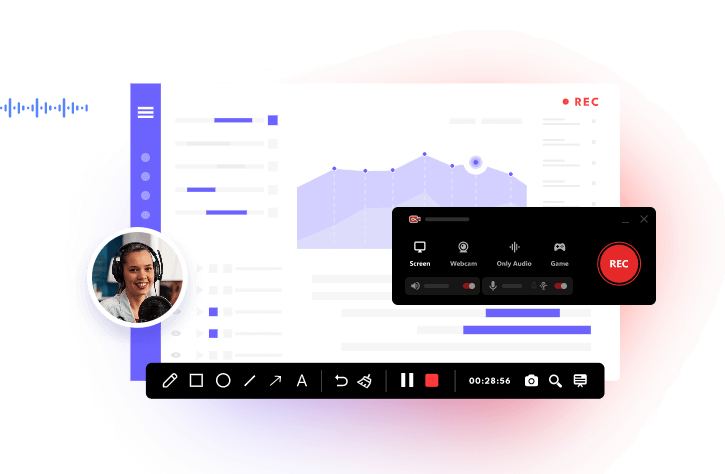
Digital art videos are more popular than ever. Whether you're creating speedpaints for YouTube, sharing drawing reels on Instagram, or building an online portfolio, recording your creative process can help you attract more viewers and showcase your artistic skills.
If you've been wondering how to record digital art videos, this guide will walk you through the best methods for PC, iPhone, and Android devices. You'll also learn how to record your art process smoothly and create professional-looking videos that stand out online.
Why Record Your Digital Art Process?
Recording your artwork offers several benefits beyond simply creating content. Whether you're sharing your work online or looking to improve your skills, capturing your creative process can be a valuable habit. Besides that, there are more benefits to recording your digital art process.
- Build an audience and showcase your skills.
- Create tutorials, speedpaints, and time-lapse videos.
- Improve your workflow.
- Document your artistic progress over time.
- Create a visual record of your development as an artist.
What You Need Before Recording Digital Art Videos
Before diving into the recording process, it's worth taking a few minutes to prepare your setup. Having the right tools and resources ready will help ensure a smooth recording experience and better-quality digital art videos.
- Drawing Device: Graphics tablet, pen display, iPad with Apple Pencil, and an Android tablet or smartphone
- Recording Software: Choose a reliable screen recorder.
- Storage Space: Check that you have sufficient free storage available.
- Optional Audio Equipment: If you plan to record tutorials or provide commentary, prepare a quality microphone.
How to Record Digital Art Videos on PC
If you create artwork using software like Photoshop, Clip Studio Paint, Krita, or Paint Tool SAI, iTop Screen Recorder provides an easy and efficient way to capture your entire creative process on PC. Whether you want to create speedpaints, tutorials, time-lapse videos, or share your drawing workflow online, iTop Screen Recorder helps you record high-quality digital art videos smoothly without interrupting your creative flow.
Why Choose iTop Screen Recorder for Recording Digital Art?
- Record Digital Art Sessions In HD, 1080P, And 4K Quality
Capture digital art projects in HD, 1080P, and 4K resolution with sharp details and vibrant colors. The high-quality recording mode is also suitable for users who need to screen record protected videos without sacrificing visual clarity.
- Capture Your Entire Screen Or Only The Drawing Area
Record the entire desktop or select only the canvas area to keep your workspace clean. This flexible recording mode is useful when you need to record Zoom meeting sessions or focus solely on your artwork.
- Low CPU Usage To Reduce Lag While Creating Artwork
Optimized resource usage minimizes system lag during drawing sessions. The lightweight recorder ensures smooth performance, making it an effective screen recorder for restricted apps that require stable and efficient recording.
- Hardware Acceleration Support For Smoother Performance
GPU acceleration improves recording stability and reduces dropped frames. It delivers smoother capture performance when recording complex art software or when you need to screen record Instagram DM conversations alongside creative workflows.
- Record Microphone And System Audio For Tutorials And Commentary
Simultaneously capture microphone narration and system sound to create professional tutorials, speed paintings, and commentary videos with clear audio synchronization.
- Record the Drawing Process with Yourself
Use iTop Screen Recorder to capture both your drawing process and webcam simultaneously, allowing you to create engaging art videos with facecam reactions and commentary.
- Record Digital Arts with Annotations
This screen recorder enables you to capture your digital artwork while adding annotations, arrows, and text in real time, making it easier to create tutorials, demonstrations, and instructional art videos.
- Built-In Editing Tools To Trim And Enhance Your Videos
Trim unwanted footage, cut mistakes, and polish recordings directly after capture. The built-in editing tools allow creators to quickly prepare digital art videos for sharing on social media and video platforms.
Here’s how to record digital art videos using iTop Screen Recorder:
Step 1. Download and install iTop Screen Recorder on your Windows PC. Launch your preferred drawing software, such as Photoshop, Krita, Clip Studio Paint, or Procreate, on your device.
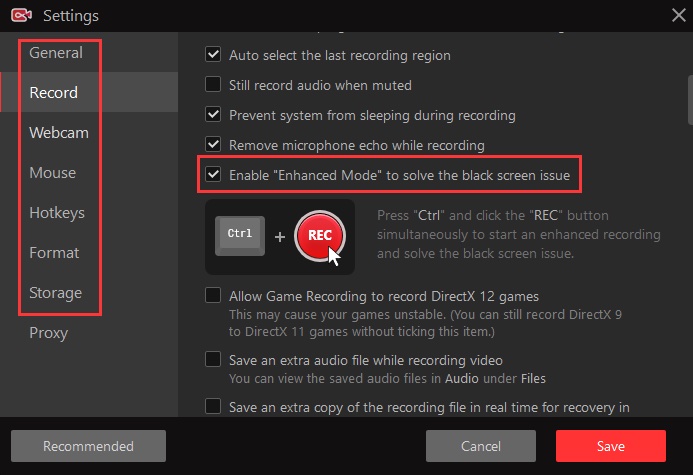
Step 2. Configure your recording options, including the recording region, video resolution, audio input, and output folder. To ensure the successful recording of protected content, enable Enhanced Mode to eliminate black screen issues.
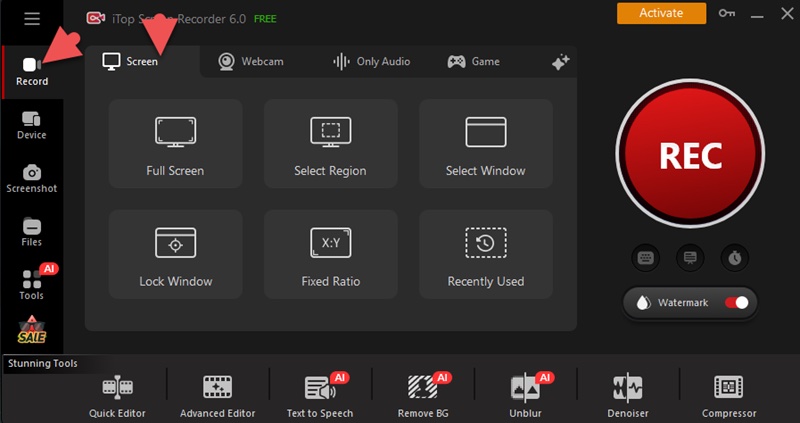
Step 3. Go to Record > Screen. Select the area to record. You can record part of the screen, full screen, or a window.
Step 4. Enable microphone recording if you want to provide live commentary. You can also capture system audio. Launch your art software and click the Record button before beginning your artwork. Once done, click REC to start recording.
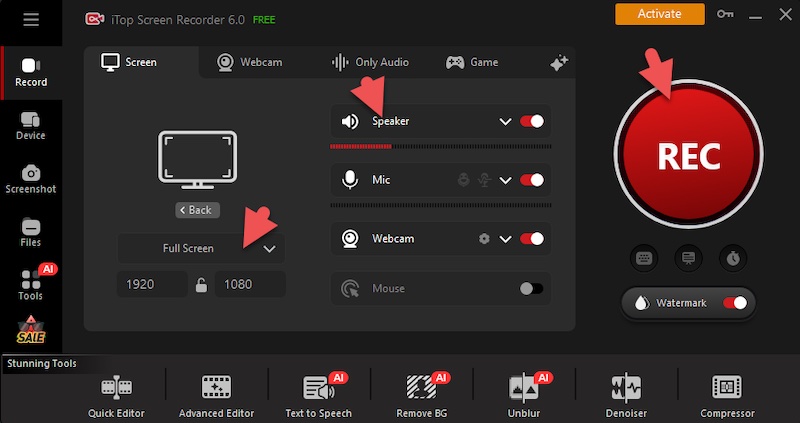
Step 5. Click the Done button on the mini control bar or press F9 to stop recording. You can trim unnecessary sections using the built-in editor.
Also Read: Best 4 Free Screen Recorders No Time Limit >>
How to Record Digital Art Videos on iPhone
Many artists create digital artwork using apps like Procreate, Adobe Fresco, and Sketchbook on iPhone and iPad. To capture their drawing process, Apple provides a built-in Screen Recording feature that records everything displayed on the screen without requiring additional apps. Here are the steps
Step 1. Open Settings > Control Center and add Screen Recording.
Step 2. Open Procreate, Adobe Fresco, or your preferred art application.
Step 3. Swipe down from the upper-right corner and tap the Screen Recording button.
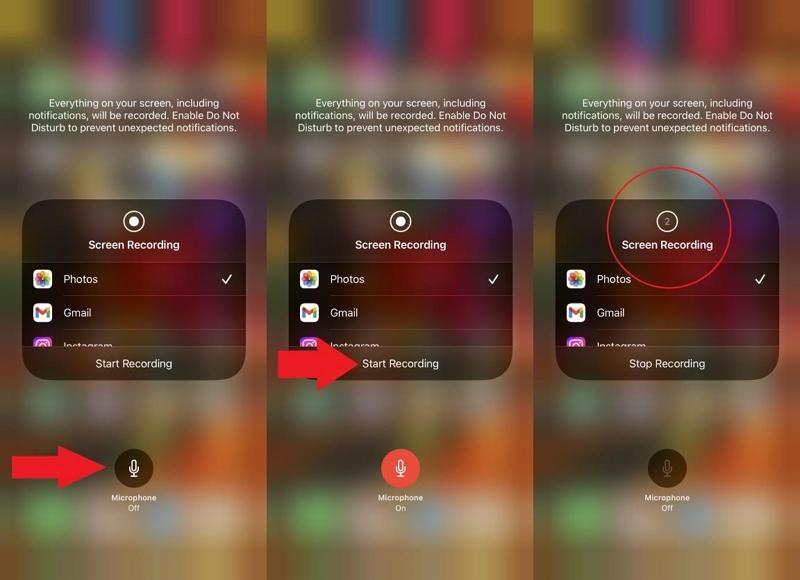
Step 4. Draw normally while the screen recorder captures your process.
Step 5. Tap the red recording indicator and select Stop. Your video will be saved automatically to Photos.
How to Record Digital Art Videos on Phone
If you're drawing on an Android phone or tablet, you can easily record your artwork using the built-in screen recorder. Start recording before opening your drawing app to capture every brushstroke. The video is saved to your device, making it easy to edit, create time-lapse videos, or share your art process on social media.
Step 1. Most Android phones include a built-in screen recorder. Swipe down from the top of the screen to open the Quick Settings panel and locate the Screen Recorder option.
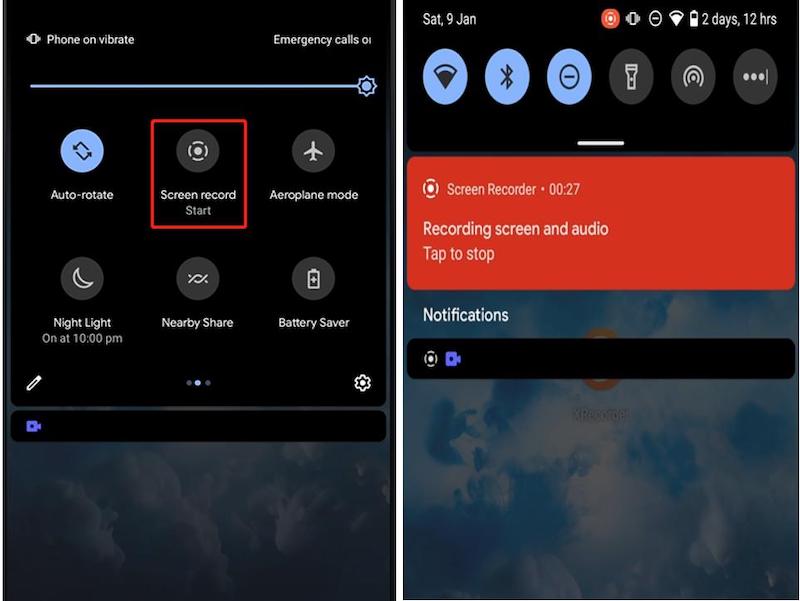
Step 2. Launch your favorite drawing application, such as ibis Paint X, Sketchbook, Infinite Painter, or MediBang Paint, and prepare your canvas.
Step 3. Tap the screen recorder settings to select the video quality, frame rate, and audio source. Enable the microphone if you want to record commentary.
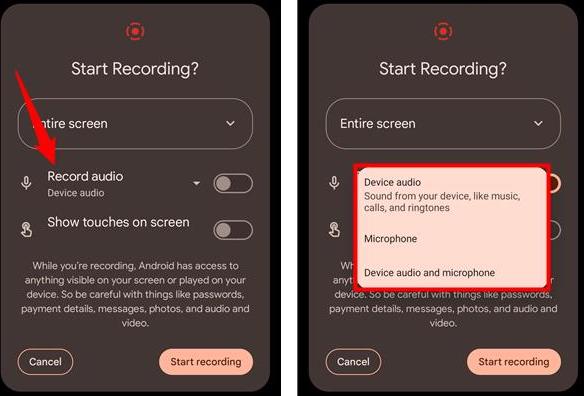
Step 4. Tap Start Recording and wait for the countdown to finish. Return to your drawing app to begin recording your artwork.
Step 5. Once your artwork is complete, tap the stop button from the notification panel or floating toolbar to save the recording.
How to Record Your Art Process for Social Media
Recording your art process is a great way to showcase your creativity, connect with other artists, and gain followers. Platforms like TikTok, Instagram Reels, YouTube Shorts, and YouTube favor engaging videos, making art process content highly effective. With good recordings and editing, you can turn a drawing session into content people enjoy watching and sharing. Here’s how to do it.
Step 1. Choose the Right Recording Tool
Start by selecting a reliable recording method based on your device.
- PC: Use iTop Screen Recorder to capture digital art software such as Photoshop, Krita, or Clip Studio Paint.
- iPhone: Use the built-in Screen Recording feature.
- Android Phone: Use the native screen recorder or a third-party recording app.
Make sure your recording tool supports HD recording and does not cause noticeable lag while drawing.
Step 2. Record Your Entire Creative Process
Begin recording before you start sketching. Capture every stage of your artwork, including:
- Initial sketches
- Line art
- Coloring and shading
- Final details and effects
Step 3. Create a Time-Lapse Video
Most social media users prefer short and engaging videos. Speed up your recording to create a time-lapse that condenses hours of work into a 15-60 second clip.
Step 4. Add Voiceovers or Captions
Voiceovers help explain your techniques and creative decisions. If you prefer not to speak, add captions that highlight important steps, tools, or tips.
Step 5. Add Background Music
Music can make your art videos more engaging and help maintain viewer attention. Choose royalty-free music or use audio available through the social media platform you're posting on.
Step 6. Export in the Correct Format
Different platforms have different video requirements.
| Platform |
Recommended Format (Vertical) |
| TikTok |
9:16 |
| Instagram Reels |
9:16 |
| YouTube Shorts |
9:16 |
| YouTube Videos |
16:9 |
| Facebook Reels |
9:16 |
Using the correct aspect ratio ensures your artwork fills the screen and looks professional.
Best Settings for High-Quality Digital Art Videos
Once you've mastered the recording process, adjusting your recording settings is the next step to ensuring your artwork looks sharp, smooth, and professional on any platform. Best Settings for High-Quality Digital Art Videos
| Setting |
Recommended Value |
| Resolution |
1080P or 4K |
| Frame Rate |
30-60 FPS |
| Video Format |
MP4 |
| Audio Format |
AAC |
| Bitrate |
8-20 Mbps |
Conclusion
How to record digital art videos? Recording digital art videos is now easier than ever. Whether you use a PC, iPhone, or Android device, you can easily capture your creative process and share it online.
If you want a simple and powerful tool, iTop Screen Recorder provides high-quality recording, low CPU usage, and built-in editing features. Start recording your artwork today and turn your creative process into engaging videos. So download iTop Screen Recorder to give it a try!