Clapper is a popular platform for watching short videos and connecting with creators. If you want to save videos for offline viewing, tutorials, or personal use, learning how to screen record Clapper can be very helpful.
Since Clapper does not always provide a download option, many users choose to screen record Clapper instead. You can use built-in screen recording tools or third-party software to capture videos with good quality.
In this guide, you'll learn how to screen record Clapper on Windows, Mac, iPhone, and Android using simple and effective methods.
Can You Screen Record Clapper?
Yes, you can screen record Clapper using screen recording software or the built-in recording tools available on your device. Most modern operating systems include native screen recording features, while third-party screen recorders offer advanced capabilities such as HD recording, system audio capture, and video editing.
Before recording any content, remember to respect copyright laws and the rights of content creators. Recorded videos should be used only in compliance with relevant laws and platform policies.
Method 1. How to Screen Record Clapper with Xbox Game Bar
Windows users who prefer not to install additional software can use Xbox Game Bar, a built-in screen recording tool available on Windows 10 and Windows 11. While it was originally designed for recording gameplay, it also works well for capturing videos played in a browser, making it a convenient and completely free option for Clapper DND recording.
Here’s how to screen record Clapper with Xbox Game Bar.
Step 1. Launch Clapper in your browser and navigate to the video you want to record. Pause the video at the beginning so you're ready to start recording.
Step 2. Press the Windows + G keys simultaneously to open Xbox Game Bar on your screen.
Step 3. In the Xbox Game Bar overlay, locate and click the Capture widget if it is not already displayed.
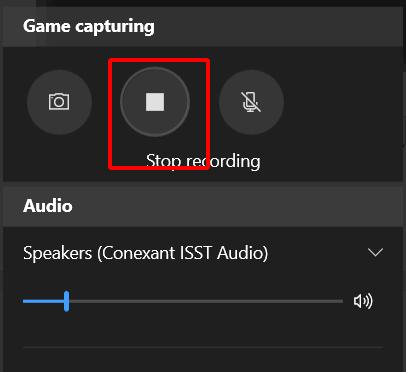
Step 4. Click the Record button (the circle icon) or press Windows + Alt + R to begin recording your screen.
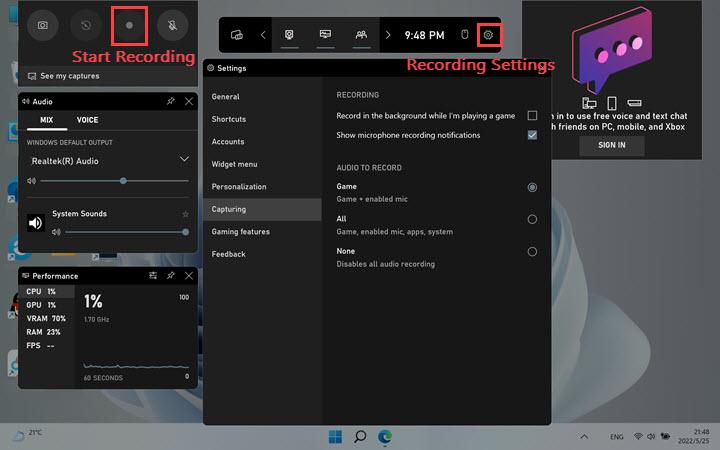
Step 5. Return to the Clapper tab and play the video you want to save. Xbox Game Bar will record everything displayed on the screen.
Step 6. Once the video has finished playing, click the Stop button on the recording toolbar or press Windows + Alt + R again.
Pros:
- Completely free to use
- No installation required
- Built into Windows
Cons:
- Limited recording settings
- No advanced editing features
- Less suitable for professional-quality recordings
Method 2. How to Screen Record Clapper with iTop Screen Recorder (Windows)
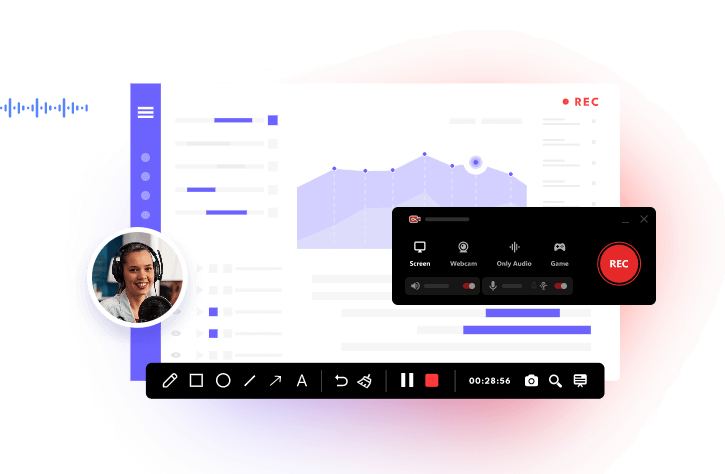
If you're looking for the easiest and most professional way to screen record Clapper on a Windows PC, iTop Screen Recorder is one of the best options available.
Unlike basic recording tools, iTop Screen Recorder is designed to deliver smooth, high-quality recordings while preserving the original audio and video quality of Clapper content.
Why Use iTop Screen Recorder for Clapper?
Many screen recording tools struggle with online video playback, resulting in lag, frame drops, or poor audio quality. iTop Screen Recorder addresses these issues with optimized recording technology and user-friendly controls.
Key Features for Recording Clapper Videos
- Record Protected Clapper Videos Without Black Screen
iTop Screen Recorder can easily screen record protected videos without black screen issues. It can bypass record Clapper DND, capturing smooth video and audio from protected Clapper content in high quality.
- Capture Clapper Videos in High Quality
Capture Clapper videos in HD, 2K, or 4K resolution to ensure clear visuals and preserve original video quality for offline viewing or content creation. This also applies to screen record Instagram DM.
- Record the Original Sound from the Clapper Videos Directly
Record the original sound from Clapper videos directly, eliminating the need for external microphones and delivering cleaner audio recordings. That also makes it extremely easy to record Zoom meetings.
- Flexibly Record Your Clapper Screen
Choose to record the entire screen, a specific window, or a custom area, making it easy to capture exactly the content you need.
- Built-in Editing & Smooth Performance
Trim unwanted sections after recording and enjoy stable, lag-free captures thanks to hardware acceleration technology. For example, you can record TikTok live and edit it to make it perfect.
Here are the steps to screen record Clapper with iTop Screen Recorder.
Step 1. Download and install iTop Screen Recorder on your Windows PC.
Step 2. Launch Clapper in your browser or app and navigate to the video you want to record. Pause the video at the beginning so you can prepare the recording settings.
Step 3. Go back to iTop Screen Recorder.
- Go to Record > Screen.
- Select Full Screen to capture the entire display or select Region to record only the Clapper video window.
- Turn on the speaker to record the video with audio.
- Click Play on your Clapper.
- Click REC to start recording.
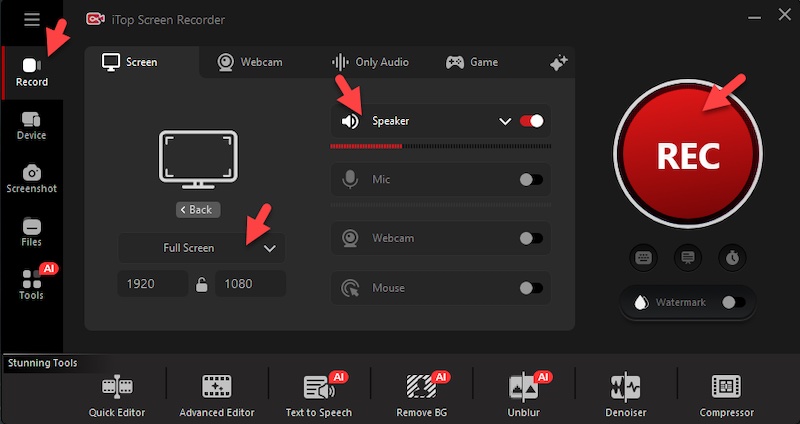
Step 4. When the video finishes, press Ctrl + F9 again or click Stop. The recording will be automatically saved to Files, where you can preview, edit, or share it.
Pros:
- Excellent video quality
- Internal audio recording
- Easy-to-use interface
- Built-in editing tools
- Multiple export formats
Cons:
- Available only for Windows
Method 3. How to Screen Record Clapper with OBS Studio
OBS Studio is a free, open-source screen recording and live-streaming software trusted by content creators, gamers, educators, and professionals worldwide. It offers advanced features such as customizable recording settings, multiple video and audio sources, scene management, and high-quality output. Although it may require some initial setup, OBS Studio provides powerful tools for capturing screen activity and recording videos with excellent flexibility and control.
Step 1. Download and install OBS Studio on your computer. Launch the program and complete the initial setup wizard if prompted.
Step 2. Open Clapper in your browser and navigate to the video you want to record.
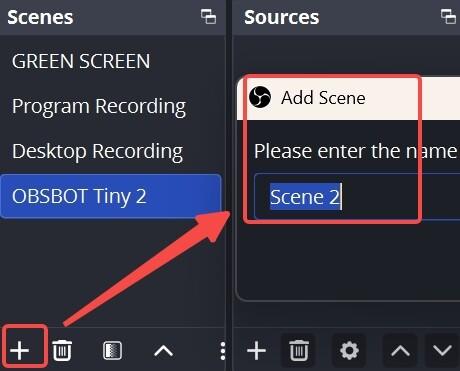
Step 3. In OBS Studio, click the + button under Scenes and create a new scene, such as "Clapper Recording."
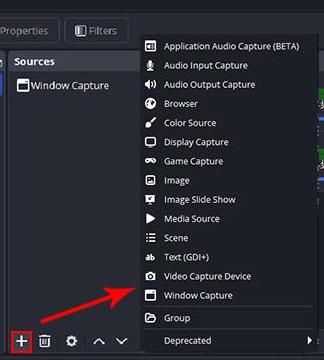
Step 4. Click the + button under Sources and choose:
- Display Capture to record the entire screen.
- Window Capture to record only the browser window showing Clapper.
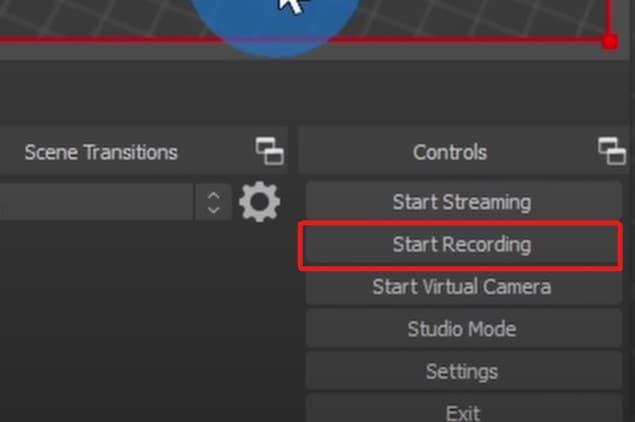
Step 5. Click Start Recording in the Controls panel. Return to Clapper and play the video you want to capture. After the video finishes, return to OBS Studio and click Stop Recording.
Pros
- Free and open-source
- Advanced recording controls
- Supports high-resolution recordings
Cons
- Complex setup for beginners
- Requires some technical knowledge
Method 4. Screen Record Clapper on Mac
Mac users can record Clapper videos using the built-in Screenshot Toolbar, a native macOS feature that eliminates the need for third-party software. This tool allows you to capture either the entire screen or a selected portion while recording video playback from Clapper in your browser. To access it, press Shift + Command + 5 and choose your preferred recording option. It’s a convenient solution for quick recordings, though it offers fewer advanced features than dedicated screen recording applications.
Step 1. Open Clapper and prepare the video you wish to record.
Step 2. Press Shift + Command (⌘) + 5 on your keyboard to open the macOS Screenshot Toolbar. A recording toolbar will appear at the bottom of the screen.
Step 3. Select one of the recording options:
- Record the entire screen to capture everything on your display.
- Record Selected Portion to record only the Clapper video area.
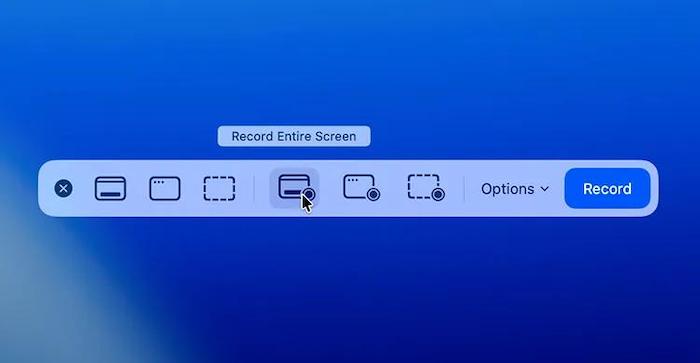
Step 4. Click Options and choose where to save the recording. If you want to add narration, select a microphone from the available audio sources.
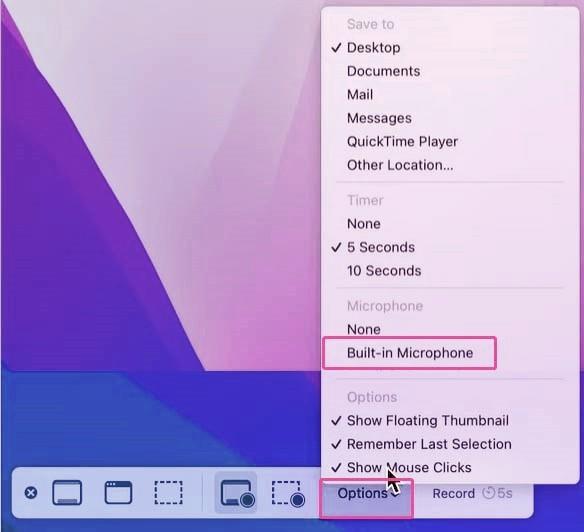
Step 5. Click Record and immediately return to Clapper. Play the video you want to capture.
Step 6. When the video finishes, click the Stop Recording button in the menu bar at the top-right corner of your screen or press Command (⌘) + Control + Esc.
Pros:
- Built into macOS
- Quick and simple setup
- No additional software needed
Cons:
- Limited recording customization
- Basic editing capabilities
Method 5. How to Screen Record Clapper on iPhone
Apple devices come with a built-in Screen Recording feature, eliminating the need to install third-party apps for basic video capture. This native tool allows iPhone users to record everything displayed on their screens, including Clapper videos, with just a few taps. It's a convenient solution for saving content for offline viewing while maintaining good video quality and a simple recording process.
How to Record Clapper on iPhone
Step 1. Open Settings and add Screen Recording to Control Center if necessary.
Step 2. Launch the Clapper app.
Step 3. Tap the Screen Recording button and wait for the 3-second countdown. Return to Clapper before the countdown ends.
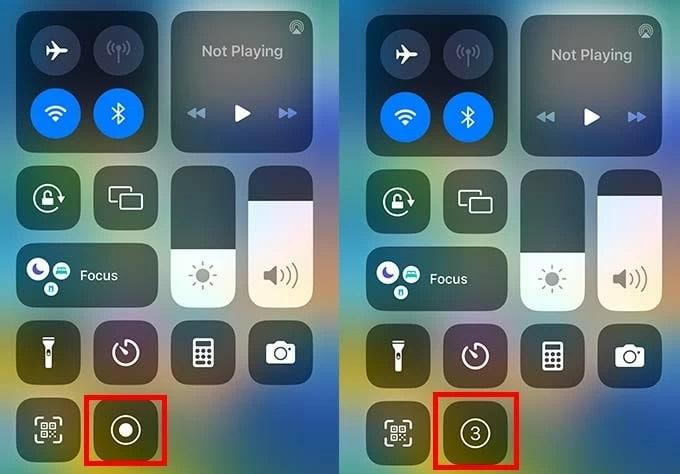
Step 4. Start playing the Clapper video you want to capture. Your iPhone will record everything displayed on the screen.
Step 5. Tap the red recording indicator at the top of the screen and select Stop, or open the Control Center and tap the Screen Recording button again.
Pros
- Free and convenient
- Built into iOS
- No extra apps required
Cons
- Limited editing features
- May capture notifications if not disabled
Method 6. How to Screen Record Clapper Android
Most modern Android devices come with a built-in screen recorder, making it easy to record Clapper videos without installing third-party apps. This feature is available on many Samsung, Google Pixel, Xiaomi, OnePlus, and other Android phones. The native recorder typically supports full-screen recording, device audio capture, microphone input, and adjustable video quality settings. Since it is integrated into the operating system, it offers a simple, reliable, and convenient way to capture Clapper content directly from your phone.
Step 1. Launch the Clapper app and locate the video you want to record. Pause it at the beginning.
Step 2. Swipe down from the top of the screen to access the Quick Settings panel. Swipe down again if necessary to expand all options.
Step 3. Find and tap Screen Recorder. Choose whether to record device audio, microphone audio, or both.
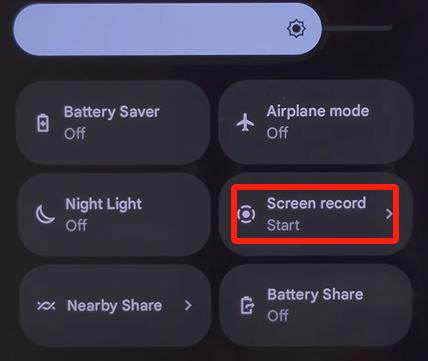
Step 4. Tap Start Recording and wait for the countdown to finish. Then return to Clapper and play the video you want to save.
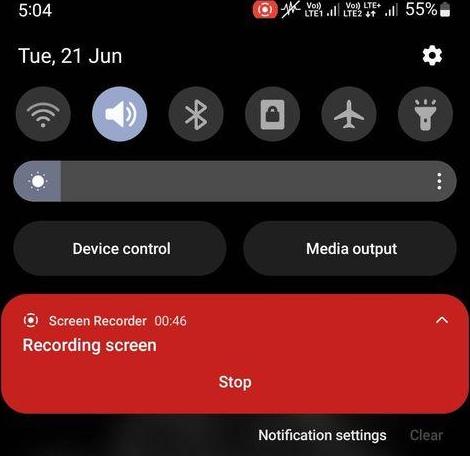
Step 5. Tap the floating recording toolbar or the notification panel and select Stop Recording.
Pros:
- Built into many Android devices
- Easy to use
- Supports audio recording
Cons:
- Features vary between manufacturers
- Recording quality depends on device capabilities
Frequently Asked Questions
1. Can Clapper Detect Screen Recording?
In most cases, screen recording occurs at the operating system level, meaning users can record videos using supported recording tools. However, app behavior may vary depending on future updates.
2. How Do I Screen Record Clapper with Sound?
Use a recorder that supports internal audio capture, such as iTop Screen Recorder, OBS Studio, or your device's built-in screen recording feature.
3. What Is the Best Way to Screen Record Clapper?
For Windows users, Screen Recorder like iTop Screen Recorder provides the best combination of video quality, audio recording, editing tools, and ease of use. For mobile users, built-in screen recording tools are often the most convenient option.
4. Is It Legal to Screen Record Clapper Videos?
Screen recording for personal use is generally acceptable. However, redistributing, republishing, or monetizing copyrighted content without permission may violate intellectual property laws or platform policies.
Conclusion
Learning how to screen record Clapper is simple once you choose the right method for your device. Whether you're using Windows, Mac, iPhone, or Android, there are multiple tools available to help you capture your favorite videos.
For casual recordings, built-in screen recorders work well. However, if you want smoother performance, higher video quality, system audio capture, and editing features, iTop Screen Recorder stands out as one of the best solutions for recording Clapper videos on Windows. Now, download iTop Screen Recorder to give it a try!