WhatsApp builds a secure and private platform for users to make and send instant messages, from text to media files and documents via desktop and mobile devices. Maybe you have received a plenty of video messages and try to record them for keeping wonderful moments. How to record a video messages on WhatsApp? We'll walk you through here.
Can You Record a Video Message on WhatsApp?
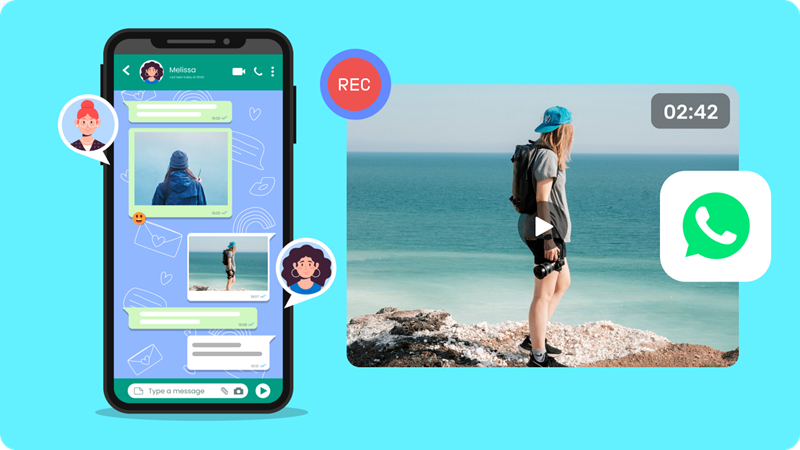
WhatsApp makes it a reality whether for sharing an existing video file or sending an instant video note in a chat. It is a possibility that there is a disappearing message, which leads you to record video messages on WhatsApp for maintaining important information. A screen recorder available for your device has the ability to capture all types of WhatsApp messages - videos, voices and even whole conversation - as a local file.
What is the best screen recorder for WhatsApp? How to record a video message in WhatsApp? Get the solutions below.
How to Record a Video Message on WhatsApp on PC
For users who prefer to chat with others via the web or desktop app, iTop Screen Recorder, the industry-leading free screen recorder for PC, is an ideal choice to record video messages on WhatsApp.
iTop Screen Recorder specializes in capturing everything on your screen, from your activities to streaming videos. It enables you to record part of screen, full screen or only a window of the app to capture any content you want. And, it has an array of features to ensure a perfect experience to screen record WhatsApp on your Windows PC.
- Record WhatsApp video messages with audio: iTop Screen Recorder supports capturing screen and audio at the same time. You can easily record the video in WhatsApp while keeping clear sounds.
- Record WhatsApp video messages in high quality: iTop Screen Recorder ensures vivid image and vibrant color of the screen recording. All details of the sent video message will be perfectly kept. It allows you to adjust the video bit rate, resolution (up to 4K), frame rate (up to 120fps) for personalization.
- Record WhatsApp video messages smoothly: The utilization of hardware acceleration delivers a smooth screen recording experience, no lags and shutter even though you are trying to record a 4K or high fps video.
- Record more content in WhatsApp: Beside video messages, iTop Screen Recorder also empowers you to ercord WhatsApp calls and whole conversations as videos. The audio recording mode helps you save WhatsApp voice messages as audio files with no effort.
iTop Screen Recorder has a beginner-friendly design. You can quickly get started with it, no learning curve. Now, follow the tutorial to record a video message on WhatsApp.
Step 1. Download iTop Screen Recorder and follow the instructions to install it on your PC.
Step 2. Launch the program. Go to Record > Screen. Choose the recording area and turn on Speaker to record with audio.
Step 3. Play the video message in WhatsApp you want to record. Click the REC button in iTop Screen Recorder to start recording.
Step 4. Click Done button on the mini control bar to stop recording.
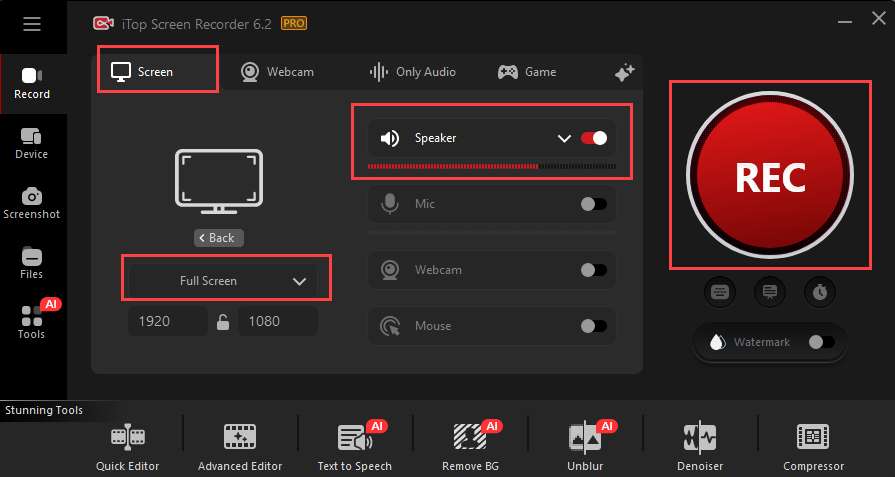
The recorded video message is saved to Files > Video. Here, you can access the video editor to crop, trim the screen recording or make other edits. Otherwise, play, share or save it at will.
Versatilely, iTop Screen Recorder is good for recording protected videos and audios from various streaming sites. You can also use it to create video tutorials and presentations with yourself by capturing screen, audio and webcam simultaneously.
How to Record a Video Message on WhatsApp on iPhone
iPhone’s native screen recorder offers a big convenience to record a video message on WhatsApp. It helps instantly capture the video message when you receive and play it.
Get ready to record a WhatsApp video message with audio on your iPhone? Check the steps.
1. Get access to the Control Centre by swiping down from the top of your iPhone screen.
2. Tap on the grey record button and a screen recording bar appears on the top of the screen. Exit Control Centre and open the video message you want to save in WhatsApp.

3. When you want to stop recording, tap the Stop button on the bar.
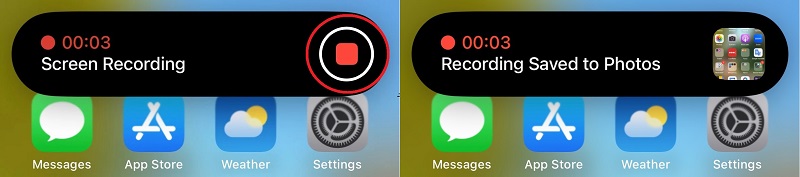
4. The recorded video is automatically saved to Photos. You can play and trim it at will.
How to Record a Video Message on WhatsApp on Android
Like iPhone, most Android devices build in a screen recorder to capture what’s happening on the screen. It offers a straightforward way to record a video message on WhatsApp on Android.
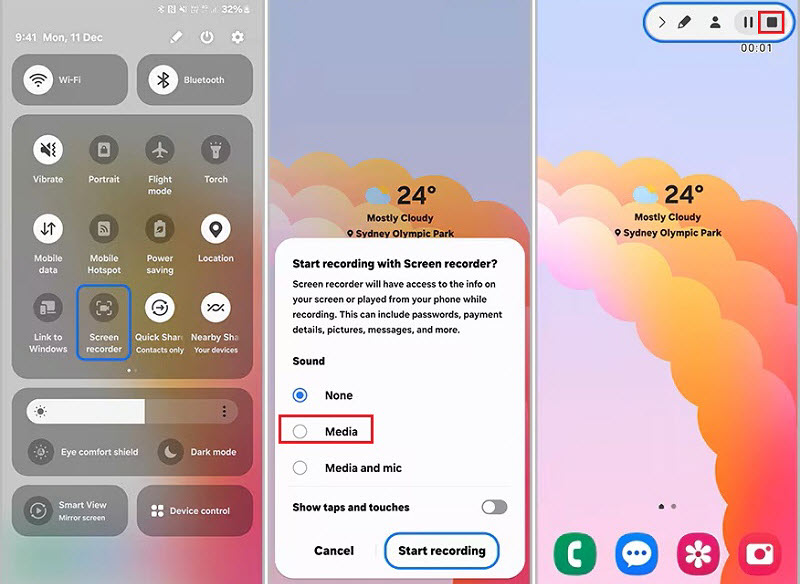
1. Open the Quick Setting Panel on your Android device. Find Screen record or Screen recorder - which varies from the devices and tap on it.
2. Select your preferred sound settings. Media is the best choice to record a video message with audio. Then, click Start recording. It will automatically start recording after 3-second count down and shows a mini toolbar at the top right of the screen.
3. Play the video you want to record in the WhatsApp chat.
4. Tap the Stop button on the toolbar to stop recording.
5. You can find the video in the Photos or My Files app. Play or edit it as you want.
Bonus - What You May Want to Know About WhatsApp Video Notes
What are video notes on WhatsApp?
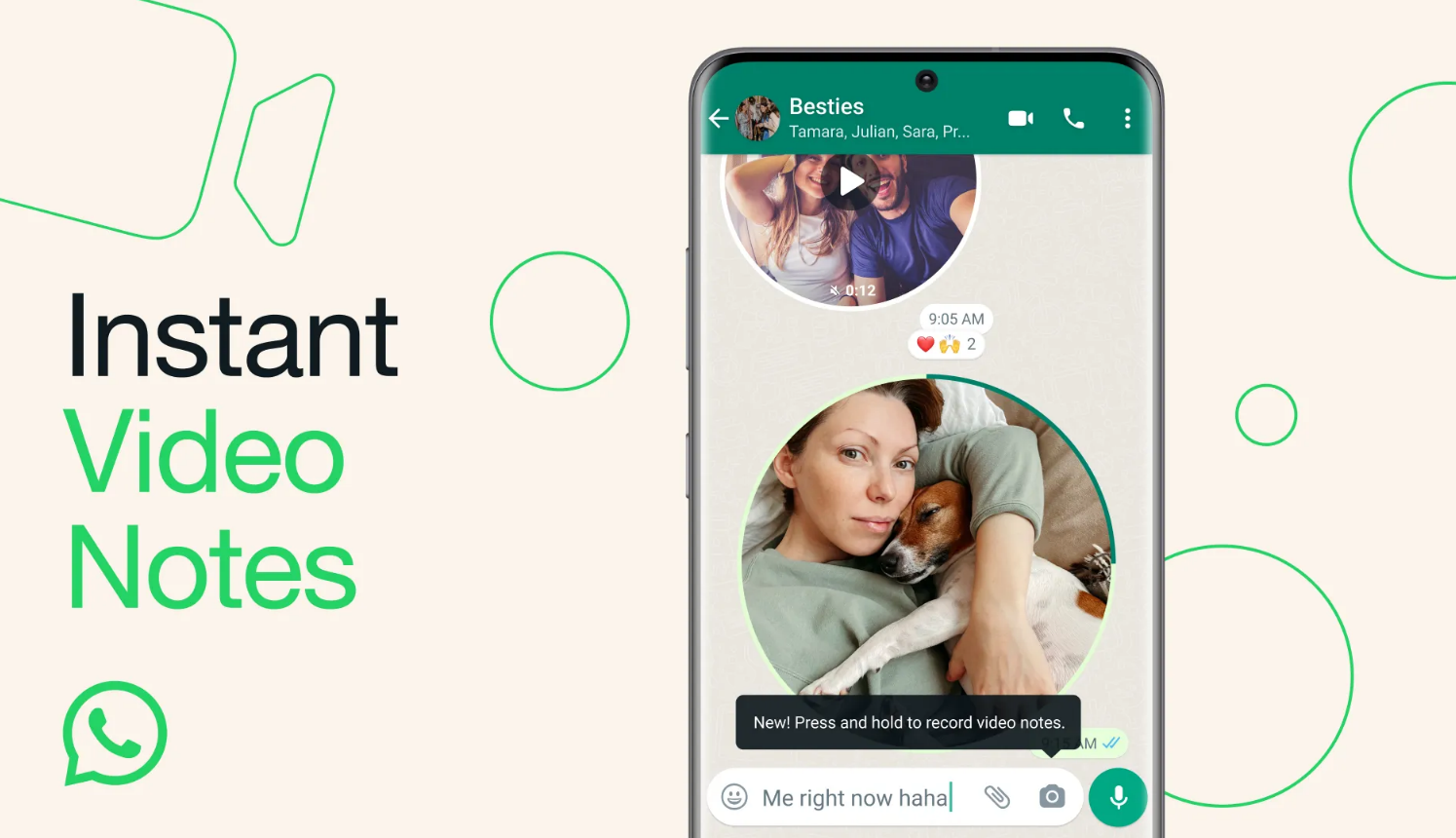
WhatsApp rolls out the Video notes feature allowing users to instantly record and send circular video messages up to 60 seconds long in a chat. It helps you share the present moments with your friends/families in a dynamic and vivid way. It’s fun and efficient to send a greeting, bring good news or showcase something special via video notes.
How to record video notes on WhatsApp?
- Open a chat you want to send a video note.
- Press and hold the camera icon next to textbox to start recording via your front or back phone camera.
- Release the camera button when you finish recording. The video note will be automatically sent.
Please note that you can ONLY record and send video notes via mobile devices.
Can you forward video notes on WhatsApp?
All video notes are private. You can only forward your own video notes. Also, the others cannot forward your video notes. But, you can record video notes on WhatsApp via a screen record to share the received message.
Conclusion
How to record a video message on WhatsApp? Screen recorder shows a simple solution to save any video message, from video notes to shared videos. For PC users, iTop Screen Recorder helps capture videos, voices, calls and conversations on WhatsApp while keeping high quality in a breeze. While, mobile users can use the built-in feature to record WhatsApp video messages without installation. Start recording video messages on WhatsApp on different devices right now.