Understanding how to change voice while speaking can effectively enhance your expression, protect your privacy during online gaming or calls, or create unique digital personas or characters. Anyway, the benefits of voice changing are adapted to individual needs. If you also want to change your voice while speaking on a phone or computer, this comprehensive guide offers some of the best methods.
Understanding Voice Changing Technology
Voice-changing technology is a form of artificial intelligence that alters vocal characteristics—pitch, timbre, and formants—to disguise or modify a speaker’s voice in real-time or via recordings. This technology has facilitated communication between individuals. If you want to change your voice using such technology, there are some different types of voice-changing software for you to choose from.
Software like Voicemod, iTop Screen Recorder, and Clownfish install on a computer, or a real-time voice changer like iTop Voicy, etc. All of them can analyze input audio and apply mathematical transformations to alter sound frequencies. More specifically, you can learn how to change voice while speaking on a computer or phone by following these steps.
How to Change Voice While Speaking on a Computer
When it comes to changing your voice while speaking on a computer, having the right tools is essential. Two standout applications that make this process easy and effective are iTop Voicy and iTop Screen Recorder. iTop Voicy specializes in real-time voice alteration, offering a variety of filters and effects to transform your voice into something entirely unique. iTop Screen Recorder not only captures your screen but also lets you add voice narration to your recordings. Whichever you prefer, just check these steps.
Method 1. Using iTop Voicy
Perfect for: Real-time voice transformation in game chats, group chats, live streams, etc.
iTop Voicy is a specialized, real-time AI voice changer for Windows (10/11) featuring a vast library of 100+ character, celebrity, and gaming voices, with no-lag performance. It includes a built-in soundboard for memes, noise reduction technology, custom voice modeling (pitch/timber adjustment), and seamless integration with Discord, OBS, and games. Other than that, here are more features for you to learn about if you’re interested in this tool.
●Real-time AI Voice Changing
Instantly alters voice characteristics (age, gender, style) during live interactions with no noticeable lag.
●Massive Voice Library & Custom Voice Studio
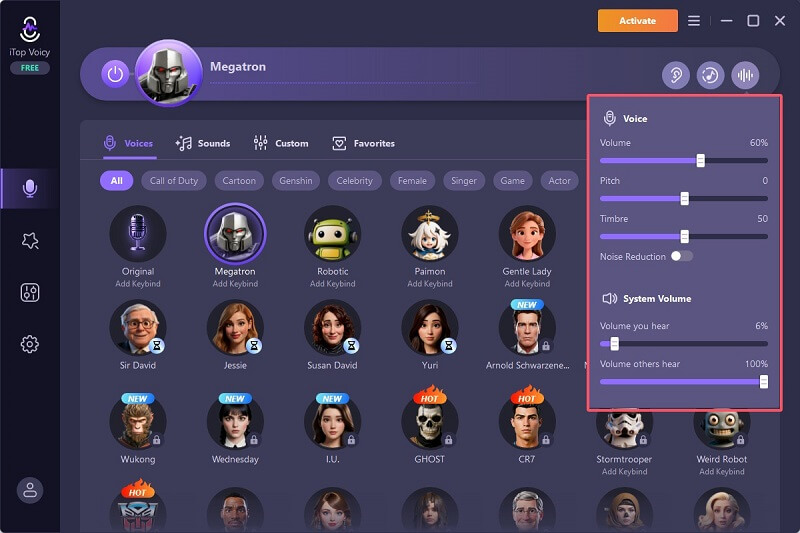
Offers 100+ AI-powered voices, including robots, characters, and celebrities. Allows users to create personalized voices by adjusting parameters like pitch, timbre, volume, and emotion.
●Integrated Soundboard
Includes a soundboard feature to play popular sound effects and memes during live chats or streams.
●Wide Platform Compatibility
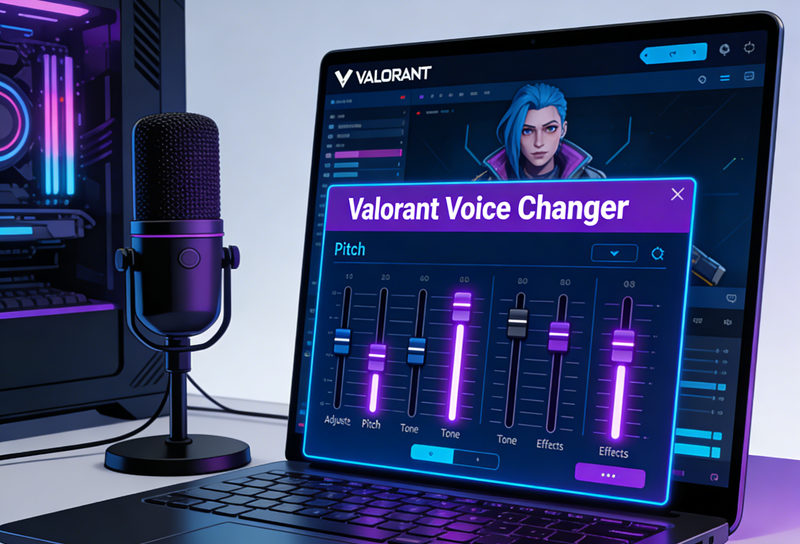
Works seamlessly with popular communication apps, games, and streaming software, including Discord, Zoom, OBS Studio, Fortnite, and Valorant.
How to change voice while speaking using iTop Voicy:
Step 1. Download iTop Voicy from the official website on your computer (Compatible with Windows 10 and 11).
Step 2. Launch the app and select your input (microphone) and output (headphones/speakers) devices.
Step 3. Click on the microphone icon from the left menu bar and browse the library of 100+ AI-powered voices—such as female, male, anime, or gaming characters. Click on the voice model to activate it. You can toggle “hear myself” to hear your voice transformation instantly.
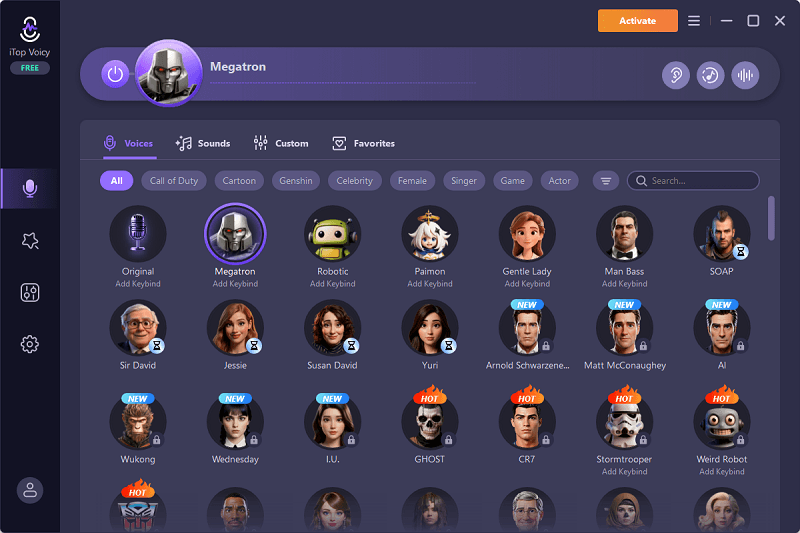
Step 4. Adjust parameters like pitch and timbre to customize the sound. You can also record directly through the app or use the soundboard function for special effects.
Method 2. Using iTop Screen Recorder
Perfect for: Record video content with clear sound to disguise your voice or entertain your audiences.
If you want to change your voice while recording something (e.g., tutorials), iTop Screen Recorder is a good option. iTop Screen Recorder provides an AI-powered, real-time voice changer that alters your voice during recordings or live streams with 10+ filters (e.g., robot, minions, female) and no lagging. It includes some key features like custom parameter adjustments (pitch, volume, echo), noise reduction, and a soundboard for memes/sound effects. Whether for privacy, gaming, or content creation, it is a good option.
- Modify Your Voice Instantly While Recording
With iTop Screen Recorder, you can change your voice in real-time as you record. This instant voice modification adds a dynamic element to your recordings, whether you’re creating tutorials, gameplay videos, or live streams. For people who want to screen record Zoom meeting and fake their voice, iTop Screen Recorder is a nice option.
- Various AI-Powered Filters for You to Choose From
The program offers a range of AI-powered filters that allow you to experiment with different voice styles and effects. From deep and resonant to high-pitched or robotic tones, the options are diverse, ensuring that your recordings can match any theme or character you desire.
- Multiple Customization Options
iTop Screen Recorder provides extensive customization options, allowing users to fine-tune their voice settings. You can adjust pitch, tone, and other voice parameters to achieve the perfect sound that aligns with your creative vision.
- Reduce Background Noise and Microphone Echo
The screen recorder features advanced noise reduction tools that minimize background sounds and microphone echo, ensuring your altered voice remains crisp and clear during your recordings.
Let’s see how to change voice while speaking:
Step 1. Download and launch iTop Screen Recorder on your Windows computer.
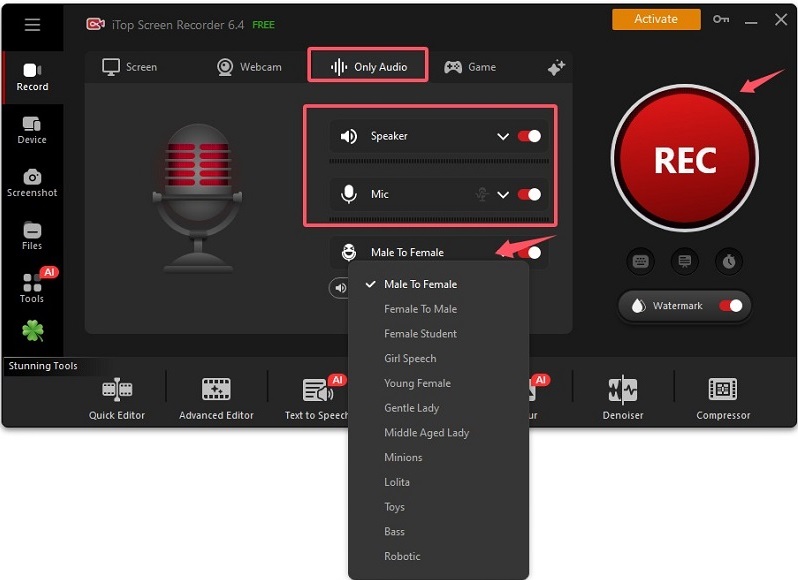
Step 2. Click Only Audio from the top menu bar and enable the option for Speaker, Mic, and Voice Changer. Select the filter you want and click REC to start recording your voice.
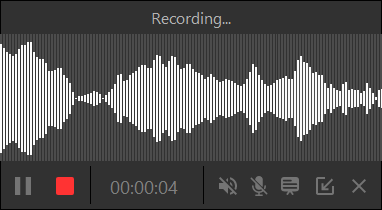
Step 3. Once it completes, click the end icon to stop recording.
iTop Screen Recorder can also handle screen recording tasks. So, you can use it to screen record protected videos, games, TV shows, or video tutorials effortlessly.
How to Change Voice While Talking on Phone
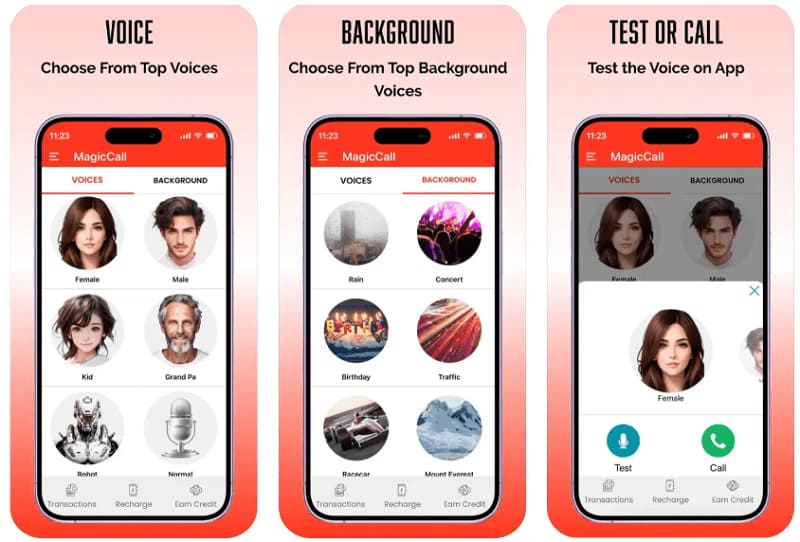
How to change your voice when talking? Can you change your speaking voice? Or how to change my talking voice? For people who want to change their voice during a phone call, they can try using voice-changing software or apps. Some good options include MagicMic, FunCall, Call Voice Changer-IntCall, etc. These apps offer real-time voice effects and fun sound filters, which cater to most voice-changing needs. Let’s take MagicCall as an example and see how it works to change your voice during a call.
Step 1. Download and install the MagicCall app from the Google Play Store or Apple App Store.
Step 2. Open the app and verify your phone number.
Step 3. Choose from available voices such as Female, Male, Kid, or Cartoon. Also, you can select a preferred background theme like rain, traffic, or a concert.
Step 4. Select a contact or dial a number directly within this app.
Step 5. Once connected, your voice will be altered.
How to Change Voice During Phone Call Without App
If you don’t want to use any app for voice changing, there are some techniques for you to alter your voice during a call or chat online. Being different from changing your voice with a tool, this way focuses on how to control the muscles in your vocal tract. These tips help you a lot if you want to know how to change voice in speak iPhone or Android.
1. Adjust Pitch & Resonance: Experiment with moving your voice higher (towards the nose/head) or lower (deep in the throat).
2. Manipulate Airflow: You can create a raspy tone by whispering while projecting your voice or by holding back air to create a "hoarse" effect.
3. Facial Expressions & Mouth Shape: Change the shape of your tongue, lips, and cheeks to alter your sound.
4. Practice Accents & Speech Patterns: Alter your rhythm, speed, and intonation to adopt a new character.
5. Muffline: Cover your mouth with a piece of cloth or something else to create a muffled voice.
Conclusion
In this guide, we've explored various effective methods on how to change voice while speaking, whether you’re using a computer or a phone. We’ve highlighted how iTop Voicy and iTop Screen Recorder can transform your voice in real time with a wide range of filters and customization options. For mobile users, there are app-based solutions that make voice alteration accessible on the go, as well as methods that don't require an app at all.
To take your voice modulation to the next level, we encourage you to download iTop Screen Recorder or iTop Voicy today. iTop Screen Recorder also serves as a screen recorder for Instagram DM that can help capture important Instagram information easily.