Fortnite voice chat is a huge part of competitive gameplay and streaming culture. It’s where you can strategize and coordinate with your squads and have fun together. Therefore, many users want to capture and save in-game voice chats on Fortnite, just to preserve the memory of gameplay.
So, does Fortnite record voice chat? How to record Fortnite voice chat on Xbox? This blog will introduce all you want to know: step-by-step methods to record voice chat on Xbox One and PC using the best free screen recorder. We will also share fixes for Fortnite voice chat not working issues.
Can You Record Fortnite Voice Chat on Xbox?
Fortnite voice chat is a built-in feature that lets players communicate in party or game chat during battles. And yes, you can record Fortnite voice chat on Xbox, but it captures only game audio and your mic, not other players' voices, due to privacy policies. So, how to record Fortnite voice chat on Xbox, including party conversations? Just read on to find the steps.
How to Record Fortnite Voice Chat on Xbox One
If you want to know how to record voice chat on Xbox One for Fortnite, here’s a simple step-by-step guide using the built-in Xbox capture feature.
Step 1: Prepare an external microphone and a compatible audio recorder. If you want to archive files later, plug in a USB flash drive or external hard drive as well.
Step 2: Place the microphone close to your headset to capture Fortnite voice chat clearly. Connect the microphone output to your audio recorder’s input port.
Step 3: Connect the recorder to the Xbox One via USB. Open Settings > Display and Sound. Here, choose “Headset format” and “Using HDMI or optical audio headset.”
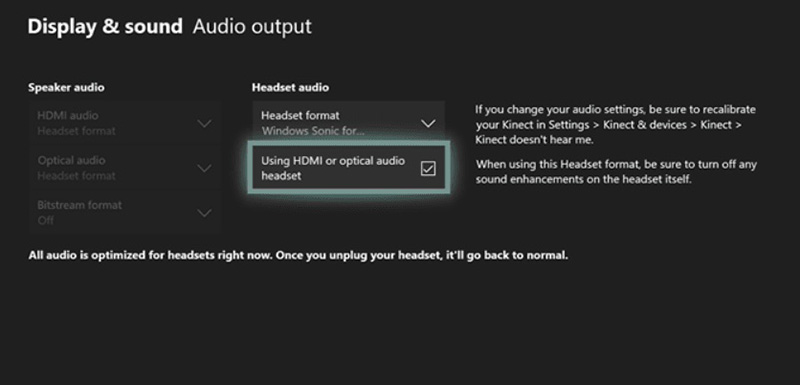
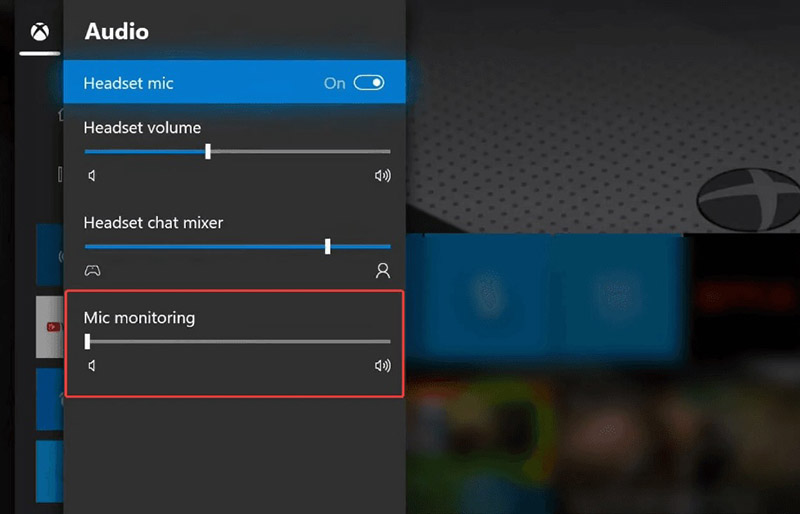
Step 4. Then go to the “Audio Output” section and choose “Headset mic.” After selecting it, you can fine-tune the microphone volume, mic monitoring, and other related audio settings.
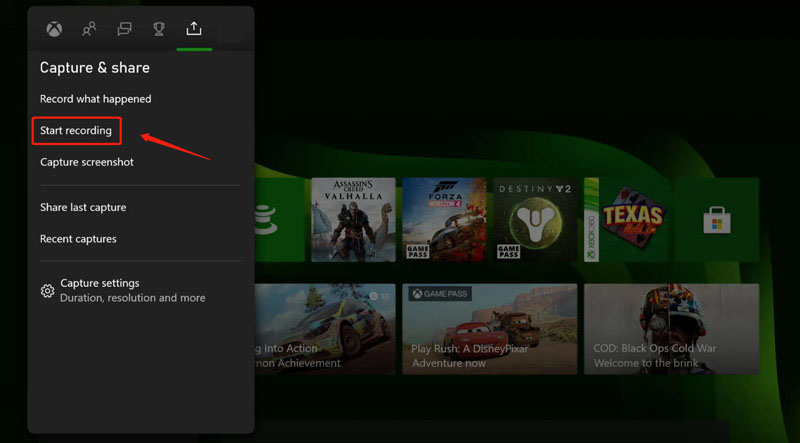
Step 5: Open the Xbox capture and share, and choose “Start recording.” After that, feel free to stop and save the file.
That’s how to record voice chat on Xbox One Fortnite. But that’s not the only way to make it. Let’s check out the other methods in the next part!
How to Record Fortnite Voice Chat on Xbox on PC
With the guide above, you should know how to record Fortnite voice chat on Xbox. But if you want to capture the voice chat in HD quality for free, iTop Screen Recorder is the best solution. This screen recorder is so powerful that it lets you record Fortnite voice chat with crystal-clear audio and high-quality output.
Prepare Before Recording Fortnite Voice Chat on Xbox
Before introducing how to record voice chat on Xbox One Fortnite with your PC, please make sure everything is properly set up.
1. Connect the Xbox to Your Computer
To record through a PC, you will need an HDMI capture card. Here’s how to connect:
- Connect the Xbox HDMI OUT port to the capture card HDMI IN
- Connect the capture card HDMI OUT (passthrough) to the TV/Monitor HDMI IN.
- Connect the USB-C capture card to the PC's rear USB 3.0/3.1 port.
2. Configure Xbox Party Voice Capture
Press the Xbox button > Settings > General, then go to Volume & Audio Output. Set Party Chat Output to Headset & Speakers.
3. Download and install iTop Screen Recorder
Get the iTop screen recorder download from the official website. Install it on your Windows PC. You can use it to record everything on your computer and even screen record protected videos without black screen.
How to Record Fortnite Voice Chat on Xbox from PC
Now you should be ready. Let’s check out the simple steps for voice recording on Xbox from PC.
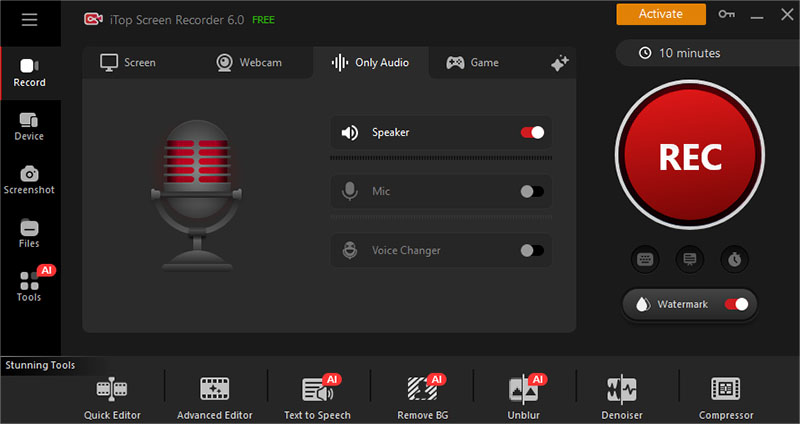
Step 1. Launch the iTop Screen Recorder. Choose the Record tab on the left and select the “Only Audio” feature.
Step 2. Adjust the audio settings for Speaker and Mic. Click on the REC button on the right to start recording the voice chat.
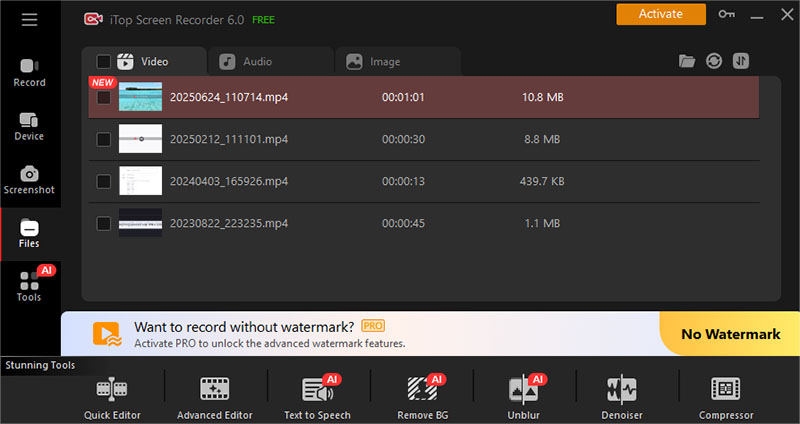
Step 3. Head to Files on the left menu to find all your recordings.
That’s all it takes. For advanced gameplay capture, you can switch to Game Mode, which is optimized specifically for high-performance screen recording on PCs.
Why is iTop Screen Recorder Your Best Option?
- Only Audio Recording for Fortnite Voice Chat
iTop Screen Recorder supports dedicated audio-only recording in HD quality. It can capture both system sound and microphone input separately, ensuring crystal-clear output.
- AI Denoiser for HD Voice Chat Recording
The built-in AI Denoiser intelligently removes background noise, keyboard clicks, etc. You can export clean and professional-quality Fortnite voice chat recordings easily.
- AI Voice Changer for In-game Chats
Want to have some fun with your teammates? The AI Voice Changer lets you modify your voice instantly. You can switch from female to male, apply a robotic effect, or sound younger for unlimited entertainment.
- Gameplay Recording Without Lags
With the support of hardware acceleration, iTop Screen recorder ensures smooth Fortnite gameplay recording without frame drops or lag. You can even use it to record TikTok live streams or other online content with stable output!
As you can see, iTop’s screen recording feature is extremely powerful and versatile. Whether you want to record Zoom meeting without permission, screen record Instagram DM, or create gaming highlights, this tool handles everything efficiently and smoothly.
How to Record Fortnite Voice Chat on Windows
Alternatively, you can use Windows Built-in Xbox Game Bar feature to record voice chat on Fortnite. Here’s how.
Step 1. While playing Fortnite, press Win + G to launch Game Bar. Adjust the settings for audio via the interface.
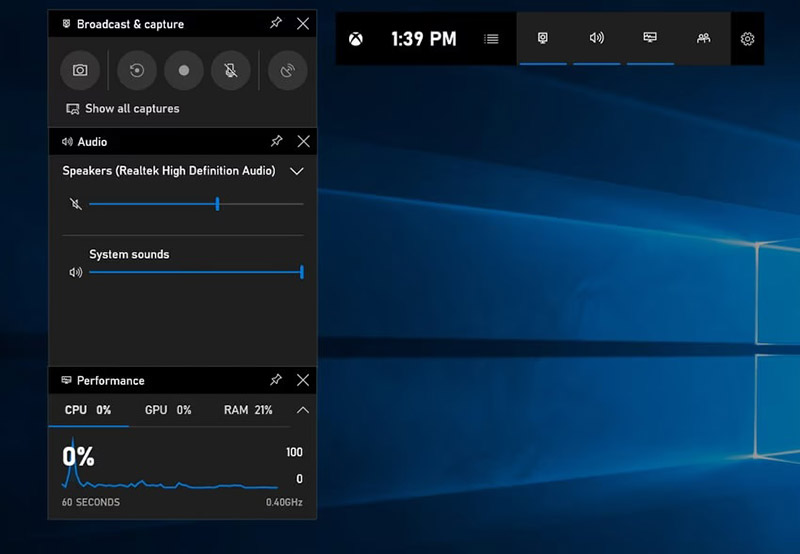
Step 2. Click the Record button or press Win + Alt + R. It will capture gameplay, microphone input, and internal voice chat audio automatically.
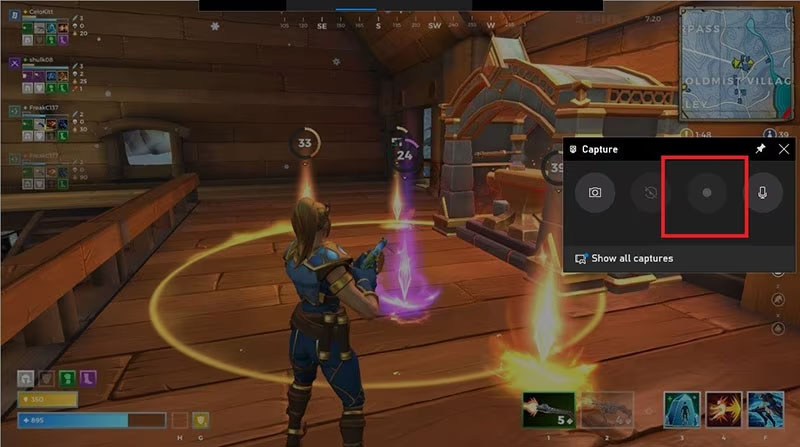
Step 3. Your clip will automatically save to Videos > Captures.
Want to save your “view once” WhatsApp message? Check out how to record one time video on WhatsApp.
Fortnite Voice Chat Not Working? Common Fixes
Occasionally, you might find Fortnite voice chat not working Xbox. Fret not. Here, we have concluded the common causes and fixes to help you troubleshoot the issues.
Fix 1. Leave All Console Party Chats
If you are in an Xbox Party Chat, Fortnite game chat may not function properly. Leave the party and switch back to in-game chat.
Fix 2. Adjust Your Voice Options
Make a few adjustments as follows:
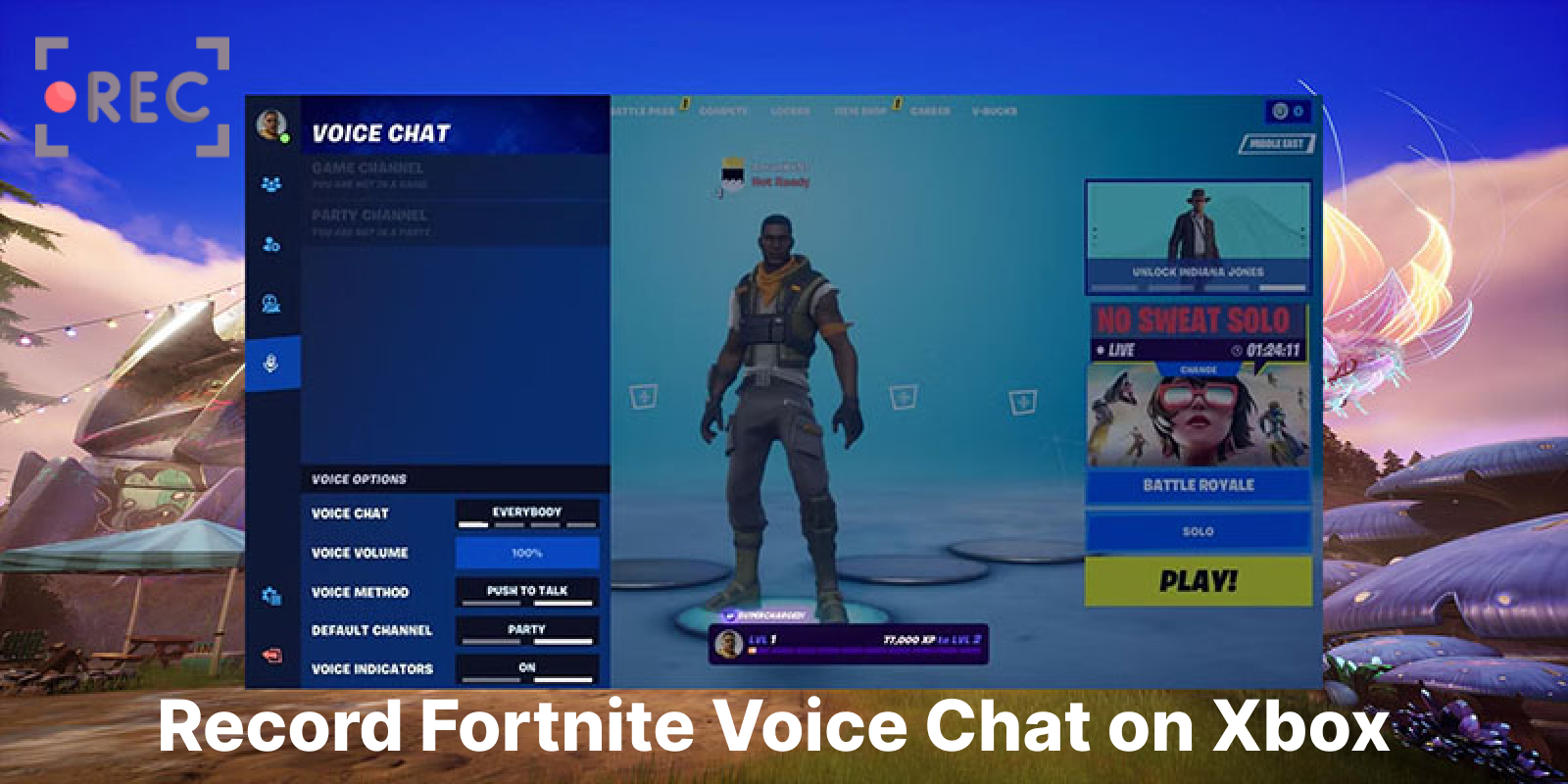
- Enable Voice Chat: Toggle Voice Chat to On and choose either “Everybody” or “Friends Only”.
- Select Voice Method: Set to Open Mic for seamless communication, or Push-to-Talk if preferred.
- Adjust Voice Volume: Increase the Voice Chat volume to 100% to ensure clarity.
- Choose Preferred Channel: Switch between Party Channel (Xbox party) and Game Channel (in-game squad) to see which works best.
Fix 3. Update Your Device
An outdated Xbox system or controller firmware can cause compatibility problems. Check for system updates and install the latest version.
Fix 4. Clear Cache on Your Xbox
Power off your Xbox completely, unplug it for two minutes, then restart. This can clear temporary cache bugs that affect the voice chat audio.
Fix 5. Change Xbox DNS Settings
Step 1. Go to Network Settings > Advanced > DNS Settings.
Step 2. Switch from Automatic to Manual.
Step 3. Enter 8.8.8.8 and 8.8.4.4, then restart your console.
Fix 6. Check Your Privacy Settings
When you find voice chat not working in Fortnite, go to Account > Privacy > Communication. Ensure communication with everyone is allowed under Xbox Privacy settings.
Fix 7. Try a Different Equipment
If the above methods don’t seem to help, test another headset, controller, or microphone to rule out hardware issues.
FAQs About Fortnite Voice Chat Recording
Q1. Does Fortnite Record Voice Chat?
Yes, Fortnite records the last 5 minutes of voice chat on your device (not servers) for reporting toxic behavior. But for full conversations during gameplay, you have to use the Xbox capture with configuration or a third-party recorder.
Q2. How to Record Fortnite Voice Chat on Mobile?
On mobile devices, you can use your built-in screen recorder or a third-party app for recording. Just make sure in-game voice chat is active so both gameplay sound and chat audio are captured clearly.
Q3. How to Record Replays in Fortnite Xbox?
Open Fortnite and navigate to Settings > Game. Enable the “Record Replays” option, so your matches can be automatically stored. You can go to the Career tab to view, rename, or manage your replay files.
Q4. Does Fortnite Have Voice Chat?
Yes, Fortnite includes built-in voice chat on all supported platforms. Players can communicate with teammates in real time using a headset or microphone. Voice settings can be adjusted under Settings > Audio, and you can choose Open Mic or Push-to-Talk and control who can hear you.
Q5. Can you screen record Fortnite on PCs?
Yes. iTop Screen Recorder is a solid choice to check out. The professional 1080p screen recorder allows you to capture Fortnite gameplay, voice chat, and microphone input smoothly without lag.
The Final Thought
How to record Fortnite voice chat on Xbox? This blog has introduced two useful methods for Xbox and PCs. As you can see, iTop Screen Recorder stands out as a more comprehensive solution with a smooth gameplay recording mode, HD voice recording, and flexible controls. Just download the iTop Screen Recorder and start capturing your Fortnite voice chat in crystal-clear quality now!