

Have you ever tried recording your screen, only to find a black video, a disabled recording button, or an error message? Screen recording restrictions can interrupt tutorials, presentations, and other legitimate recording activities. This guide explains why recording fails and introduces six practical solutions of how to bypass screen record block on Windows 11/10.
Disclaimer: This article is intended for informational purposes only. Before attempting to bypass any screen recording block, always respect the platform's terms of use and privacy requirements. Do not distribute or share protected content without proper authorization. Use screen recording only for legitimate purposes, and obtain permission from the content owner when necessary.
Why Is Screen Recording Blocked
Before troubleshooting, it's important to understand what prevents screen recording. Some problems result from incorrect Windows settings, while others involve intentional security or privacy protections. Common reasons include:
- DRM Protection: Streaming platforms may prevent protected video content from being captured.
- Application Privacy Restrictions: Certain apps block screenshots or recordings to protect sensitive information.
- Insufficient Permissions: Windows privacy settings may restrict screen capture access.
- Hardware Acceleration Conflicts: GPU rendering can sometimes produce black screens in recording software.
- Outdated Graphics Drivers: Driver incompatibilities may interfere with video capture.
- Unsupported Recording Modes: Some screen recorders cannot capture particular windows or applications.
The following methods address common block problems, helping you from screen record protected content without restrictions to resolve black screen caused by technical reasons.
How to Bypass Blocked Screen Recording on Windows 11/10
Method 1. Bypass Screen Recording Block with iTop Screen Recorder
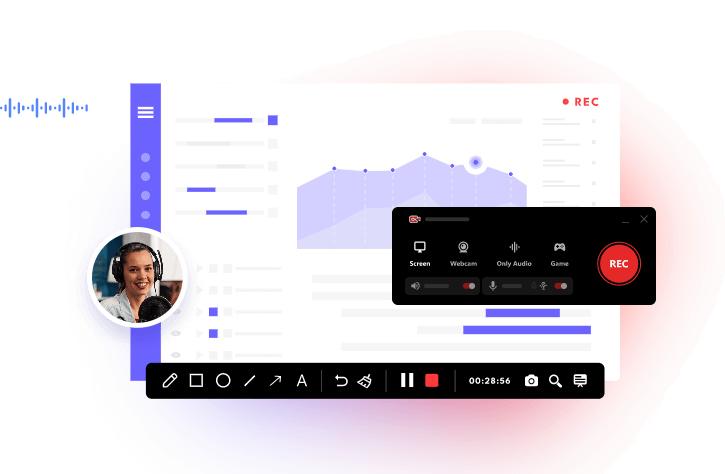
When you try to record DRM-encrypted content from a streaming service or applications, it most likely gives a black screen with built-in recording tools. iTop Screen Recorder is tested as a powerful program available to bypass screen record block and deliver perect screen recordings.

Record Live and Streaming Videos in One Click
- Record TV shows, movies, live sports from any site.
- Record videos and live streams without quality loss.
- Record from YouTube, Netflix etc., without black screen.
- Record with mic/webcam to create reaction videos.
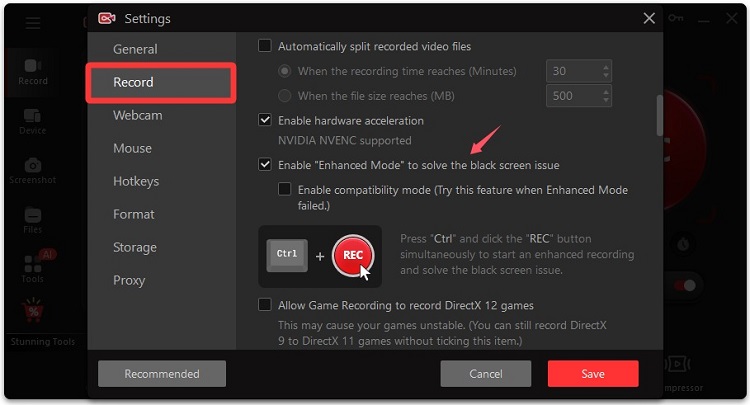
iTop Screen Recorder leverages an Enhanced Mode to analyze and circumvent restrictions to capture encrypted content seamlessly with crisp images and vivid colors. It has a Device Recording mode to mirror phone screen and record restricted apps on PC with no limits.
iTop Screen Recorder features an intuitive design that allows beginners to quickly get started with it. Follow the steps to bypass screen recording block and capture the content what you want.
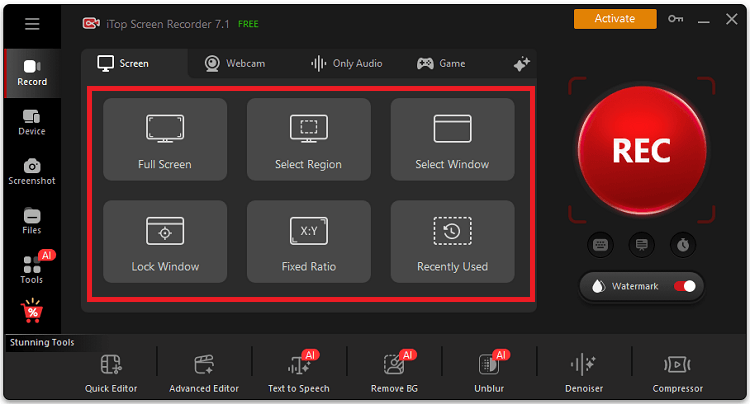
Step 1. Download iTop Screen Recorder on your computer. Launch the software and select Screen recording mode.
Step 2. Choose Full Screen, a specific window, or a custom recording region. Open the application or video you want to capture.
Step 3. Find the Enhance Mode option in iTop Screen Recorder's recording settings and enable it, if available in your version. This mode can help resolve black screen issues caused by certain capture compatibility problems.
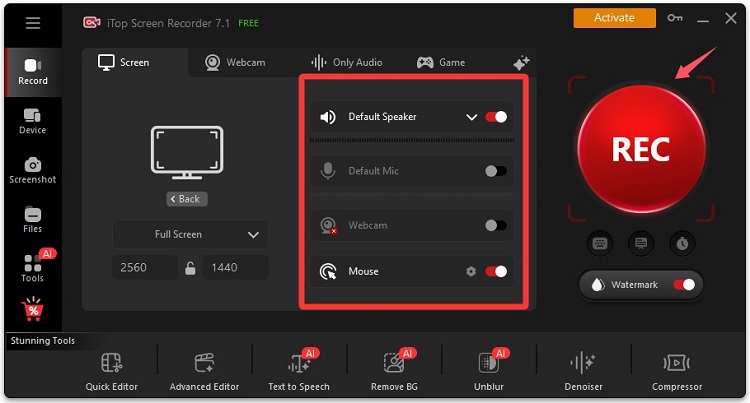
Step 4. Configure your audio settings and click REC to start recording. Otherwise, press Ctrl and click REC simultaneously to activate Enhanced Mode directly.
Step 5. Click Stop when finished. Open the saved video to check its quality and confirm that the black screen issue has been resolved.
Method 2. Use Official Export or Download Features
Some applications deliberately limit screen capture to protect copyrighted material, private conversations, or confidential information, but offer an option to save authorized content on your device. When recording is intentionally disabled, the most reliable alternative is often the application's built-in download, export, or sharing function rather than attempting to defeat its protections.
Step 1. Open the application containing the content you need.
Step 2. Check for an Export, Download, Save, or Share option.
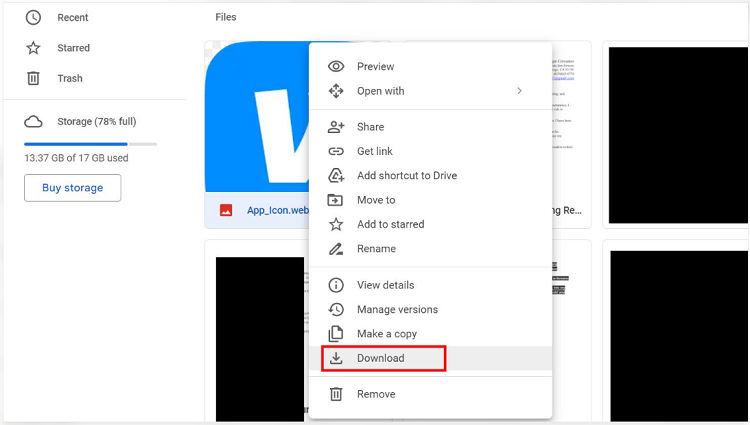
Step 3. Confirm that you own the content or have permission to save it.
Step 4. If the application supports export settings, select your preferred resolution, file format, and quality. MP4 is a common choice for video exports.
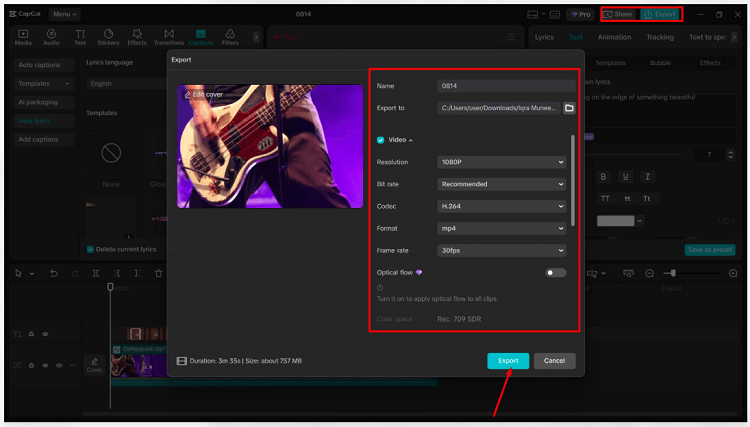
Step 5. Click Download or Export and wait for the process to finish. Select a destination folder if prompted, then open the saved file to verify that it plays correctly.
Also Read: How to Download Telegram Private Videos >>
How to Fix Screen Recording Black Screen Issue Technically
If the platform doesn’t apply any protection on its content, the screen recording block may still occur for incorrect settings, delivering blank or black screen. Here are some technical ways to fix the issue.
Method 1. Change the Recording Mode or Capture Source
Different screen recording software uses different capture methods. Some work better with individual application windows, while others perform more reliably when recording the desktop. If your video appears blank or incomplete, changing the capture source may resolve the problem. This approach is particularly useful when the issue affects only one recording mode.
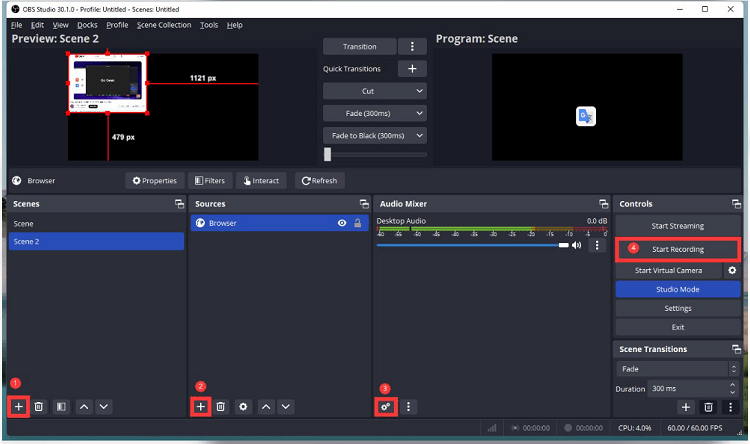
Step 1. Open your screen recording software. Let’s take OBS Studio as an example. Navigate to its recording settings.
Step 2. Find the recording area or source selection menu. Switch between Display Capture, Window Capture, or Game Capture, depending on the software.
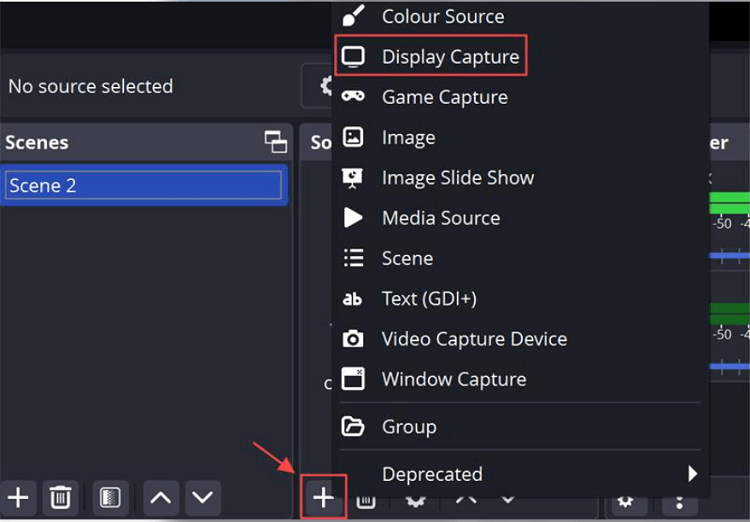
Step 3. Select the screen or application window you want to record. Make sure the correct display or window is selected and visible in the recording preview.
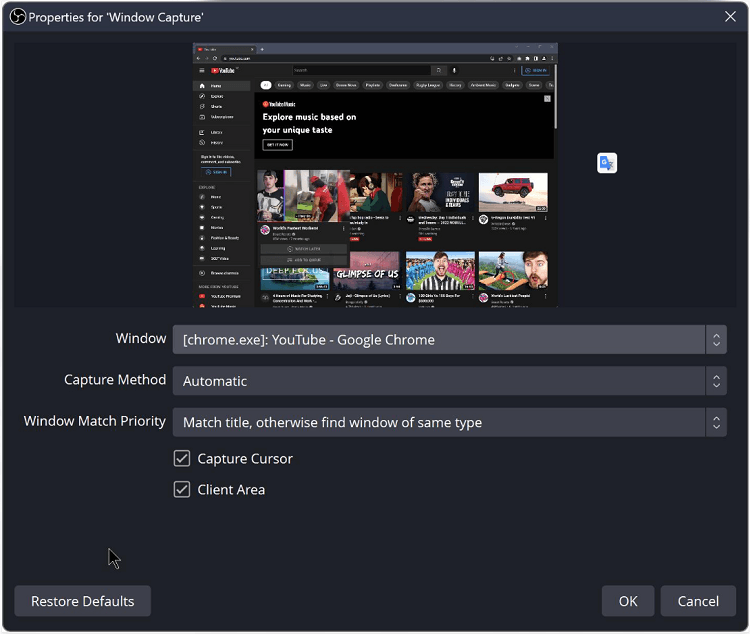
Step 4. Start a short test recording, stop it, and play the saved video to check whether the black screen issue has been resolved.
Method 2. Check Windows Screen Recording Permission
Windows privacy settings can affect whether applications can capture screen content. If your recording software cannot access the display or encounters unexpected permission errors, reviewing the relevant settings is a useful next step.
Step 1. Press Win + I to open Windows Settings.
Step 2. Navigate to Privacy & security on Windows 11.
Step 3. If available, open Screenshot borders or Screenshots and screen recording permissions and review the options for supported applications.
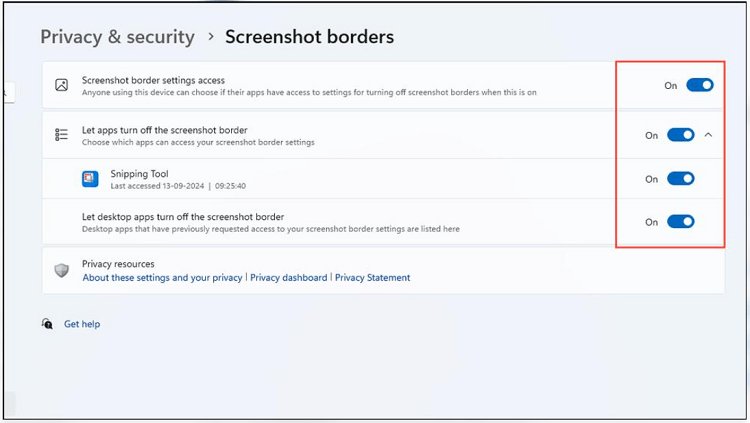
Step 4. Open your screen recording application and review its permission requests and recording settings. Ensure the required microphone, camera, and capture options are configured correctly.
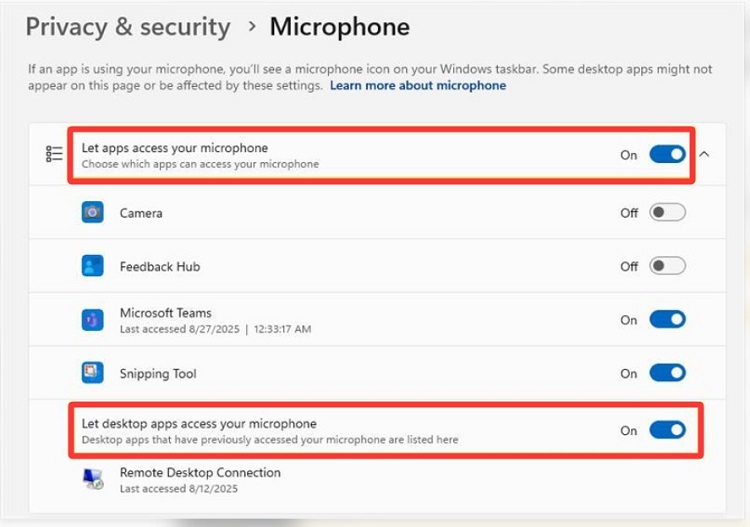
Step 5. Restart the screen recorder and test recording an ordinary, unprotected application window to check whether the problem is resolved.
Method 3. Adjust Hardware Acceleration Settings
Hardware acceleration helps applications use the GPU for rendering, but it can occasionally cause compatibility problems with screen recording software. If the recorder captures audio while displaying a black or frozen image, changing acceleration settings may help.
Step 1. Open the application that displays a black screen during recording.
Step 2. Navigate to its Settings or Preferences menu.
Step 3. Find Hardware Acceleration or Graphics Acceleration, if available. Let’s take Chrome as an example. In Chrome, navigate to Settings > System and locate Use graphics acceleration when available.
Step 4. Disable the option temporarily and restart the application. In Chrome, turn off the graphics acceleration toggle and click Relaunch.
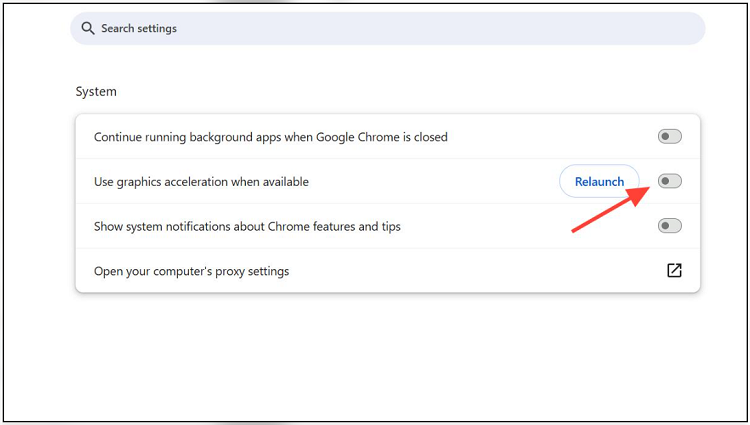
Step 5. Open your screen recorder and record an ordinary, unprotected application window to check whether the black screen problem disappears.
Method 4. Update Graphics Drivers and Windows
Outdated graphics drivers may cause recording software to display black screens, freeze during capture, or fail to recognize application windows. Updating your GPU driver and Windows installation can resolve compatibility issues, particularly after software upgrades.
Step 1. Right-click the Start button and select Device Manager.
Step 2. Expand Display adapters.
Step 3. Right-click your graphics card and select Update driver.
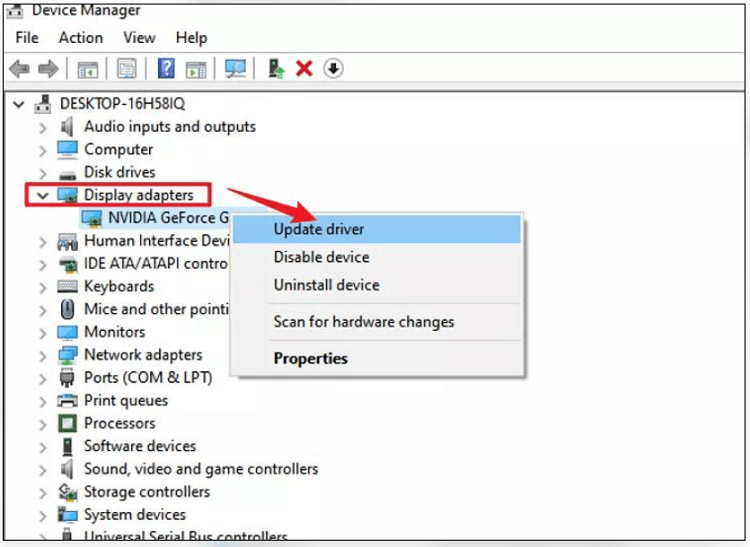
Step 4. Choose Search automatically for drivers.
Step 5. Open Settings > Windows Update and check for available updates.
Step 6. Restart your PC and test the screen recorder again.
FAQs About Blocked Screen Recording
How to Bypass Screen Recording Restrictions Without Installing Software?
For ordinary Windows recording problems, try the built-in Snipping Tool on Windows 11 or Xbox Game Bar for supported applications. You can also check permissions, update drivers, or use an application's official export feature. These methods do not override intentional content protections.
Is it safe to bypass blocked screen recording?
Fixing a software compatibility problem is generally different from circumventing an intentional restriction. Recording private, copyrighted, or confidential material without permission can violate applicable laws, platform rules, or privacy expectations.
Can You Bypass Screen Record Blocks on Instagram
Instagram may restrict capture of certain private or temporary content. If you want to save your own posts, Reels, or Stories, use available built-in saving or downloading features. For screen recording Instagram disappearing or private messages, obtain permission and use an a reliable third-party screen recorder.
How to Bypass Screen Record Block on CapCut
If CapCut cannot be recorded properly, check your recording mode, graphics drivers, and application settings. However, if you want to save an edited video, CapCut's Export feature is generally the better option. Exporting your own project preserves video quality and avoids screen capture compatibility problems.
Conclusion
How to bypass screen record block? Start with with identifying their cause. For ordinary recording failures, try adjusting permissions, changing capture modes and updating graphics drivers. If an application intentionally protects its content, use iTop Screen Recorder to decrypt the protection or use authorized download options if available.