Only a small share of players (around 20%) use PC for Roblox, but they’re often the most dedicated ones, including game creators and model builders. When Roblox lagging on good PC issue happens, it interrupts gameplay and slows down building, testing, and publishing.
Even on capable machines, Roblox can feel sluggish because it leans heavily on the CPU during rendering instead of fully utilizing the GPU. That imbalance often becomes the real bottleneck. When it happens, you can try several practical fixes: force Roblox to use your GPU, adjust in-game settings, fine-tune Windows performance options, reduce CPU load, update your graphics drivers, or rely on a game booster. You’ll find step-by-step tutorials in this post to help you eliminate lag for good.
Solve Roblox Lagging on Good PC: Add Roblox to Your Graphics Card
Why is my Roblox lagging even with good internet? One common reason behind Roblox lagging on good PC setups is that Windows may default to integrated graphics instead of your dedicated GPU. When that happens, performance drops even on otherwise powerful systems. You can fix Roblox lagging on PC for no reason directly in your system settings.
How to Add Roblox to Your Graphics Settings?
Step 1. Open Settings > System > Display > Graphics settings from the start menu, and launch it.
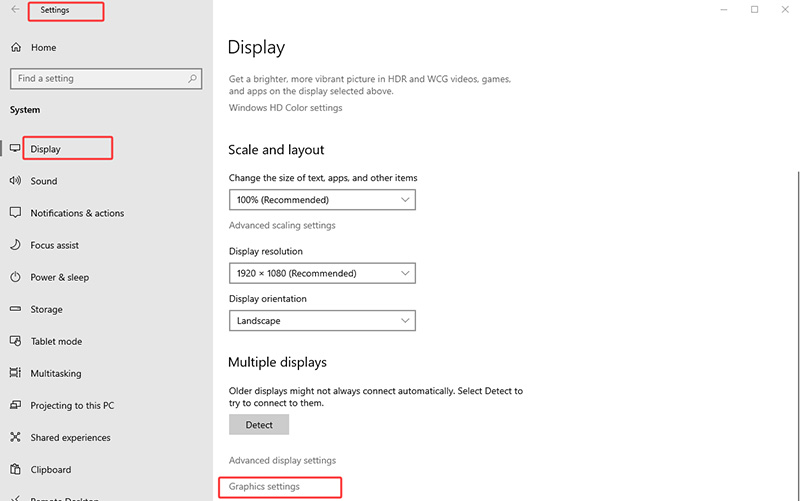
Step 2. Under the app list, choose Browse to add a program manually.
Step 3. Go to your Roblox install folder, typically found at
C:\Users\YourUsername\AppData\Local\Roblox\Versions.
Step 4. Open the folder with the latest version number and select RobloxPlayerBeta.exe, then click Add.
Step 5. Click the added Roblox entry, choose Options, set it to High performance, and confirm with Save.
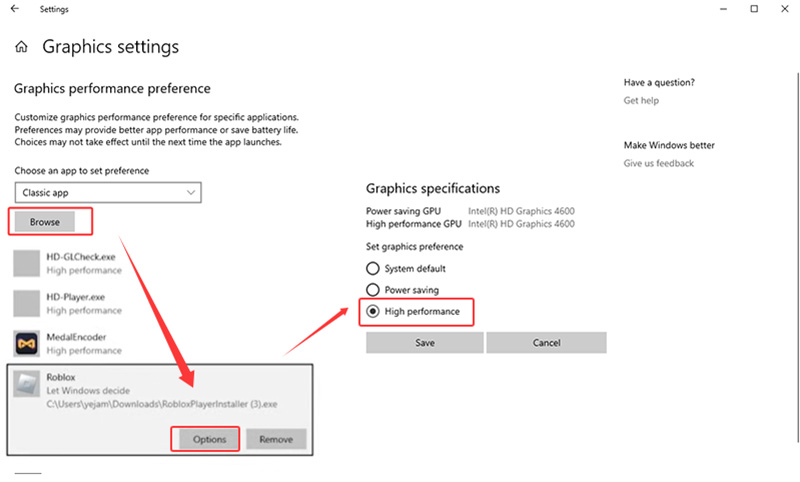
After saving the change, restart Roblox to apply the new configuration. This small adjustment often makes a noticeable difference, especially in more complex games or while editing maps.
Solve Roblox Lagging on Good PC: Configure Roblox In-Game Settings
Powerful PCs can still struggle with Roblox, and sometimes players notice Roblox lagging on PC for no reason. Often, the solution lies in tweaking the game’s own settings rather than upgrading hardware. Learn how to fix lag in Roblox PC with the steps below.
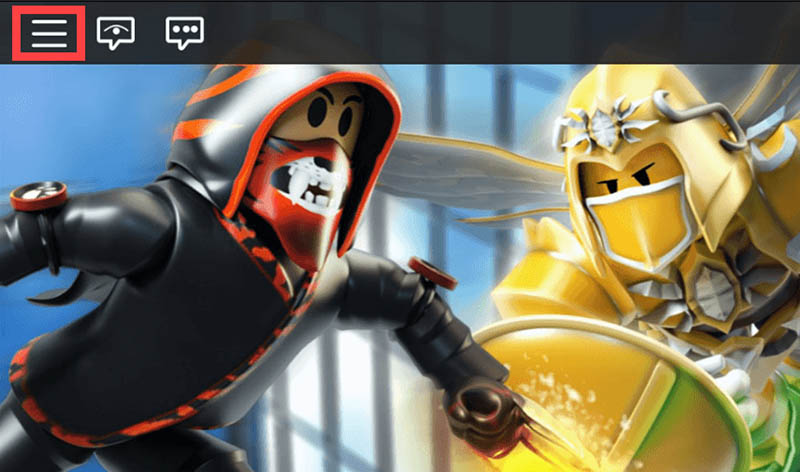
Step 1. While playing, press Esc (or tap the Roblox icon) to open the menu, then select the Settings tab.
Step 2. Set Graphics Mode from Automatic to Manual to control the Graphics Quality slider yourself.
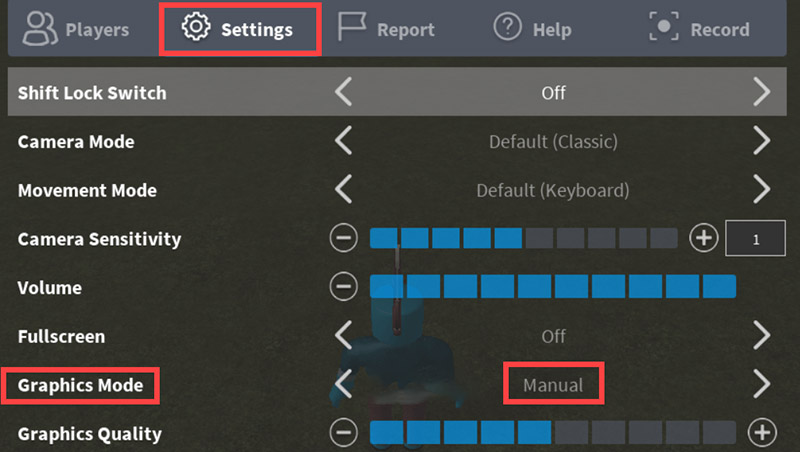
Step 3. Lower the Graphics Quality by clicking the minus (-) button. When you're done, hit Resume Game to go back.
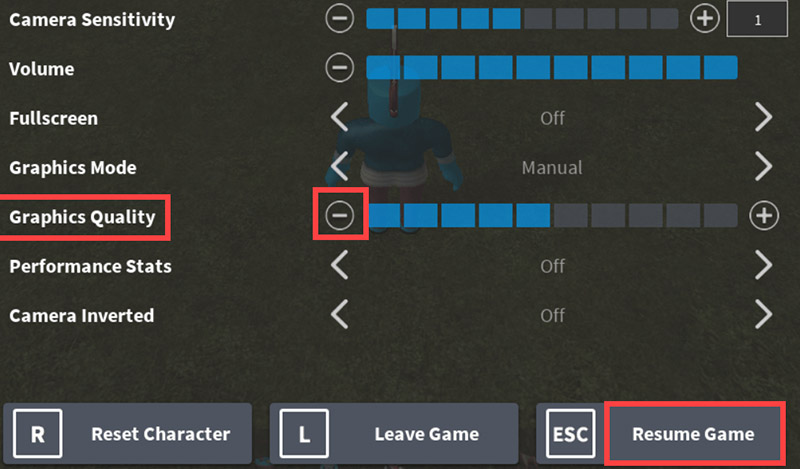
Once the in-game settings are configured, many players find Roblox lagging on good PC significantly less noticeable.
Solve Roblox Lagging on Good PC: Boost Your Roblox Gameplay
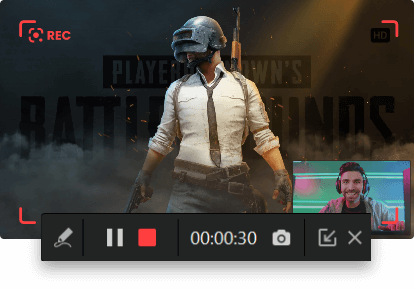
How to stop lag on Roblox? Another effective method is using an all-in-one game booster. iTop Screen Recorder is an all-in-one game recorder and booster. The Game Boost feature optimizes system settings and hardware parameters, and thus eliminates stutters and frame drops during intensive gameplay or map creation.
iTop Screen Recorder also supports high FPS and 4K resolution, so you can capture high-quality, smooth footage without slowing the game down. Hardware acceleration leverages your GPU to deliver screen recording no lag, while its low resource usage design keeps FPS stable, making it ideal for CPU-heavy games like Roblox.
How to Enable Game Booster in iTop Screen Recorder
Step 1. Free download, install, and launch iTop Screen Recorder on your PC for a Roblox game boost.
Step 2. Click Record, and select the Game icon (shaped like a controller).
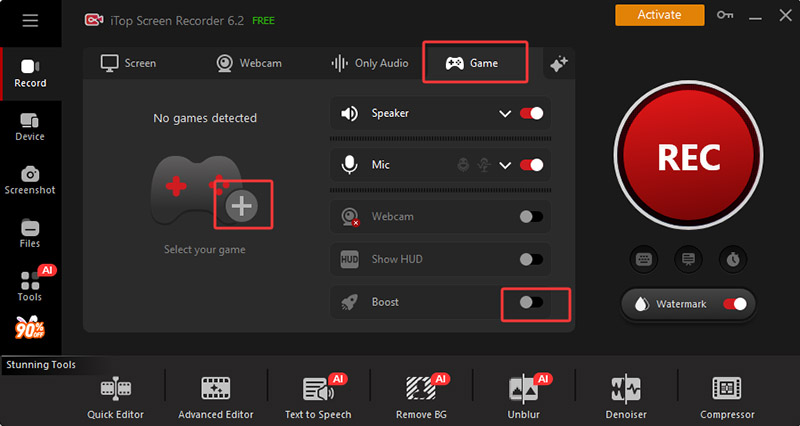
Step 3. Click the plus icon and select your game (Roblox).
Step 4. Switch on the Boost feature to optimize system performance while gaming or recording.
Solve Roblox Lagging on Good PC: Improve Performance Power Plan
Roblox can lag on high-end PCs if Windows isn’t optimized for gaming. Two simple tweaks, adjusting your Power Plan and enabling Game Mode, can make a noticeable difference in frame rates and responsiveness.
- Ultimate performance power plan
Step 1. Press Windows + R and type control on the RUN box, then click OK.
Step 2. Go to Hardware and Sound > Power Options on Windows 11. On Windows 10, press Win + I, then select System > Power & sleep > Additional power settings, click Show Additional Plans.
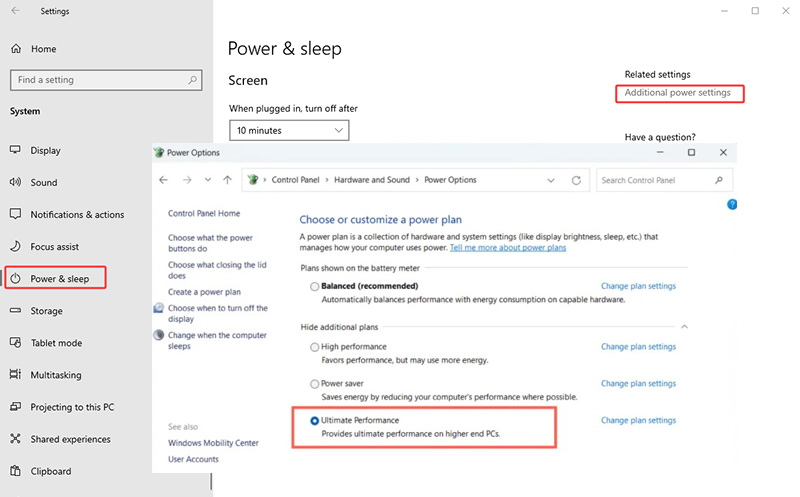
Step 3. Look for Ultimate Performance (if not visible, click Show additional plans).
Step 4. Select Ultimate Performance to ensure your CPU and GPU run at maximum capacity during gameplay.
- Turn on Windows game mode
Step 1. Open Settings from the Start menu.
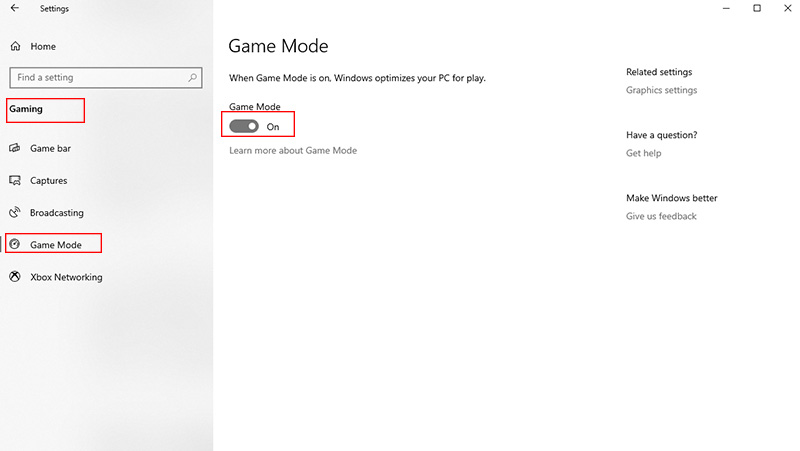
Step 2. Navigate to Gaming > Game Mode.
Step 3. Toggle Game Mode to On to reduce Roblox lagging on good PC.
Step 4. Optionally, enable Xbox Game Bar shortcuts for quick in-game adjustments.
Solve Roblox Lagging on Good PC: Unburden Your CPU
A busy CPU can cause Roblox to stutter. Freeing up processing power by closing unnecessary programs often brings instant improvements. Following the steps below gives Roblox more CPU power to handle rendering and in-game actions, and fixes Roblox lagging on good PC.
Step 1. Press Ctrl + Shift + Esc to open Task Manager and check which apps are consuming the most CPU and memory.
Step 2. Close any nonessential programs, such as browsers, messaging apps, or software running automatic updates, to free resources.
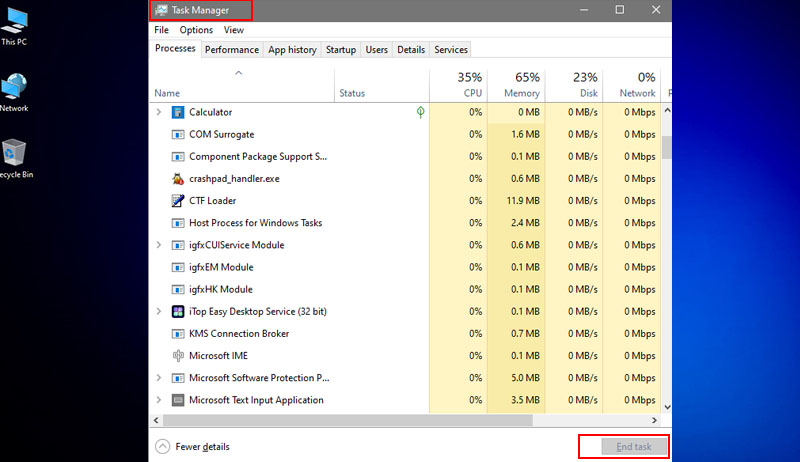
Step 3. Switch to the Startup tab in Task Manager and disable programs that don’t need to launch with Windows.
Step 4. Look in the system tray for background apps and end any that aren’t required while playing Roblox.
Solve Roblox Lagging on Good PC: Update Drivers
Outdated drivers limit your system’s performance, causing stutters or frame drops in Roblox. Try to update both the GPU and CPU drivers. This ensures smoother gameplay and better hardware efficiency, which is key to figuring out how to make Roblox less laggy on Windows 11/10.
- Update GPU Drivers (AMD, Nvidia, or Intel)
Step 1. Open Settings from the start menu and search for Device Manager, then open it.
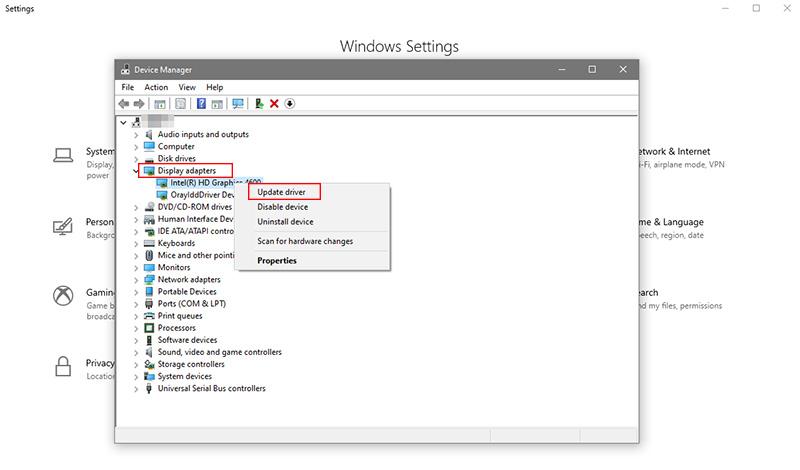
Step 2. Click Display adapters, right-click your GPU, and select Update driver from the list.
Step 3. Select Search automatically for drivers to let Windows find the latest version, or visit AMD, Nvidia, or Intel’s official website for the newest release.
Step 4. Follow the prompts to install, then restart your PC to apply changes.
- Update CPU Chipset Drivers
Keeping chipset drivers updated helps your CPU communicate efficiently with the system. With these updates, Roblox runs more efficiently and resolve common causes of Roblox lagging on good PC.
Step 1. Open Device Manager again.
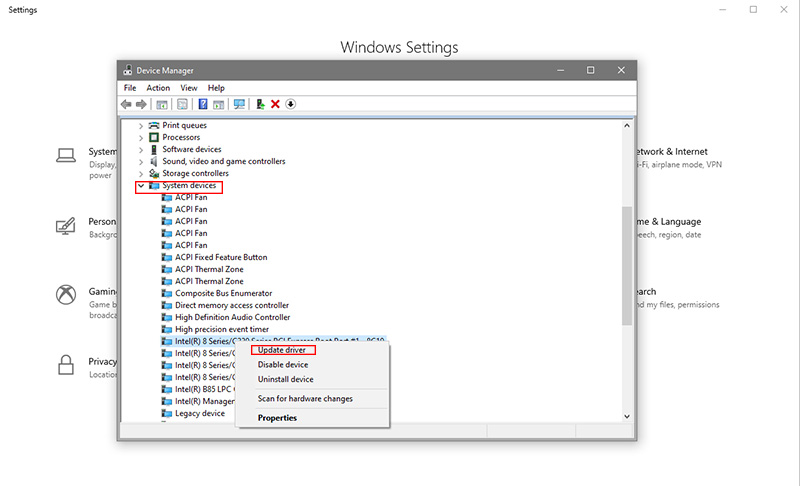
Step 2. Expand System devices and locate your chipset (Intel, AMD, or other).
Step 3. Right-click and select Update driver, then choose Search automatically.
Step 4. Install any updates and restart your PC to finalize.
Conclusion
Roblox performance may suffer on capable PCs, but with the right tweaks, for example, update drivers, free CPU, adjust settings, and use a game booster, you can fix Roblox lagging on good PC smoothly. For an all-in-one solution that optimizes game performance and records gameplay effortlessly, try iTop Screen Recorder and enjoy a lag-free Roblox experience right now.