

Want to save a WhatsApp contact's profile photo but find that screenshots are blocked? If you're wondering how to screenshot WhatsApp profile picture, you're not alone. WhatsApp has introduced privacy protections that restrict profile photo screenshots on supported devices, making traditional capture methods less reliable.
However, there are still legitimate ways to save or capture photos when you have permission. This guide explains WhatsApp's screenshot restrictions and introduces four practical approaches for Windows, Android, and iPhone users.
Disclaimer: This article is intended for informational purposes only and outlines available methods for taking WhatsApp screenshots. Users should comply with WhatsApp’s Terms of Service and respect others’ privacy. Always obtain consent before capturing someone’s profile picture or other personal content, and avoid sharing or distributing screenshots without permission.
Why Can't You Screenshot a WhatsApp Profile Picture?
WhatsApp allows users to control who can see their profile pictures and has implemented additional protections against unauthorized copying. Depending on your device and WhatsApp version, attempting to capture an enlarged profile photo may produce a warning, a black image, or a blocked screenshot. Common reasons include:
- Built-in Screenshot Protection: WhatsApp restricts screenshots of enlarged profile photos on supported versions.
- Privacy Settings: Users can limit profile photo visibility to selected contacts or hide their pictures entirely.
- Device-Level Restrictions: Android and iOS may handle protected content differently.
- WhatsApp Updates: Screenshot behavior can change as privacy features are updated.
If you try to screenshot a WhatsApp profile picture ending up seeing a message saying that a screenshot is not allowed. That’s WhatsApp stopping you and not your screenshot shortcut’s problem.
For users searching how to screenshot WhatsApp profile picture 2026, they need dedicated screenshot tools to help them with that.
Method 1. Capture an Authorized WhatsApp Image on PC with iTop Screen Recorder
If you want to learn how to screenshot a WhatsApp profile picture on Windows, iTop Screen Recorder provides powerful screenshot and recording tools to capture protected images and videos.
It works best with browser or desktop-based WhatsApp to manifest its full ability. But on mobile Whatsapp, it cannot help. Use this tool, you can do many things that WhatsApp don’t want you to do.
Check another tutorial: Screen Recorder for WhatsApp View Once >>
Why Choose iTop Screen Recorder?
- Capture WhatsApp Profile Pictures on PC: Take screenshots of accessible, unprotected profile images displayed through WhatsApp Web or WhatsApp Desktop.
- Select a Precise Screenshot Area: Capture only the profile picture instead of the entire WhatsApp window, avoiding unnecessary chat details and background content.
- Preserve Profile Picture Quality: Save screenshots at the displayed resolution to help maintain image clarity without additional compression from resizing.
- Edit and Save Captured Images/Videos: Use available editing tools to prepare recordings or captured images for personal use and sharing.
How to Use iTop Screen Recorder for WhatsApp Screenshots
Here are the steps on how to screenshot a WhatsApp profile picture using iTop Screen Recorder.
Step 1. Download and install iTop Screen Recorder.
Step 2. Open WhatsApp Web or WhatsApp Desktop and open the profile image you plan to capture.
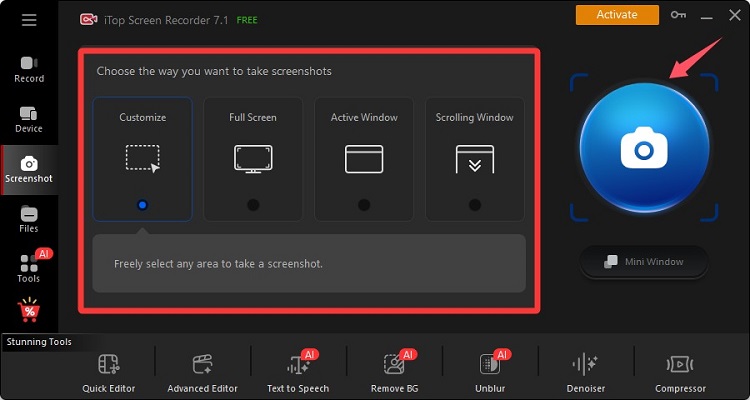
Step 3. Switch to iTop Screen Recorder’s Screenshot tab, customize the area you want to screenshot and then capture your screen.
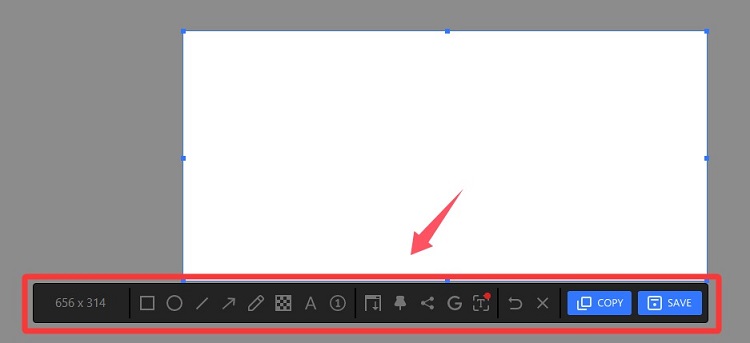
Step 4. Click SAVE to store the screenshot on your computer.
For Instagram, Zoom, YouTube, Explore More Features of iTop Screen Recorder
- Record Zoom Meetings with Audio: Easily record Zoom meeting sessions, including presentations and discussions, with permission.
- Capture Protected Video Content: Use flexible recording modes to screen record protected videos when authorized, although DRM restrictions may prevent capture.
- Record Instagram Direct Messages: Use iTop Screen Recorder to screen record Instagram DM conversations displayed on your PC, with appropriate consent and respect for privacy.
- High-Quality Screen Recording: Capture videos in HD, 1080p, or up to 4K with supported settings.
- Webcam and Audio Recording: Record webcam footage, system sounds, and microphone narration simultaneously.
- Built-in Video Editing: Trim recordings and remove unwanted sections without additional software.
Method 2. Use Built-in Screenshot Tools for Accessible WhatsApp Content
If you are researching how to take a screenshot of WhatsApp profile picture, Windows already includes convenient screenshot shortcuts. These are useful when capturing your own profile image, ordinary WhatsApp interface content, or other material you have permission to save.
Windows screenshot tools require no additional installation and are particularly useful for quickly selecting a small part of the desktop. Nevertheless, they follow applicable screen capture restrictions and cannot guarantee access to protected WhatsApp profile photos.
Step 1. Open WhatsApp Web or the desktop application on your Windows PC.
Step 2. Navigate to the content you want to capture.
Step 3. Press Windows + Shift + S to open the Windows Snipping Tool overlay.
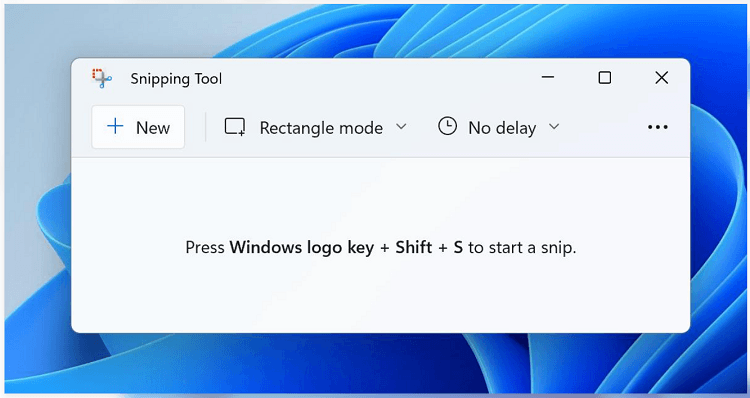
Step 4. Choose Rectangular Snip and drag your cursor around the visible WhatsApp profile picture. Release the mouse button to capture the selected area.
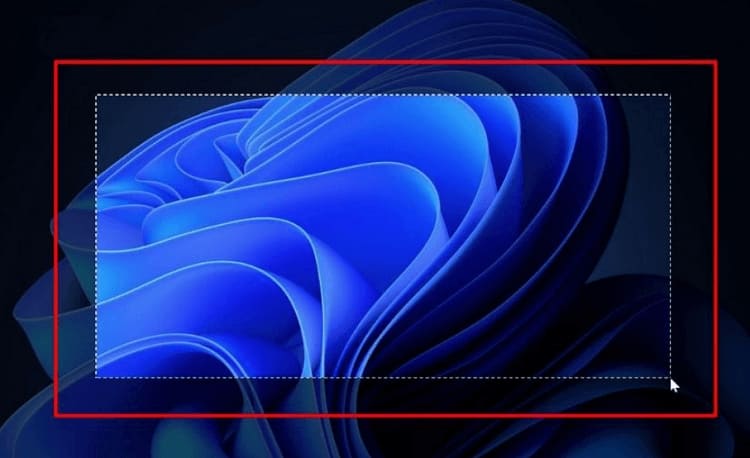
Step 5. Open the captured screenshot and save it to your computer.
Method 3. Ask the Contact to Share Their Profile Photo
For anyone wondering how to take a screenshot of someone's WhatsApp profile picture, the most reliable solution is often to ask the person to send the original image directly.
This approach avoids screenshot restrictions, preserves image quality, and respects the contact's privacy preferences. It also works regardless of whether the person uses WhatsApp on Android, iPhone, or a desktop computer.
Step 1. Open your WhatsApp conversation with the contact.
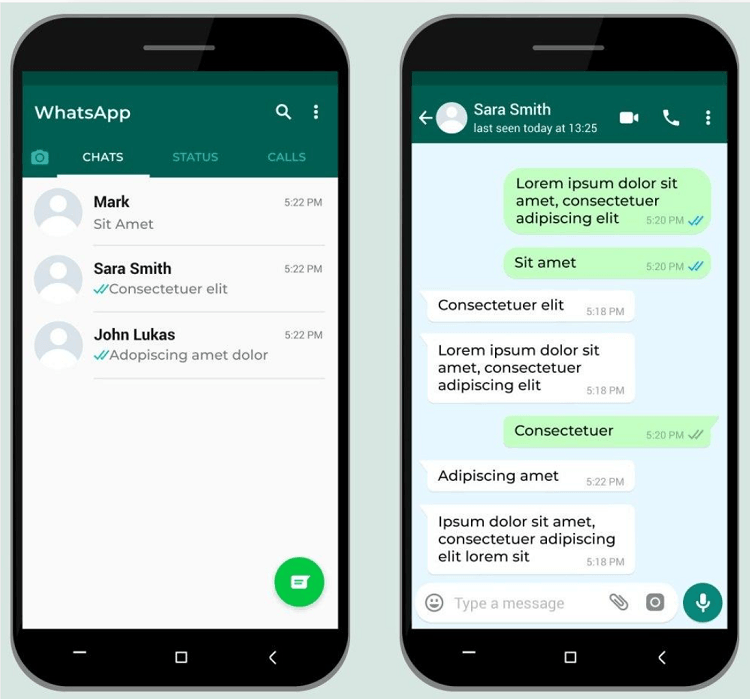
Step 2. Ask whether they are comfortable sharing their profile picture.
Step 3. Have them send the original photo through the chat using the regular photo or document attachment option.
Step 4. Download the received image to your device.
Step 5. Save it to your preferred photo album or folder.
This method is particularly useful when a profile picture appears blurry, small, or unavailable for direct screenshot capture.
How to Screenshot WhatsApp Profile Picture on Android and iPhone
Although WhatsApp has introduced screenshot restrictions for profile pictures, users can still capture ordinary, unprotected content using their phones' built-in screenshot features. However, the results may vary depending on your device, operating system, and WhatsApp version. Here's how to take screenshots on Android and iPhone.
How to Screenshot WhatsApp Profile Picture on Android
If you're searching for how to screenshot WhatsApp profile picture on Android, you can try the standard Android screenshot shortcut. However, WhatsApp may block screenshots when you open someone's enlarged profile picture.
Step 1. Launch WhatsApp on your Android phone and open the conversation with the contact.
Step 2. Tap the contact's name at the top of the screen to open their profile information.
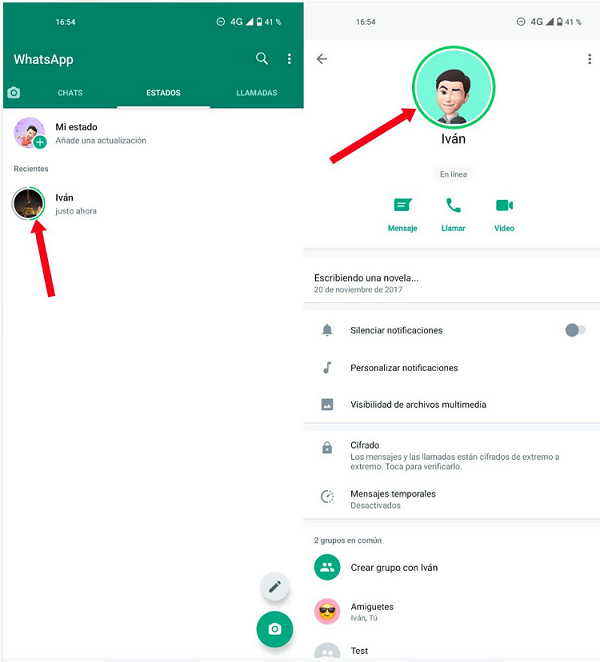
Step 3. Tap the profile picture to view it in a larger size, if available.
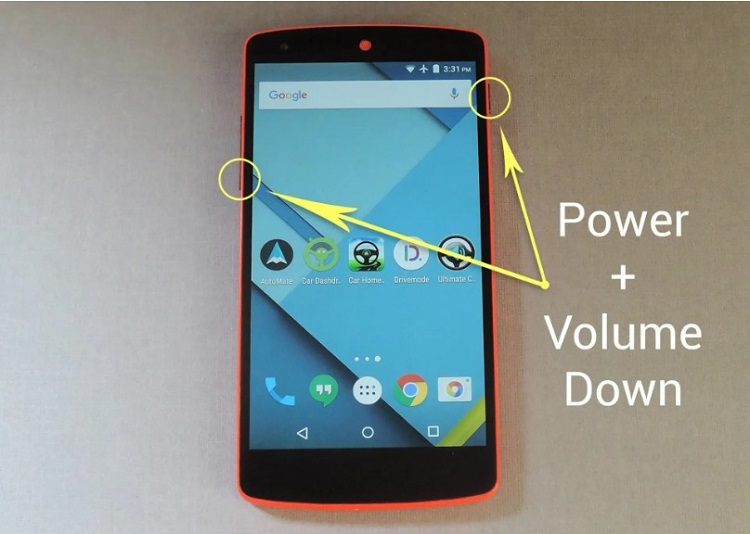
Step 4. Press the Power and Volume Down buttons simultaneously to attempt a screenshot.
Step 5. Open your Gallery or Google Photos app to check whether the screenshot was saved successfully.
Note: If WhatsApp displays a screenshot restriction warning or the captured image is blank, the profile picture is protected. Standard screenshot shortcuts and third-party capture applications may not work.
How to Screenshot WhatsApp Profile Picture on iPhone
For users wondering how to screenshot WhatsApp profile picture iPhone, iOS provides built-in screenshot shortcuts that work without installing additional applications. However, WhatsApp's privacy protections may prevent screenshots of enlarged profile photos.
Step 1. Open WhatsApp on your iPhone and navigate to the contact's conversation.
Step 2. Tap the contact's name to access their profile information.
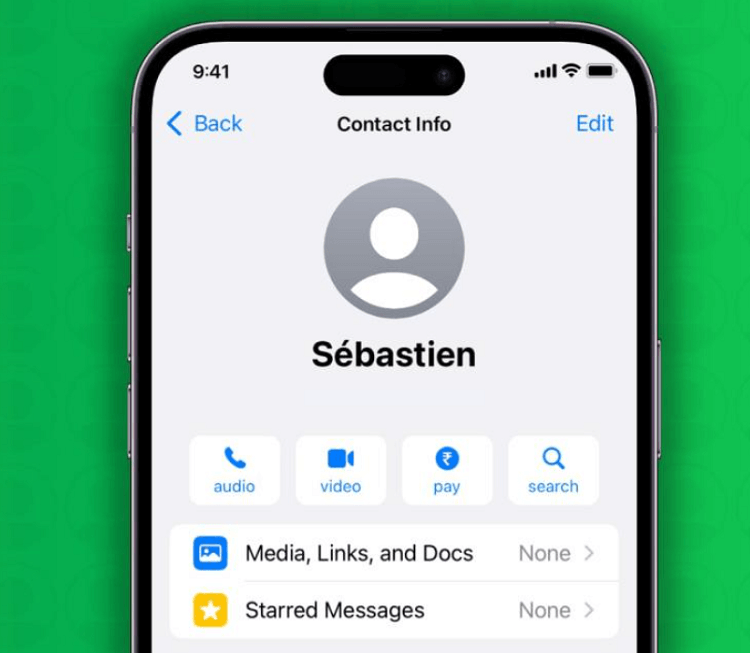
Step 3. Open the profile picture if WhatsApp allows you to view it.
Step 4. Use the appropriate screenshot shortcut:
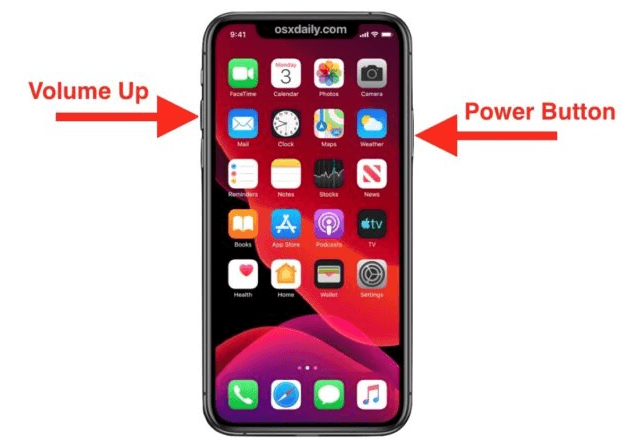
- iPhones with Face ID: Press the Side button and Volume Up button simultaneously.
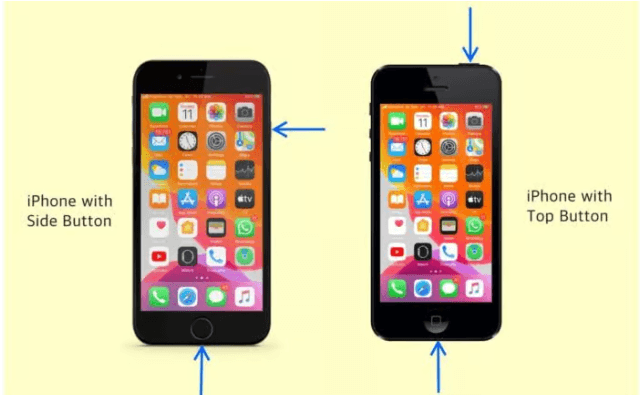
- iPhones with a Home button: Press the Side or Top button and Home button together.
Step 5. Open the Photos app and check the Screenshots collection to see whether the image was captured.
Note: If WhatsApp prevents the screenshot, changing the button combination will not remove the restriction.
What If WhatsApp Blocks the Screenshot?
How to take screenshot of locked WhatsApp profile picture? If the screenshot fails on either Android or iPhone, the most reliable alternative is to ask the contact to share their original photo through WhatsApp. You can then download it directly to your device with their permission.
This approach avoids screenshot restrictions, respects the contact's privacy, and generally provides better image quality than capturing a picture displayed on your screen.
FAQs About WhatsApp Profile Picture Screenshots
1. Why does WhatsApp show a black screen when I take a screenshot?
A black screenshot may indicate that the application or operating system is protecting the displayed content. If this happens only when viewing an enlarged profile picture, WhatsApp's screenshot protection may be responsible.
2. Can I screenshot a WhatsApp profile picture using third-party apps?
Third-party screenshot applications can capture ordinary screen content, but they cannot reliably bypass WhatsApp's built-in restrictions. Avoid applications that promise guaranteed access to protected profile pictures, especially those requesting unnecessary account credentials or device permissions.
3. Can I save a WhatsApp profile picture in its original quality?
The best option is to request the original image from its owner. Screenshots are limited by the image displayed on your screen and may have lower resolution than the original file.
4. How to save your own WhatsApp profile picture?
To save your own WhatsApp profile picture, open WhatsApp, go to Settings, and tap your profile photo to view it in full size. If screenshots are allowed, capture the image and crop it using your phone's photo editor. Alternatively, check your Gallery or Photos app for the original picture to save it without losing image quality.
Conclusion
Understanding how to screenshot WhatsApp profile picture in 2026 requires recognizing WhatsApp's privacy restrictions. Windows tools and iTop Screen Recorder can capture permitted screen content, but they cannot guarantee screenshots of protected profile photos. For the best image quality and a privacy-respecting solution, ask the contact to share the original picture or retrieve your own photo from its original location. But you can give iTop Screen Recorder a chance to keep your favorite WhatsApp profile. Now, download iTop Screen Recorder to give it a try.