



Many users want to screenshot Scruff chats, profiles, or photos to save important conversations, keep memorable moments, or share interesting content with friends. However, some people worry about privacy, screenshot Scruff notifications, blurry images, or black screen issues while capturing content. Fortunately, there are several easy ways to screenshot Scruff on different devices. This guide explains how to screenshot Scruff on iPhone, Android, and PC, along with the best tools and tips for high-quality captures.
Does Scruff Notify Screenshots?
One of the biggest concerns users have is whether Scruff sends notifications when someone takes a screenshot.
#1. Quick answer: No, Scruff doesn’t notify. Currently, Scruff does not typically notify users when screenshots are taken.
This means you can usually capture chats, profiles, or photos without the other person receiving an alert. That doesn’t mean you can screenshot everything on Scruff. According to Scruff support, the following things cannot be screenshot:
- Chat conversations
- Private Album
- Disappearing photos
#2. Results of screenshot disappearing photos/private albums/chat:
- Android:
- Scruff will warn you that you cannot screenshot
- The screenshots are black
- iPhone:
- Sometimes screenshots work, sometimes they don’t work at all
- Sometimes, only screenshot the black pixels
- Users from the forum reflect that the condition depends on the iOS version and Scruff version
Note that App policies may change over time, so it is always a good idea to respect other users’ privacy and use screenshots responsibly.
Things to Know Before You Screenshot Scruff
Before taking screenshots on Scruff, there are several important things to keep in mind.
- Launch Scruff on Windows desktop to bypass restrictions. Screenshot or screen record depends on your demands. But make sure you don't leak others' private info to avoid getting involved in conflicts.
- If you want clearer screenshots, you should increase screen brightness, use the app in full-screen mode, and avoid blurry motion while capturing.
- To avoid black screens, it’s better to use a reliable screen recorder or update your graphics settings.
How to Screenshot on Scruff on iPhone, Android, and PC
How to screenshot on Scruff? There are several effective ways to screenshot Scruff depending on your device and preferences. Mobile users can use built-in screenshot shortcuts, while PC users may prefer advanced screenshot software for better image quality and editing features. Below are the best methods to screenshot Scruff on iPhone, Android, and Windows PCs.
Method 1. How to Screenshot Scruff iPhone
If you’re using an iPhone, taking screenshots on Scruff is quick and straightforward. Whether you want to save a memorable chat, capture a profile, or keep important information for later, iOS offers a built-in screenshot feature that works seamlessly with the app. Here’s how to screenshot Scruff on iPhone in just a few steps.
Step 1. Open Scruff on your iPhone.
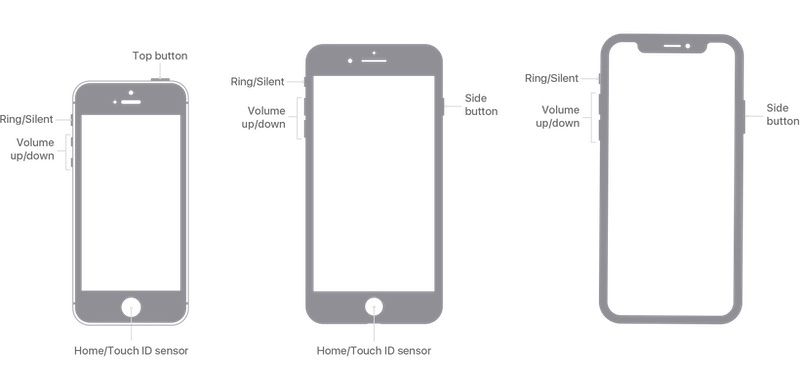
Step 2. Press the Side Button and Volume Up button simultaneously.
Step 3. The screenshot will automatically save to Photos.
Method 2. How to Screenshot Scruff Android
Android devices also make it easy to capture screenshots while using Scruff. Although the exact button combination may vary slightly depending on your phone brand, most Android devices support quick screenshot shortcuts that let you save chats, profiles, or other content instantly. Here’s how to screenshot Scruff on Android step by step.
Step 1. Open Scruff.
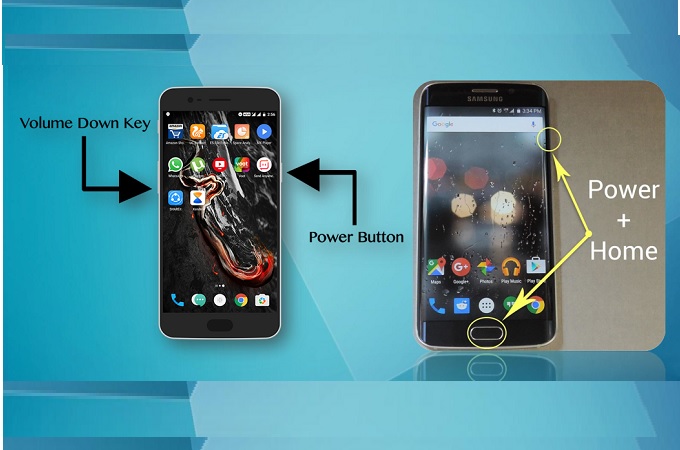
Step 2. Press the Power and Volume Down buttons together.
Step 3. The screenshot will save automatically.
Method 3. How to Screenshot Scruff on a PC
If you use Scruff on a Windows PC, there are multiple screenshot methods available. Here’s how to screenshot Scruff on PC using different methods.
1. Use Print Screen (Quick full-screen captures)
Step 1. Open the Scruff screen you want to capture.
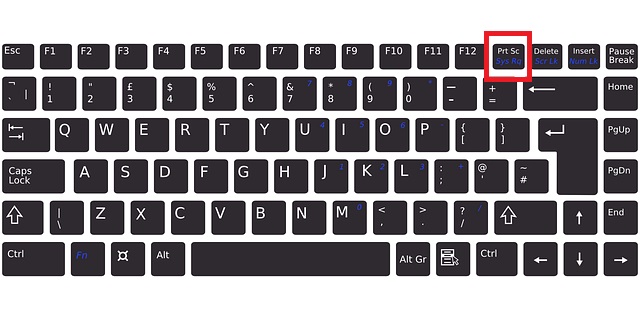
Step 2. Press PrtScn on your keyboard.
Step 3. Open Paint or another app.
Step 4. Press Ctrl + V to paste (Copies screenshot to clipboard only, so you must paste it into another app before saving).
Step 5. Save the screenshot.
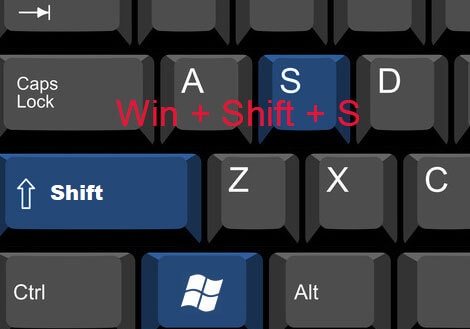
2. Use Windows + Shift + S (Capturing selected areas)
Step 1. Open Scruff.
Step 2. Press Windows + Shift + S.
Step 3. Select the area you want to screenshot.
Step 4. Click the preview notification.
Step 5. Save the image.
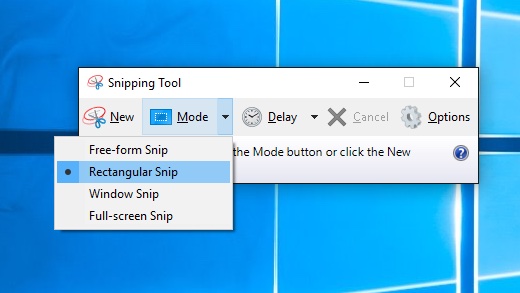
3. Use Snipping Tool (More controlled screenshots)
Step 1. Open Snipping Tool.
Step 2. Click New and select the capture area.
Step 3. Edit if required and click Save.
Best Way to Screenshot Scruff on PC and Phone (Recommended)
While built-in screenshot shortcuts on Windows, Mac, Android, and iPhone work but most possibly come across App’s censorship and blocking, you need a powerful PC-based third-party screen recorder to record anything on your screen. As a flexible and efficient way to screenshot Scruff on PC, iTop Screen Recorder is one of the best options available.
As a popular screenshot tool, iTop Screen Recorder combines screen recording and screenshot tools into one lightweight application, making it easy to capture Scruff chats, profiles, or full screens with higher quality and more control. It is especially useful for users who frequently take screenshots and want built-in editing and sharing features without switching between multiple apps.
Here are more features of iTop Screen Recorder
Capture Scruff screenshots clearly without black-screen issues
iTop Screen Recorder is designed to capture app content smoothly, helping you save Scruff chats, profiles, and images properly.
Various screenshot modes available with no watermark added
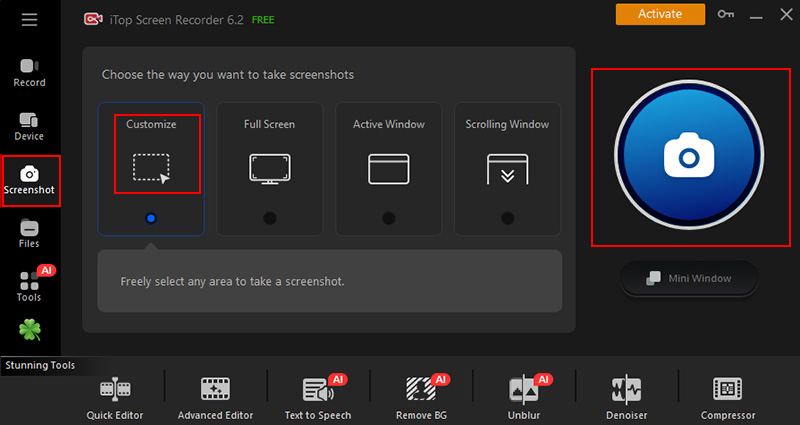
The software supports multiple capture options, including full-screen, custom area, and active window screenshots. It also allows you to save screenshots without adding distracting watermarks to your images.
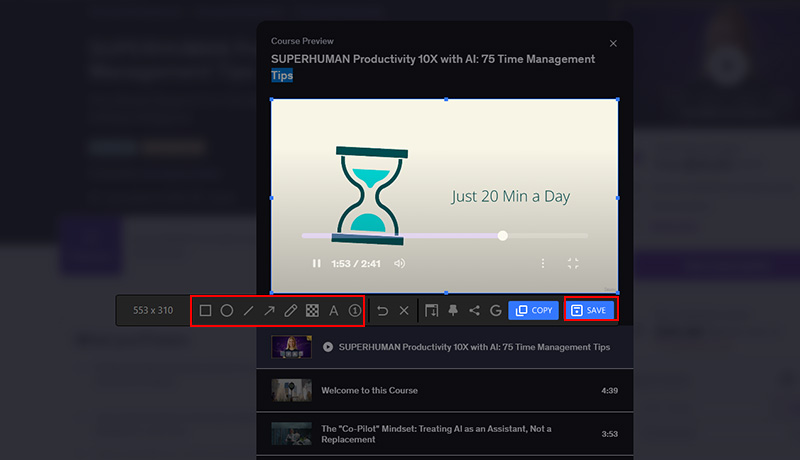
Instantly add arrows, text, and shapes while capturing
Built-in annotation tools let you edit screenshots immediately after capture. You can highlight important details, add notes, draw arrows, or insert shapes without needing another editing app.
User-friendly design with stable and seamless screenshot performance
How to screenshot Scruff on PC for free?
Step 1. Install and set up iTop Screen Recorder on your computer, then open the program to start capturing screenshots on Scruff.
Step 2. Launch Scruff and stop at the page or conversation you want to capture. Select the Screenshot feature, choose either full-screen mode or a custom area, and use the screenshot button or shortcut key to take the capture.
Step 3. Edit the screenshot by adding text, arrows, highlights, or other annotations if needed. After that, click Save and go to Files > Image to access your saved Scruff screenshots, where you can view, rename, or manage them easily.
Common Problems When Screenshotting Scruff
Although taking screenshots on Scruff is usually simple, some users may still encounter unexpected issues during the process. Problems like black screens, blurry captures, shortcut failures, or screenshots not saving properly can make the experience frustrating. Below are some of the most common screenshot problems on Scruff and how to fix them quickly.
Problems:
- Scruff Screenshot Black Screen Fix
- Screenshot Buttons Not Working
- Blurry or Low-Quality Screenshots
- Screenshot Not Saving Properly
Solutions:
- Restart the Scruff app and try taking the screenshot again
- Disable hardware acceleration if you are using an emulator or screen capture software
- Check whether your keyboard or phone buttons are functioning properly
- Try alternative screenshot shortcuts on your device
- Increase your screen resolution before capturing
- Avoid zooming in too much on the screenshot after capture
- Verify that your device has enough storage space available
- Check the default screenshot save folder location
Conclusion
Screenshotting Scruff is easy on iPhone, Android, and PC using built-in screenshot shortcuts or advanced capture software. Whether you want to save chats, profiles, or photos, choosing the right screenshot method can improve image quality and make capturing content more convenient. For Windows users who want better screenshots and built-in recording tools, iTop Screen Recorder is a great choice for capturing Scruff content quickly and efficiently. Now, download iTop Screen Recorder to give it a try!





