Can you record on Apollo Group TV? Asked by users from various communities. The answer is YES - but Apollo Group TV doesn’t offer a built-in recording feature like traditional cable or some streaming platforms, so you’ll need some screen recording tools or external methods. Keep reading to get more details about how to record on Apollo Group TV.
What is Apollo Group TV?
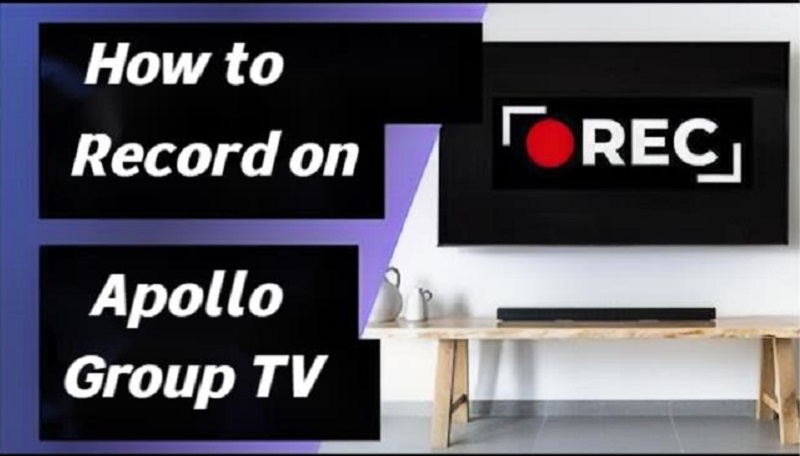
Simply put, Apollo Group TV is an IPTV (Internet Protocol Television) service that delivers live TV channels, on-demand content, and premium networks over the internet instead of traditional cable or satellite. It features a massive content library, ultra HD streaming, catch-up TV & EPG guide, and anti-freeze streaming technology. With all on-demand content in one service, it eliminates the need for multiple subscriptions, which is precisely why it has become so widely popular.
In addition to affordable access, the service also offers the option to record content, allowing viewers to save programs for watching when there is no internet connection. Other than that, there are many scenes where you might need to learn how to record on Apollo TV.
Why You Should Record on Apollo Group TV?
You can benefit a lot from recording your favorite show on Apollo Group TV, ranging from the ability to never miss an episode of your favorite shows or live events to adding the convenience for busy viewers or those in different time zones to watch a show. Whatever your purpose of recording on Apollo Group TV, there are 2 options: using the built-in recording feature or using a third-party recording tool. The former option doesn’t require any installation, and the latter options often provide enhanced capabilities such as high-definition recording quality, larger storage capacity, and even cloud-based recording.
How to Record on Apollo Group TV?
If your Apollo version or plan supports recording, you can use the built-in DVR feature to record on Apollo Group TV. Here’s how to record a show on Apollo Group TV.
Step 1. Launch the app on your device (Fire TV Stick, Smart TV, Android, etc.)
Step 2. Navigate to the channel or show you want to record and start playing the live content.
Step 3. Look for a “REC” icon or a red dot in the playback controls, which usually appears on-screen during playback.
Step 4. Click the red button to start recording.
Step 5. Press the record button again to stop manually.
The Simplest Way to Record on Apollo Group TV
If you prefer watching Apollo Group TV on a computer, then you can easily record your favorite shows on Apollo using this hassle-free and efficient tool - iTop Screen Recorder. (Don’t know how to use Apollo Group TV on a computer? Check our steps below) iTop Screen Recorder gives you more control over the recording settings - you can customize the recording area, resolution, and output format, etc. Moreover, it is easy to navigate, which makes it a great alternative for those who want to save content directly without complicated setup steps. Other than that, there are many other benefits of using this tool.

Record Live and Streaming Videos in One Click
- Record TV shows, movies, live sports from any site.
- Record videos and live streams without quality loss.
- Record from YouTube, Netflix etc., without black screen.
- Record with mic/webcam to create reaction videos.
-
Easy and Free to Record on Apollo Group TV
iTop Screen Recorder offers a free version with many features, making it an excellent option for casual users who don’t want to invest in expensive recording devices or software. -
Record Apollo Group TV in High Quality
One of the biggest advantages of using iTop Screen Recorder is its ability to capture videos in high resolution (Up to 4K resolution) and smooth playback. This means you can record your favorite shows from Apollo Group TV, screen record Instagram DM, or other shows with minimal quality loss -
Save Your Recordings in Various Formats
iTop Screen Recorder allows you to export recordings in MP4, AVI, or MOV. This allows you to choose the best format based on your needs, whether it’s for playback or editing. This also applies to screen record protected videos. -
Record System Audio and Add Voiceovers via Your Microphone
iTop Screen Recorder supports simultaneous audio capture, allowing you to record both system audio and microphone input. So, you can also use it to record Zoom meeting. -
Record TV Shows With No Time Limit
Unlike some TV services that limit how long you can record, iTop Screen Recorder allows you to record TV shows for as long as you need—ideal for those long TV marathons. -
Support for Recording Streaming Services
If you're using Apollo Group TV's streaming service, iTop is compatible with it, enabling you to capture and save streaming content without the need for complicated configuration or extra devices.
Here are the steps on how to record on Apollo Group TV. Before that, you’ll need to set up Apollo Group TV on PC. If you’ve set up, just directly jump to the recording steps.
Method 1. How to set up Apollo Group TV on a PC without installation:
- Open a browser using Google Chrome, Firefox, or Microsoft Edge.
- Enter the Apollo Group TV web browser.
- Log in with your username and password.
- Play the show you wish to record.
Method 2. How to set up Apollo Group TV on a PC using an IPTV Player (Recommended for better experience)
- Download and install VLC on your PC.
- Launch VLC and click Media > Open Network Stream.
- Paste your Apollo Group TV M3U playlist URL.
- Find and play the show you wish to record.
Once set up, you can follow these steps to learn how to record on Apollo Group TV.
Step 1. Download and install iTop Screen Recorder from the official website on your computer.
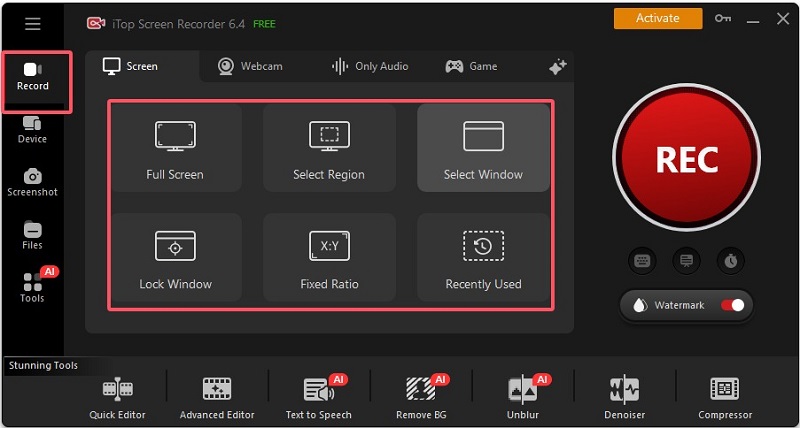
Step 2. Launch iTop Screen Recorder and choose Full-screen Mode or Custom Area depending on whether you want to capture the entire screen or a specific part of your TV interface.
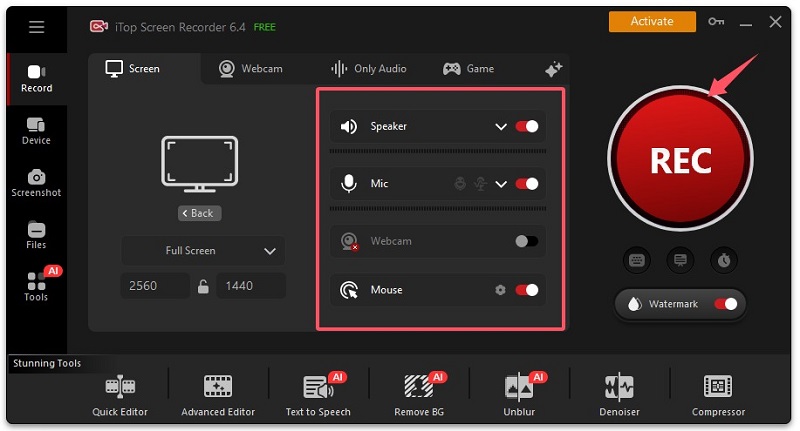
Step 3. You can choose to record both system sound (TV audio) and your microphone sound. Once done, hit the Record button to start recording the Apollo Group TV show or program you want to save. You can pause or stop the recording at any time.
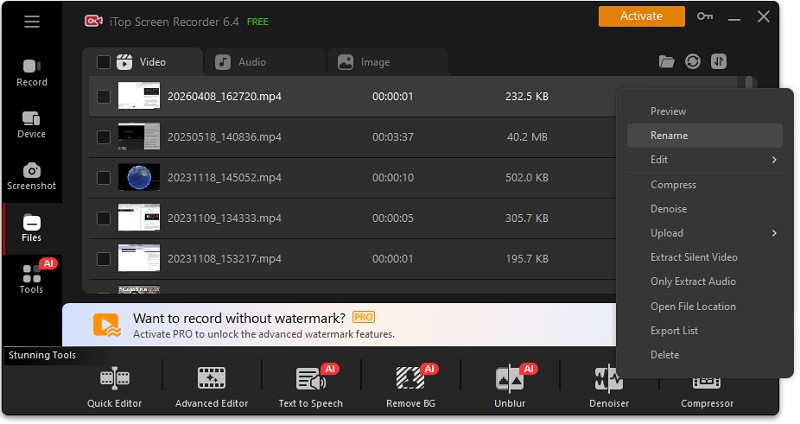
Step 4. Once you’re done, simply stop the recording. Then, go to Files > Video to check your recordings.
Troubleshooting Can’t Record on Apollo Group TV
After learning about how to record a show on Apollo Group TV, it’s time to see the problems while recording. If you’re having trouble recording on Apollo Group TV, the issue is usually related to settings, storage, or device limitations. Below are practical fixes and tips to help you get recording smoothly again.
Common reasons you can’t record include:
- Recording feature not available on your app/version
- Insufficient storage space
- Unstable internet connection
- Incorrect DVR or EPG settings
- Device limitations (e.g., Firestick vs PC)
Fixes to these problems:
- Set Up Recordings Properly: Use the EPG (TV Guide) to schedule recordings instead of manual recording or double-check the start and end time to avoid missing content.
- Manage Storage Efficiently: Delete old or unused recordings regularly or use external storage (USB/SSD) for longer recordings.
- Use Cloud DVR (If Available): Check if your plan includes cloud recording.
- Improve Network Stability: Use a wired Ethernet connection instead of Wi-Fi.
- Check App & Device Compatibility: Update the Apollo Group TV app to the latest version or restart your device.
- Use Alternative Recording Methods: Try a different recording solution.
Conclusion
That’s all about how to record on Apollo Group TV. With the steps provided, you can easily take full advantage of the recording feature on Apollo Group TV, ensuring you never miss out on your favorite shows again. Ready to start recording? Just download iTop Screen Recorder to start a completely new recording journey! Besides Apollo Group TV, it also works as a screen recorder for restricted apps that can help you record content blocked on your device. So, don’t miss it.