 Vidnoz AI creates engaging videos with realistic AI avatars. Free, fast and easy-to-use.



Whiteboard is a digital collaborative canvas within the Microsoft 365 suite, enabling individuals or team members to create, share, and work on virtual whiteboards in real-time. This app is currently available for use with Microsoft Teams meetings and can be accessed via a web browser. People often use this tool for work and also to record training materials, courses, and other resources for remote sharing with colleagues or students. But can you record Microsoft Whiteboard? If you can, how can you do it effortlessly?

Can You Record on Microsoft Whiteboard?
The answer is NO. Microsoft Whiteboard doesn’t come with a screen recording feature. If you want to record Microsoft Whiteboard, you have to use PowerPoint and Clipchamp to help. Or alternatively, you can share with Team meetings and then record your screen using a third-party tool like Xbox Game Bar, iTop Screen Recorder, and OBS Studio. Every solution has its unique features, which will be detailed below. Now, let’s see how to record microsoft whiteboard.
Record Microsoft Whiteboard in Team Meetings Using PowerPoint
As introduced above, you can screen record the Microsoft Whiteboard using PowerPoint. Here are the steps.
Step 1. Join your meeting in Microsoft Teams.
Step 2. In Teams, click Share > Microsoft Whiteboard to open it, or open the whiteboard web/desktop app separately.
Step 3. Stay in Teams, click Share > Screen (or Window) to share your entire screen or the specific browser/app window showing the whiteboard.
Step 4. Open PowerPoint and go to the Insert > Screen Recording, select the area of the whiteboard you want to capture, and start recording.

Step 5. Click the red stop button in the PowerPoint toolbar to stop recording. Then, you can export or share your recordings depending on your needs.
Alternatively, you can use Microsoft Teams for meeting context recording. This method simply requires you to share your screen with Microsoft Teams and then enable standard Teams meeting recordings.
How to Record on Microsoft Whiteboard Using iTop Screen Recorder
If you're seeking more advanced screen recording options, consider using a more professional screen recording software like iTop Screen Recorder. It allows you to capture any screen activity, even something that is restricted from screen recording. With exceptional image quality of up to 4K at 120fps, every detail is captured clearly. Moreover, it includes annotation tools that enable you to draw, add shapes, highlight, and type directly on the screen while recording.
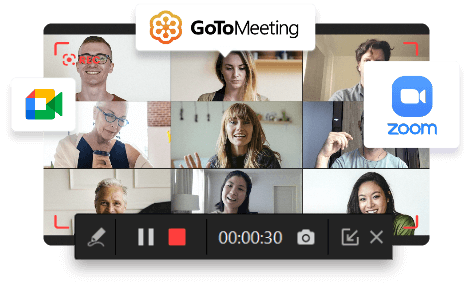
If needed, you can even record system audio and audio from your headphones. This is very convenient for people who want to record Zoom meetings.
If you’d like to try this tool, follow these steps to record on Microsoft Whiteboard. By the way, the following steps also apply to screen record Instagram DM.
Step 1. Download and launch iTop Screen Recorder on your Windows 11, 10, 8, and 7.
Step 2. Open your Microsoft Whiteboard application on your web browser and have your content ready for recording.
Step 3. Open iTop Screen Recorder and select the region you wish to record. Make sure the microphone and speaker are enabled before recording. Then, click the Record button to start recording.

Step 4. Click the stop icon to stop recording. Your recording will be saved in the Files > Video, where you can preview and access it.

iTop Screen Recorder also serves as a screen recorder for WhatsApp view once, which can help you record chats from WhatsApp without hassle.
How to Record on Microsoft Whiteboard Using Xbox Game Bar
If you don’t want to install any third-party software, you can use Windows’ built-in screen recording software - Xbox Game Bar to record Microsoft Whiteboard. Xbox Game Bar is very simple and easy to use, and doesn’t require installation. But unlike the 1080P screen recorder above, which allows you to customize the recording area, Xbox Game Bar doesn't support selecting a specific area to record, nor does it support recording the entire desktop. Moreover, the above-mentioned screen recorder also allows you to screen record protected videos, which is also not supported by Xbox Game Bar.
If you don’t mind these shortcomings, here are the steps:
Step 1. Launch the Microsoft Whiteboard app and have your board ready for recording.
Step 2. Press the Windows key + G to bring up the Xbox Game Bar. In the Xbox Game Bar, find the “Capture” widget (which is a camera icon).
Step 3. Click the Record button in the Capture widget or press the Windows key + Alt + R to start recording.

Step 4. Once finished, click the Stop button, which is a square icon, or press the Windows key + Alt + R again to stop recording.
How to Record on Microsoft Whiteboard Using OBS Studio
How to record on Microsoft Whiteboard? Using OBS Studio to record on Microsoft Whiteboard brings you great convenience. It offers advanced control and customization features that go beyond basic screen recording. Besides, you can embrace many great features like multi-source mixing, professional-quality audio control, and flexible scene layouts. Now, let’s see how it works to record on Micrsoft Whiteboard.
Step 1. Launch the Microsoft Whiteboard app on your computer and have the content you wish to record ready.
Step 2. In the Source dock, click the “+” icon and choose Windows Capture. Then, select the Microsoft Whiteboard window from the dropdown and click OK.
Step 3. Drag and resize the captured Whiteboard on the OBS canvas to your liking.
Step 4. In the Controls dock, click Start Recording to start the recording process.

Step 5. Click Stop Recording when done. Then, your recordings will be stored in the File > Show Recording.
The Bottom Line
That’s all about our tips to record Microsoft Whiteboard. Recording Whiteboard in teams can significantly enhance collaboration and resource sharing, whether for educational purposes or team meetings. By following the steps outlined in this guide, you can easily capture your whiteboard activities and create valuable content. For a seamless recording experience, we advise you to download iTop Screen Recorder. With its powerful features and user-friendly interface, you can effortlessly record your Whiteboard sessions, ensuring that every detail is preserved. Start capturing your ideas today!





