Libby is a free app and service that connects to your local library and your local library’s entire database of ebooks, digital audiobooks, and magazines. With it, you can borrow and read any book for free. But there is a time limit to finish the books. Typically, it’s about three weeks for ordinary books and two weeks or less for popular books. That’s why some of you might want to download audiobooks to listen to Libby offline. If this is also what you want, check this guide to learn how to listen to Libby audiobooks offline.
Can You Listen to Libby Audiobooks Offline?
Can you listen to Libby offline? Yes, you can listen to Libby audiobooks offline by downloading them through the Libby app on a mobile device. By default, Libby automatically downloads titles when you are connected to Wi-Fi, but you can also manually download them or change your settings to download them using cellular data. Alternatively, you can also record the wanted Libby audiobooks using the built-in audio recording feature. This method is available for those who prefer to record some segments of the audiobooks and then compile them into a collection.
As for computer users, there are also three methods available for downloading Libby audiobooks, just as shown below. Now, follow these methods to download and listen to Libby audiobooks offline.
Tip 1. How to Listen to Libby Audiobooks Offline on a Mobile Device
How to read Libby books offline on a mobile device? There are two simple methods for you to achieve this goal. The most straightforward way is to borrow the book you want to listen to offline and then download their audiobooks from the Libby app.
Another method is to audio record the Libby audiobooks while listening to the book. But on the downside, this method is time-consuming, as it requires you to play the audiobook in real time. Before getting started, you’ll need to make sure your phone is in Do Not Disturb mode to prevent notifications from interrupting the recording.
1. Borrow and download a Libby Book
The easiest way to listen to Libby audiobooks offline is by borrowing and downloading them on your Libby app. Here are the steps.
Step 1. Open the Libby app and sign in with your library card.
Step 2. Search for the title of the book you wish to borrow. Tap the cover to select Borrow.
Step 3. Select the loan length and tap Borrow again.
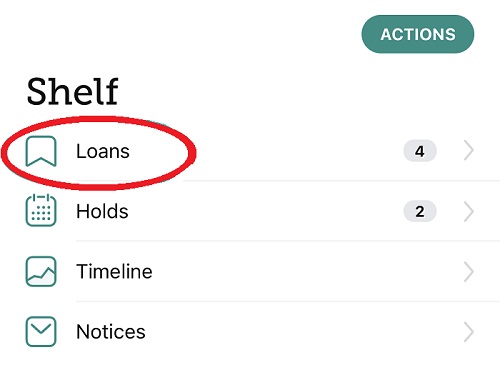
Step 4. Then, the book will automatically download to your Shelf when your device is connected to Wi-Fi. To manually download an audiobook, you can go to Shelf > Loans and then tap the download icon.
2. Screen Record Libby Audiobooks
If you want to listen to Libby audiobooks after they expire, your best option is to screen record them while listening. That might be time-consuming, but it lets you access the books all the time. Furthermore, you can transfer the downloaded audiobooks between different devices. Thus, you can create an audiobook collection to your preference. If this is what you want, here are the steps on how to record audiobooks offline on iPhone and Android.
How to listen to Libby audiobooks offline on iPhone:
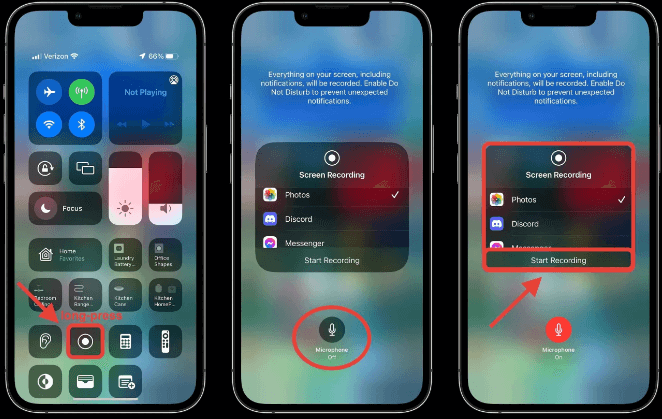
Step 1. Head to Settings > Control Center, and tap the green plus icon next to Screen Recordings to enable the screen recording feature.
Step 2. Swipe down from the top-right corner of your screen and tap the Screen Recording button. Tap the Microphone button to enable it.
Step 3. Tap Start Recording and wait for the three-second countdown to begin.
Step 4. Open the Libby audiobook and start playing the audiobook you wish to record.
Step 5. Once you've recorded your wanted audiobooks, tap the red status bar at the top of the screen, and then tap Stop.
How to listen to Libby audiobooks offline Reddit on Android
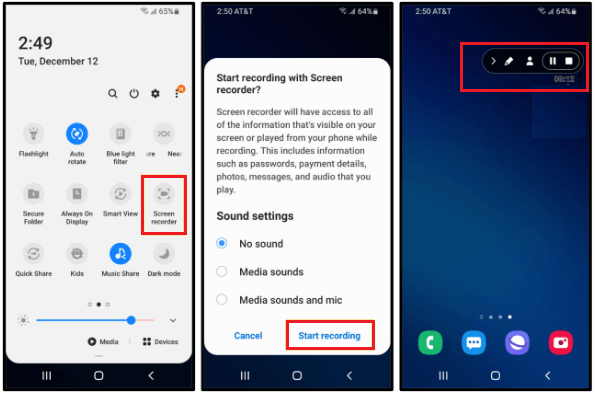
Step 1. Swipe down from the top of your screen and find the screen recorder, an icon that looks like a video camera. Tap the screen recorder to proceed.
Step 2. A menu will appear asking for your permission to record and allowing you to choose between recording system audio, microphone, or both. Just select the option based on your needs.
Step 3. Once set, tap Start on the screen recorder prompt.
Step 4. Open Libby and play the audiobook you wish to record.
Step 5. If you’ve captured the wanted audio files, just tap the red floating icon to stop recording.
Tip 2. How to Listen to Libby Audiobooks Offline on a Computer
How to listen to Libby offline on a computer? Libby doesn't offer any offline listening options for its web version, which makes it a bit more difficult for computer users to listen to Libby audiobooks offline. But difficult doesn’t mean impossible. There are also two solutions available for you to access Libby audiobooks offline.
1. Borrow a Libby Book from the Libby Website
If you have a NOOK or e-book reader that is compatible with Adobe Digital Editions (ADE), then you can download a Libby book and transfer it to your e-book reader using ADE. Here are the steps.
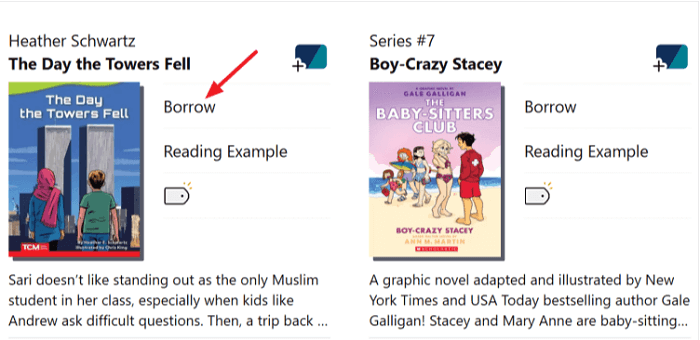
Step 1. Go to Libbyapp.com on your computer. If you’ve added the book to your shelf, you can directly go to Shelf and find the book. If not, you’ll need to borrow the book by signing in with your library card, finding a book, and clicking Borrow. Click Borrow again if requested.
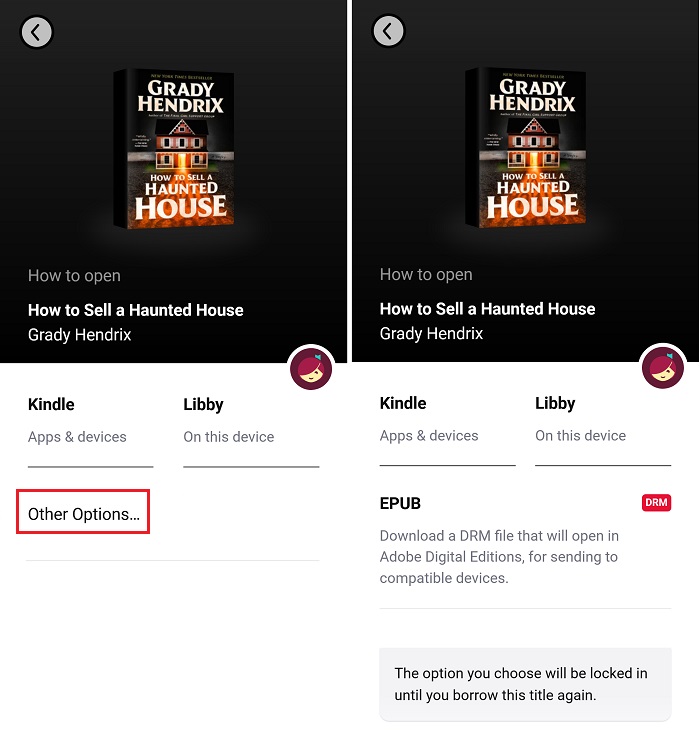
Step 2. Once find the book you want to download from the Shelf, just click “Read With” next to the book. Then, choose More options.
Step 3. Choose EPUB or PDF, depending on your book's format. Then, you’ll download a file with extension of .acsm.
Step 4. Make sure you’ve installed Adobe Digital Editions. If not, just download one from adobe.com.
Step 5. Open Adobe Digital Edition (ADE). Drag and drop the .acsm file into ADE. Then, ADE will download the full EPUB or PDF version of the book.
Step 6. Once downloaded, you can double-click the book in ADE to read it offline.
2. Record a Libby Book into MP3 Using iTop Screen Recorder for Local Storage
If the above-introduced method is too complicated for you to conduct, then you can try to use this powerful, free audio recorder - iTop Screen Recorder—to record Libby audiobooks directly in MP3 format. Whether it’s for easy transferring across devices or collection, it is worthy of trying.
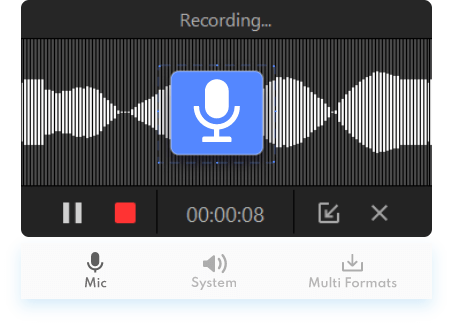
As one of the most popular audio/screen recorders, iTop Screen Recorder allows you to record high-quality internal/external sound from a microphone or speaker. Before recording Libby audiobooks, you can adjust settings, such as the audio’s format, bitrate, frequency, and channels (stereo or mono). After recording, you can edit your recordings or directly output them in several audio formats, like MP3, AAC, AC3, FLAC, and WMAV2.
Let’s see how to read Libby books offline with iTop Screen Recorder:
Step 1. Free download the iTop Screen Recorder on your computer.
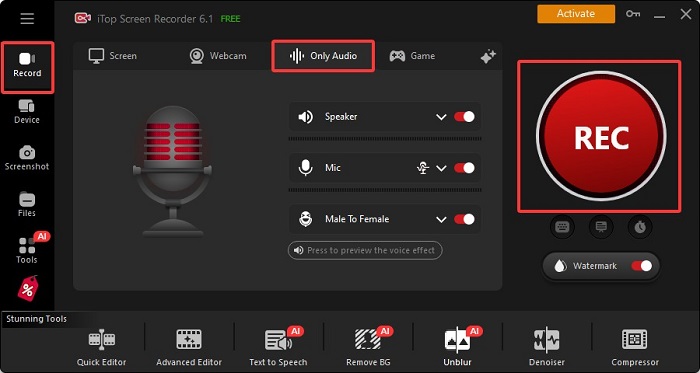
Step 2. Launch iTop Screen Recorder and select Only Audio. Enable the Mic option and open the Libby book you wish to record, and click REC to start recording.
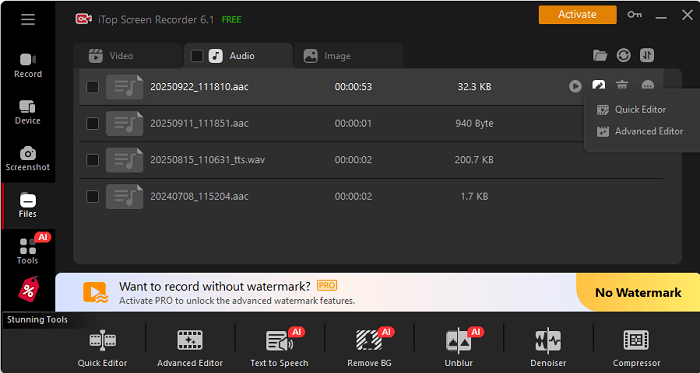
Step 3. Once finished, click the Done button to stop recording. Your recordings will be stored in File > Audio.
In addition to recording audio from your computer, iTop Screen Recorder also excels in recording screen activities with a webcam. With this feature, you can record Zoom meetings or other screen activities. Or if you want to screen record protected videos, it is also possible with this powerful screen recorder.
The Bottom Line
How to listen to Libby audiobooks offline? Actually, it is very easy to download and listen to Libby audiobooks offline on a mobile phone. All you need is to borrow the book and then download it. If you’re unable to download it, you can directly play the audiobook and use the screen recording feature to capture the audiobook easily. As for computer users, they also have two methods to get the job done. But if you want a simple and quick way, just try to download iTop Screen Recorder.