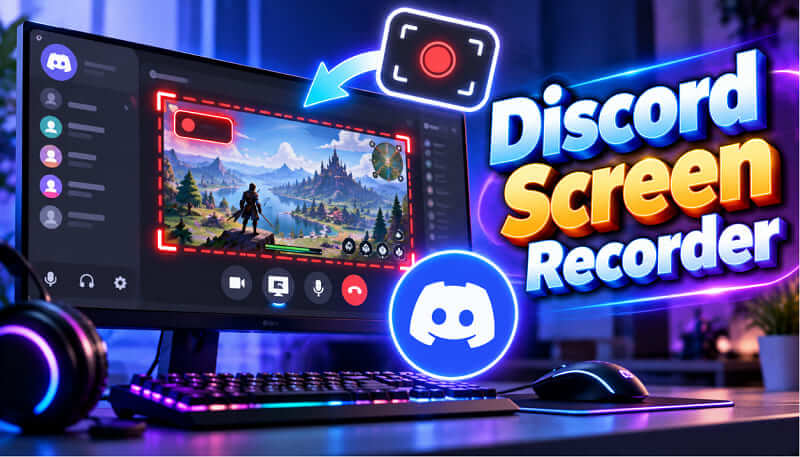
Want to save a Discord call, record gameplay with friends, or capture an important online discussion? A reliable Discord screen recorder can help you capture both video and audio without complicated settings. However, not every recorder supports system sound, microphone input, and smooth gameplay capture equally well.
This guide explores seven recording tools for different needs, from free screen capture to advanced video editing. You'll also learn how to record Discord calls and solve common recording problems.
Why Do You Need a Discord Screen Recorder?
A Discord screen recorder is useful for more than saving conversations. Whether you're a gamer, content creator, or remote worker, recording Discord activities can help you preserve information, create shareable videos, and revisit important discussions.
Common situations include:
- Record Discord Voice Calls: Save conversations, interviews, or discussions for later reference.
- Capture Gaming Sessions: Record gameplay and teammates' voice chats together.
- Create Video Tutorials: Demonstrate Discord features or explain technical problems.
- Save Online Meetings: Review important information shared during Discord meetings.
- Create Social Media Content: Turn memorable Discord moments into video clips.
Before recording other participants, make sure you have any necessary permission or consent.
Which Discord Screen Recorder Works Best for You?
Different recording tasks require different tools. Some users prioritize high-quality audio, while others need lightweight software that won't affect gaming performance. Rather than choosing based on popularity alone, consider your recording purpose, editing requirements, and budget. The following comparison helps you quickly identify the most suitable option.
| Recording Need | Recommended Tool |
| Record Discord calls and edit videos | iTop Screen Recorder |
| Free recording with advanced controls | OBS Studio |
| Capture gameplay with voice chat | Bandicam |
| Quick recording on Windows | Xbox Game Bar |
| Record Discord video meetings | EaseUS RecExperts |
| Customize screen capture workflows | ShareX |
| Create edited Discord tutorials | Wondershare DemoCreator |
For beginners looking for a screen recorder for Discord, iTop Screen Recorder provides accessible recording and editing tools. OBS Studio is another strong option for users who prefer advanced customization.
Best Discord Screen Recording Tools for Different Needs
Choosing the right software depends on how you use Discord. A gaming-focused recorder may prioritize performance, while a meeting recorder emphasizes audio clarity and easy playback. Below are seven tools selected for different recording scenarios, along with their standout features, practical advantages, and limitations.
1. iTop Screen Recorder – Best Overall for Discord Recording
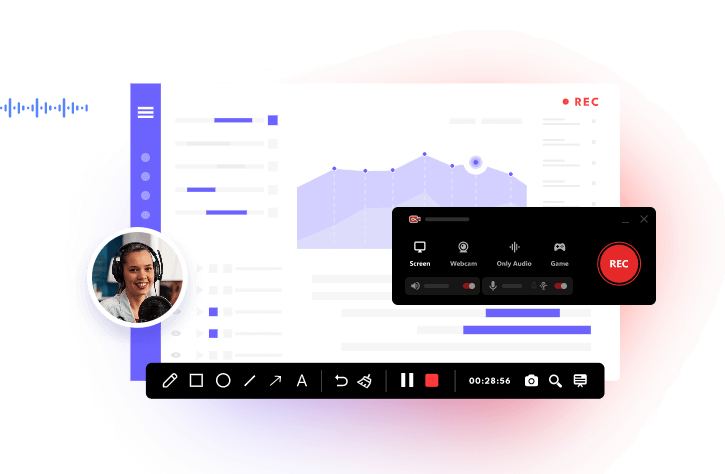
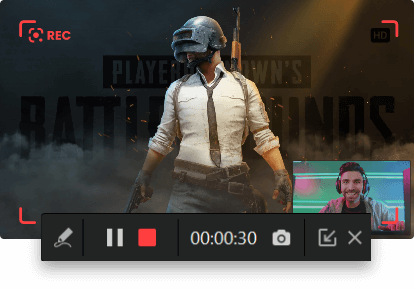
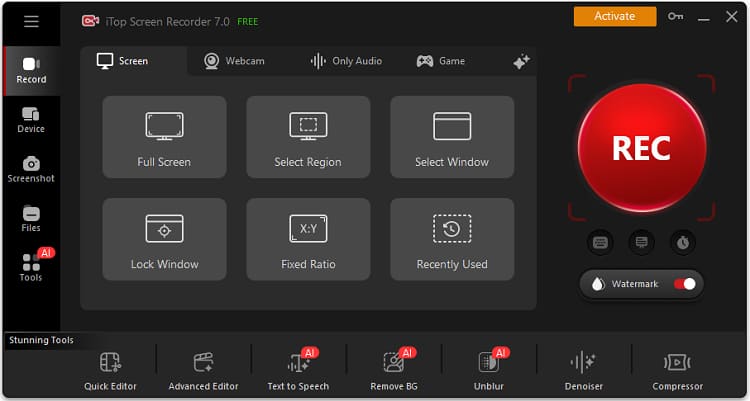
iTop Screen Recorder is an all-in-one Discord screen recorder designed for capturing video calls, voice chats, and gameplay on Windows. It combines screen capture, audio recording, and basic editing tools, making it especially convenient for users who want to record and prepare Discord videos without switching between applications.
Key Features for Recording Discord:
- Record Discord Calls with Audio: Capture system sound and microphone input to preserve both sides of a conversation. Thus, you can record Zoom meeting without a problem.
- Capture High-Quality Discord Video: Record supported resolutions up to 4K, depending on hardware and settings.
- Record Gameplay with Less Interruption: Use Game Mode and hardware acceleration to help reduce recording overhead.
- Flexible Recording Areas: Capture Discord windows, selected screen regions, or full-screen activities. Or you can even screen record protected videos.
- Remove Unwanted Recording Sections: Use built-in editing tools to trim recordings before sharing.
- Record Without Watermarks: Available recording options depend on the edition and licensing terms.
Pros:
- Easy-to-use interface for beginners.
- Supports simultaneous microphone and system audio recording.
- Combines screen recording and editing features.
- Suitable for Discord calls, tutorials, and gaming.
Cons:
- Some advanced features require the paid version.
- Primarily designed for Windows users.
Best For: Users who want an all-in-one Discord recording and editing solution.
2. OBS Studio – Best Free Discord Recorder
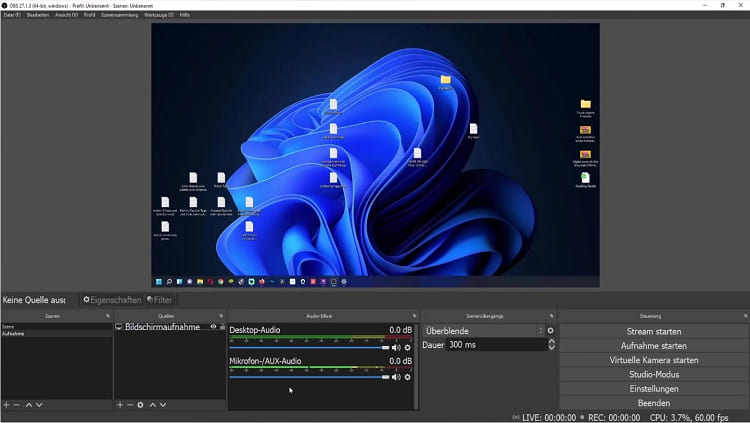
OBS Studio is a free, open-source recording and streaming application. It offers advanced controls for recording Discord conversations, screen activities, and gameplay without subscription fees.
Key Features:
- Multiple audio sources for capturing Discord sound and microphone input.
- Customizable recording resolution, frame rate, and video encoding.
- Separate audio tracks for easier editing.
- Scene-based recording for combining gameplay, webcam, and Discord windows.
Pros:
- Completely free and open source.
- No built-in watermark.
- Highly customizable recording settings.
Cons:
- More complicated for beginners.
- Requires configuration for optimal recording performance.
Best For: Gamers and advanced users looking for a powerful Discord screen recorder no audio free solution.
Also Read: How to Bypass Instagram Screen Record >>
3. Bandicam – Best for Recording Discord Gameplay
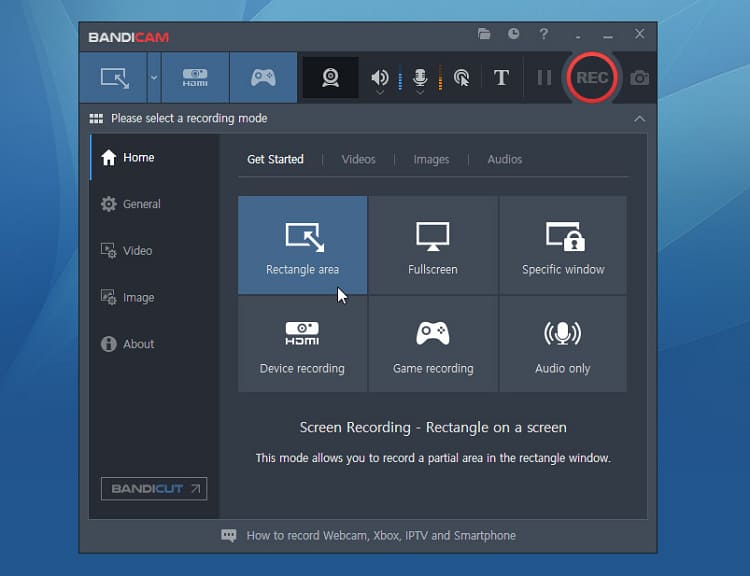
Bandicam is a Windows recording application known for capturing gameplay and desktop activities. It is particularly useful when you want to record Discord voice conversations alongside gaming footage.
Key Features:
- Game Recording Mode for DirectX, OpenGL, and Vulkan applications.
- Hardware-accelerated video encoding.
- Simultaneous microphone and system sound recording.
- High-resolution recording with customizable settings.
Pros:
- Well-suited to gameplay recording.
- Supports hardware acceleration.
- Offers flexible audio recording options.
Cons:
- Free version includes a watermark and recording limits.
- Full functionality requires a paid license.
Best For: Players recording multiplayer gameplay with Discord voice chat.
4. Xbox Game Bar – Best for Quick Windows Recording
Xbox Game Bar is Microsoft's built-in gaming overlay for Windows 10 and Windows 11. It provides a convenient way to capture supported application windows without installing additional software.
Key Features:
- Built-in recording controls accessible through Windows + G.
- Microphone recording support.
- System audio capture for supported applications.
- Quick recording shortcuts.
Pros:
- Free and built into supported Windows installations.
- Convenient keyboard shortcuts.
- Minimal setup required.
Cons:
- Cannot record the entire Windows desktop or File Explorer.
- Limited editing and recording customization.
- Discord window capture may vary by application and setup.
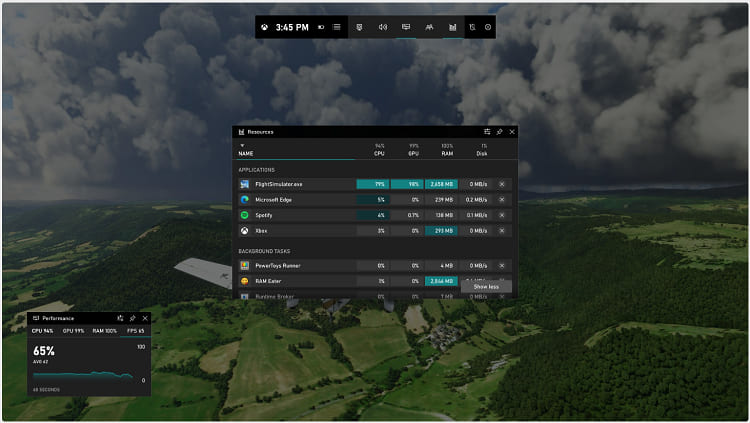
Best For: Windows users who want simple recording without installing another program.
H3: 5. EaseUS RecExperts - Best for Discord Video Meetings
EaseUS RecExperts is a screen recording application designed for capturing meetings, video calls, tutorials, and online activities. It offers flexible recording options suitable for Discord video conversations.
Key Features:
- Full-screen and selected-region recording.
- System sound and microphone capture.
- Scheduled recording options.
- Basic editing and recording management tools.
Pros:
- Beginner-friendly recording interface.
- Useful for calls and online meetings.
- Supports multiple recording modes.
Cons:
- Free edition has restrictions.
- Advanced capabilities require a subscription or paid license.
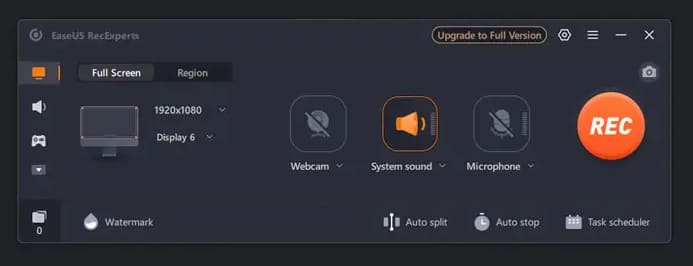
Best For: Users recording Discord meetings, video conversations, and tutorials.
6. ShareX - Best for Customizable Screen Capture
ShareX is a free, open-source screen capture utility offering screenshot and screen recording capabilities. It is useful for users who prefer customizable workflows over a traditional recording interface.
Key Features:
- Screen-region recording through FFmpeg integration.
- Customizable keyboard shortcuts.
- Multiple output formats.
- Automated file-saving and sharing workflows.
Pros:
- Free and open source.
- No built-in watermark.
- Highly customizable capture workflows.
Cons:
- Audio recording requires additional configuration.
- Less convenient for lengthy Discord recording sessions.
- Limited built-in video editing.
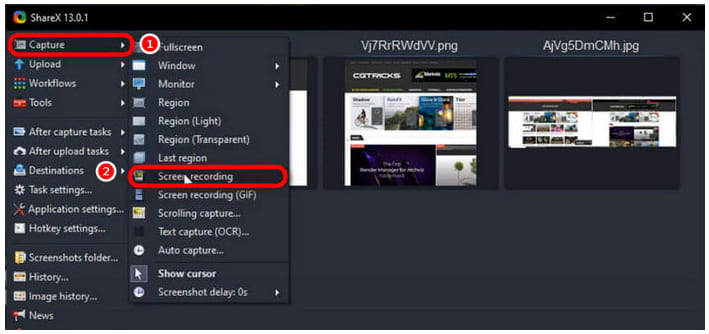
Best For: Technical users who need lightweight, customizable screen capture.
7. Wondershare DemoCreator - Best for Editing Discord Recordings
Wondershare DemoCreator combines screen recording with video editing capabilities. It is especially useful for creators who want to turn Discord discussions or gaming sessions into polished videos.
Key Features:
- Screen, webcam, and audio recording.
- Built-in video editing timeline.
- Text annotations and visual effects.
- Export options for sharing finished recordings.
Pros:
- Combines recording and video editing.
- Suitable for tutorials and content creation.
- Offers useful post-recording tools.
Cons:
- Advanced features require payment.
- More resource-intensive than basic recorders.
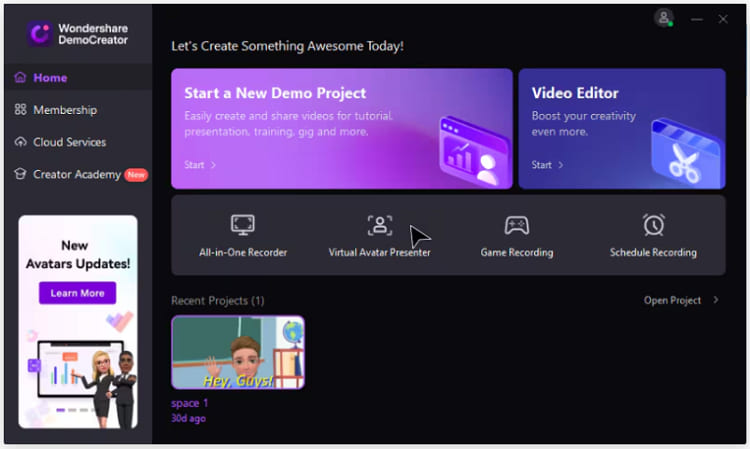
Best For: Content creators producing edited Discord videos.
How to Record Discord Calls with iTop Screen Recorder
Once you've selected a Discord screen recorder, recording your Discord activities is straightforward. iTop Screen Recorder - 1080p screen recorder provides a convenient way to capture conversations, gameplay, and video calls while controlling recording areas and audio sources. Follow these steps to create a recording with clear video and sound.
Step 1. Download and install iTop Screen Recorder from its official website. Launch the application.
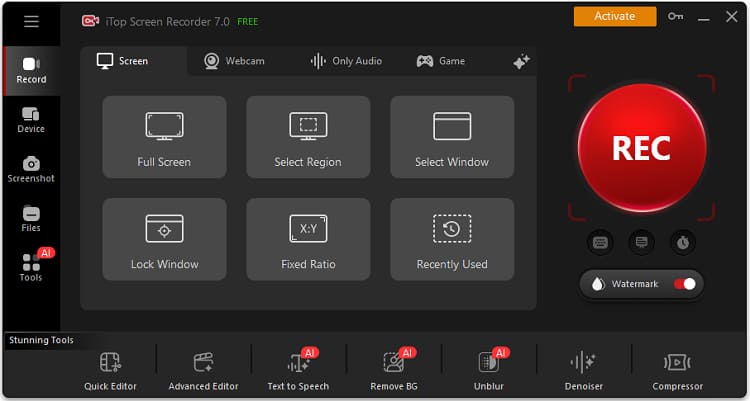
Step 2. Select the Screen recording mode and choose whether to capture the entire screen, a specific window, or a selected region containing Discord.
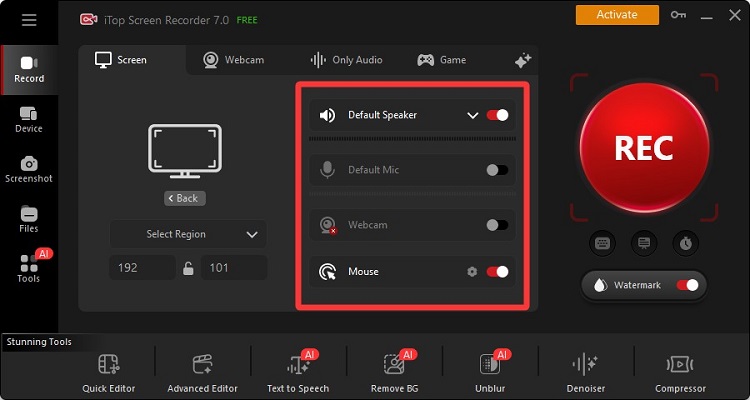
Step 3. Enable Speaker to capture Discord audio and Microphone to record your voice. Check that the correct audio devices are selected. Open Discord, join your call or voice channel, and click REC in iTop Screen Recorder to begin recording.
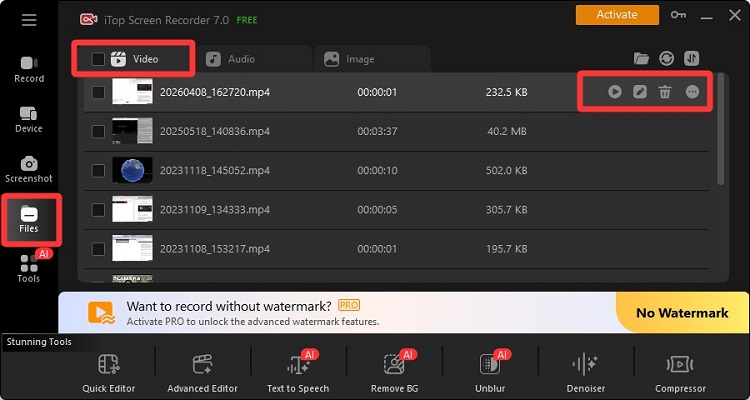
Step 4. Click Stop when finished. Open the recording in Files to review, edit, or export the video.
Tip: For the best results with a Discord screen recorder with audio, test your microphone and system sound before recording a lengthy conversation. Inform participants and obtain any consent required by applicable law.
Can Discord Detect When I Screen Record?
Discord generally does not notify other participants when you record a call using external screen recording software. However, recording conversations may require permission or consent depending on local laws.
Conclusion
Choosing the right Discord screen recorder makes it easier to save Discord calls, gameplay, and video conversations with clear audio and smooth video. OBS Studio is ideal for advanced free recording, while Xbox Game Bar provides basic Windows capture. For users seeking an accessible all-in-one solution, iTop Screen Recorder combines flexible capture modes, audio recording, and video editing tools to simplify the process. Now, download iTop Screen Recorder to give it a try!