Want to record Stardew Valley gameplay for YouTube, Twitch, or personal memories? Whether you’re building the perfect farm, exploring caves, or enjoying multiplayer sessions with friends, recording gameplay is a great way to save and share your best moments.
The good news is that Stardew Valley is a lightweight game, meaning most modern computers and consoles can run it smoothly without major performance issues. In this guide, you’ll learn how to record Stardew Valley gameplay on PC, Mac, Nintendo Switch, PlayStation, and Xbox using beginner-friendly tools and built-in features.
Why Record Stardew Valley Gameplay?
Stardew Valley may look simple, but it creates plenty of memorable gameplay moments worth capturing. Many players record their gameplay to:
- Upload farming tutorials to YouTube
- Share funny multiplayer moments
- Create TikTok clips or Shorts
- Stream cozy gameplay sessions
- Save important in-game milestones
Since the game doesn’t require powerful hardware, even entry-level PCs can usually record Stardew Valley without lag when using the right recorder.
How to Record Stardew Valley Gameplay on PC?
Recording Stardew Valley on PC is one of the easiest ways to capture smooth and high-quality gameplay footage. Whether you want to create farming tutorials, upload cozy gameplay videos to YouTube, or save memorable multiplayer moments, there are several recording methods available for different needs and experience levels. Some tools are built directly into Windows for quick recording, while others offer advanced features like webcam overlays, scheduled recording, and professional-quality video output. Below are three of the best ways to record Stardew Valley gameplay on PC.
Method 1. Using Xbox Game Bar
Xbox Game Bar is Microsoft’s built-in recording feature included with Windows 10 and Windows 11. It allows players to quickly capture gameplay clips without installing third-party software, making it a convenient option for casual Stardew Valley recording. Since the game is lightweight, the Xbox Game Bar can usually record gameplay smoothly with minimal performance impact.
Here’s how to record Stardew Valley gameplay using Xbox Game Bar:
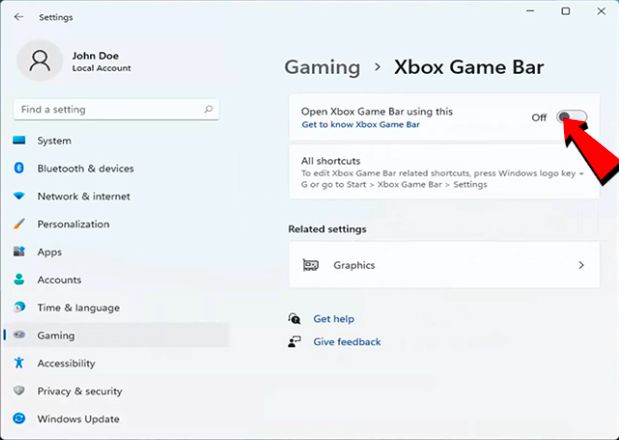
Step 1. Before recording, make sure Xbox Game Bar is enabled on your PC. Go to Settings > Gaming > Xbox Game Bar, turn on “Open Xbox Game Bar using this button on a controller.”
Step 2. Open Stardew Valley through Steam or your preferred launcher and prepare the gameplay you want to record.
Step 3. Press Windows + G to bring up the Xbox Game Bar overlay.
Step 4. In the overlay, locate the Capture widget.
Step 5. Click the Start Recording button or press Windows + Alt + R to start recording.
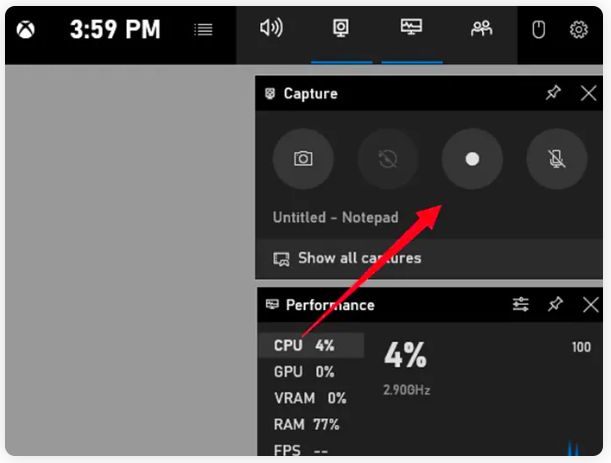
Step 6. Click the Stop button on the recording bar to end the recording process.
Pros
- Completely free and pre-installed on Windows
- Simple keyboard shortcuts for quick recording
- Low system resource usage
- Good for casual gameplay capture
Cons
- Limited video editing and customization options
- Fewer advanced recording features
- May occasionally fail to detect certain games
Method 2. Using iTop Screen Recorder
If you want a more beginner-friendly and feature-rich solution, iTop Screen Recorder is a great choice for recording Stardew Valley gameplay. It offers a dedicated game recording mode, HD video capture, webcam overlay, microphone recording, and built-in editing tools. The software is designed to minimize CPU usage, helping users record gameplay smoothly without noticeable lag. Here are more features of iTop Screen Recorder when it comes to recording gameplay.
- Dedicated Game Recording Mode. One of the most useful features for Stardew Valley players is the built-in Game Mode. This mode is specifically designed to detect and record gameplay with optimized performance settings. It can automatically identify running games or let users manually add a game for recording.
- Record Gameplay with Webcam and Microphone. This game recorder allows users to record gameplay, webcam footage, and microphone audio simultaneously. This feature is perfect for creating reaction videos, tutorials, or YouTube commentary content. Also, it is great to screen record Zoom meeting.
- High-Quality HD and 4K Recording. The software supports HD and even 4K gameplay recording with customizable frame rates and bitrate settings. It also uses NVIDIA, AMD, and Intel hardware acceleration to improve recording performance. Whether to record TikTok live or gameplay, you can enjoy a smooth capture experience.
- Screenshot and Instant Capture Features. Besides gameplay recording, iTop Screen Recorder also supports screenshots during recording sessions. That makes it great for capturing highlights or funny moments during your gameplay.
Here’s how to screen record Stardew Valley using iTop Screen Recorder.
Step 1. Download and install iTop Screen Recorder on your Windows computer. Start Stardew Valley through Steam or your preferred game launcher.
Step 2. Launch iTop Screen Recorder and choose “Game” mode from the main interface. It will automatically detect running games. Enable the speaker, mic, HUD, and webcam, and restore them depending on your needs. Once done, click REC to start recording.
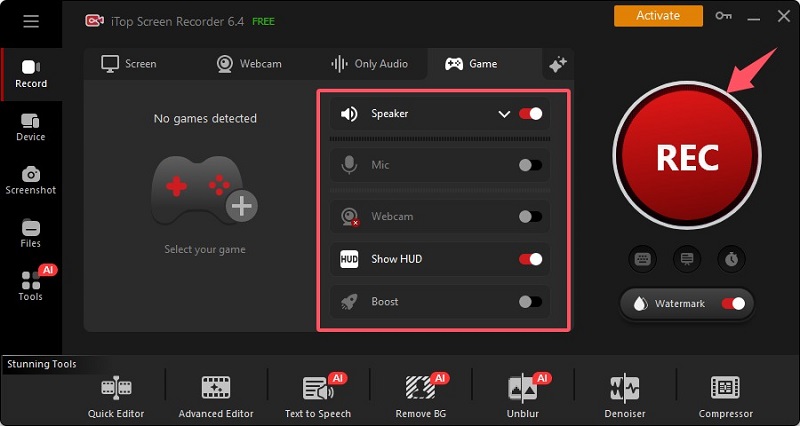
Step 3. Tap the “Stop” button and go to “Files” to check the local storage, or do further editing and compressing.
Pros
- Professional-quality recording and streaming
- Highly customizable settings
- Supports multiple audio and video sources
- Excellent for YouTube and Twitch creators
Cons
- More difficult for beginners to learn
- Requires setup and configuration
- Can use more system resources than simpler tools
Also Read: 5 ways to Screen Record Restricted Apps Without Notifications >>
Method 3. Using OBS Studio
OBS Studio is one of the most powerful free recording and streaming tools available today. It is widely used by YouTubers, streamers, and content creators who want professional-level control over recording quality and streaming settings. OBS supports customizable scenes, audio mixing, overlays, and high-quality gameplay capture for Stardew Valley.
Here are the steps to record Stardew Valley with OBS Studio.
Step 1. Download and install OBS Studio on your computer.
Step 2. In the Sources panel, click the + button and select Game Capture from the available source options.
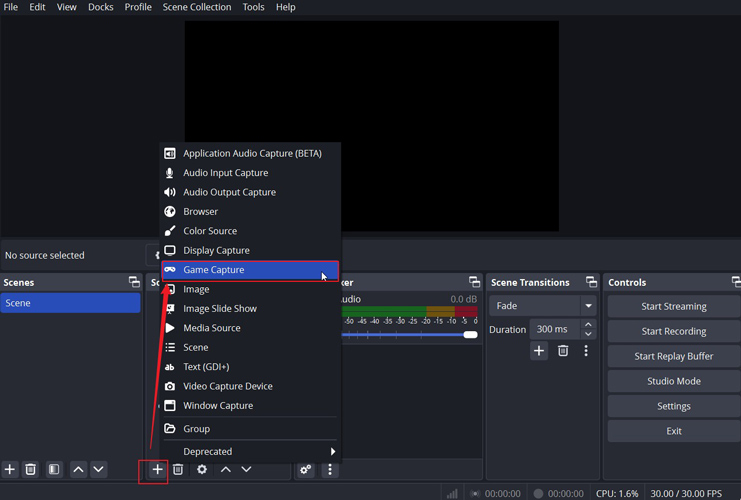
Step 3. Enter a name for the source and click OK. In the next window, change the Mode to Capture Specific Window, then use the Window dropdown menu to select the Stardew Valley game window.
Step 4. Configure any additional settings, such as resolution, frame rate, and output format, if needed, and click OK to confirm.
Step 5. Once done, launch Stardew Valley and press Start Recording to begin capturing gameplay. When you finish recording, click Stop Recording to save the video.
How to Record Stardew Valley on Mac?
Mac users can also record Stardew Valley gameplay easily without installing complicated third-party software. Since Stardew Valley is a lightweight game, most modern MacBooks and iMacs can capture gameplay smoothly with minimal performance issues. One of the easiest ways to do this is by using QuickTime Player, Apple’s built-in multimedia application.
QuickTime Player comes pre-installed on macOS and includes a simple screen recording feature that works well for casual gameplay capture. It is ideal for players who want to record farming sessions, co-op gameplay, tutorials, or relaxing gameplay clips quickly without dealing with advanced recording settings.
Here are the steps to record Stardew Valley on Mac with QuickTime Player.
Step 1. Press Cmd + Shift + 5 to launch the macOS Screenshot Toolbar, or open QuickTime Player and navigate to File > New Screen Recording.
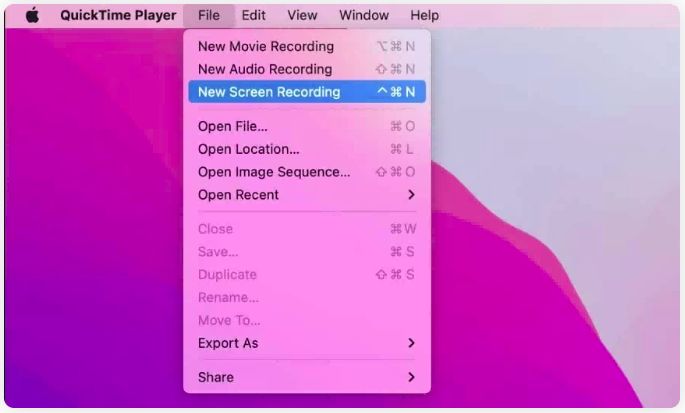
Step 2. Select Options from the toolbar and choose the microphone you want to use for recording gameplay audio or voice commentary.
Step 3. Decide whether you want to capture the entire screen or only a specific selected area for the gameplay recording.
Step 4. Launch Stardew Valley and prepare the gameplay you want to capture.
Step 5. Click the Record button to begin recording your gameplay. When finished, click the Stop Recording button located in the macOS menu bar at the top of the screen.
Step 6. Click File > Save and choose a location on your Mac to save the recording in MOV format.
How to Record Stardew Valley on Nintendo Switch and PS5?
PC and Mac are not the only platforms capable of recording Stardew Valley gameplay. Console players on Nintendo Switch and PlayStation 5 can also capture farming adventures, multiplayer moments, and funny in-game clips using built-in recording features. Modern gaming consoles include native gameplay capture tools that make recording quick and convenient without requiring additional software.
While console recording features are generally easier to use than PC recording programs, they also come with some limitations, such as shorter recording lengths or fewer customization options. Still, they work well for casual gameplay capture, social media clips, and sharing memorable moments with friends.
Below, we’ll show you how to record Stardew Valley gameplay on Nintendo Switch and PS5, step by step.
Record Stardew Valley on Nintendo Switch
Step 1. Open Stardew Valley on your Nintendo Switch and start the gameplay session you want to record.
Step 2. On the left Joy-Con controller, locate the square Capture button. Press and hold the button for a few seconds to save the last 30 seconds of gameplay.
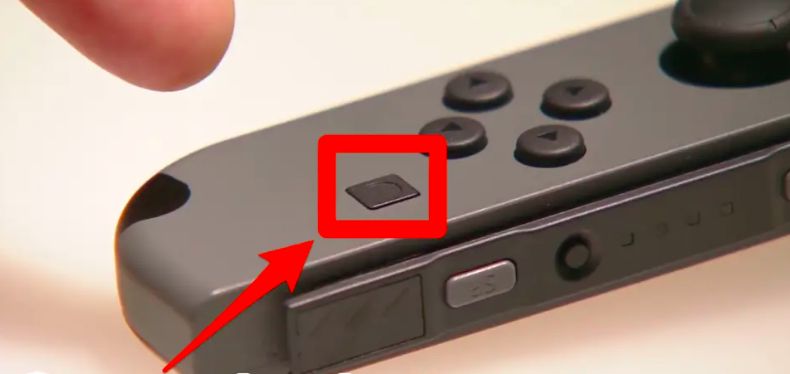
Step 3. Return to the Nintendo Switch home screen and open the Album app to view your recorded clips.
Step 4. If needed, trim the beginning or end of the gameplay video directly from the Album menu.
Record Stardew Valley on PS5
Step 1. Launch the Stardew Valley game you want to capture.
Step 2. On the DualSense controller, press the Create button located near the top-left side of the controller touchpad.
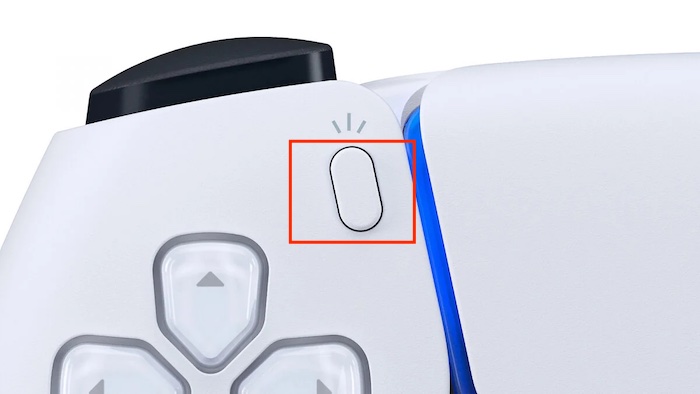
Step 3. Choose a recording option. You can select “Start New Recording” for full gameplay capture or save recent gameplay footage.
Step 4. Play Stardew Valley normally while the PS5 records in the background.
Step 5. Press the Create button again and choose: Stop Recording.
Step 6. Your recording will be saved automatically in the Media Gallery.
Best Recording Settings for Stardew Valley
After choosing the right recording method, the next step is optimizing your recording settings for the best video quality and performance. Although Stardew Valley is not a graphically demanding game, using proper recording settings can still make a big difference in video smoothness, file size, and overall viewing experience.
- Resolution: 1920×1080
- FPS: 60 FPS
- Bitrate: 8,000–12,000 kbps
- Audio: Stereo
- Video Format: MP4
FAQs about Stardew Valley Gameplay Recording
Can you record Stardew Valley without lag?
Yes. Since Stardew Valley is lightweight, most modern PCs can record it smoothly using optimized settings.
What is the best free recorder for Stardew Valley?
OBS Studio is one of the best free gameplay recorders available.
Can I record Stardew Valley with friends?
Yes. Multiplayer sessions can be recorded the same way as single-player gameplay.
Does Stardew Valley support game capture?
Yes. Most screen recorders can detect Stardew Valley through Game Capture mode.
Conclusion
Recording Stardew Valley gameplay is simple on PC, Mac, and consoles. Beginners may prefer easy tools like iTop Screen Recorder or Xbox Game Bar, while advanced users can use OBS Studio for professional-quality recordings and streaming. If you don’t want to spend a lot of time exploring a screen recorder, just download iTop Screen Recorder to capture smooth farming adventures, multiplayer moments, and relaxing gameplay clips. Start recording today and share your Stardew Valley journey with the world.