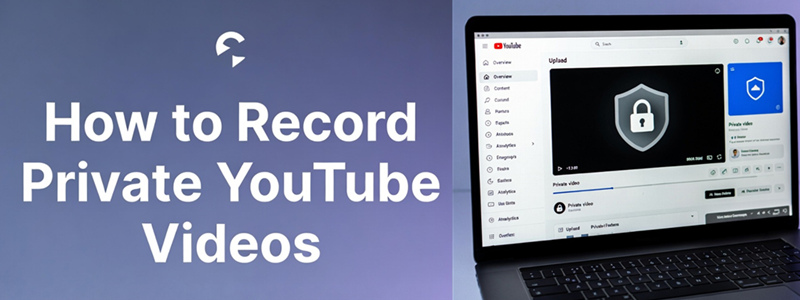
Before anything else, one rule matters more than any tool: you must have permission to view the private video. Without access, there is no workaround. YouTube link downloaders simply don’t work for private content, and most “unblocker” tools carry serious security risks. If you do have access, the safest option for how to record private YouTube videos is to capture them promptly.
Are there any methods to Access Private YouTube Videos Without Leaving Traces?
There is no safe or legitimate way to access private YouTube videos without permission. If you’re not on the uploader’s access list, the video won’t play. Any site claiming it can unlock private content by pasting a private video link is unreliable and often unsafe.
1. Can you watch private YouTube videos?
Yes, but only if the video creator explicitly grants your account access. You must be signed in to the specific YouTube account that was invited, because private videos are tied to accounts, not URLs. They won’t appear on the channel’s homepage and cannot be viewed by anyone else, even with a direct link, unless authorized. When looking for ways for how to watch YouTube videos offline, some users turn to so-called “online viewer” hacks or browser tricks, which comes with security risks.
2. Record to save controversial videos
Private videos involving celebrity privacy, internal leaks, or unverified rumors are frequently locked or removed after they start circulating. Even if you were invited to view them, access can be revoked at any time. In these cases, it’s recommended to record YouTube channel video that is private while you still have permission to preserve it locally.
3. YouTube’s default clip recorder is not handy
YouTube’s built-in clip feature is designed for sharing moments, not archiving content. Clips stay inside the platform, can’t be downloaded to your PC, and are restricted in length and resolution. For sensitive or time-limited content, it’s not a reliable option. This is why users with proper access often search for how to record private YouTube videos instead of depending on YouTube’s native tool that may also shows YouTube TV recording black screen issue.
How to Access Private YouTube Videos Via Private Video Link?
A private video link doesn’t function like an unlisted URL; it’s tied to specific Google accounts approved by the uploader. Without that approval, the video won’t play, no matter which site, extension, or script you try. Claims about “hacking” private videos usually collapse under basic testing and often come with hidden risks, from account theft to malware.
Step 1. Click the private video link and sign in to the Google account that the owner invited.
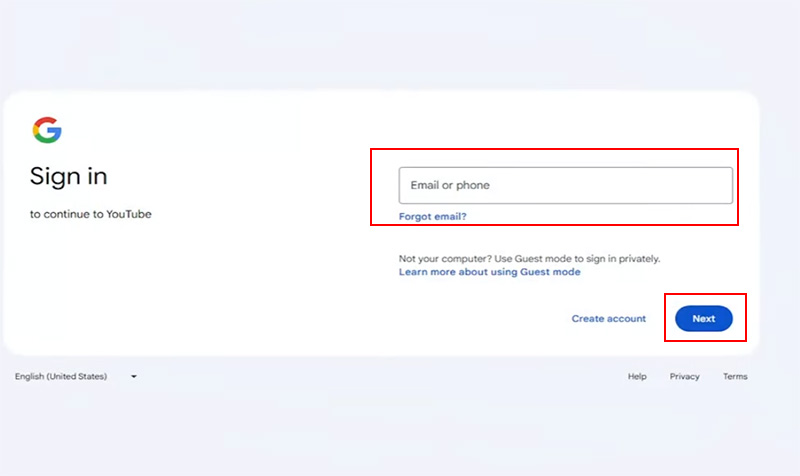
Step 2. The video will load and play normally if you have permission.
Step 3. You’ll see a restriction message if you don’t have access. Contact the owner and ask them to add your email to Share Privately, then reopen the link after permission is granted.
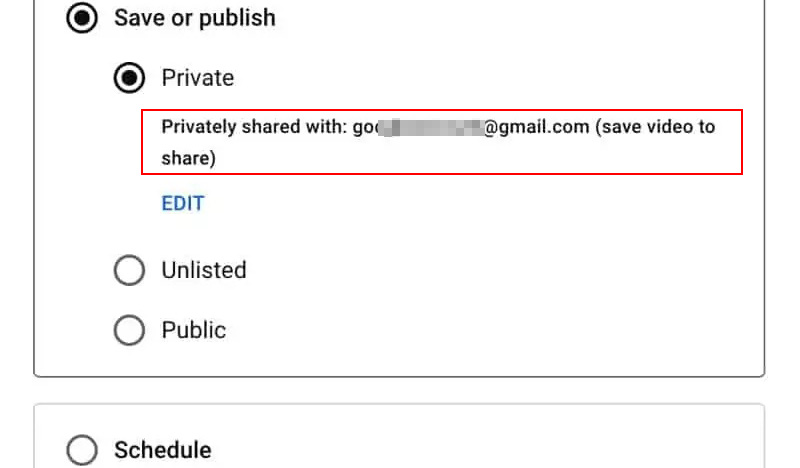
Private videos can be locked again or removed without notice. So you can use the below guide on how to record private YouTube videos and screen record protected videos, to preserve content you are already allowed to watch, not to bypass YouTube’s rules.
How to Record Private YouTube Videos?
When access to a private YouTube video is granted, recording becomes the most dependable way to preserve content that could be removed or restricted later. iTop Screen Recorder works well in this context because it operates locally, with no logins, extensions, or risky permissions required. Its GPU-accelerated rendering shifts workload from CPU to graphics card, reducing lag and keeping playback smooth, even during long or high-resolution streams. Recordings can reach up to 4K while maintaining accurate video-audio sync.
Beyond stability, it offers YouTube video capture flexibility. You can record full screen or a custom area, with no time limits for private live streams. The screen recorder supports system audio-only capture, webcam overlay, multiple export formats, and built-in editing. This combination makes it a straightforward, low-friction solution for recording private YouTube videos reliably, such as internal training sessions, paid tutorials, or limited-time live events for later review.
Step 1. Download iTop Screen Recorder from the official site and open it. No account setup is required to start recording private YouTube videos.
Step 2. Click Record, select the recording area (full screen or select window/region). Sign in to your YouTube account, open the private video you’re authorized to view, and let it load fully.
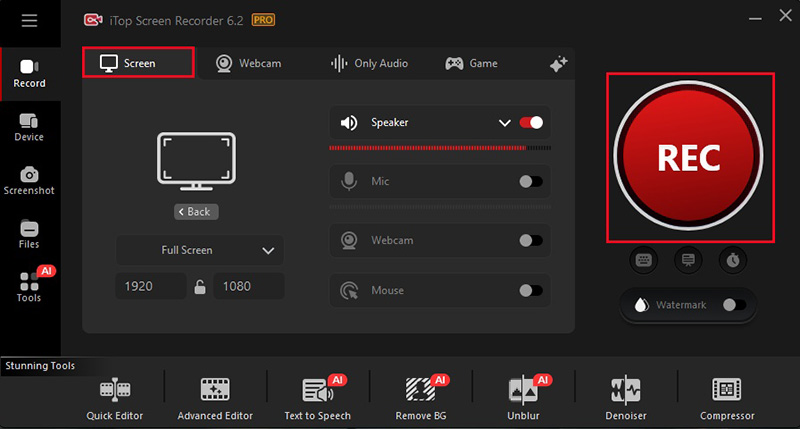
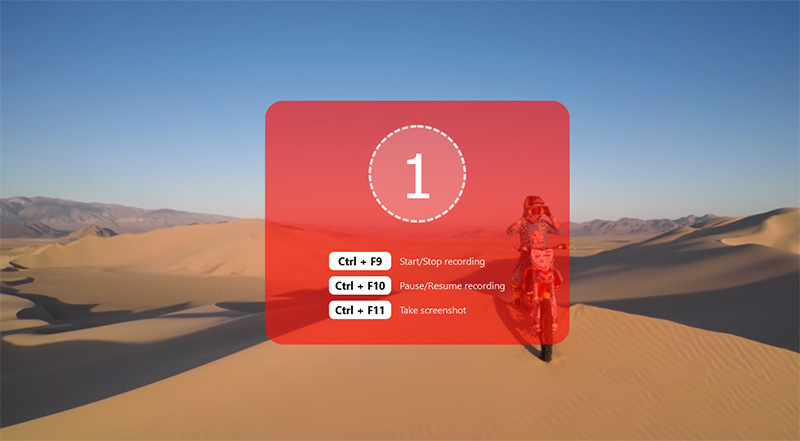
Step 3. Click the REC button, let the private YouTube video play through, then stop and save the file locally. This is the safest workflow for anyone seriously looking into how to record private YouTube videos without compromising security or quality.
Bonus Tip One: Can You Share Private YouTube Video Link to Others?
This question, “Can you share private YouTube videos?” comes up a lot, and Google’s consensus is clear: you cannot share private YouTube video without email. Private videos aren’t controlled by links; they’re controlled by account permissions. Sending the URL alone won’t grant access, even if the recipient is logged into YouTube. Private videos don’t work like normal links; viewers must be added via their Google email in Share Privately and sign in to watch.
If you want anyone with the link to view it, you need to change the visibility to Unlisted instead. That’s why private videos are commonly used for internal reviews, client drafts, or sensitive content.
Bonus Tip Two for Creators: How to Make Private YouTube Videos
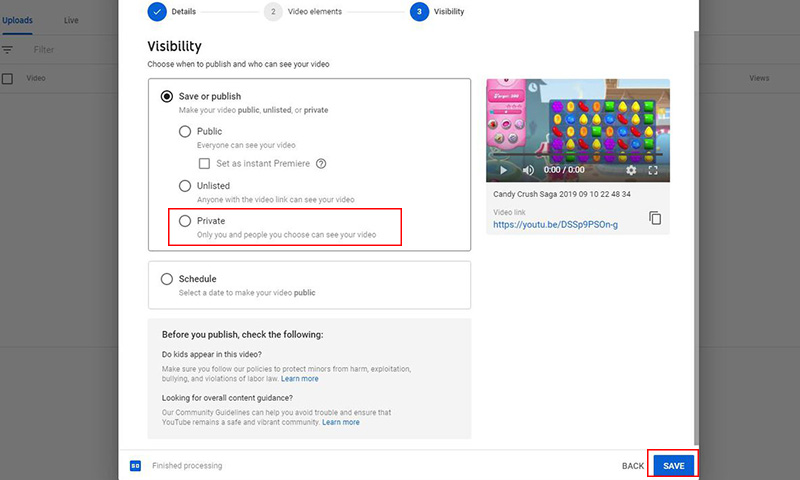
For creators looking for how to make a private YouTube channel for family, YouTube’s private setting is designed exactly for it. Sign in to YouTube (or create and verify a new account), then open Your Videos from the left sidebar to access your uploaded content. In the Visibility column, set a video to Private (or select multiple), and use Share Privately to invite specific viewers by email if needed.
This approach works well for family updates, internal training, or early cuts you don’t want indexed or shared. Just keep in mind that private videos can’t be discovered, embedded, or shared by link alone. On the viewer side, this controlled access is also why people later search how to record private YouTube videos once permission is granted, especially for long-term archiving.
Read also: How to record live TV on YouTube TV >>
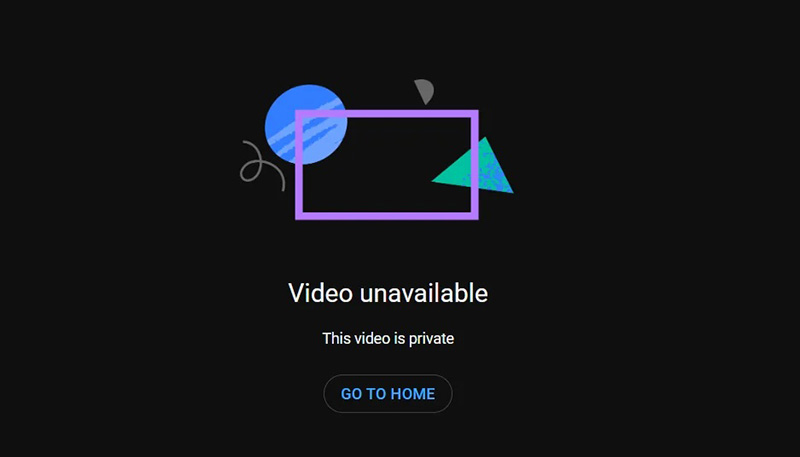
Bonus Tip Three: How to Fix ‘This Video Is Private on YouTube’?
Sometimes viewers stumble on this message unexpectedly, and creators can be just as puzzled when friends or team members can’t access their content. Here’s a clear breakdown of how to fix this video is private on YouTube issue.
For viewers:
- Check that you have signed in to the correct Google profile.
- Confirm with the uploader that your email is on the approved list.
- Remember: once access is granted, it’s wise to consider how to record private YouTube videos for personal archiving, since permissions can change.
For creators:
- Double-check that the intended viewers’ emails are correctly added.
- Ensure any recent visibility changes have been properly saved.
- Try using “unlisted” or “public” instead of private if you want easier sharing without losing control.
Conclusion
Accessing private videos responsibly is all about permission and timing. Once you’re authorized, capturing them ensures you don’t lose valuable content. For a reliable, secure solution, iTop Screen Recorder makes it simple to save what matters. Learn how to record private YouTube videos with ease, start recording, and never miss a moment.

Record Live and Streaming Videos in One Click
- Record TV shows, movies, live sports from any site.
- Record videos and live streams without quality loss.
- Record from YouTube, Netflix etc., without black screen.
- Record with mic/webcam to create reaction videos.