Vidnoz AI creates engaging videos with realistic AI avatars. Free, fast and easy-to-use.



YouTube shines in social media industry for many years. It has a giant library that embraces endless captivating content and also builds an ideal platform for creators to share and monetize their works. Audiences can simply explore and watch desired videos in any genre. But how to watch YouTube videos offline?
Whether you are trying to watch videos on YouTube offline without mobile data consumption or network connection, the methods listed here can work for you.
Can You Watch Videos on YouTube Offline
The direct answer is YES.
Officially, YouTube rolls out the Premium service that provides ad-free and offline access to the content across devices. Subscribe a plan and then you can enjoy videos offline.
Alternatively, to watch YouTube videos offline without Premium, seek an available free YouTube video downloader or capture the video with a free screen recorder.
How to Watch YouTube Videos Offline with Premium
YouTube Premium delivers a super simple and efficient experience to watch a YouTube video offline. It puts a download button beneath a video letting subscribers save the content for playback with no need of WiFi and cell data.
How to watch a video on YouTube with Premium? Follow the steps.
Step 1. Log in your account and subscribe a YouTube Premium plan at the start.
- Student: $7.99/month
- Individual: $13.99/month
- Family: $22.99/month
- Eligible new members can enjoy extra 1-month $0 trial for any subscription.
Step 2. Search the video you want to watch offline on the web or mobile app. Locate the "Download" button under the video.
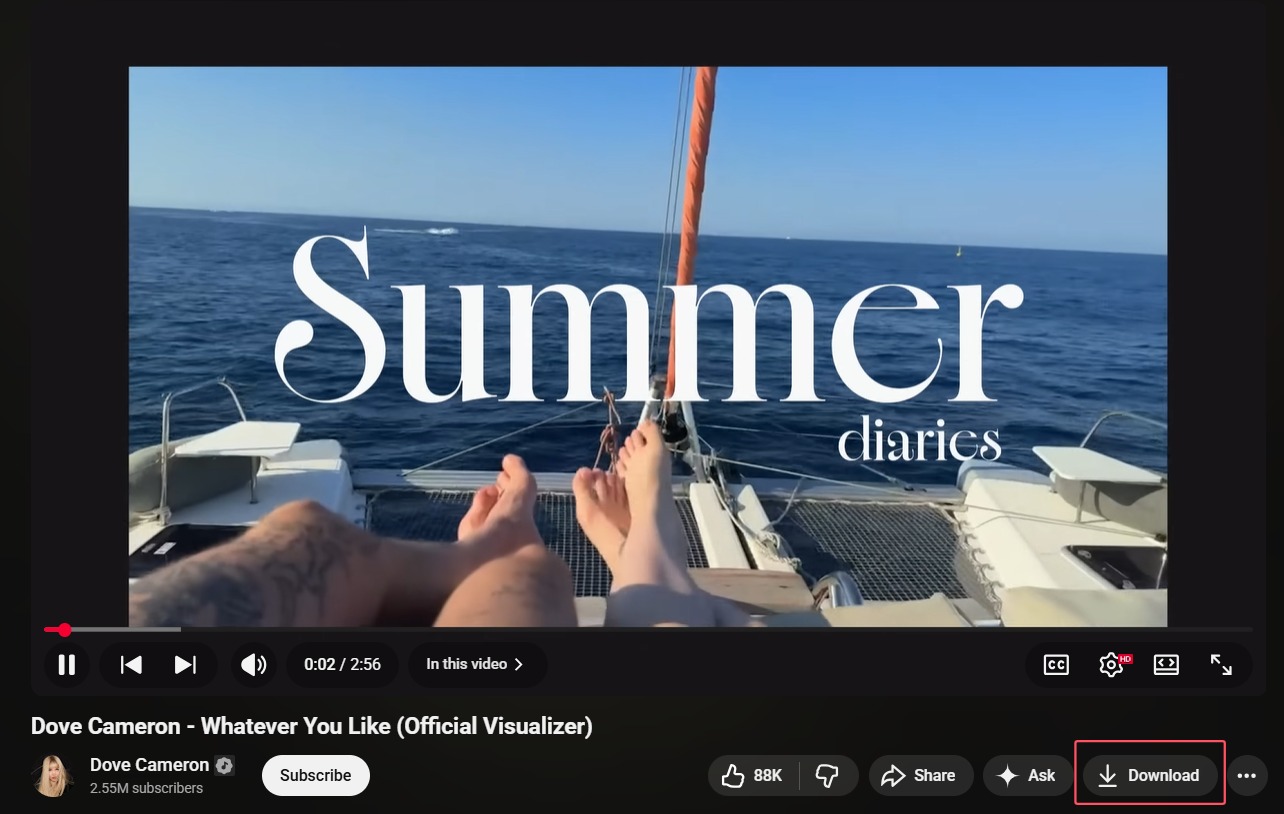
Step 3. Click the download button to save the video.
Step 4. Head to the "Downloads" section and watch the saved video anytime anywhere.
Downloads are only available for up to 29 days.
All downloaded content will be removed once you cancel the subscription.
How to Watch YouTube Videos Offline Without Premium
Not limited to YouTube Premium, there are lots of free YouTube video downloaders, ranging from programs and web services, that can help you download and watch videos on YouTube offline at no cost. Next, we would like to walk you through how to download YouTube videos with either a computer program or an online tool for offline watching.
How to Watch Videos on YouTube Offline by Downloading with 4K Video Downloader
4K Video Downloader is a well-known and experienced program to download streaming videos from almost all popular websites, such as YouTube, Facebook, TikTok and so on, while preserving high-quality. It features an intuitive workflow, no learning curve.
Here is the tutorial of how to download a YouTube video on your computer with 4K Video Downloader.
Step 1. Download 4K Video Downloader and install on your computer. It is available for PC, Mac and Linux.
Step 2. Open the video you want to download on YouTube and copy its link.
Step 3. Launch 4K Video Downloader and hit on the “Paste Link” button. The program will automatically analyze the URL. Later, a pop-up that lists the download parameters appears.
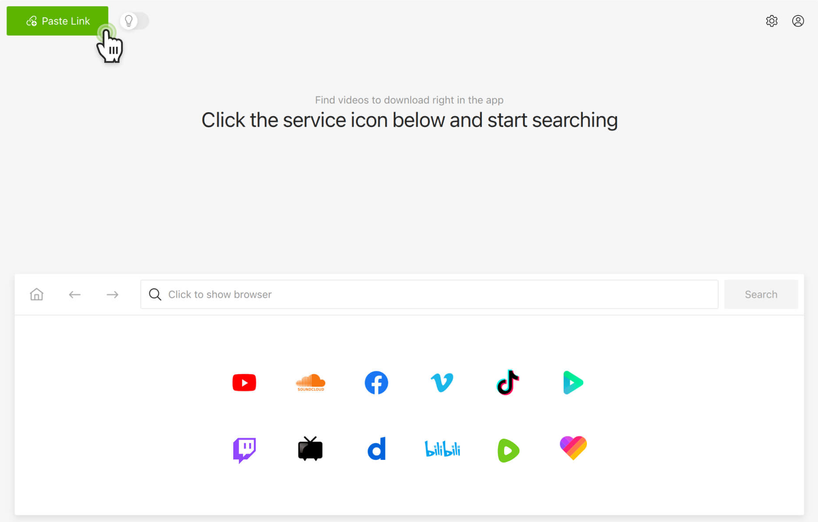
Step 4. Choose the video format, resolution and destination folder to save the file.
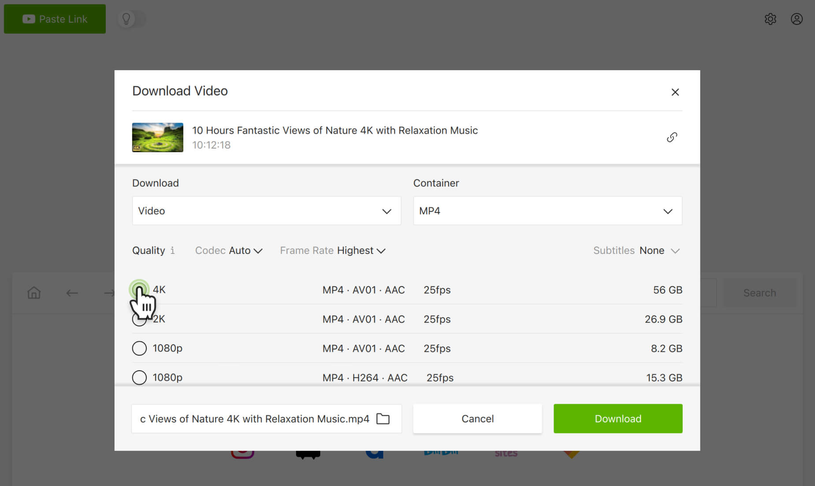
Step 5. Hit on the "Download" button and let the program save the YouTube video offline.
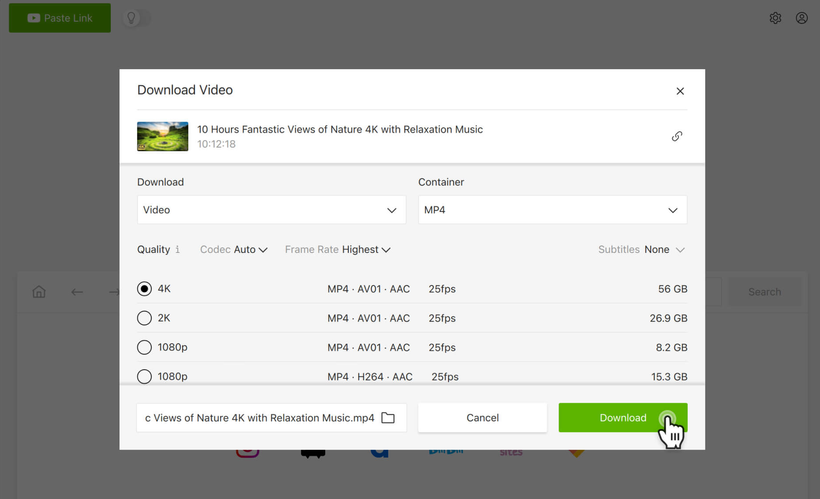
Please note that the available features of 4K Video Downloader vary from the license you have. You can start for free to enjoy basic functions but need to buy a plan for unlimited access. Also, it develops an Android app to ensure YouTube videos offline playback on your devices on the go.
How to Watch Videos on YouTube Offline by Downloading with SaveFrom
SaveFrom is a big name of online video downloader. It introduces a straightforward solution to rip video and audio content from popular platforms worldwide - YouTube, Instagram, TikTok, Rednote etc., - in high-quality without installation. It includes a special YouTube Video Downloader with the ability to download YouTube videos to MP4, MP3 as well as save YouTube shorts in a flash.
Visit savefrom.net in your browser and click on the YouTube icon to rip your wanted videos off YouTube.
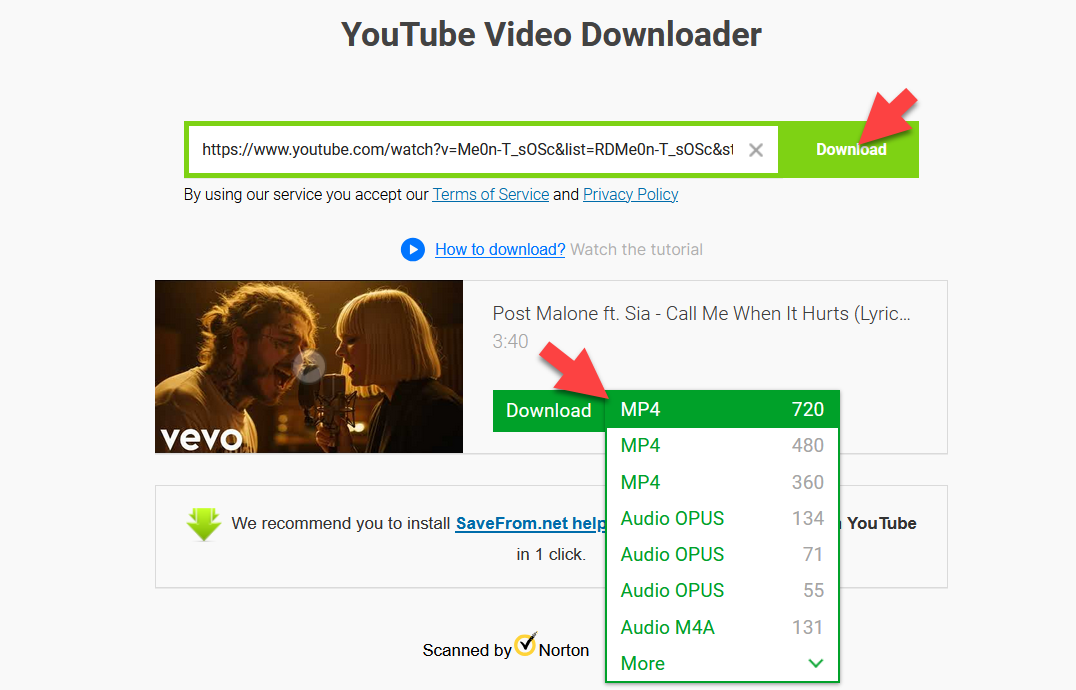
Step 1. Copy and paste the YouTube video URL into the address bar in SaveFrom.
Step 2. Click "Download" button to let SaveFrom analyze the URL and list the video info.
Step 3. Select resolution and format. Click "Download" next to the video parameters.
Step 4. After the pop-up appears, hit on “Download Video” button to save and watch YouTube video offline.
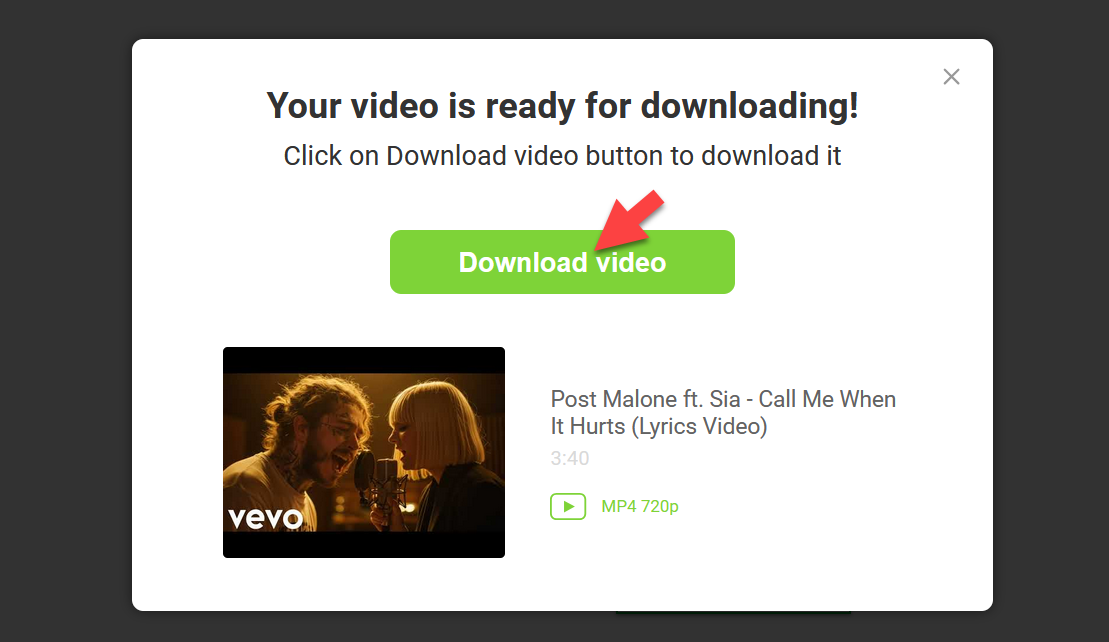
It is annoying that you are redirected to ad page for several times when clicking every "Download" button. If the "download video" and "save video" pop-ups don’t appear, re-click the "Download" button until the right window is shown to you.
How to Watch YouTube Videos Offline Without Downloading
Free YouTube video downloaders take the risk of unexpected crash or shutdown due to the violation of terms of service and security issues. Is it possible to watch YouTube videos offline on PC without downloading? Try to record YouTube videos with a reliable screen recorder, for example, iTop Screen Recorder.
iTop Screen Recorder excels in capturing everything no your PC screen, from streaming content to your activities. It allows you to flexibly choose a region - part of screen, full screen, a window - for recording and perfectly keep every detail within the selected area. It is a 100% clean and safe screen recorder, no ad and malicious items included.
Well now, download and install iTop Screen Recorder on your Windows PC. Then, start recording YouTube videos for offline playback.
Step 1. Play a video you want to watch offline on PC.
Step 2. Launch iTop Screen Recorder and select the recording area.
Step 3. Turn on Speaker to record the YouTube video with audio. Click REC to start recording.
Tip: Turn on Webcam and Mic if you need to record a reaction or review video with yourself. Otherwise, keep them off to only capture the original video with audio.

Step 4. Click the Done button on the mini control bar to stop recording when the video ends playing. The recorded video is saved to Files > Video. Check and play it at will.
Why Choose iTop Screen Recorder to Record YouTube Videos?
iTop Screen Recorder has a collection of powerful functions, ensuring a superb recording experience to save videos from any website.
- Record YouTube videos without black screen: iTop Screen Record employs an “Enhanced Mode” to screen record protected videos without black screen. Press CTRL key and click REC button at the same time to generate a flawless recording from YouTube, Netflix and any streaming service.
- Record YouTube videos with no time limit: iTop Screen Recorder is a free screen recorder no time limit so that you can record long videos on YouTube without worrying about sudden stop.
- Record YouTube videos with high quality: iTop Screen Recorder maintains crisp images and vivid color of the recording. You can also customizably adjust the parameters to record up to 4K, 120fps videos.
- Record YouTube videos with no lag: The screen recorder invokes hardware acceleration to produce a smooth workflow with no lags, shutters and fps drops.
- Trim and crop screen recordings at one stop: You can quickly get access to the built-in video editor to trim, crop the recorded videos. Also, advanced edits, like adding text, effects, transitions etc., can be achieved as you want.
Conclusion
How to watch YouTube videos offline? YouTube Premium is recognized as the most stable and legal way to download a video on YouTube for offline watching. But if you need a more cost-effective solution, try free YouTube downloader or screen recorder to rip the desired videos from YouTube. Pick your ideal tool and watch videos on YouTube offline with no restriction.
Disclaimer: We DO NOT advocate downloading or recording YouTube videos for any illegal or commercial use.