Libby has become one of the most popular apps for borrowing free ebooks and audiobooks from public libraries. With just a library card, users can access thousands of titles and enjoy them on multiple devices. One of Libby's most useful features is the ability to download audiobooks for offline listening, allowing you to enjoy your favorite titles even when you don't have an internet connection.
In this guide, you'll learn how to download Libby audiobooks on iPhone, Android, and PC.
What Is Libby and How Do Audiobook Downloads Work?
Libby is an app created by OverDrive that lets users borrow ebooks, audiobooks, and magazines from their local libraries digitally. After signing in with a library card, users can browse, borrow, and read or listen to titles directly from the app.
When you borrow an audiobook, Libby can automatically download it to your device for offline listening. The downloaded file remains accessible until your loan period expires, after which the audiobook is automatically returned to the library.
Requirements Before You Download a Libby Audiobook
Before you download MP3 from Libby, make sure you have everything needed for a smooth experience. Preparing these requirements in advance can help avoid download errors and ensure that your audiobooks are available for offline listening whenever you need them. Here’s the requirements checklist when you download Libby audiobook.
- A valid public library card
- The Libby app is installed on your device
- An active internet connection
- Available storage space
- A borrowed audiobook in your Loans shelf
- Updated Libby app version
How to Download a Libby Audiobook on iPhone
Downloading audiobooks on an iPhone is straightforward. Once you've borrowed a title through Libby, the app can automatically download it for offline listening. Follow the steps below to download Libby audiobook and enjoy it without using mobile data.
Step 1. Launch the Libby app on your iPhone and sign in with your library account if necessary.
Step 2. Use the search bar or browse categories to locate the audiobook you want to borrow. Tap Borrow and confirm the loan. The audiobook will be added to your Shelf.
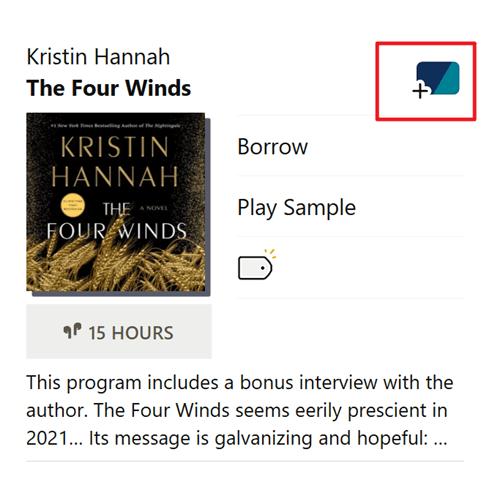
Step 3. Tap the Shelf icon at the bottom of the screen to view your borrowed titles. Tap Manage Loan and select Download if the audiobook is not downloaded automatically. The files will be saved for offline listening.
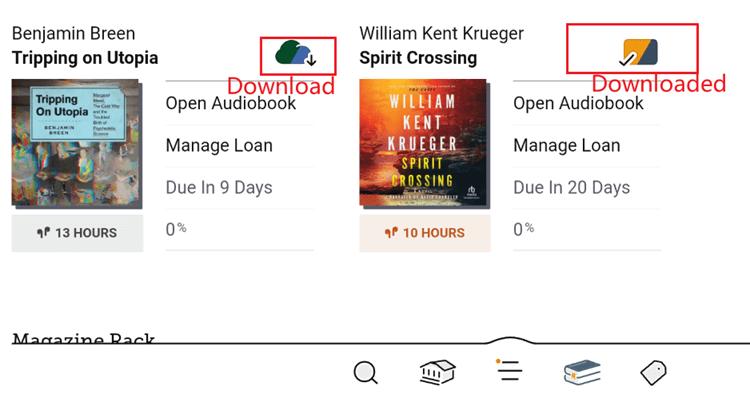
Step 4. Once the download is complete, tap Open Audiobook and enjoy listening without an internet connection.
How to Download a Libby Audiobook on Android
Android users can also download audio from Libby directly. The process is similar to that of an iPhone and allows you to save audiobooks locally for offline listening during travel, commuting, or in areas with limited internet access. Here are the steps to download Libby audiobooks to your phone.
Step 1. Download Libby from the Google Play Store and sign in to the app on your Android phone or tablet with your account.
Step 2. Tap the search icon to find the audiobook you want to borrow, or browse categories and recommendations.
Step 3. Open the audiobook page and tap Borrow to add the audiobook to your Shelf.
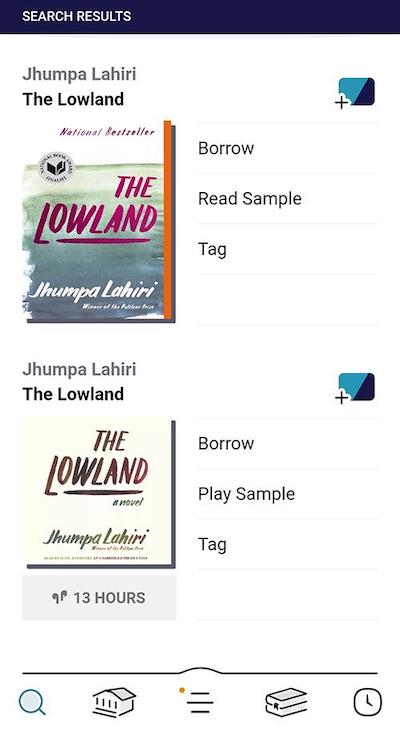
Step 4. Tap the Shelf tab to view all your borrowed titles and active loans.
Step 5. Select the audiobook and tap Download or Manage Loan if the title does not download automatically. The audiobook will be stored on your device for offline listening.
As introduced earlier, Libby lets you download Libby audiobooks to an MP3 player through your iPhone, iPad, and Android apps. You can use Libby in a web browser on a Windows or Mac computer, but you usually can't download audio books from Libby for offline listening there. Many users wonder whether downloaded Libby audiobooks can be kept permanently. If this is what you want, try the following methods.
How to Download Audiobooks for Permanent Access on PC
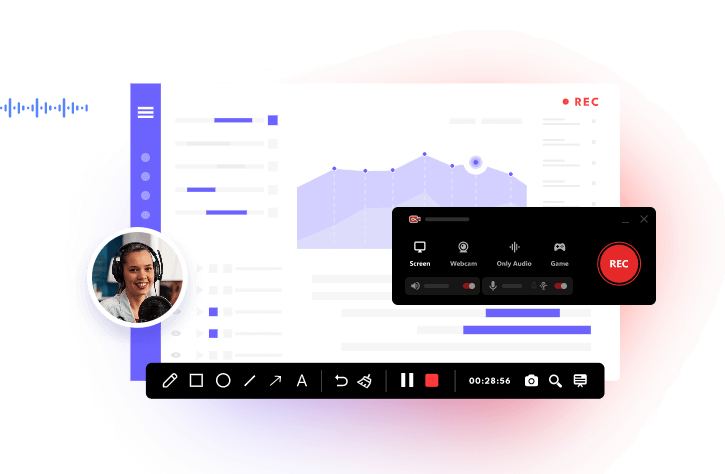
If you’re looking for ways to keep Libby audiobooks for permanent access on a PC, you can try recording audiobook playback with iTop Screen Recorder, a screen recorder with audio capture capabilities, which can preserve the audiobook in organizable formats alongside other personal audio content. Simply put, you can capture the audiobook's system audio directly from your computer while maintaining clear and consistent sound quality.
More features of iTop Screen Recorder for recording Libby audiobooks include:
High-Quality Audio Recording with Clear Sound Output
It allows you to capture Libby audiobook audio with excellent clarity and balanced sound quality. The feature also performs well when record Zoom meeting sessions.
System Audio Capture Without Unwanted Background Noise
It can record internal system audio directly while reducing unnecessary background sounds. This feature is useful when users need to screen record protected videos with cleaner audio output.
Stable Recording Performance for Long Audiobook Sessions
The optimized recording engine delivers reliable performance during lengthy recording sessions without interruptions, making it suitable for users who want to screen record Kayo content.
Support for Popular Audio Formats, including MP3
You can save recordings in widely supported formats, including MP3, for easy playback and sharing. The flexible format supports users looking for a restricted app screen recorder.
Built-in Audio Editing and Trimming Tools for Managing Recordings
If needed, you can remove unwanted sections and edit recordings without additional software. These tools are helpful when users need to screen record Instagram DM conversations and manage audio clips.
Quick Export and File Management Options for Convenient Playback and Storage
Export recordings quickly and organize files efficiently for easier playback, storage, and sharing across different devices and media platforms.
If you want to download Libby audiobooks to computer, here are the steps.
Step 1. Download and install iTop Screen Recorder on your Windows computer.
Step 2. Launch this audio recorder and choose the “Only Audio” mode on the main interface.
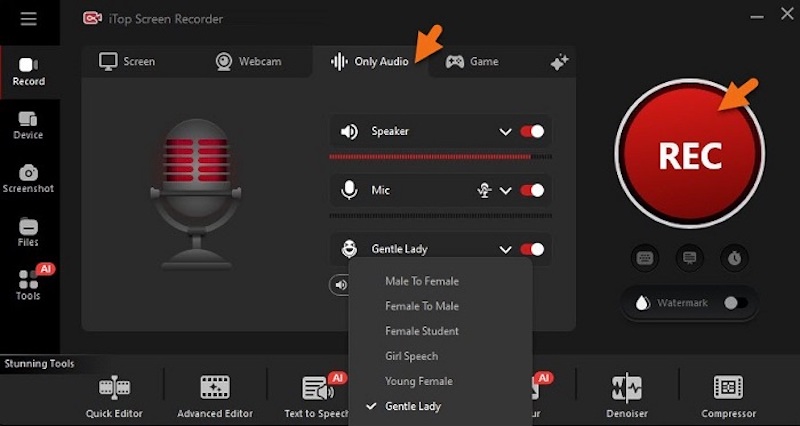
Step 3. Locate and play the Libby audiobook you wish to record. Then, return to iTop Screen Recorder and click REC to start recording.
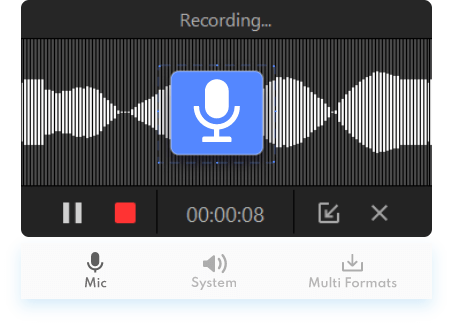
Step 4. Pause the recording during breaks or click Stop when the desired audiobook section has finished playing.
Also Read: How to Record Streaming and Live TV Shows on PC >>
Frequently Asked Questions
Can I download MP3 from Libby to my phone?
Yes. Both iPhone and Android versions of Libby support audiobook downloads for offline listening.
Why can't I download a Libby audiobook?
Common causes include insufficient storage, poor internet connectivity, or an expired loan.
Do downloaded Libby audiobooks expire?
Yes. Downloaded audiobooks become unavailable once the loan period ends.
Can I transfer Libby audiobooks to MP3 players?
Generally, Libby audiobooks are designed to remain within the Libby ecosystem and are not provided as standalone MP3 files.
Conclusion
Download Libby audiobook, and you can enjoy library content wherever you go. Whether you're using an iPhone, Android device, or computer, understanding how Libby downloads work can help you get the most from your library loans and listen offline whenever convenient.
If you want an additional way to capture audiobook playback for personal offline listening, iTop Screen Recorder provides a simple solution with high-quality audio recording, MP3 export options, and built-in editing tools. Download iTop Screen Recorder to save your favorite Libby audiobooks.