Videos often contain valuable audio content such as music, podcasts, interviews, lectures, and voice recordings. Instead of keeping the entire video file, many users prefer extracting the audio for offline listening, editing, or sharing. That’s where a video audio extractor online free becomes useful.
In this guide, you’ll learn what an audio extractor is, discover the best audio extractor from video free in 2026, and learn how to extract audio from videos step by step using professional yet beginner-friendly software.
What Is an Audio Extractor from Video Free?
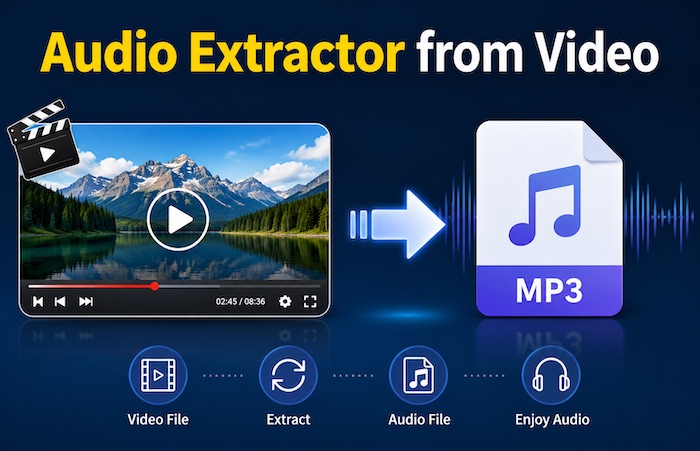
An audio extractor from video is a tool that separates the audio track from a video file and saves it as an independent audio format such as MP3, WAV, AAC, or M4A. These tools help users convert videos into audio-only files without needing advanced editing skills.
People commonly use audio extractors to:
- Convert music videos to MP3
- Save podcasts or interviews
- Extract sound effects or voice clips
- Listen to content offline
- Create ringtones or audio projects
If you also want to extract audio from video, the following tools can achieve your goal without a problem.
Best Free Audio Extractor from Video Free Tools in 2026
With so many free audio extraction tools available online and offline, choosing the right one can be difficult. Some tools focus on quick online conversion, while others provide advanced editing, higher audio quality, or support for streaming videos. Below are the best free online and desktop-based audio extractors from video tools in 2026, together with their key advantages and disadvantages.
Clideo
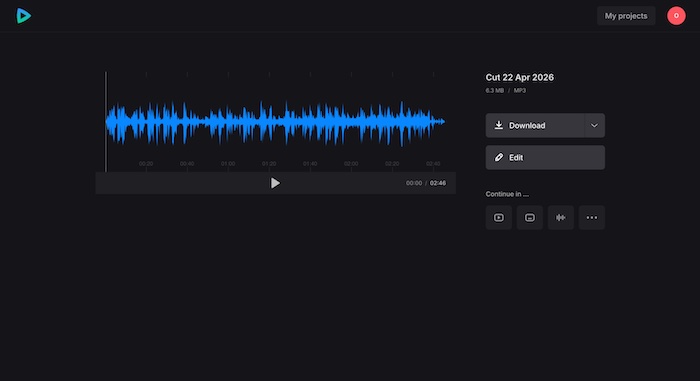
Clideo is a popular online multimedia platform that allows users to extract audio from video files directly in a browser. It supports common video formats such as MP4, MOV, AVI, and MKV, making it convenient for quick conversions without installing software. Users simply upload a video, choose an audio format, and download the extracted file within minutes.
Pros
- Easy-to-use interface
- No software installation required
- Works on Windows, Mac, Android, and iPhone
- Supports multiple video formats
Cons
- Requires an internet connection
- Upload speed can be slow for large files
- Limited advanced settings in the free version
Kapwing
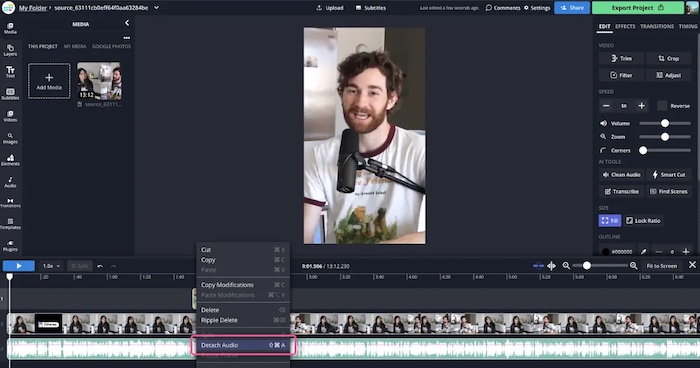
Kapwing is a cloud-based online video editor that includes a powerful audio extraction feature for separating sound from video files. It allows users to upload videos directly from their devices or paste video URLs, then detach and export the audio as MP3 files entirely within a web browser. Kapwing is especially popular among content creators, social media users, and beginners because it combines audio extraction with editing tools in one platform.
One of Kapwing’s biggest advantages is convenience. Users can extract audio from videos hosted on platforms such as YouTube, Instagram, iPhone recordings, and Android devices without downloading complicated desktop software.
Pros
- Modern and beginner-friendly interface
- Includes additional editing tools
- Cloud-based workflow
- Supports multiple export formats
Cons
- The free version may include limitations
- Requires account login for some features
- Uploading large files may take time
Audio Extractor
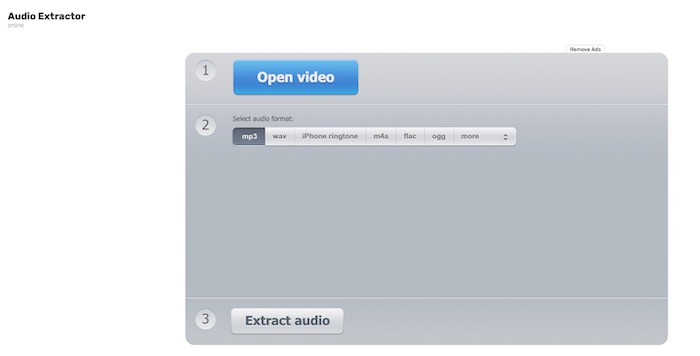
Audio Extractor is another online audio extractor from video free designed specifically for extracting audio tracks from video files quickly and easily. Unlike full-featured video editors, Audio Extractor focuses entirely on converting videos into audio formats such as MP3, WAV, M4A, OGG, and FLAC. Its lightweight and straightforward design makes it ideal for users who simply want to separate audio from a video without dealing with complicated editing tools.
To use Audio Extractor, users only need to upload a video file, choose an output audio format, and start the extraction process. The platform supports many popular video formats including MP4, MOV, AVI, MKV, and WMV, making it compatible with most videos downloaded from phones, cameras, or the internet.
Pros
- Simple one-click extraction
- Supports MP3, WAV, AAC, and more
- No technical skills required
Cons
- Depends heavily on internet speed
- File size limitations
- Limited editing features
iTop Screen Recorder
iTop Screen Recorder includes a built-in Quick Editor that makes extracting audio from videos simple and efficient. Unlike traditional audio extractor for free that only separate audio tracks, Quick Editor also allows users to trim videos, remove unnecessary sections, and export clean audio files in just a few clicks. It is especially useful for extracting music, podcast audio, interviews, lectures, or streaming audio from recorded videos.
One of the biggest advantages of using Quick Editor is its beginner-friendly workflow. Users can import a recorded or local video file directly into the editor, trim unwanted sections using the timeline slider, and export the content as audio. The tool also supports additional editing features such as adding subtitles, filters, stickers, and background music before exporting.
Pros
- Extract audio from streaming videos
- Record system sound only
- High-quality MP3 and WAV export
- AI noise reduction support
- Beginner-friendly interface
- Screen record protected videos and any other screen activities
Cons
- Some advanced functions require premium access
- Windows-focused software
Also Read: How to Read a Zoom Meeting on Windows and Mac >>
VLC Media Player
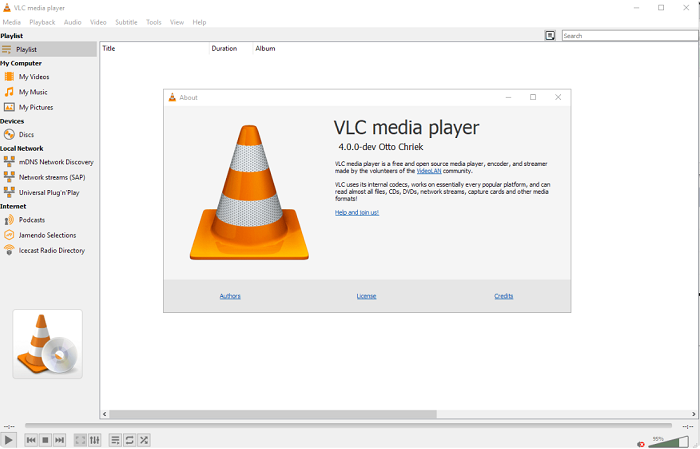
VLC Media Player is a free and open-source multimedia player that also works as a powerful audio extractor from video free. Although most people use VLC for playing videos and music, it includes a built-in Convert/Save feature that allows users to separate audio tracks from video files and export them into formats such as MP3, OGG, FLAC, and WAV.
One of VLC Media Player’s biggest strengths is compatibility. It supports almost every popular video format, including MP4, AVI, MOV, MKV, WMV, and FLV, without requiring additional codec downloads. This makes VLC a reliable choice for users who want to extract audio from different types of video files without worrying about format issues.
Pros
- Completely free and open-source
- Supports nearly all video formats
- No watermark or ads
- Lightweight software
Cons
- The interface may feel outdated
- Steps can be confusing for beginners
Audacity
Audacity is a professional-grade free audio editor that can also be used to extract audio from video files. Unlike simple online converters, Audacity focuses heavily on audio editing and enhancement, making it a strong choice for users who want to clean up, modify, or improve extracted audio after conversion.
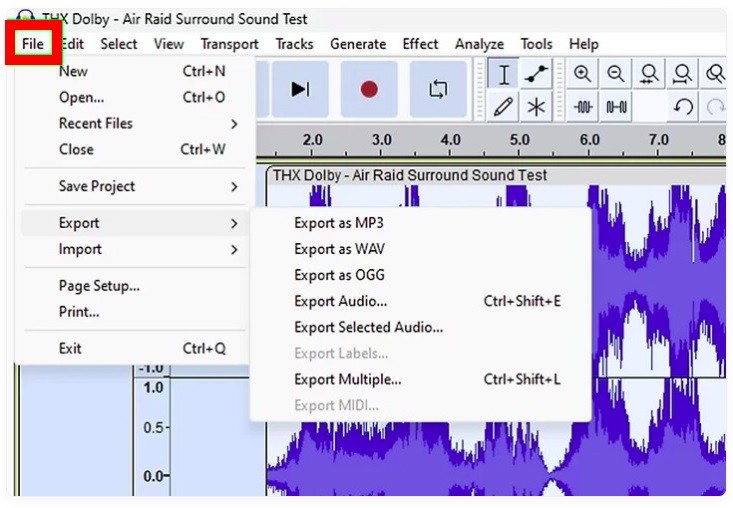
Audacity supports importing audio from video files through additional libraries such as FFmpeg, allowing users to separate audio tracks from videos in formats like MP4, MOV, AVI, and MKV. Once the audio is imported, users can edit the waveform directly, remove background noise, trim unwanted sections, adjust volume levels, and export the final result into formats such as MP3, WAV, FLAC, and OGG.
Pros
- Advanced audio editing tools
- Supports noise reduction and enhancement
- Completely free and open-source
Cons
- Requires additional setup for some video imports
- Not beginner-friendly
Steps to Extract Audio from Video
After choosing the right audio extractor for free, the next step is learning how to extract audio from a video efficiently. While online tools work for quick conversions, desktop software like iTop Screen Recorder offers better stability, higher audio quality, and support for streaming or protected videos. Besides that, it also enables you to record on Peacock or other activities happening on your screen. Here’s how to extract audio from video using iTop Screen Recorder’s Quick Editor.
Step 1. Download and install iTop Screen Recorder on your computer.
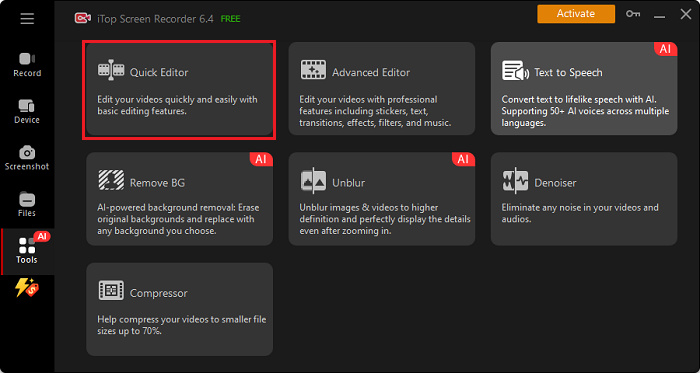
Step 2. Open iTop Screen Recorder and select Tools from the left menu bar. Then, select Quick Editor to proceed.
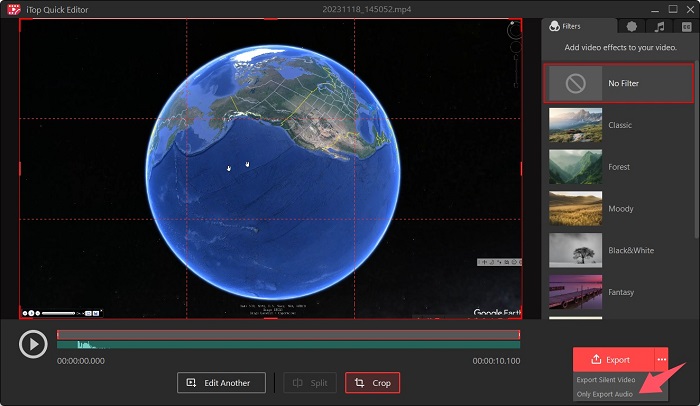
Step 3. A new window will pop up to let you import the video you wish to export audio from. Just drag and drop the video here directly and edit your video. Once done, click the three dots next to Export and choose Only Export Audio.
Also Read: How to Record TikTok Live on iOS/Android/Wins/Mac >>
Tips for Better Audio Extraction Quality
Extracting audio is easy, but achieving clear and professional-quality results requires the right settings and tools. The following tips can help you improve audio quality and avoid common extraction issues.
- Use high-quality source videos
- Export at higher bitrates
- Use lossless formats when necessary
- Remove background noise with AI tools
Desktop Audio Extractor vs Online Audio Extractor
Both desktop software and online tools can extract audio from video files, but they serve different purposes. Online tools are convenient for quick conversions, while desktop software offers more stability, better privacy, and advanced features.
| Feature |
Desktop Software |
Online Tools |
| Speed |
Faster |
Depends on the internet |
| Privacy |
Better |
Upload required |
| File Size Support |
Large files |
Usually limited |
| Advanced Features |
More options |
Basic tools |
| Installation | Required |
Not required |
FAQs About Audio Extractor
What is the best free audio extractor from video?
iTop Screen Recorder, VLC Media Player, and Audacity are among the best free tools, depending on your needs. Online tools are convenient, while the desktop audio extractor from the video free app offers better quality and stability.
Can I extract audio from MP4 files?
Yes. Most audio extractors support MP4 files and allow conversion to MP3, WAV, AAC, and other formats.
How do I convert a video to MP3 for free?
You can use a free online audio extractor from mp3 or desktop software like iTop Screen Recorder and VLC Media Player to convert videos into MP3 files.
Is it legal to extract audio from videos?
It depends on the copyright status and intended usage. Extracting audio for personal use is generally acceptable, but redistributing copyrighted material may violate copyright laws.
Conclusion
Extracting audio from videos is easier than ever, thanks to modern audio extractor from video free. Whether you prefer quick online converters like Clideo and Kapwing or advanced desktop software like VLC, Audacity, and iTop Screen Recorder, there is a solution for every need.
If you want better audio quality, support for streaming videos, and a beginner-friendly experience, iTop Screen Recorder is one of the best choices available. It can help you screen record Instagram DM and everything happens on your screen. Download iTop Screen Recorder today and start extracting high-quality audio from your videos quickly and easily.