


iTop Screen Recroder
The Easiest Way to Record Your PC Screen


Buy iTop Screen Record PRO to Enjoy More
Create high-quality screen recordings and save big.
The Easiest Way to Record Your PC Screen
Share


How to screen record hellolive? Explore the best way to record hellolive videos to save memorable live streams and fancalls for later watching or sharing.
Hellolive builds an entertaining platform that enables global k-pop fans to directly interact with their favorite idols and artists. It not only hosts awesome livestreams - live concerts, fanmeetings, online events - but offers 1:1 video calls allowing fans to start dedicated video chat with their "bias". Sometimes, fans try to screen record hellolive for keeping a personal copy of the exclusive content (especially fancalls).
Can you record on hellolive? Absolutely YES! Here are the best solutions to record hellolive videos on your device.
You can watch live streams via the website on both PC and mobiles. If you want to record a live concert or event, a professional screen recorder - iTop Screen Recorder - makes it quite easy to save the content in real-time.
iTop Screen Recorder allows you to record hellolive live with audio seamlessly. It keeps all details crisp and delivers clear images. It also builds in a video editor helping you crop trim unwanted parts off the hellolive screen recording without extra tools.
It is easy to screen record hellolive live with iTop Screen Recorder. Follow the steps:
1. Download and install iTop Screen Recorder on your PC. It is compatible with Windows 11 and 10.

Record screen, webcam, audio and gameplay with ease. Create high-quality screen recordings with no lags and fps drops.
2. Open the live concert, fan meeting or event you want to record on hellolive via the website.
3. Launch the screen recording software. Go to Record > Screen. Select recording area and turn on Speaker to record hellolive with audio.
4. Click REC button to start recording. It is also suggested to press CTRL and click REC at the same time to evoke Enhanced Mode avoiding black screen issues caused by DRM protection.
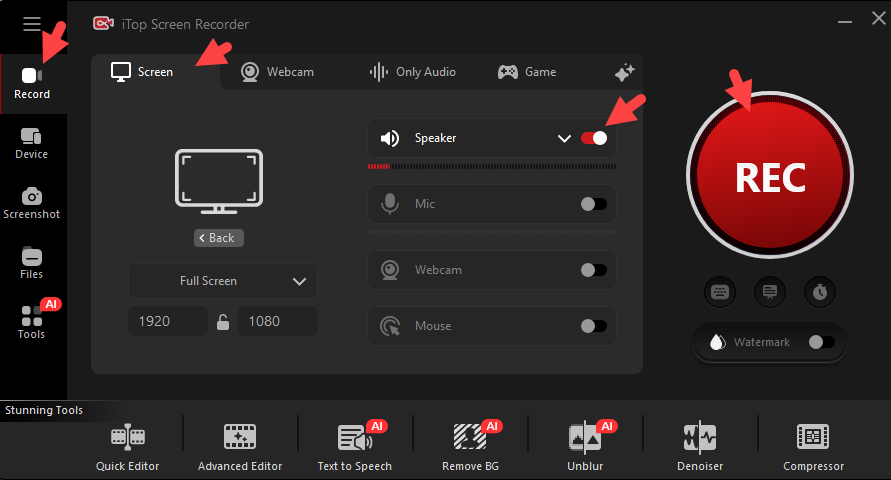
5. Click the stop button on the control bar when the live stream ends.
6. Find your screen recording in Files > Video, where you can get access to the video editor for further enhancement.
Also Read: How to Record a DRM Protected Video >>
Hellolive fancalls are only available through the official mobile app. You can use the native screen recorder on your device to record hellolive fancalls.
1. Before the fan video call starts, swipe from the top of your screen and find the screen recorder.
2. To record hellolive fancall with audio:
On iOS: Press and hold the Record button until a menu pops up. Tap the Microphone button to turn it on. Tap "Start Recording".
On Android: When a prompt appears, choose which audio you want to record: None, Media sounds or Media sounds and mic. It is suggested to select the last one. Next, tap "Start recording".
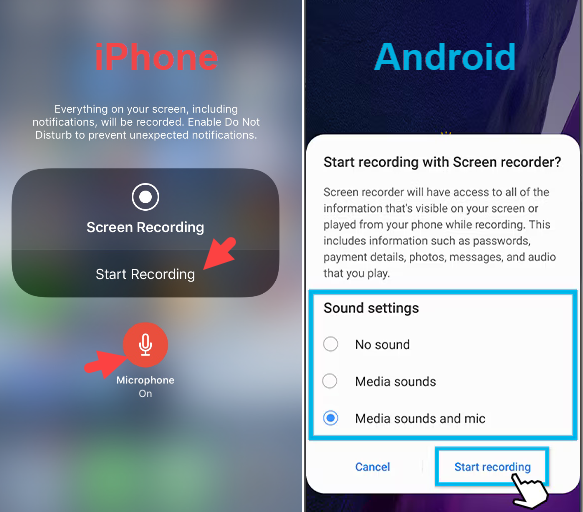
3. When the fancall ends, swipe down from the top of your screen again and tap the stop button again to finish recording.
4. Your recordings will be saved to Photos or Gallery. View or edit it if needed.
Some fans report that the built-in screen recorder fails to capture audio of hellolive fancalls on mobiles. If you encounter the same problem, use a second device to record a voice memo of the audio separately, then stitch the video and audio together later using editing software.
Alternatively, screen mirror your phone to PC and then record the PC screen with sounds. iTop Screen Recorder has a device recording mode that empowers you to cast and record your phone screen with audio at one stop.
Warning: We DO NOT advocate recording and distributing copy-righted hellolive content for any commercial or illegal use. Please always follow the hellolive's terms of service and respect other's rights.
Yes No
Thanks for your feedback!Share
 Do you have any more questions? Share with us

Invalid email address
 Submitted successfully
 People Also Ask
Can I screen record on Fambase? How to screen record Fambase lives and videos to watch later? Any solution?
I am trying to record a live stream on Tango for later watching. Can you screen record on Tango? How to record Tango Live?
Does Instagram notify screen recording? Learn whether Instagram alerts users when you screen record Stories, DMs, reels, or disappearing photos in 2026.
Subscribe to Our Newsletter
Subscribe to our newsletter to stay updated every moment.

Subscribe to Our Newsletter
Subscribe to our newsletter to stay updated every moment.
© 2026 iTop. All rights reserved.


