


iTop Screen Recroder
The Easiest Way to Record Your PC Screen


Buy iTop Screen Record PRO to Enjoy More
Create high-quality screen recordings and save big.
The Easiest Way to Record Your PC Screen
Share


I am trying to record a live stream on Tango for later watching. Can you screen record on Tango? How to record Tango Live?
Tango, the social live streaming and video chat app, doesn't offer a built-in feature to capture content. What's worse, it blocks screen recording and delivers a black screen. However, that doesn’t mean that you are out of options. With the help of a reliable third-party screen recorder, you can record Tango Live seamlessly.
It often results in black screen when using the built-in screen recorder on mobiles. It is highly suggested to visit the Tango official site in browser and record a live stream/memorable chat on your computer.
iTop Screen Recorder is a professional screen recorder for PC. It leverages an "Enhanced Mode" to bypass the block and ensure perfect screen recordings. Using it, you can record Tango live streams and videos with no hassle.
It is free and easy to use. After download and installation, follow the steps to record your desired content on Tango.

Record screen, webcam, audio and gameplay with ease. Create high-quality screen recordings with no lags and fps drops.
Step 1. Get access to tango.me in browser, sign in your account and open a live stream or start a video chat you want to record.
Step 2. Launch iTop Screen Recorder. Go to Record > Screen and select recording area. Turn on Speaker.
Step 3. Press Ctrl and click REC button to record on Tango with Enhanced Mode.
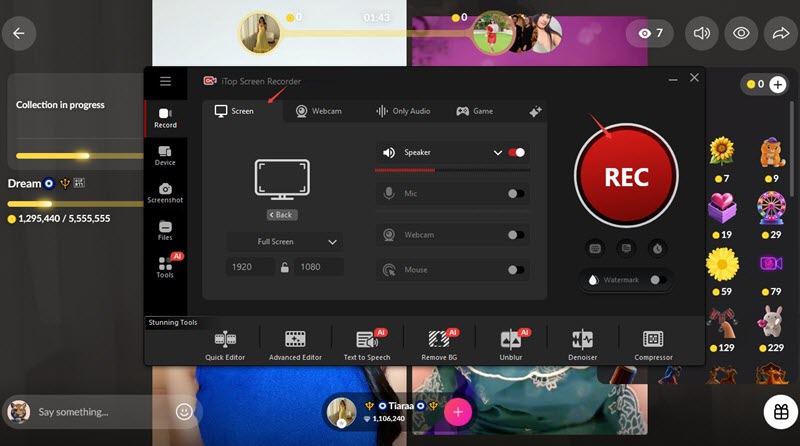
Step 4. Click Done button on the mini control bar to stop recording at any time you want.
Step 5. Find the screen recording in Files > Video. You can view, edit or upload it directly.
Disclaimer: Please always respect privacy and get consent before recording, especially for private chats. We DO NOT advocate recording Tango videos for any distribution or illegal use.
Yes No
Thanks for your feedback!Share
 Do you have any more questions? Share with us

Invalid email address
 Submitted successfully
 People Also Ask
Can I screen record on Fambase? How to screen record Fambase lives and videos to watch later? Any solution?
Can I secretly screen record on Tinder? Does Tinder notify screen recording or screenshot? Does Tinder have strict security restrictions like Snapchat?
Can you screen record on Patreon? Does Patreon have any sort of way to detect screen recording? Are creators notified when their posts get recorded?
Subscribe to Our Newsletter
Subscribe to our newsletter to stay updated every moment.

Subscribe to Our Newsletter
Subscribe to our newsletter to stay updated every moment.
© 2026 iTop. All rights reserved.


