TikTok Story is a dynamic feature that allows users to share short-lived content with their followers, creating an engaging and interactive experience. As TikTok's popularity continues to rise, many users are eager to screen record these stories to capture memorable moments or create compilations for their own channels. This functionality not only boosts personal creativity but also helps preserve fleeting content that might otherwise be lost. Whatever, do you know how to screen record TikTok story? Or can you screen record a TikTok story? If you can, does TikTok notify when screen recording? Keep reading to get the answer.

Can You Screen Record a TikTok Story? Does TikTok Notify Screen Recording?
Can you screen record someone's TikTok story? Yes, you can absolutely screen record a TikTok story, and TikTok does NOT notify the creator when you record their stories, videos, or DMs. Typically, the creator is only notified of profile views if they have enabled that specific setting. So, you can screen record a TikTok story on a computer or mobile device using the native screen recording feature or third-party screen recorders. That’s all about screen record TikTok story notification problem. To learn more details about the screen recording methods, you can check the following tips.
How to Screen Record TikTok Story on a Windows Computer
You can screen record a TikTok story on a Windows computer, either using a built-in screen recorder like the Snipping Tool or a third-party screen recorder like iTop Screen Recorder. The built-in tool offers instant and free use but lacks advanced features, while the third-party screen recorder gives you more control over the recording area, export format, editing, etc. But on the other side, such tools have learning curves. Which method to use depends on your specific needs.
1. Using iTop Screen Recorder
Considering that iTop Screen Recorder meets the needs of most users, whether for quick screen recording or professional recording, we will introduce this software first. With iTop Screen Recorder, you can record any screen activity on a PC. Besides that, you can embrace these great features if you have it installed.
- Record Any Area of Your TikTok Screen
iTop Screen Recorder offers the flexibility to capture any specific area of your TikTok screen. Whether you want to record the entire screen or just a portion, this feature allows you to customize your recording area. This feature also applies to screen record Instagram DM or other screen activities.
- Record up to 4K Resolution TikTok Video at 120FPS
With iTop Screen Recorder, you can record TikTok videos in stunning 4K resolution at 120 frames per second (FPS). This high-quality output ensures that your recordings are sharp, clear, and smooth, making them perfect for sharing. So, whether you’re looking for a restricted app screen recorder or something else, iTop Screen Recorder is your best option.
- Record TikTok Audio Along With Your Webcam and Audio Simultaneously
This powerful tool allows you to record TikTok audio while capturing video from your webcam and system audio at the same time. This is ideal for creators who want to provide commentary. Also, it is a good option to record Zoom meeting.
- Record TikTok Content Without Time Limit
With this screen recorder, you can record long-hour videos and deliver an unlimited experience to record any activity on your screen. Thus, you can record TikTok live or story without a problem.
- Polish Your TikTok Video with Its Editing Tools
After recording, you can refine your TikTok videos using the built-in editing tools. iTop Screen Recorder provides various features such as trimming, adding text, and applying effects to enhance your recordings.
If you are interested in iTop Screen Recorder, follow these steps to screen record TikTok story.
Step 1. Download iTop Screen Recorder and launch it on your computer.
Step 2. Open iTop Screen Recorder.
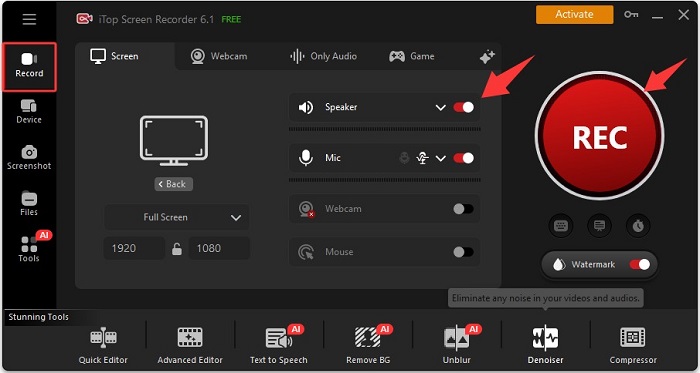
- Select your preferred capture mode: Full Screen, Custom, Specific Window, Lock Window, and Fixed Ratio.
- Enable Speaker to allow iTop Screen Recorder to record a TikTok story with audio.
- Disable Mic, Webcam, and Mouse to make sure your TikTok stories are recorded without distractions.
- Once done, click the red REC to start capturing your TikTok story.
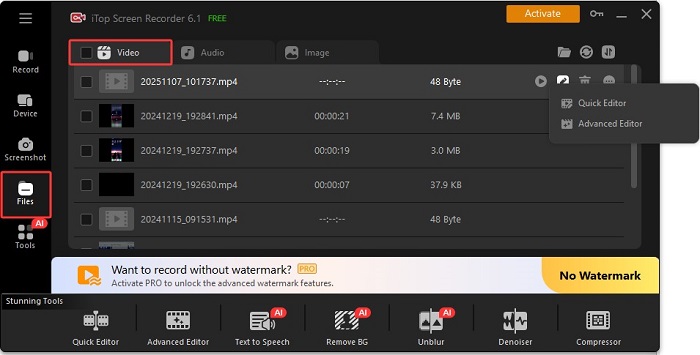
Step 3. To finish recording, simply click the Done button in the mini control bar. Your recordings will be stored in Files > Video. You can edit the video by adding some elements.
2. Using the Snipping Tool
The Snipping tool is a Windows 11 built-in tool with some simple annotation tools. So, you can record any area of your screen; by the way, add annotations as you like. The following are instructions on how to use the Snipping Tool to record a TikTok Story.
Step 1. Search for Snipping Tool in your Windows Start Menu and open it.
Step 2. Click the video camera icon in the top toolbar to change from screenshot to screen recording mode, then click the “New” button.
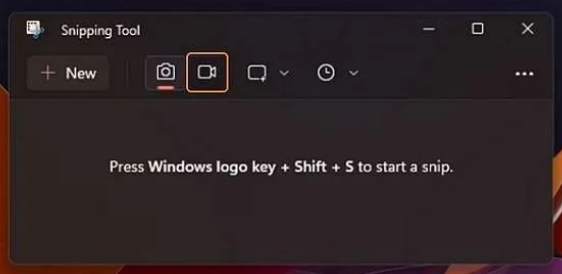
Step 3. Click and drag your cursor to draw a box around the TikTok story.
Step 4. Check the microphone icon at the top to ensure it's on if you want to record your voice or system audio.
Step 5. Click the "Start" button (the red circle).
Step 6. Launch TikTok and play the story you want to record.
Step 7. Click the red stop button when done.
How to Screen Record TikTok Story on a Mac Using Keyboard Shortcuts
For Mac users, they can screen record TikTok story using keyboard shortcuts. This is the easiest way to screen record on a Mac. No installation is required. You can record the entire screen or a portion of the screen based on your needs. Here are the steps.
Step 1. Press Command + Shift + 5 simultaneously to open the screenshot/screen recording toolbar.
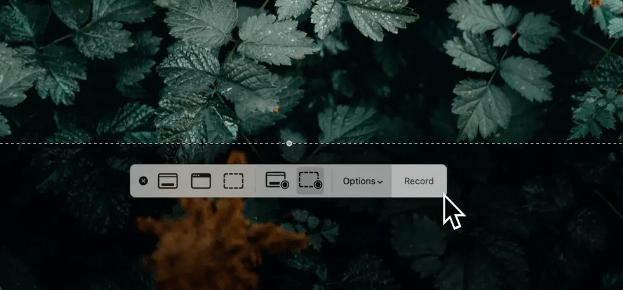
Step 2. Select the recording area. You can drag the corners to select the TikTok story area.
Step 3. Click “Options” in the toolbar to choose where to save the file, set a timer, or select a microphone.
Step 4. Click the red Record button in the toolbar or the menu bar.
Step 5. Play the TikTok story you want to capture.
Step 6. Click the Stop icon to end the recording process.
How to Screen Record TikTok Story iPhone or iPad
It is easy to screen record a TikTok story on an iPhone or iPad. You can either use its pre-installed screen recorder or a third-party screen recorder to get the job done. The former option is ideal for handling basic screen recording tasks. The latter option has more advanced features like trimming, editing, and exporting recordings in various formats, often used as a video editor. Usually, the built-in screen recorder is reliable and doesn’t require a separate app. But if you want to edit your recordings, then you can download third-party tools like Recod it!
Step 1. Open your iPhone and iPad, go to Settings > Control Center.
Step 2. Check if the screen recording feature has been added to the control center. If it doesn’t, just hit the “+” to add it.
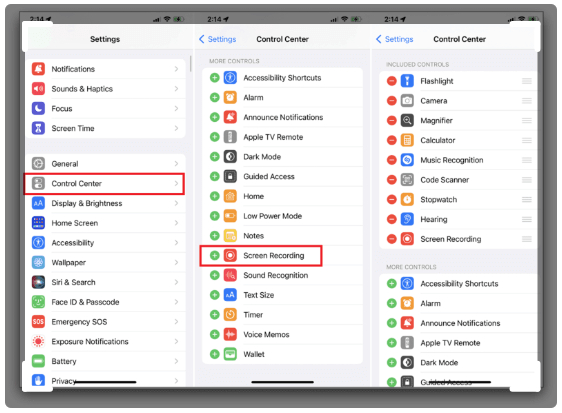
Step 3. Open the Control Center by swiping down from the top-right corner on iPhone X and later or swiping up from the bottom edge on iPhone SE, iPhone 8, and earlier. Find and press the Record icon to start recording.
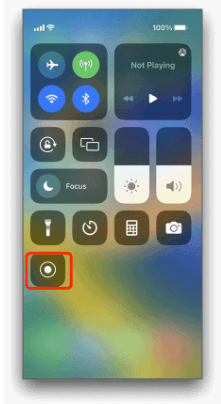
Step 4. Open the TikTok app and locate the TikTok story you wish to record.
Step 5. Once finished, you can hit the red Record icon again to stop recording. Your recording will be stored in the Photos app.
How to Screen Record TikTok Story on an Android Device
All Android devices come with a screen recording feature that is enough for most screen recording cases. But for Android devices doesn’t come with such a feature, you have to resort to third-party tools like DU Screen Recorder. Whichever situation you find yourself in, here are the corresponding solutions.
1. Using Built-in Android Screen Recorder (Available for Android 11+)
Step 1. Swipe down twice from the top of your screen to reveal the Quick Settings panel.
Step 2. Find and tap the "Screen Record" or "Screen Recorder" icon.
Step 3. Choose to record Media Sounds, Media sounds and microphone, or No sound.
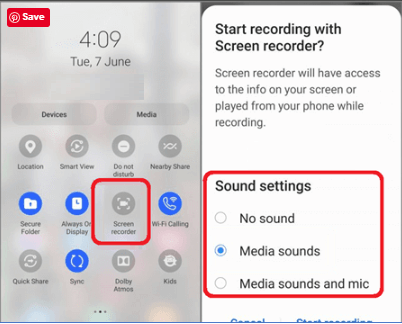
Step 4. Tap "Start" or "Start Recording," then wait for the countdown.
Step 5. Open TikTok and play the story you wish to capture.
Step 6. Tap the stop button to end the recording process. Your recorded video will be saved to your Gallery.
2. Using a Third-Party App (If Built-in Screen Recorder is Unavailable)
Step 1. Install and launch DU Screen Recorder from the Google Play Store on your Android device.
Step 2. Open DU Screen Recorder and tap the Camera icon on the side of your screen to set up screen recording options.
Step 3. Open your TikTok video and play the story you wish to capture. Then, hit the Record icon on DU Screen Recorder to start recording.
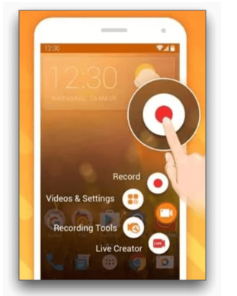
Step 4. Tap the Stop icon on the screen when you want to finish recording.
The Bottom Line
In this guide, we explored how to screen record TikTok Story on various devices, including PC, Mac, iPhone, and Android. With these methods, you can easily capture and share memorable moments from TikTok. For a seamless recording experience with enhanced features, we highly recommend downloading iTop Screen Recorder. It’s user-friendly and perfect for all your screen recording needs. Start capturing your favorite TikTok Stories today!