A clean recording without a logo on top of the video feels noticeably more professional. It also gives more freedom when editing later, since nothing is blocking the frame or distracting from the content itself. Many people need screen recordings for tutorials, gameplay, and meetings, where every detail on screen matters.
However, most free screen recorder tools add a watermark for branding or to promote a paid upgrade. That small mark can reduce the viewing experience and make the video look less polished, especially when sharing it publicly or using it in projects. The best no watermark screen recorder tools are shared here for anyone who wants flexible and ready-to-use footage.
Best 3 Online Screen Recorder Without Watermark
A browser-based option is often enough for quick captures and tutorials. Among the available choices, these three tools are picked: iTop Online Screen Recorder, Canva, and Loom.
iTop Online Screen Recorder
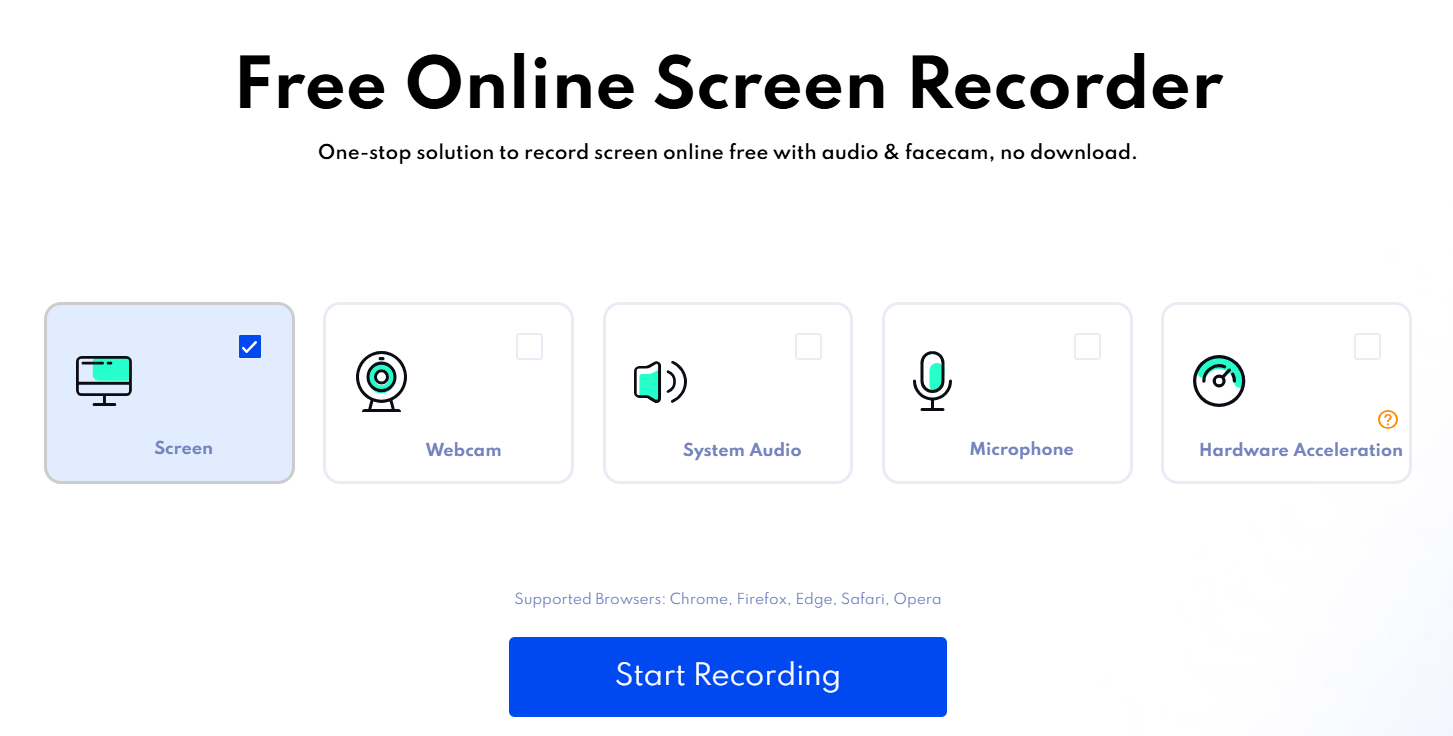
iTop Online Screen Recorder runs directly in the browser and focuses on simple, no-fuss screen capture. It supports full-screen, window, or tab recording, along with microphone and system audio options. The layout is straightforward, with minimal distractions, so users can start recording within seconds without navigating complex menus.
Why you pick it: iTop Online Screen Recorder performs reliably for tasks where installing software is unnecessary. The no watermark screen recorder captures the screen in high quality smoothly with audio & facecam.
Tip: iTop also offers a desktop version that delivers a more stable and feature-rich recording experience on PC. If you need greater control and advanced options, installing the screen recorder for PC is a better choice.
Canva
Canva includes a built-in recording feature that works right inside its browser workspace, making it easy to capture your screen, webcam, or both at the same time. Canva’s online screen recorder without watermark is designed for those looking for more than just raw footage. After recording, the clip opens directly in Canva’s editor, where you can adjust timing, add text, insert visuals, or fine-tune the layout.
Why you pick it: The biggest advantage is how naturally recording and editing come together within no watermark screen recorder from Canva. You don’t need separate software to polish your video, which saves time and effort.

Also Read: How to Record a Video on Canva >>
Loom
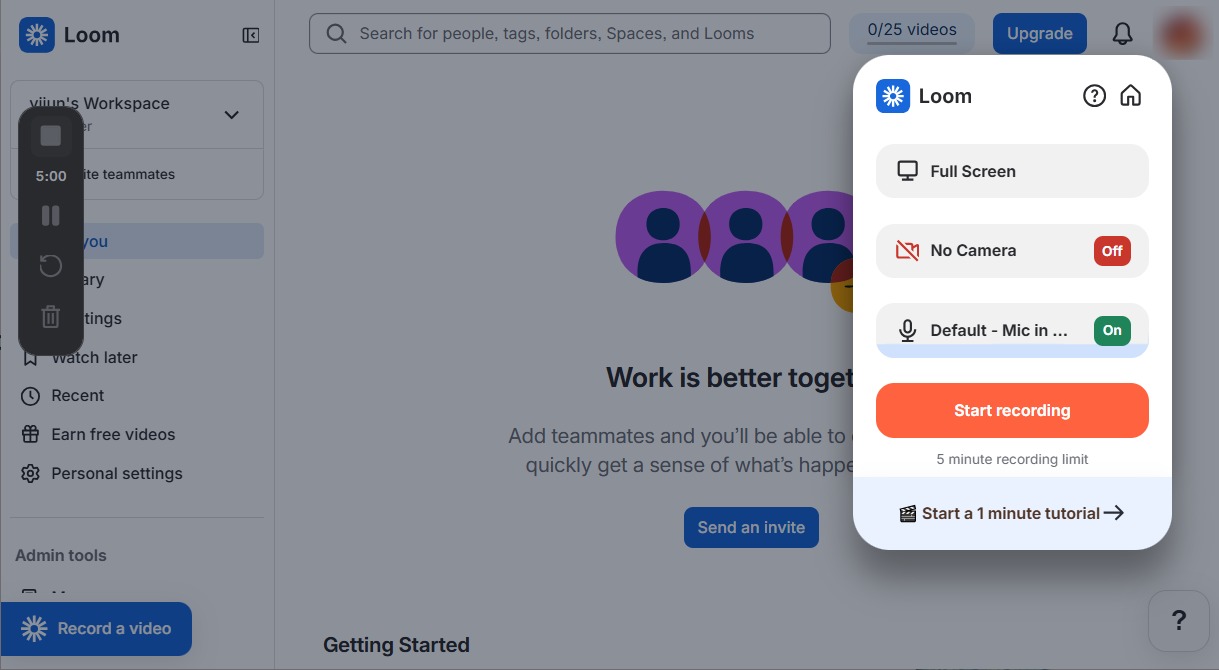
Loom is built for screen recording and sharing, especially in remote work settings. It allows you to capture your screen, webcam, or both together, with a nifty interface that doesn’t slow you down. Once the recording ends, the video is processed automatically and stored online, ready to be shared through a link. Basic editing tools are included, so you can trim or clean up clips without leaving the platform.
Why you pick it: There is no need to export large files or upload manually, which makes Loom a useful screen recorder without watermark for daily communication. The screen recorder no watermark fits into a fast workflow and keeps things simple and efficient.
Verdict: An online free screen recorder no watermark is a good choice for students, remote workers, and content creators who need easy recordings without software installation.
Best 3 No Watermark Screen Recorder for PC
Desktop screen recording tools are still the most stable option when you need higher quality, longer recording sessions, or better system control. Compared with browser-based solutions, local software handles performance more reliably and avoids upload limits. The following three recorders are widely used and offer output without watermark.
Game Bar
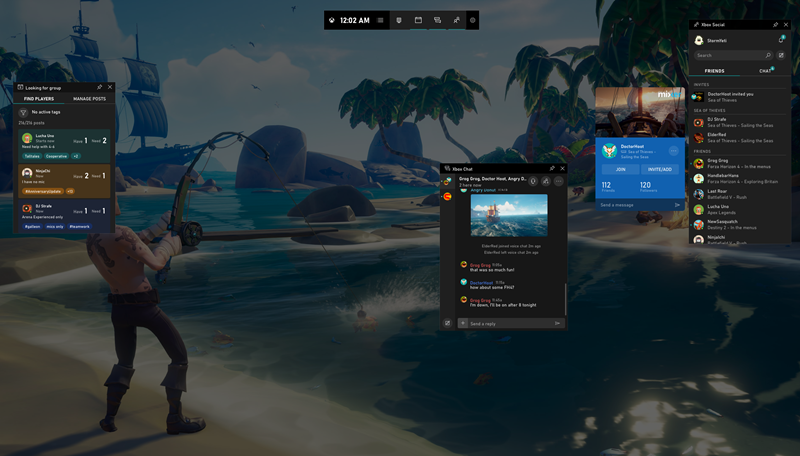
Xbox Game Bar comes a built-in screen recorder on Windows 10 and Windows 11, offering a way to capture screen activity. The no watermark screen recorder was originally designed for gaming, but it also works well for recording apps, tutorials, or any on-screen activity. The overlay can be opened instantly with access to recording controls, audio settings, and system performance stats in one place.
Why you pick it: No setup, no installation, just a shortcut to start recording. The tool runs quietly in the background and produces smooth MP4 files without adding a watermark. Game Bar is one of the best built-in options available on Windows.
ScreenRec
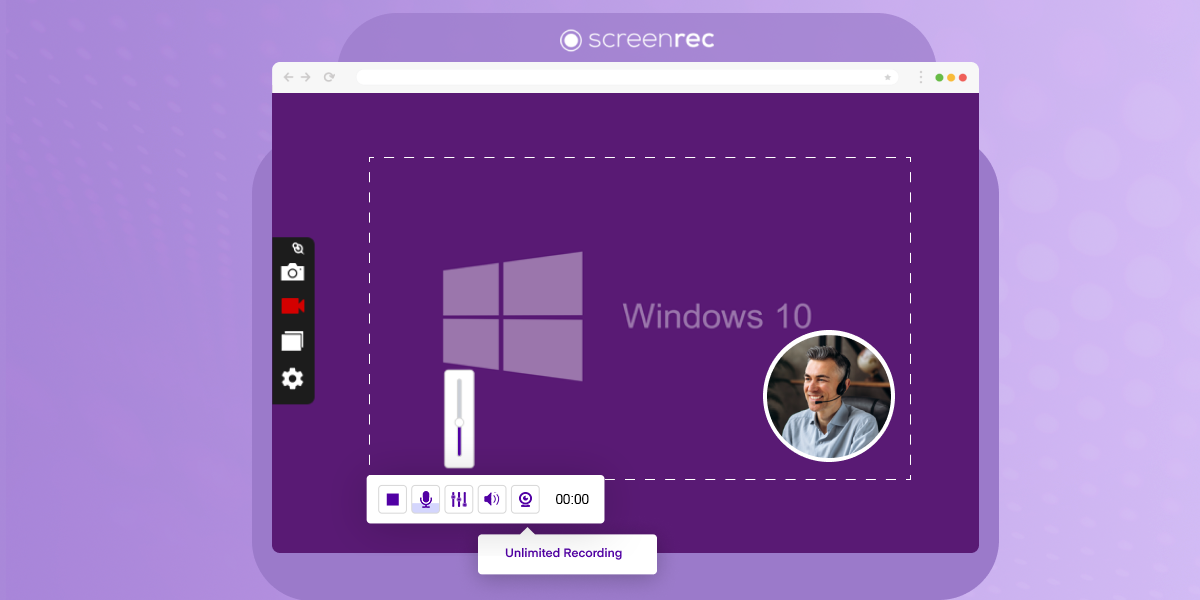
ScreenRec is a lightweight screen recorder for PC without watermark for fast capture and instant sharing. It records screen activity along with microphone or webcam input when needed. Once the recording stops, the file is automatically uploaded and a shareable link is generated, which removes the need for manual exporting or large file transfers. The screen recorder without watermark is fast, and practical for daily use.
Why you pick it: There is no waiting for rendering or uploading steps, which makes communication much smoother in work or learning scenarios. It also provides screen recordings without adding branding, making it a reliable no watermark screen recorder.
ShareX
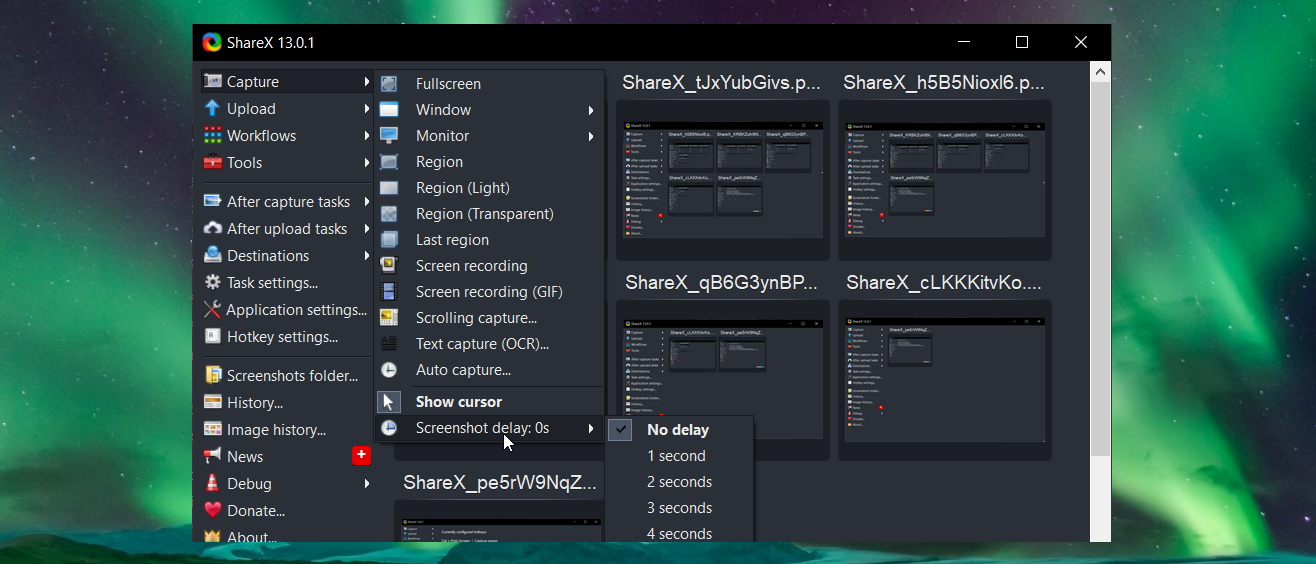
ShareX is an open-source Windows screen capture tool. It goes far beyond basic recording, supporting full-screen, window, region, and even GIF capture. Everything is highly configurable, from video format and frame rate to hotkeys and post-processing actions. Despite its advanced feature set, it stays lean and runs smoothly in the background without affecting system performance.
Why you pick it: ShareX enables users to record, edit, annotate, and even upload content automatically to multiple platforms right after finishing a capture. There are no hidden limits, no ads, and no branding on exported files.
Verdict: The desktop no watermark screen recorder is best suited for power users, developers, educators, and content creators requiring long recordings, frequent captures, or advanced customization.
Best 3 No Watermark Screen Recorder for Mac
If you need to record Mac screen without watermark, check the tools below. QuickTime, OBS, and Bandicam are recommended for tutorials, presentations, gameplay capture, and everyday screen recording on macOS.
QuickTime
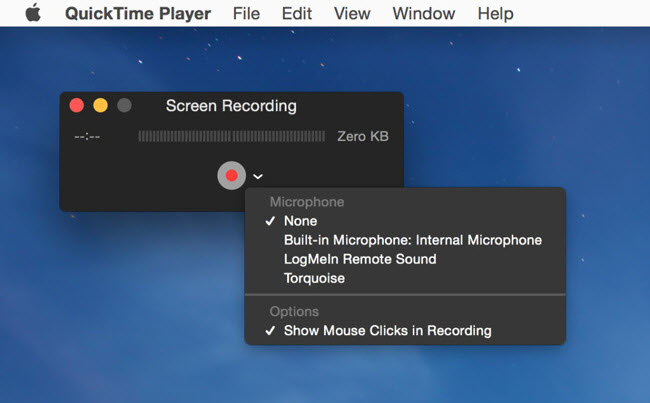
QuickTime Player is a built-in macOS tool that also lets users record screen activity. It supports full-screen or selected-area recording and can capture system audio through external setup or microphone input. Because it comes pre-installed on Mac, it is often considered the most accessible option for basic recording tasks.
The interface is minimal, with recording controls that are easy to understand even for first-time users. You can start a recording in seconds and save it directly to your Mac without dealing with complicated settings. It also allows basic edits like trimming unwanted sections at the beginning or end of a clip.
Why you pick it: There is no watermark, no subscription, and no time limitation beyond available storage space. It also integrates smoothly with other Apple tools, such as iMovie and Keynote for quick editing or presentation use.
OBS
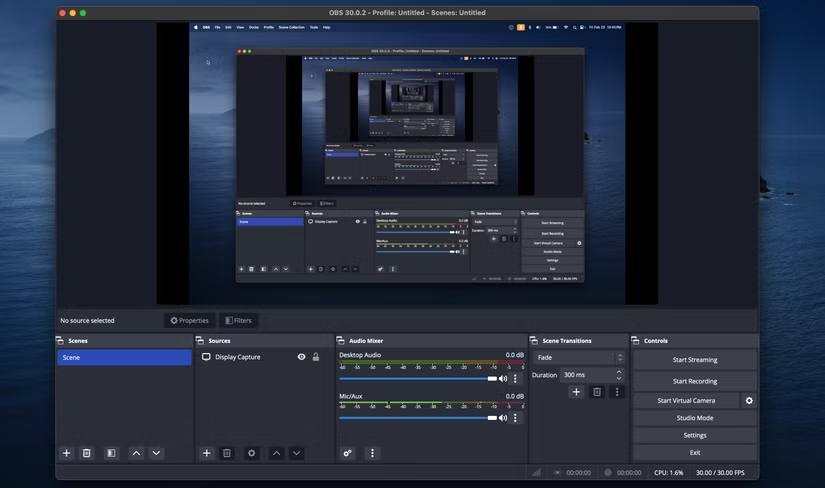
As an open-source program available for Windows, macOS, and Linux, OBS is built around flexibility. You can capture an entire desktop, a specific application window, webcam footage, gameplay, browser tabs, or multiple sources at the same time.
The interface may look slightly technical at first compared to beginner-focused apps, but it offers far more control once you get comfortable with it. Users can rearrange panels, create hotkeys, configure multiple recording profiles, and fine-tune bitrate, frame rate, and output settings according to their needs. OBS also supports virtual camera functionality, allowing recorded scenes to work directly inside apps like Zoom, Discord, or Microsoft Teams.
Why you pick it: OBS remains a top choice for anyone searching for the best free screen recorder without watermark because it offers professional-grade recording features without charging subscription fees or limiting exports.
Bandicam
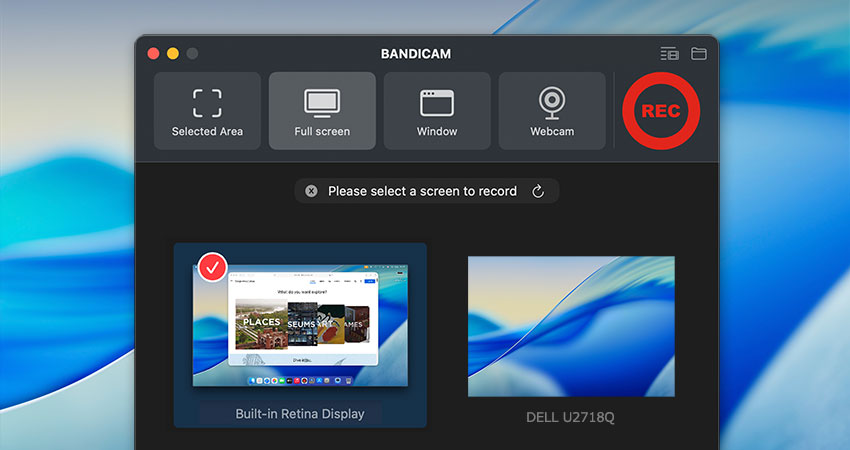
Bandicam is widely used for gameplay capture, online tutorials, webinars, and presentation recording thanks to its clean design and stable output quality. The software supports multiple capture modes, including full-screen recording, custom-area capture, webcam input, and game recording optimized for DirectX and OpenGL applications.
Bandicam supports hardware acceleration from NVIDIA, Intel, and AMD GPUs, helping capture 4K video and high frame rates with less lag during gameplay or multitasking. Useful extras include real-time drawing tools, scheduled recording, webcam overlays, and simultaneous microphone/system audio capture.
Why you pick it: Bandicam works especially well for gaming videos, online classes, software demos, or YouTube tutorials. Its nifty interface is beginner-friendly, yet it still includes enough advanced options.
Verdict: If you need a lightweight recorder for presentations or casual screen capture on macOS, QuickTime Player is the easiest option. OBS is a better fit for creators, streamers, and advanced users who want full control. Bandicam, meanwhile, is ideal for those focused on gameplay recording or high-frame-rate capture with minimal system slowdown.
Alternative Way to Remove Watermark from Screen Recordings Free
iTop Screen Recorder is regarded as an industry-leading screen recorder for PC. Whether you want to capture the screen for content creation or record streaming videos, live shows for offline watching, it ensures no-lag screen recording workflow and delivers high-quality result. The "Enhanced Mode" helps record videos without black screen. It also supports recording audio, webcam and gameplay smoothly.
Although the free version adds a watermark in certain recording modes, it includes a built-in video editor that helps quickly crop, trim and enhance recordings afterward without needing extra software.
Here's how to remove a watermark from a saved recording using the crop tool:
Step 1. Download iTop Screen Recorder on your PC.
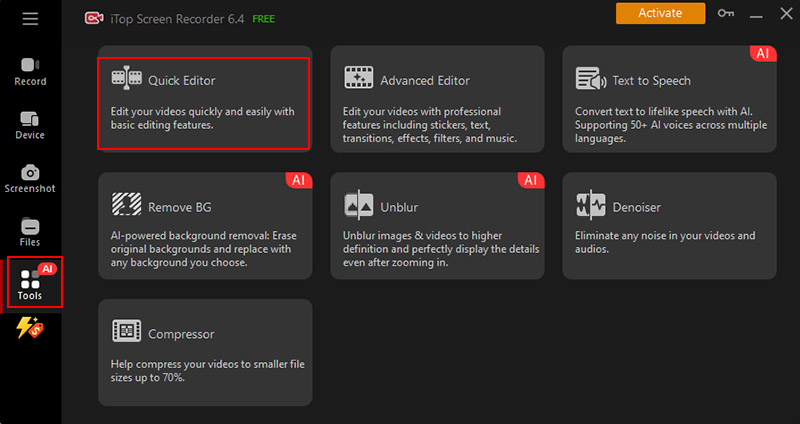
Step 2. Launch iTop Screen Recorder and open the built-in editor from the "Tools" section. Select "Quick Editor" and import your recorded video.
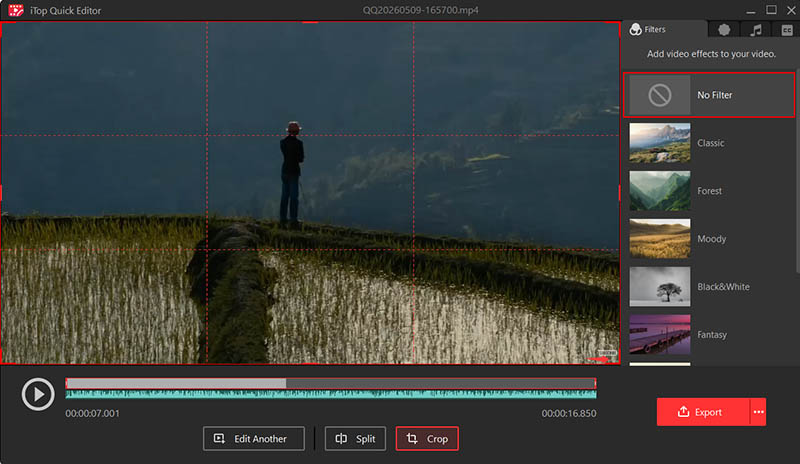
Step 3. Choose the "Crop" option from the editing panel.
Step 4. Adjust the frame to cut out the watermark area from the edge of the video. Preview the result and export the edited file.
Tip: iTop Screen Recorder Pro enables users to record videos directly without watermarks. It also supports adding custom logos or branded overlays, which can be useful for creators who want copyright protection or consistent branding across their content.
The Bottom Line
The screen recorders without watermark shared and reviewed above work across different devices, covering everything from casual screen capture to more demanding recording tasks like tutorials or gameplay. For anyone looking specifically for a no watermark screen recorder, there are still ways to keep things flexible even after recording. iTop Screen Recorder provides a built-in option to edit footage and crop out watermark areas without extra cost, which can help when a fix is needed instead of starting over.