


TNT Sports has earned a reputation as one of the leading premium sports broadcasting services, offering live coverage of football, basketball, and other major sporting events. Its wide array of matches, high-definition streams, and expert commentary, makes it a favorite among fans who never want to miss a moment.
For many viewers, the ability to record TNT Sports is essential, whether to catch a game they can't watch live or to build a personal library of thrilling moments.How to record TNT Sports? There are several ways to save your favorite games across different devices.

Disclaimer: We DO NOT advocate recording TNT Sports for distribution or commercial purposes.
Can You Record TNT Sports
Yes, you can record TNT Sports. Fans can watch it not only on traditional TV but also through streaming platforms like HBO Max. With the rise of screen recording software and classic DVRs, saving live games has become effortless. You can capture entire matches or just highlights without missing a beat.
If you want to know how to record TNT Sports, the next sections will show a detailed guide on how to record TNS Sports on Windows, macOS, and TV.
How to Record TNT Sports on PC
Watching live matches on a computer is convenient, but it often comes with one downside: you can't always pause your schedule for kickoff. Tools like iTop Screen Recorder make it straightforward to record TNT Sports directly from your PC, so you can save a full match, a last-minute goal, or a short highlight clip in TNT Sports for later viewing.
Here's how to record games on TNT Sports step by step on Windows.
Step 1. Download iTop Screen Recorder, install and open it for TNT Sports capture.
Step 2. Open TNT Sports on your PC. Go to VIDEOS > LIVE & SCHEDULE. Select an event and you'll be redirected to HBO Max for watching. TNT Sports also includes moments, highlights, interview clips, etc., which you can watch and record.
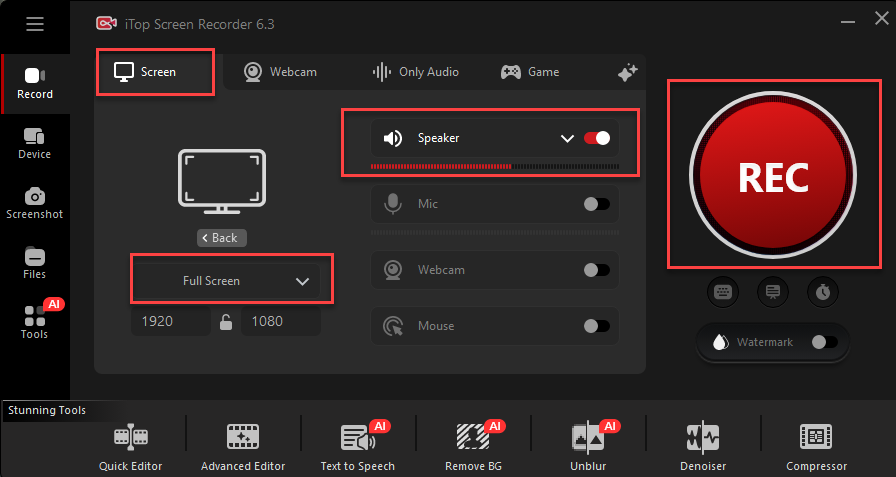
Step 3. In iTop Screen Recorder, click Record > Screen, then set the recording area to full screen or a custom region, depending on what you want to capture. Turn on system sound to capture the live commentary.
Step 4. Click the REC button just before the match begins. The tool will capture everything on screen in real time without interrupting playback. Once the game or highlight ends, stop the recording. The TNT Sports recording is accessible under Files > Video.
What're the Benefits of Using iTop Screen Recorder
Record TNT Sports with original quality
iTop Screen Recorder captures video in HD/4K UHD, preserving native quality and smooth motion. This is important for fast-paced sports, where clarity can make the difference between a blur and a perfect replay.
Record games on TNT Sports with no time limit
Long matches, extra time, or even back-to-back games on TNT Sports can be recorded in full length, no time limit. You don't have to worry about recordings stopping halfway through a crucial moment or splitting into multiple files.
Screen record TNT Sports consistently
iTop Screen Recorder ensures the TNT Sports recording stays in sync with the stream, even during longer sessions. No random freezes or dropped frames that could ruin key highlights or full replays.
Record protected content without black screen
Some streaming platforms block basic recording tools, delivering a black screen. iTop Screen Recorder uses an "Enhanced Mode" to bypass the issue, allowing you to capture TNT Sports video content perfectly, no black screen.
Edit TNT Sports recording at one stop
After recording, you can get a quick access to the built-in video editor that help trim clips, cut out unwanted parts, or save shorter highlight segments, add text/effects, for sharing, storing, etc.

Record Live and Streaming Videos in One Click
- Record TV shows, movies, live sports from any site.
- Record videos and live streams without quality loss.
- Record from YouTube, Netflix etc., without black screen.
- Record with mic/webcam to create reaction videos.
iTop Screen Recorder is currently available for Windows only. If you're using a Mac and want to record TNT Sports, you'll need to choose a screen recorder designed for macOS.
How to Record TNT Sports on Mac
If you want to record TNT Sports on a Mac, QuickTime Player is often the first option. While it's mainly known as a media player, it also includes a built-in recording feature that supports screen and movie recording in the entire screen or a selected region.
You can record TNT Sports in HD/4K .mov format with QuickTime Player on your Mac computer. Here's a full guide on how to record TNT Sports using QuickTime Player.
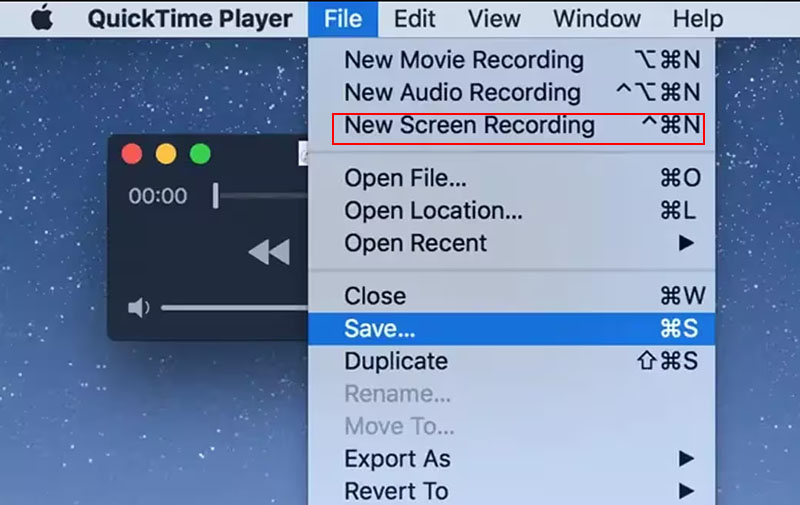
Step 1. Launch QuickTime from your Applications folder. In the top menu bar, click "File" and select "New Screen Recording".
Step 2. A small control panel will appear. Choose whether to record the entire screen or drag to select a specific area where TNT Sports is playing.
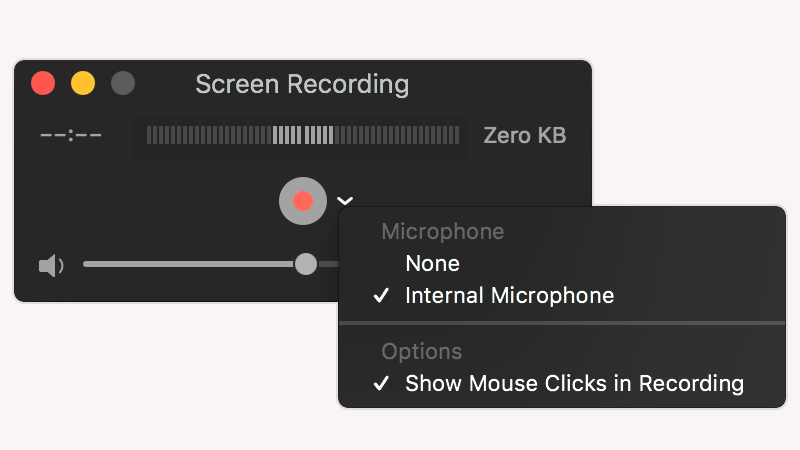
Step 3. Click the drop-down arrow next to the record button and select a microphone if you want to capture external sound.
Step 4. Click the record button, then open TNT Sports in your browser or app and play the stream you want to capture. When you're done, click the stop icon in the menu bar to complete the TNT Sports recording.
For casual use, this method is often enough to record TNT Sports without installing anything extra on Mac, especially if you just need short clips from TNT Sports or occasional recordings. Some users may run into a black screen when trying to capture protected streams, while others notice recordings stopping unexpectedly during longer matches. Audio limitations can also be frustrating, especially when system sound isn't captured properly.
How to Record TNT Sports on TV
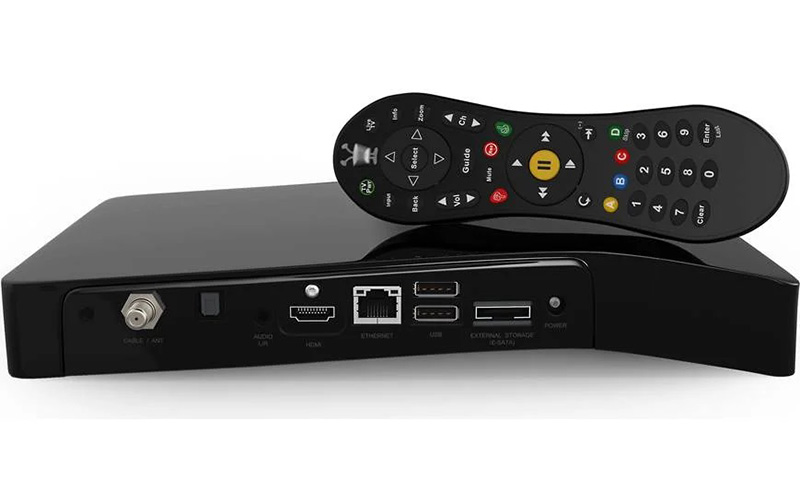
Recording live matches on TNT Sports is simple thanks to DVR technology, which allows you to save programs and rewind events. Most TV providers, including Sky and Virgin Media, include DVR functionality in their boxes, so it's easy for subscribers to manage recordings without paying for extra services. To record TNT Sports, you'll need a compatible set-top box, a subscription that includes the channel, and an active internet connection. Below is the guide on how to record on TNT Sports on TV with a DVR.
Step 1. Check your TV box or DVR is connected and working as expected. Most setups use an HDMI connection, and your box should be powered on with a stable signal.
Step 2. When a TNT Sports game is already on, simply press the REC button on your remote.
Tips: If you don't want to rely on timing, open the TV guide and browse upcoming TNT Sports events. Select the match you’re interested in and choose the option to record it.
Step 3. Head to your recordings library section. From there, you can watch, rewind, or delete saved content whenever you like.
DVR offers an easy solution to record TNT Sports from your TV, but it isn't without potential hiccups. Common issues include black screens, unexpected stops, or missing parts of the broadcast if events start late or run longer than scheduled. Problems can also occur if your box loses power, switches between aerial and internet mode, or is recording multiple channels simultaneously.
More About TNT Sports Recording
Can you record TNT Sports on Discovery Plus?
No, TNT Sports is no longer available on Discovery Plus. Since March 26, 2026, all TNT Sports content has moved to HBO Max. You can still record your favorite games from the streaming platform by using tools like iTop Screen Recorder.
Is it legal to screen record TNT Sports?
Recording TNT Sports for personal use, such as watching later or saving highlights for yourself, is generally acceptable in most regions. However, sharing or redistributing recorded content publicly can violate copyright laws.
Can't watch TNT Sports recordings on TV? How to fix?
TNT Sports TV recordings often fail to play due to "only on box" rights, subscription or hardware issues, or guide errors. Try restarting your TV box, streaming device, checking for expired or failed recordings.
How to watch TNT Sports outside the UK?
TNT Sports is region-locked, so access outside the UK is limited. With a free VPN, you can change the location to UK for watching.
Conclusion
Recording TNT Sports puts you in charge of your viewing experience, so you can watch TNT Sports live games, replays, and highlight moments whenever it's convenient. However, it may fail to record TNT Sports due to rights restrictions, guide errors, or technical glitches. Common issues include black screens and unexpected stops. For hassle-free capture, use iTop Screen Recorder to record every match from TNT Sports smoothly in HD/4K, and never miss a moment again.





