Want to learn how to record PS5 party chat while gaming with friends? Whether you’re creating YouTube videos, livestreaming on Twitch, saving funny multiplayer moments, or making gameplay highlights, recording both gameplay and party voice chat is essential for engaging content.
Fortunately, the PlayStation 5 includes built-in recording tools that make gameplay capture easier than ever. You can also use advanced setups like OBS Studio and capture cards for higher-quality recordings and better audio control.
In this guide, you’ll learn:
Can You Record PS5 Party Chat?
Yes, you can record PS5 party chat, but there are some important settings and permissions involved. The PS5 allows users to include party voice chat in gameplay recordings, but every participant must allow their voice to be shared. If party members disable voice sharing, their voices may not appear in the final recording. If, unfortunately, you can’t record PS5 party chat, common reasons might include:
- Voice sharing disabled
- Incorrect audio settings
- Capture software is not configured properly
- Headset audio routing issues
Because of these limitations, many creators use third-party audio recorders or capture cards for a more reliable PS5 party chat record.
Requirements for Recording PS5 Party Chat
Before you start recording PS5 party chat, it’s important to prepare the right setup. While the PlayStation 5 includes built-in recording tools, the overall recording quality depends heavily on the devices and accessories you use. Having the proper equipment can help improve audio clarity, reduce background noise, and make gameplay recordings look more professional.
- PlayStation 5 console
- Gaming headset or microphone
- Stable internet connection
- Capture card (Optional)
- USB storage device (Optional)
- PC or laptop (Optional)
How to Record PS5 Party Chat Using Built-In Capture Feature
The easiest way to create a PS5 party chat record is by using the console’s built-in gameplay capture tools. Here are the steps.
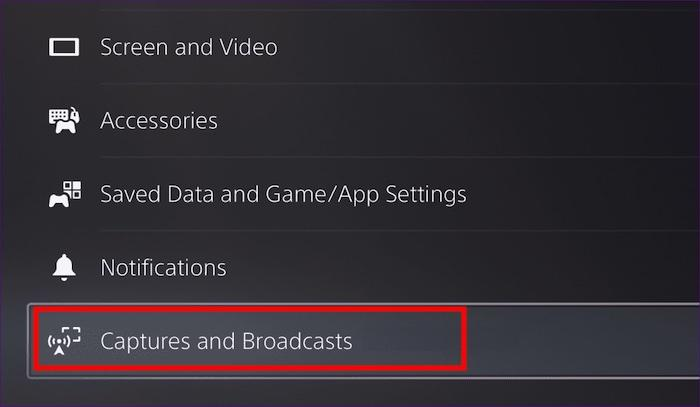
Step 1. Go to Settings > Captures and Broadcasts > Captures > Audio Capture, enable “Include Microphone Audio” and “Include Party Audio.”
Step 2. Ask your friends to enable voice sharing. They can open the party menu and select “Allow Your Voice to Be Shared.”
Step 3. Start a party with friends before launching your game.
Step 4. Open the game you want to record.
Step 5. Press the Create button on the DualSense controller and select “Start New Recording.”
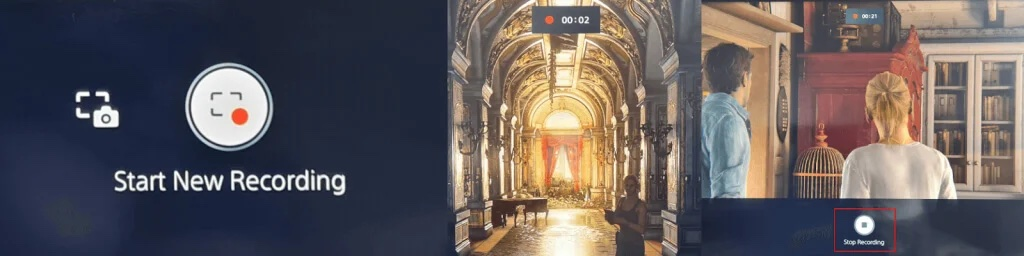
Step 6. Press the Create button again and choose “Stop Recording” to end the recording process.
How to Record PS5 Party Chat with a Capture Card
If you want professional-quality recordings, a capture card is the best option. Capture cards allow users to record higher-quality gameplay, manage audio more effectively, and stream directly to Twitch or YouTube. Unlike the built-in PS5 recorder, capture cards provide better bitrate control and more stable recordings. If you prefer this way, follow these steps for PS5 share recording.
Step 1. Configure PS5 Settings
- Go to your PS5 Party Chat, click the three dots (...), and select Voice Chat Settings. Ensure Share Your Voice is set to Allow. Also, ensure your friends also have this setting enabled.
- Go to your PS5 Settings > Captures and Broadcasts > Captures. Turn on Include Party Audio.
- Turn Off HDCP: Go to Settings > System > HDMI and toggle Enable HDCP off. (Note: This is required to let the video signal pass through the capture card.)
Step 2. Connect Your Hardware
- Connect the PS5 to the capture card.
- Connect the capture card to your TV/Monitor.
- Plug the capture card into your computer via the USB 3.0 port.
- Plug the other end (the long cable) into the Audio In / Line In port on your PC, or directly into the Audio In port on your capture card (if equipped).
Step 3. Set Up Your Recording Software (e.g., OBS Studio)
- Open your recording software (like OBS) and add a Video Capture Device source. Select your capture card to bring up your PS5 video feed.
- Add an audio input capture source. Select the microphone or Line-In port where your Chat Link cable is plugged into your PC.
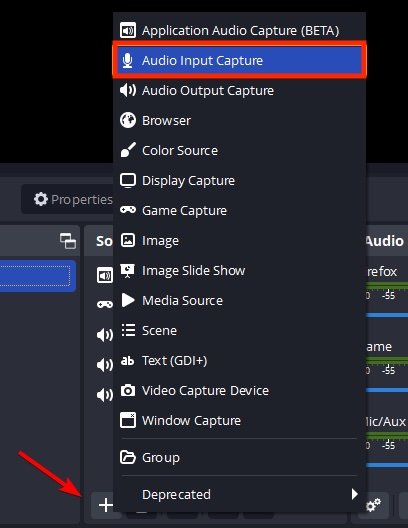
- Speak into your headset, type a message, or join an active party. Watch your software's audio mixer to verify that both game audio and voices are registering, then hit Start Recording.
How to Record PS5 Party Chat on PC Using iTop Screen Recorder
In recent years, more and more gamers have been choosing to play PS5 games on a computer, whether through Remote Play, capture cards, or streaming setups. Playing on a larger screen or sharing the experience with friends online offers unmatched convenience and immersion. But if you want to record your gameplay, whether for creating highlights, tutorials, or sharing on social media, you need a reliable tool that won’t slow down your system or compromise video quality.
This is where iTop Screen Recorder becomes an essential companion for PS5 gamers. Designed to capture high-quality gameplay seamlessly, it allows users to record every move, every battle, and every cinematic moment without lag. Compared to more advanced software, iTop Screen Recorder focuses on simplicity and ease of use, making it ideal for users who want to quickly record PS5 party chat without configuring complicated settings.
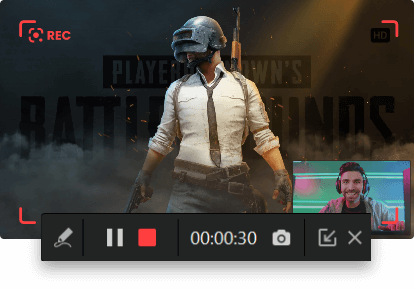
Here are more features of iTop Screen Recorder:
- AI Noise Reduction for Clear Voice Chat
The AI noise suppression feature helps filter out these unwanted sounds like keyboard clicks automatically, making voices clearer and easier to understand. This feature is also useful outside gaming. For example, you can record Zoom meetings with cleaner audio.
- Record Webcam Together with Gameplay and Party Chat Audio
iTop Screen Recorder supports simultaneous webcam, gameplay, and audio recording. This allows users to add facecam reactions while recording PS5 gameplay and party chat conversations.
- Dedicated Game Boost Mode to Enhance Game Experience
The built-in Game Boost mode is designed to optimize system performance during recording sessions. When activated, the software reduces unnecessary background processes and allocates more resources to gameplay recording.
- Smoother 1080p and 4K Capture Without Lag
iTop Screen Recorder supports HD and 4K recording with hardware acceleration from NVIDIA, AMD, and Intel GPUs. Hardware acceleration shifts some recording tasks from the CPU to the GPU, helping improve recording performance. The feature is also useful for other recording tasks, including screen record protected videos for offline viewing.
- Lightweight Editing Tools for Enhancing Recordings
After recording gameplay and party chat, iTop Screen Recorder includes built-in editing tools that allow users to quickly enhance their videos without using separate editing software. Beyond gameplay, you can also record TV shows and record them perfectly.
Here are the steps to use iTop Screen Recorder for a PS5 party chat record.
Step 1. Connect your PS5 to an HDMI capture card (like Elgato or AverMedia). Plug the card into your PC via USB and open your capture card's viewing software (or use OBS as a bridge).
Step 2. Download and install iTop Screen Recorder on your computer.
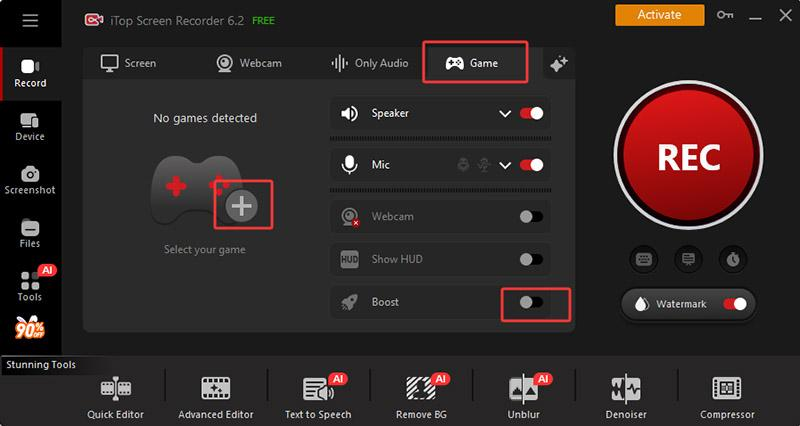
Step 3. Click Record > Game. Click the plus icon and select your game (Roblox). Switch on the Boost feature to optimize system performance while gaming or recording. Then, click REC to start recording.
Tips for Better PS5 Party Chat Recordings
To make your PS5 party chat recordings sound more professional and enjoyable, a few simple adjustments can make a huge difference. From reducing background noise to balancing game audio with teammates’ voices, the following tips will help you capture clearer conversations and create smoother, more engaging recordings.
- Use noise suppression
- Separate the audio track to make editing much easier
- Use quality microphones
- Add a webcam overlay to make gameplay videos more engaging.
FAQ
1.Does PlayStation record party chat on PS5?
Yes, the PlayStation 5 can record party chat audio, but it only works if the proper settings and permissions are enabled. The PS5 allows users to include party voice chat in gameplay recordings created through the built-in capture feature.
2.How to record PS5 party chat on PS4?
Although PS5 and PS4 are different consoles, you can still record PS5 party chat while playing with PS4 users because PlayStation Party Chat supports cross-generation voice communication.
3.Why can’t I hear my friends in PS5 recordings?
Your friends may not have enabled voice sharing permissions.
4.Does PS5 automatically record party chat?
Only if the proper audio settings are enabled.
Conclusion
Learning how to record PS5 party chat is easier than ever, thanks to the PS5’s built-in capture features and powerful PC recording tools like OBS Studio and iTop Screen Recorder. Casual players can use the built-in recorder for quick gameplay clips, while creators and streamers may prefer capture cards for advanced audio control and professional-quality recordings. If this is what you want, just let iTop Screen Recorder help you do it without a problem. Now, download iTop Screen Recorder to start your gameplay recording journey!