Want to save only the best part of a YouTube video? Whether you're creating highlights, removing unnecessary sections, or sharing a specific clip, knowing how to cut a video from YouTube can save time and improve your workflow.
Fortunately, there are several ways to trim YouTube videos. You can use YouTube's built-in editor for your own uploads, download and edit videos offline using a video editor, use online video cutters, or record and trim clips with screen recording software. In this guide, we'll walk you through every method on how to trim a video in YouTube step by step.
Can You Trim Videos on YouTube Directly?
Yes, the answer depends on whether you own the video. If the video is uploaded to your own channel, YouTube Studio allows you to trim the beginning, middle, or end without re-uploading it. However, you cannot directly edit videos uploaded by other creators. If you need a specific section from a public YouTube video, you'll need to use alternative methods such as screen recording or downloading the video when permitted by copyright laws and YouTube's Terms of Service.
1. How to Trim a Video in YouTube Using YouTube Studio
How to trim a video in YouTube? The easiest way to trim videos uploaded to your YouTube channel is by using YouTube Studio. It lets you remove unwanted parts from the beginning, middle, or end of a video without downloading or re-uploading it. Your edits are applied directly to the existing video while keeping its quality, views, comments, and engagement.
Step 1. Sign in to your YouTube account and open YouTube Studio from your profile menu.
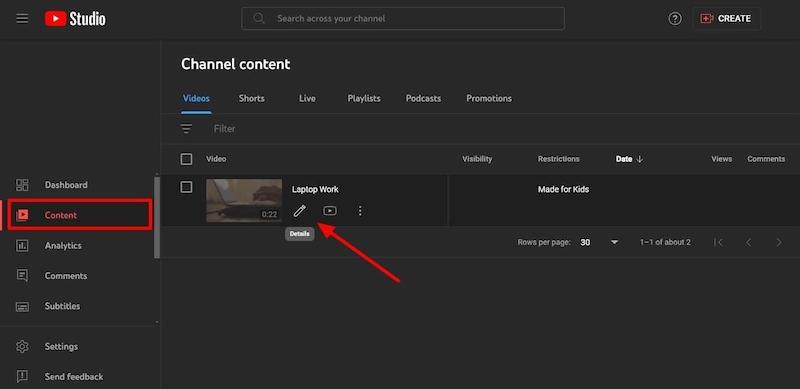
Step 2. Click Content from the left sidebar and choose the video you want to trim. Click the Title or the Details icon to open the video settings page.
Step 3. Select Editor from the menu options on the left side of the video management page.
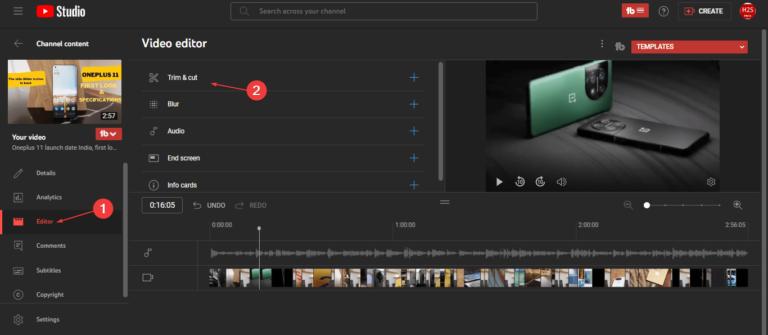
Step 4. Click Trim & Cut and drag the handles on the timeline to remove unwanted portions. You can also split the timeline to remove sections from the middle of the video.
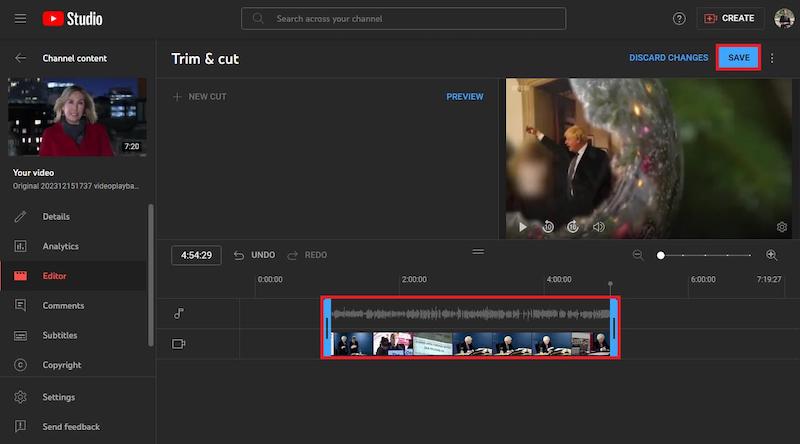
Step 5. Review your edits and click Save to apply the changes. Depending on the video's length, processing may take some time.
2. How to Cut a Video from YouTube with an Online Video Cutter
Online tools provide a quick way to trim videos without installing software, making them ideal for users who need fast edits directly from a web browser. Popular options such as Clideo allow you to upload a video, select the section you want to keep, and export the trimmed clip in just a few minutes.
If you want to cut a video from YouTube with an online video cutter, just try Clideo. It is a popular online video trimmer that allows you to cut videos directly from your browser without installing software.
Here’s how to cut a YouTube video that's not yours.
Step 1. Visit the Clideo Video Cutter website and click Choose File to upload your video.
Step 2. Select the video file from your computer, Google Drive, or Dropbox.
Step 3. Drag the start and end sliders on the timeline to choose the section you want to cut from the video.
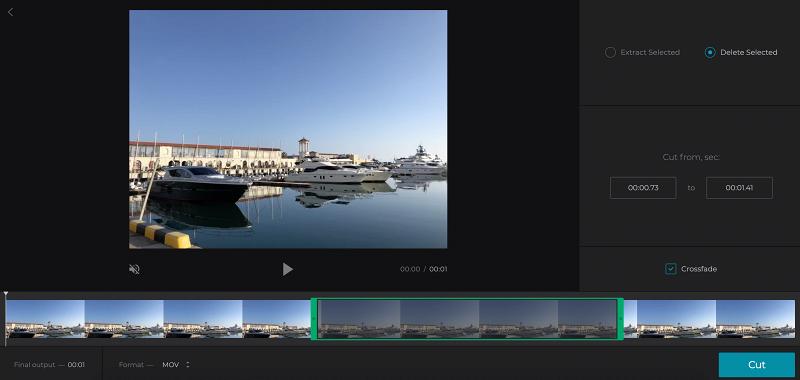
Step 4. Click the play button to review the selected clip and make adjustments if necessary.
Step 5. Click Export to process the video.
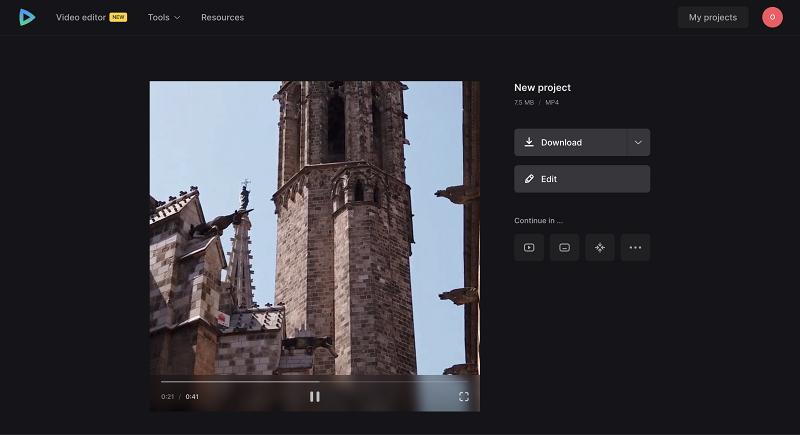
Step 6. Once processing is complete, click Download to save the trimmed video to your device.
However, online tools may have file size limits, slower processing speeds for large files, or privacy concerns when uploading content. For a more reliable solution with advanced editing features, iTop Screen Recorder offers both video recording and trimming capabilities in one easy-to-use application.
3. How to Cut a Video from YouTube on Phone (Android & iPhone)
You can cut YouTube videos on Android or iPhone using built-in tools or third-party apps. Popular third-party apps include CapCut, InShot, VN Video Editor, iMovie, and Adobe Premiere Rush. These apps let you trim, split, and export videos in high quality with similar steps on both systems.
Step 1. Download the video legally if permitted, or use your device's screen recording feature to capture the section you want from YouTube.
Step 2. Launch your preferred editor, such as CapCut, InShot, VN Video Editor, iMovie, or Adobe Premiere Rush, and create a new project.
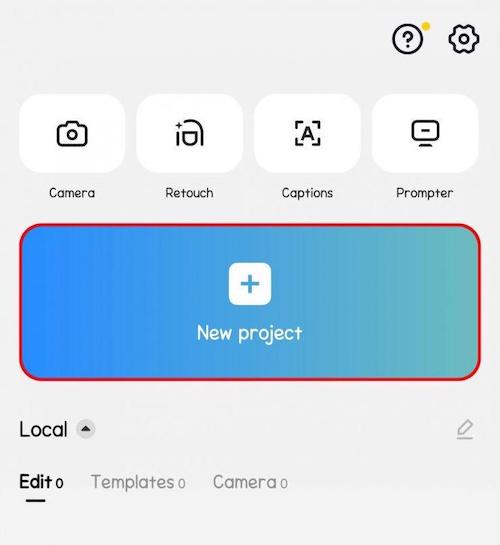
Step 3. Select the downloaded or recorded YouTube clip from your device's gallery or Photos library.
Step 4. Drag the trim handles at the beginning or end of the timeline to remove unwanted sections. If you need to remove a portion from the middle, use the Split tool and delete the unwanted segment.
Step 5. Play the video to ensure the cuts are accurate and the final clip contains only the content you want to keep.
Step 6. Save the edited video and choose your preferred resolution and frame rate for the best quality.
4. How to Cut a Video from YouTube Using a Video Editor
Downloading a YouTube video and editing it on your device gives you more control over the editing process. Desktop video editors offer features like trimming, cutting, adding effects, adjusting audio, and exporting in different formats. This method is ideal for users who want better quality, faster performance, and greater flexibility. Popular video editing tools include Adobe Premiere Pro, Clipchamp, DaVinci Resolve, and CapCut Desktop.
Let's take Clipchamp as an example and see how to cut a video from YouTube with it.
Step 1. First, download the video legally from an authorized source or use a video that you own.
Step 2. Open Clipchamp and click Create a New Video. Select Import Media and upload the downloaded YouTube video.
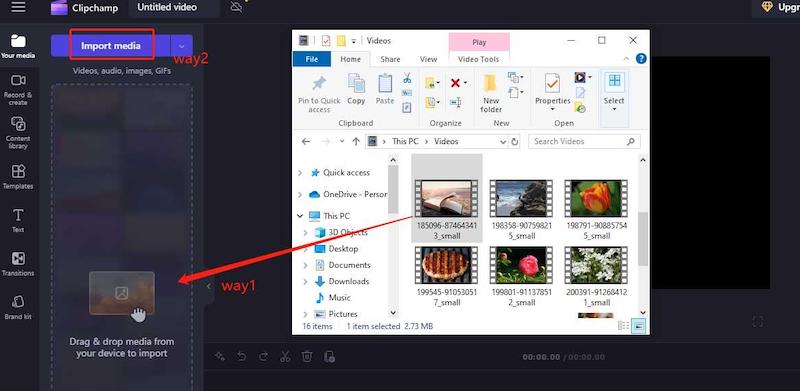
Step 3. Drag the video from the media library to the editing timeline at the bottom of the screen.
Step 4. Move the playhead to the point where you want to make a cut and click the Split button. Delete the sections you don't need or drag the edges of the clip to trim the beginning or end.
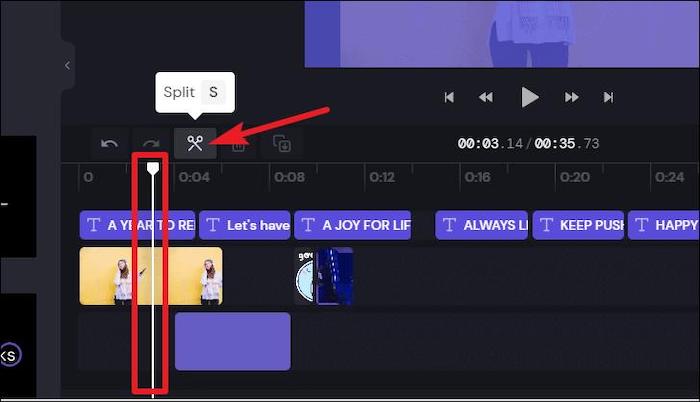
Step 5. Play the video to ensure the cuts are accurate and the final clip contains only the content you want to keep.
Step 6. Click Export, choose a resolution such as 1080p, and save the trimmed video to your computer.
5. How to Cut a Part of a Video from YouTube by Screen Recording
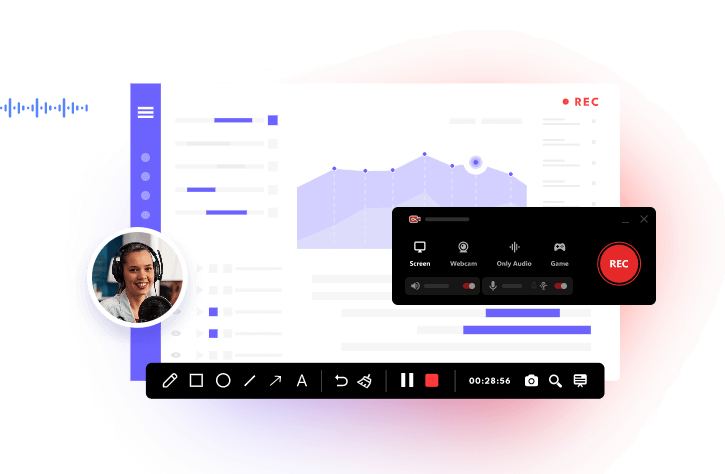
Using a screen recorder is one of the easiest ways to cut a video from YouTube, especially when you only need a specific section. Instead of downloading the entire video and editing it afterward, you can simply record the exact part you want to keep, saving both time and storage space. If you’re looking for a helpful screen recorder, just try iTop Screen Recorder. It allows you to record the desired segment and then trim unwanted footage with its built-in video editor. For more features of this screen recorder, just check the following feature list.

Record Live and Streaming Videos in One Click
- Record TV shows, movies, live sports from any site.
- Record videos and live streams without quality loss.
- Record from YouTube, Netflix etc., without black screen.
- Record with mic/webcam to create reaction videos.
Record YouTube Videos in HD and 4K Quality
Capture YouTube content in crystal-clear HD and 4K resolution for offline viewing, tutorials, or personal projects. The high-quality recording mode is also ideal when you need to screen record protected videos while preserving sharp visuals and audio.
Capture Full Screen or Selected Regions
Record your entire display or choose a specific window or area. This flexibility makes it easy to record Zoom meetings, capture presentations, or save only the important parts of a video without unnecessary screen elements.
Built-in Video Editor for Trimming Clips
Trim recordings directly after capture to remove unwanted sections, shorten videos, or create highlights. This feature is especially useful when you screen record Instagram DM conversations and want to keep only the relevant clips.
Hardware Acceleration for Smoother Performance
Advanced hardware acceleration reduces CPU usage and ensures stable recording performance. It helps maintain smooth video playback and recording quality when you screen record Kayo sports streams or other high-resolution content.
Here’s how to cut a video from YouTube using iTop Screen Recorder:
Step 1. Install iTop Screen Recorder on your Windows PC and launch the program. Open YouTube in your browser and navigate to the video you want to save and cut.
Step 2. Return to iTop Screen Recorder.
- Choose either Full Screen or Select Region to capture the desired area of the YouTube video.
- Click the REC button.
- Play the YouTube video.
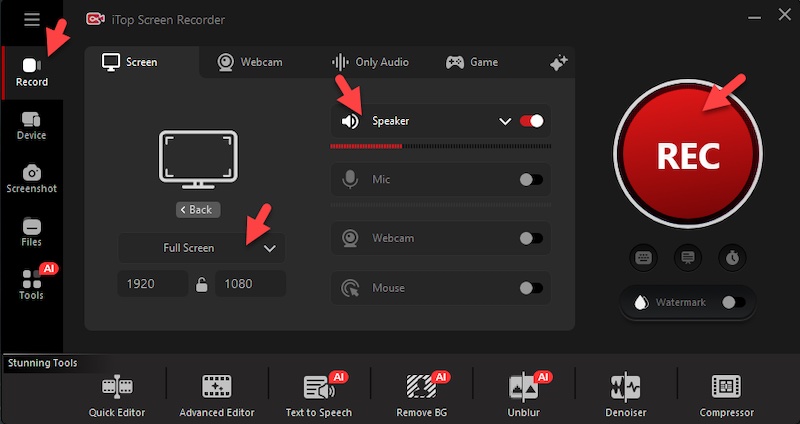
Step 3. When the desired portion has been recorded, click Stop. Then, go to Files > Videos.
- Put your cursor on the video you wish to edit.
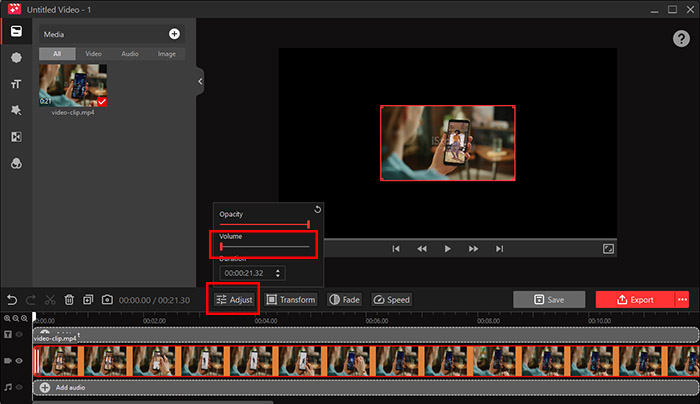
- Select Edit
- Drag the start and end handles on the timeline to keep only the section you want.
- Save the trimmed video and choose the desired output format and quality settings.
Also Read: Screen Record Restricted Apps No Black Screen, Root & Notifications >>
Tips for Cutting YouTube Videos Without Losing Quality
To achieve the highest possible video quality and ensure a smooth editing experience, follow these proven best practices to avoid common issues and produce better results when cutting YouTube videos.
- Export videos at their original resolution.
- Choose a high bitrate setting.
- Avoid unnecessary re-encoding.
- Use reliable editing software.
- Save a backup of the original file.
Best Methods Compared
Now, you’ve known how to cut a video from YouTube and save it. Screen recorders are important. Before choosing a tool, it's helpful to compare the available methods side by side. Each option offers different levels of convenience, video quality, and editing capabilities, so the best choice depends on your specific needs. The table below highlights the key differences to help you decide which approach is right for you.
| Method |
Ease of Use |
Quality | Features | Best for |
|
YouTube Studio |
Easy | High | Basic | Your own videos |
| Online Video Cutter |
Easy | Medium-High | Basic | Quick edits |
| Android/iPhone Apps |
Easy | High | Moderate | Mobile editing |
| Video Editor |
Moderate | High | Advanced | Professional editing |
| iTop Screen Recorder |
Easy | High | Moderate | Recording and trimming clips |
Conclusion
Now that you know how to cut a video from YouTube, you can choose the method that works best for your needs. YouTube Studio is ideal for editing your own videos, while desktop editors, online tools, and mobile apps provide more flexibility. For quickly capturing and trimming YouTube clips, iTop Screen Recorder offers high-quality recording and built-in editing features. Whether you're on a PC, Android device, or iPhone, you can easily create polished video clips. Download iTop Screen Recorder to polish your videos.