

Looking for the best free screen recording software for PC to capture gameplay, online meetings, tutorials, or presentations? A reliable screen recorder should offer smooth video capture, clear audio, and easy-to-use controls without unnecessary costs. Fortunately, several free tools provide useful recording features for Windows 11 and Windows 10. This guide compares seven popular options, highlighting their key features, advantages, limitations, and ideal uses to help you choose the right solution.
How to Choose the Best Free Screen Recording Software for PC Windows 11/10?
Not every free recorder provides the same functionality. Some focus on professional gameplay capture, while others prioritize simple desktop recording or video editing. Before choosing the best free screen recording software for PC, consider the following factors to determine which application meets your recording requirements.
- Recording Quality: Look for adjustable resolution, frame rates, and video quality.
- Audio Capture: Choose software that supports system sound, microphone input, or both.
- Recording Flexibility: Check whether it can capture full screens, selected regions, and individual windows.
- Watermark and Time Limits: Understand restrictions that may apply to free recordings.
- Editing Features: Built-in trimming and editing tools can simplify video production.
- System Performance: Hardware acceleration and efficient encoding can reduce recording overhead.
7 Best Free Screen Recording Software for PC: Top Picks
Finding good free screen recording software for PC becomes easier when you compare tools according to their strengths. The following seven applications cover different recording needs, from beginner-friendly screen capture to advanced gameplay recording and professional tutorials. Each option includes its standout features, advantages, and potential drawbacks.
Quick comparison of best screen recorder software
iTop Screen Recorder – Best All-in-One Screen Recording Solution for PC
Best for: Beginners, educators, content creators, and Windows users who want recording and editing tools in one application.
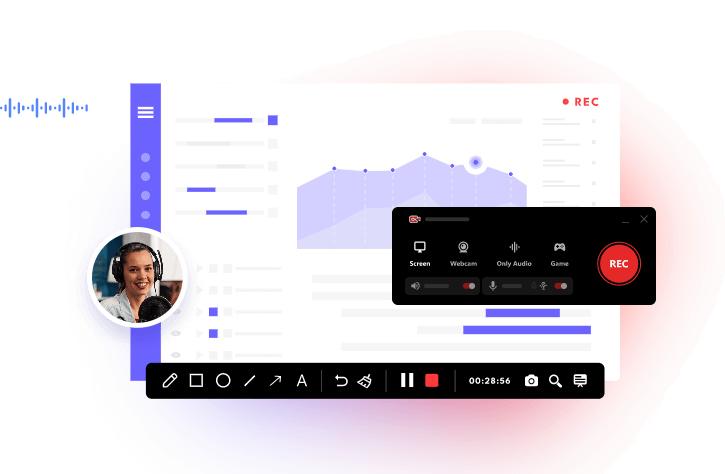
iTop Screen Recorder is a versatile Windows recording application designed for capturing desktop activities, games, video calls, and tutorials. It combines recording controls, audio capture, and basic editing capabilities in one interface.
For users looking for the best free screen recorder for PC, iTop Screen Recorder offers an accessible starting point, with additional functionality available through paid editions.
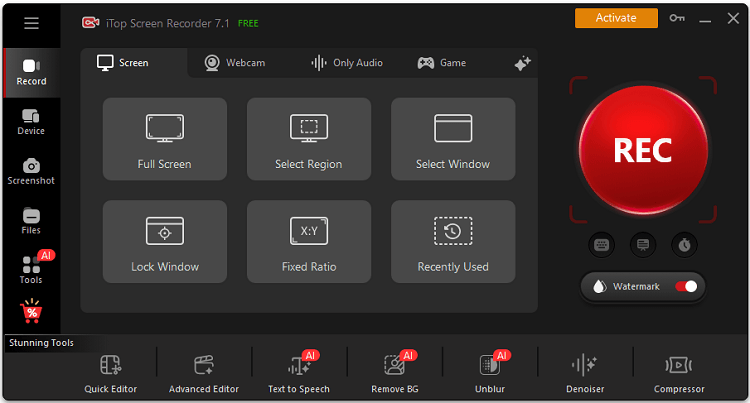
Key features:
- Flexible Recording Modes: Captures the entire screen, selected regions, application windows, or gameplay.
- High-Quality Video Recording: Supports adjustable recording settings, with higher-quality options depending on the edition.
- System and Microphone Audio: Record computer sound and voice narration for presentations, lessons, and tutorials.
- Webcam Overlay: Includes webcam footage alongside screen recordings.
- Hardware Acceleration: Uses supported GPU acceleration to help improve recording efficiency.
- Built-in Video Editor: Trims and makes basic adjustments to recordings without relying on separate editing software.
- Custom Recording Hotkeys: Control recording quickly using configurable keyboard shortcuts.
- Record Online Meetings with Audio: Use iTop Screen Recorder to record Zoom meeting sessions, online classes, and presentations with system audio and microphone narration when permitted.
- Protected Video Recording Support: Explore supported capture options to screen record protected videos for authorized personal or educational purposes, although DRM restrictions may prevent recording.
Pros:
- Beginner-friendly interface.
- Multiple recording modes.
- Convenient audio and webcam controls.
- Integrated editing capabilities.
Cons:
- Some advanced features require Pro.
- Free-edition restrictions may include watermarks or quality limitations.
2. OBS Studio – Best for Gaming and Professional Recording
Best for: Gamers, streamers, and advanced video creators.
OBS Studio is a versatile, free, open-source program that enables users to record gameplay, stream live content, and create high-quality videos with advanced recording capabilities. It offers flexible customization options for video sources, encoding configurations, and audio mixing to meet different recording needs.
As a best free PC screen recorder candidate for experienced users, OBS Studio offers professional-level flexibility without subscription fees.
Key features:
- Scene-Based Recording: Combine multiple windows, screens, webcams, and media sources.
- Advanced Encoding: Configure resolution, frame rate, bitrate, and supported hardware encoders.
- Audio Mixer: Manage desktop audio, microphones, and individual audio sources.
- Streaming Integration: Broadcast to supported livestreaming platforms.
- Plugin Support: Extend functionality through compatible plugins.
Pros:
- Completely free and open-source.
- No built-in watermark or recording time limit.
- Extensive recording customization.
Cons:
- Steeper learning curve.
- Complex scenes can consume significant system resources.
3. ShareX – Best for Screen Capture and Workflow Automation
Best for: Technical writers, software testers, and tutorial creators.
ShareX is a free, open-source Windows capture utility that supports screenshots, screen recordings, GIF creation, and automated post-capture workflows. It is particularly useful for people who regularly document software processes.
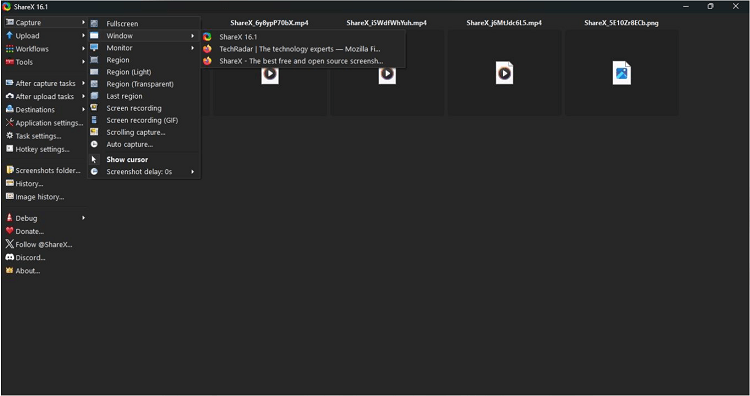
If you need the best free PC recording software for technical demonstrations and quick captures, ShareX is worth considering.
Key features:
- Region Recording: Capture selected screen areas as video or animated GIFs.
- Custom Capture Hotkeys: Launch recording and screenshot tasks with shortcuts.
- Workflow Automation: Configure actions after a capture is completed.
- Export Options: Save files locally or upload them to supported destinations.
Pros:
- Free without a watermark.
- Extensive customization.
- Excellent screenshot management tools.
Cons:
- Its interface can feel complicated.
- Less suitable for advanced multi-source video production.
4. Xbox Game Bar – Best Built-In Windows Game Recorder
Best for: Casual gamers and users recording supported applications.
Xbox Game Bar is Microsoft's built-in Windows gaming overlay. It allows users to record supported games and application windows without installing additional screen recording software.
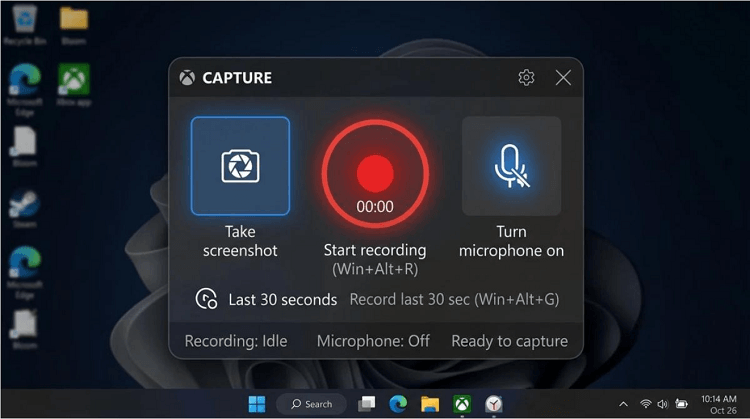
For anyone searching for a top free screen recorder for PC, Xbox Game Bar provides a convenient solution for quick gameplay clips.
Key features:
- Instant Recording: Start or stop recording with Windows + Alt + R.
- Background Capture: Save recent gameplay when background recording is enabled.
- Audio Controls: Configure game audio and microphone capture.
- Performance Widgets: View supported system performance information.
- Windows Integration: Access recording features directly through Windows.
Pros:
- No additional download required.
- Simple keyboard shortcuts.
- No recording watermark.
Cons:
- Cannot record the Windows desktop or File Explorer.
- Limited editing and recording customization.
5. ScreenRec – Best for Quick Recording and Sharing
Best for: Remote workers, customer support teams, and quick explanations.
ScreenRec focuses on fast screen capture and convenient sharing. It is designed for users who need to record short demonstrations, explain problems, or communicate visually with coworkers.
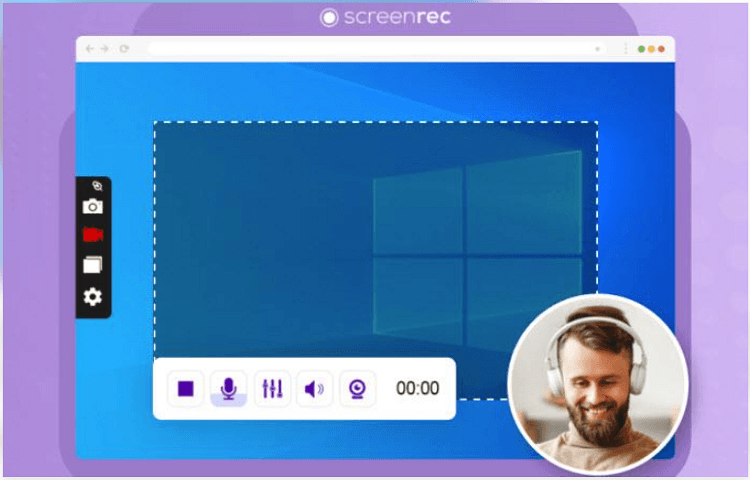
Its straightforward workflow makes it a practical option for everyday recording tasks.
Key features:
- Quick Screen Capture: Record selected screen regions with minimal setup.
- Audio Recording: Capture microphone and support computer audio.
- Sharing Links: Generate shareable links through its cloud-sharing functionality.
- Capture History: Access previously recorded content.
- Screenshot Support: Capture still images alongside video recordings.
Pros:
- Lightweight and easy to use.
- Convenient sharing functionality.
- No watermark on recordings.
Cons:
- Limited video editing.
- Some cloud features require an account.
6. FlashBack Express – Best for Simple Desktop Tutorials
Best for: Teachers, students, and business presentations.
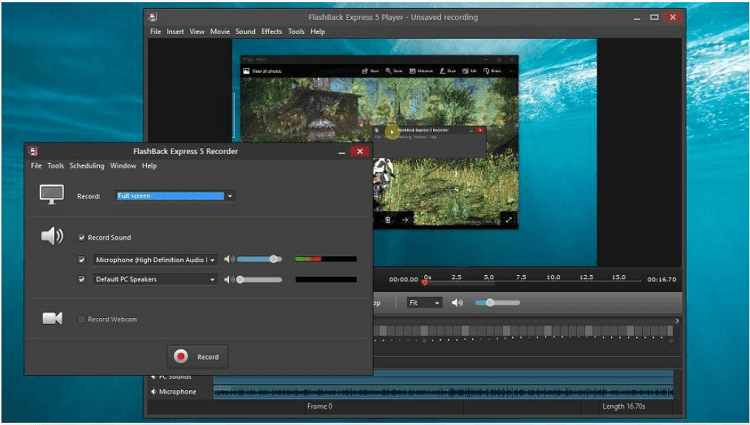
FlashBack Express is a Windows screen recorder designed for capturing presentations, desktop demonstrations, and instructional videos. Its approachable interface makes it suitable for people who prefer straightforward recording controls.
Key features:
- Desktop Capture: Record full screens or selected areas.
- Audio Recording: Capture microphone narration and computer sound.
- Webcam Capture: Include webcam footage in supported recordings.
- Recording Controls: Manage capture sessions through a simple interface.
- Video Export: Save recordings in supported output formats.
Pros:
- Beginner-friendly recording experience.
- Useful for training and tutorials.
- Free recording functionality.
Cons:
- Advanced editing may require a paid product.
- Features and export options vary by edition.
7. Bandicam – Best for High-Performance Gameplay Recording
Best for: Gamers evaluating dedicated game recording software.
Bandicam is a Windows screen and game recording application known for its hardware-accelerated capture options. It is useful for recording demanding games and other graphics-intensive applications.
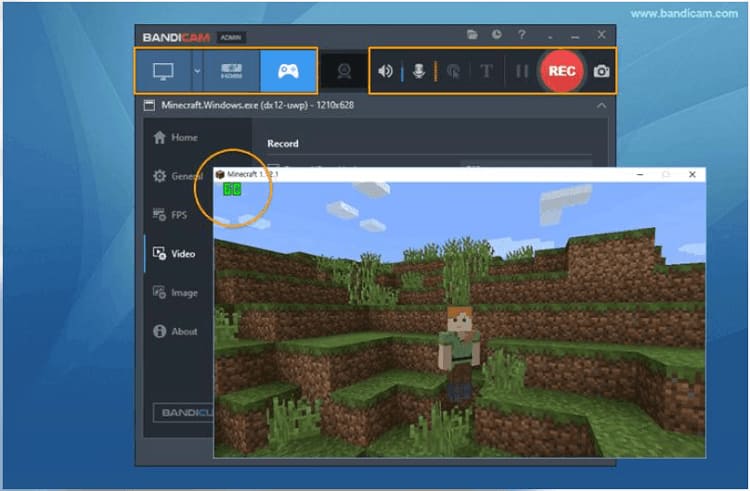
Its free edition offers a way to evaluate recording performance before purchasing a license.
Key features:
- Game Recording Mode: Capture games using supported graphics APIs.
- Hardware-Accelerated Encoding: Use compatible GPU encoders for efficient recording.
- Screen Recording Mode: Capture desktop activity and selected regions.
- Webcam Overlay: Include camera footage in supported recordings.
- Audio Capture: Record system sound and microphone input.
Pros:
- Optimized for gameplay recording.
- Adjustable recording quality.
- Supports multiple capture modes.
Cons:
- Free recordings include a watermark.
- The free edition has a 10-minute limit per recording.
How to Record Your PC Screen with iTop Screen Recorder
After comparing the available tools, you may want to test a recorder yourself. If you're looking for the good free screen recording software for PC Windows 11 users can try, iTop Screen Recorder offers a straightforward workflow. The following instructions also apply to supported Windows 10 computers, although the interface may vary slightly by version.
Step 1. Download and install iTop Screen Recorder.
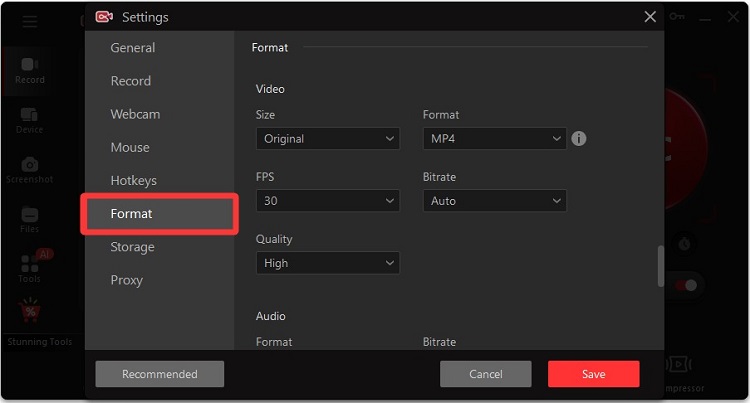
Step 2. Launch the software and open Settings to adjust supported recording options, such as video quality, output format, and save location.
Step 3. Select Screen from the recording options. Choose Full Screen, Select Region, or Select Window.
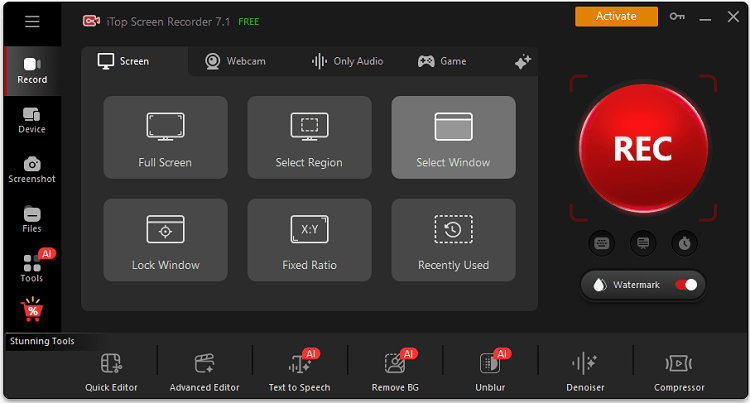
Step 4. Enable Speaker, Microphone, and Webcam as needed for your recording. Click REC to begin capturing your screen.
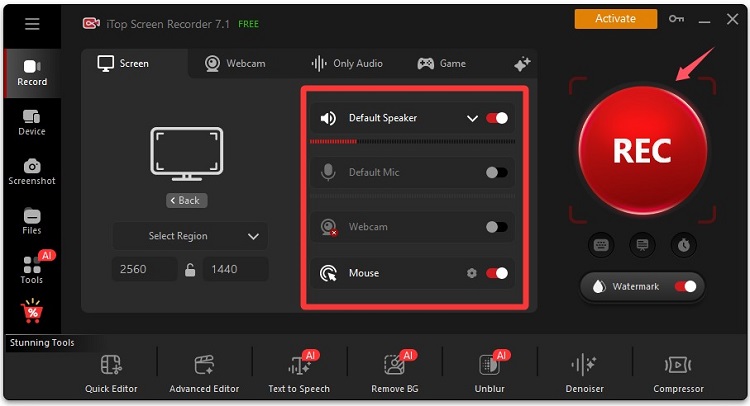
Step 4. Once captured the desired screen, click the stop icon to stop recording. Open the saved recording in the built-in editor to trim unnecessary sections, then export the result.
FAQs About Free PC Screen Recording Software
What is the best free screen recording software for PC free of watermarks?
OBS Studio, ShareX, and FlashBack Express are strong choices for watermark-free recording. iTop Screen Recorder's free edition adds a watermark, while Pro supports watermark removal.
Which recorder works best on Windows 10?
For users searching for the best free screen recording software for PC Windows 10 compatibility, OBS Studio, iTop Screen Recorder, and FlashBack Express are worth considering. The right choice depends on whether you prioritize gameplay, tutorials, or simple desktop capture.
Can I record my PC screen with audio for free?
Yes. OBS Studio, iTop Screen Recorder, FlashBack Express, and several other free recording tools support microphone and system audio capture. Check the application's audio settings before recording.
Conclusion
Choosing the best free screen recording software for PC depends on your needs. OBS Studio excels at advanced recording, ShareX is useful for technical captures, and Xbox Game Bar handles quick gameplay clips. iTop Screen Recorder offers a beginner-friendly combination of screen capture, audio recording, webcam support, and editing tools. Just download iTop Screen Recorder to record the video you want. For example, you can screen record Instagram DM with this helpful tool.