


iTop Screen Recroder
The Easiest Way to Record Your PC Screen


Buy iTop Screen Record PRO to Enjoy More
Create high-quality screen recordings and save big.
The Easiest Way to Record Your PC Screen
Share


How do I screen record Monkey app with sound? I want to save a video chat while maintaining the audio. Is there a way to make this?
Monkey creates a digital community that helps people make new friends worldwide through real-time, face-to-face video calls. It uses a random matching system to build borderless human connections instantly. Alternative to Omegle, Monkey app delivers a safe and smart way to talk to strangers.
Some users also seek an available screen recording solution to save memorable interactions, create funny clips, etc. How to screen record on Monkey app? The steps depend on your device.
Monkey is accessible through web browsers on desktop. With a professional screen recorder, you can capture a video chat or any other content on Monkey flexibly.
Log in your account, start a video chat and then record Monkey app videos following the guides.
On PC:
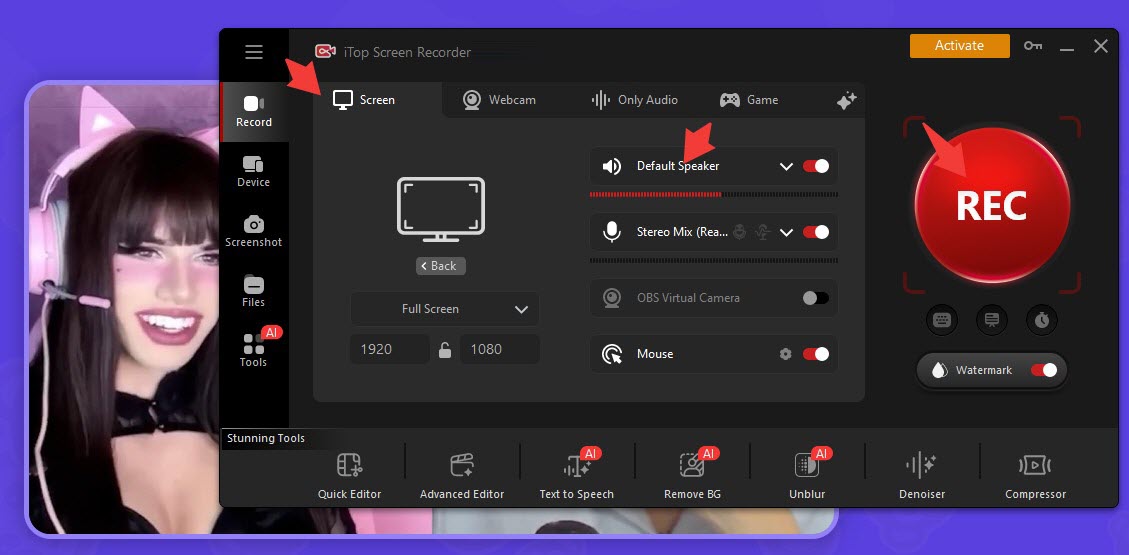
iTop Screen Recorder is a recommended screen recorder free to capture anything on your screen. It can create high-quality screen recordings with audio while ensuring clear details. You can not only keep all information during a video chat, but use the built-in annotation tools to highlight key points for later reviewing or content creation.

Record screen, webcam, audio and gameplay with ease. Create high-quality screen recordings with no lags and fps drops.
1. Launch the screen recorder after installation.
2. Go to Record > Screen. Select recording area.
3. Turn on Speaker to record a video chat with audio.
Optional: If you need to make a tutorial video of how to use Monkey on PC, it is suggested to turn on Mic and Web to record the screen with yourself for better engagement.
4. Click REC button to start recording.
5. Click Stop button to finish the recording anytime you want.
On Mac:
OBS is an open-source and popular screen recorder available for macOS. It offers a set of advanced and customizable options, best for content creators.
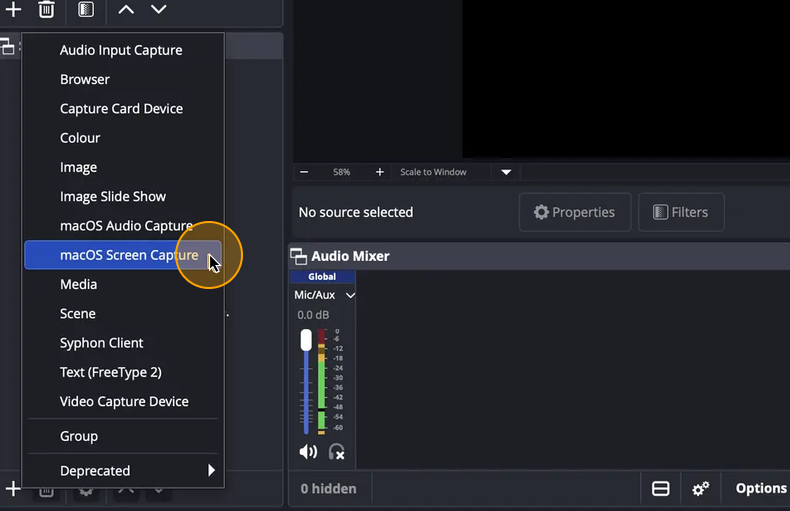
1. Open OBS. Click Add Sources (+) and select macOS Screen Capture.
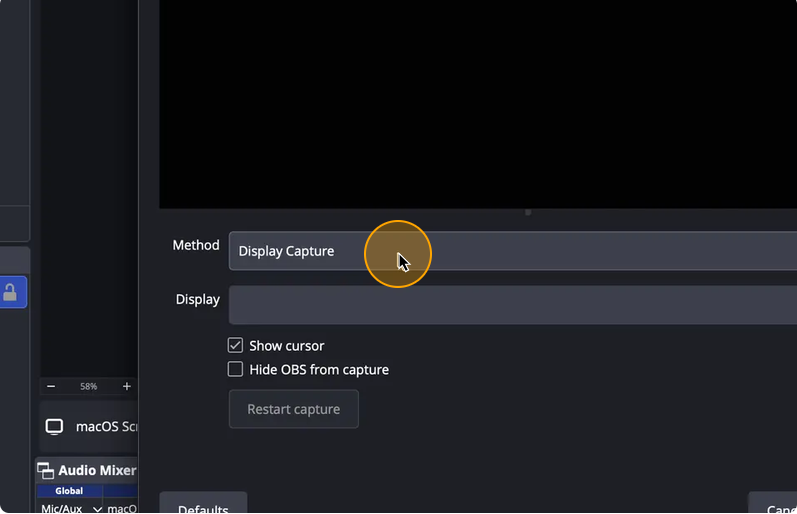
2. Set Display Capture as Method and select the Display.
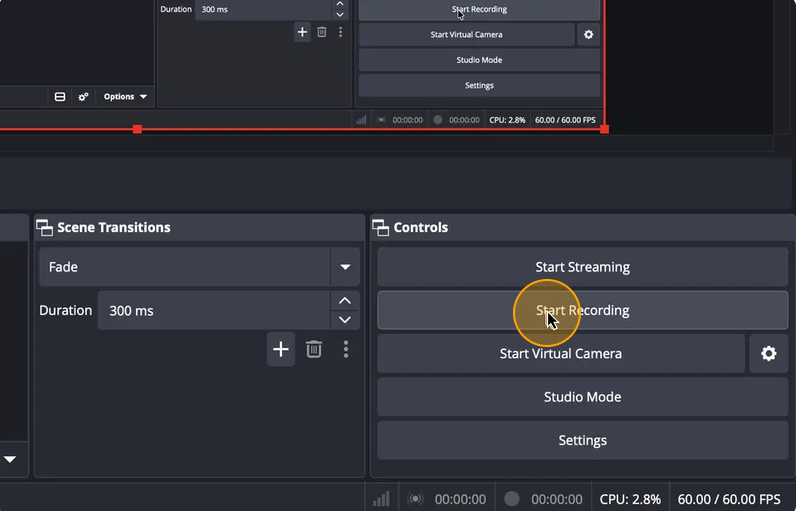
3. Click Start Recording to record your screen.
4. Click Stop Recording to finish the task.
All modern Android devices have built-in screen recording feature that allows you to screen record on Monkey app conveniently.
1. Open Monkey App and go to the screen you want to record.
2. Swipe from the top of the screen and tap Screen Recorder (or Screen Record)
3. Select Media and Microphone when it prompts for audio capturing.
4. Tap Start recording to record the video chat or app activity.
5. Tap the floating control bar or swipe down again to press Stop.
While Monkey doesn't offer a standalone iOS app like Android, you can use the web version through your browser and record the content with the built-in iOS screen recorder.
1. Swipe down from the top of the screen to open the Control Center.
2. Press and hold the Screen Record icon.
3. Tap the Microphone button to turn it On.
4. Open the Monkey and start your call.
5. Tap the red recording indicator at the top of the screen. Or, open Control Center and top the Record icon.
Notice: iOS frequently mutes or restricts internal app audio during active video calls, causing that audio is missing in your recording. Turn off the silent mode and turn on your device microphone to ensure that you can screen record Monkey app with sound.
Yes No
Thanks for your feedback!Share
 Do you have any more questions? Share with us

Invalid email address
 Submitted successfully
 People Also Ask
Can I screen record on Fambase? How to screen record Fambase lives and videos to watch later? Any solution?
Can I record Chaturbate? How to record Chaturbate videos or streams hassle free? Any solution is appreciated.
I am trying to record a live stream on Tango for later watching. Can you screen record on Tango? How to record Tango Live?
Subscribe to Our Newsletter
Subscribe to our newsletter to stay updated every moment.

Subscribe to Our Newsletter
Subscribe to our newsletter to stay updated every moment.
© 2026 iTop. All rights reserved.


